HP Printer Error 79 [Fixed]
![HP Printer Error 79 [Fixed]](https://printertales.com/public/upload/blog/68ca7aba9a53d_hp-printer-error-79-fixed-.webp)
Are you seeing Error 79 on your computer screen? This happens because of a corrupted document, outdated firmware, or interference from external apps or print servers. It can disrupt your printing and cause frustration, especially during important tasks. You might be wondering how to fix HP printer error 79. The good news is that this common problem can be solved with a few simple steps, such as restarting the printer, updating the firmware, or clearing pending print jobs. Before starting, be aware of any potential issues that might affect the troubleshooting process.
Problems That Occur When Fixing HP Printer Error 79
These are some of the common issues that might crop up during the troubleshooting of HP printer error 79:
- Firmware update failure
- Incorrect driver reinstallation
- Disruption of office workflow
- Network conflicts
- USB or Ethernet cable issues
3 Easy Solutions to Resolve HP Printer Error 79
There are 3 different ways that you can apply to resolve the HP Printer Error 79. A few of them are as follows:
Method 1: Restart Printer
Step 1: Turn off your printer.
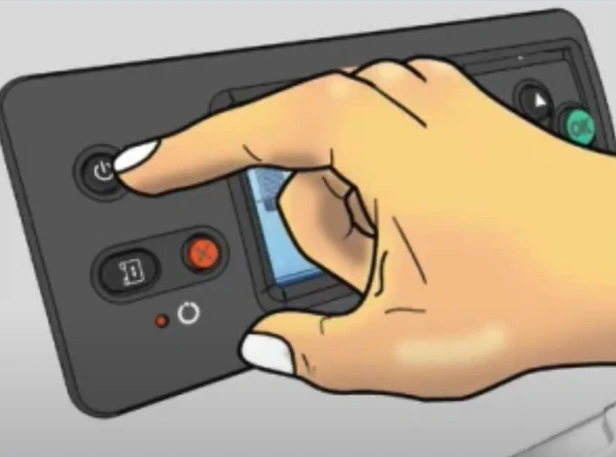
Step 2: Wait for at least 30 seconds and then turn on your printer again.
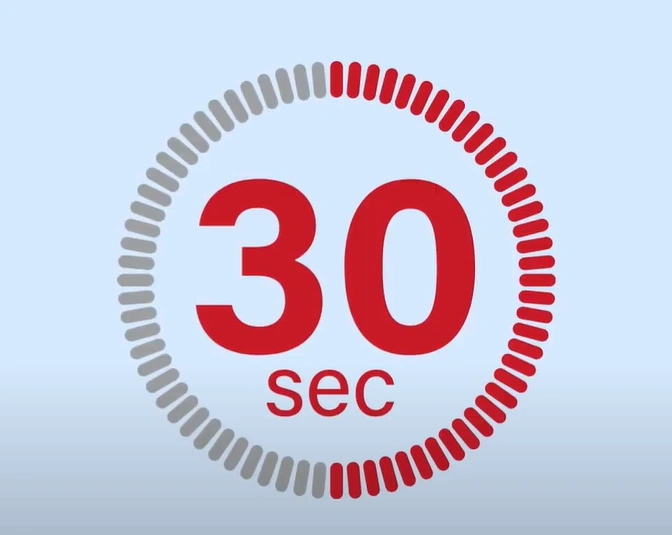
Note: If your printer is connected through a surge protector, then remove it and plug the printer directly into a wall outlet.
Method 2: Update Firmware
Step 1: Ensure your computer and printer are connected.
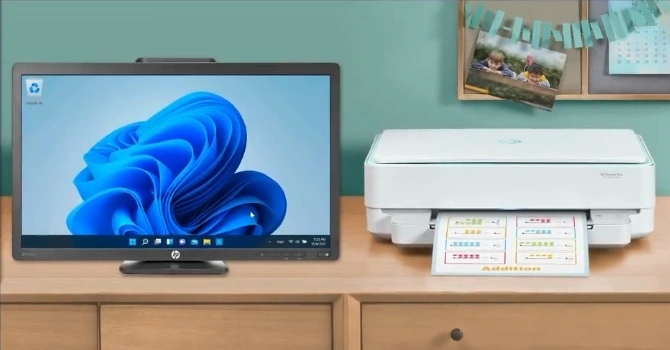
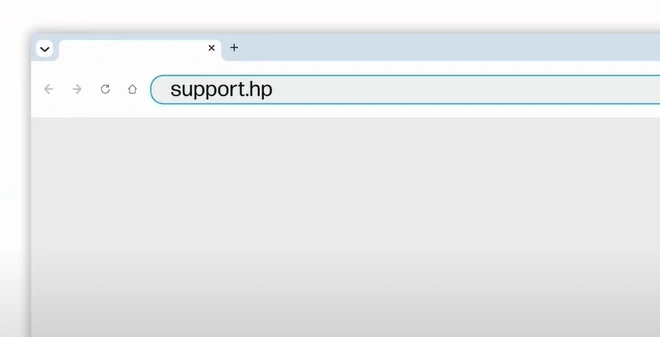
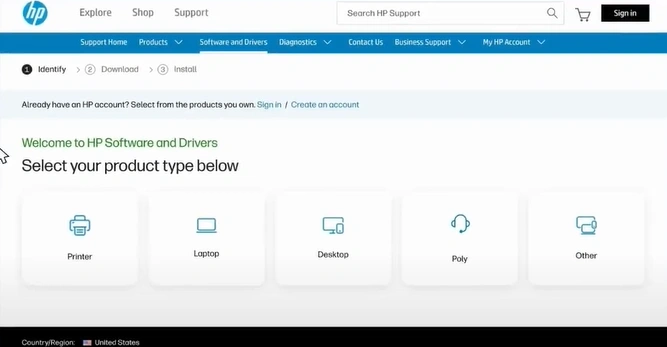
Step 2: Go to your HP support website for drivers.
Step 3: Select Printer in product type.
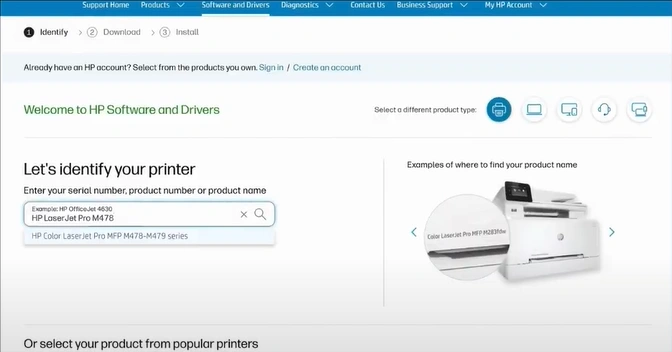
Step 4: Under the Identify your printer section, find your printer.
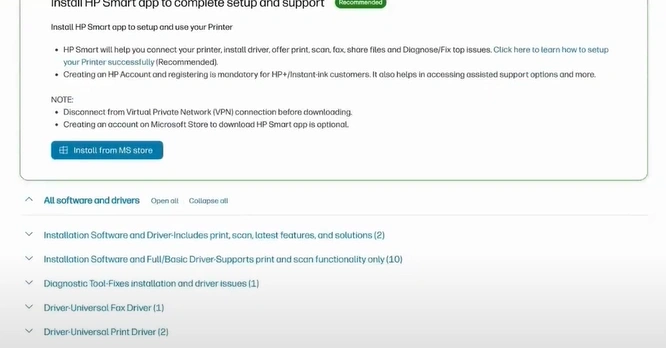
Step 5: Scroll down to the firmware section and download the latest update.
Step 6: Open the downloaded file and check the status of your printer.
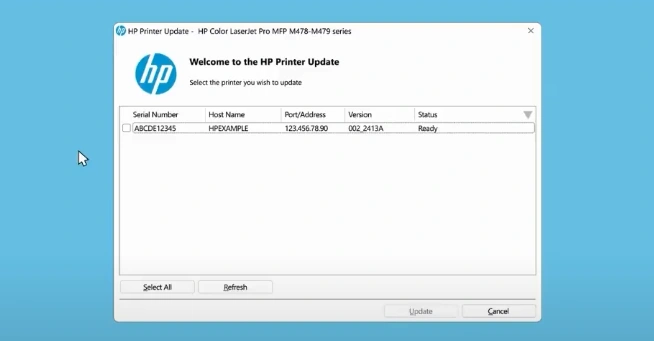
Step 7: If your network printer isn’t detected, temporarily connect it to your computer using a USB cable.
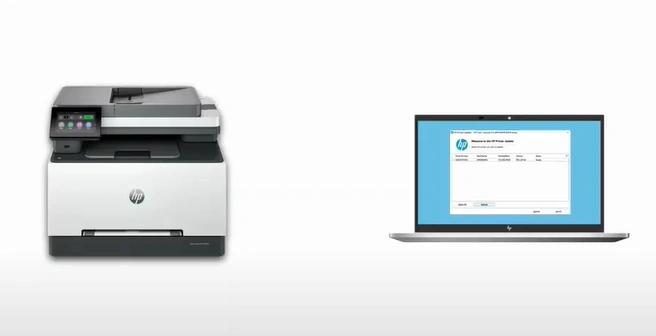
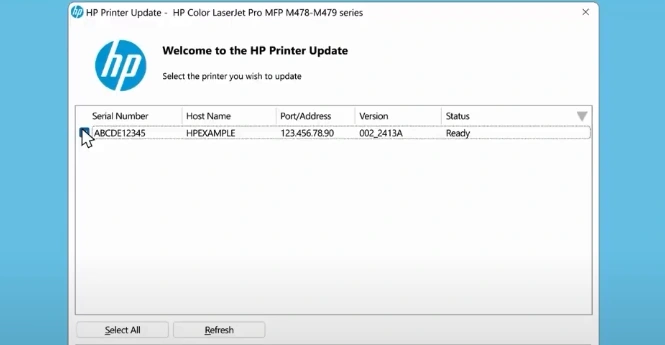
Step 8: Wait 20 seconds and click Refresh in the HP software.
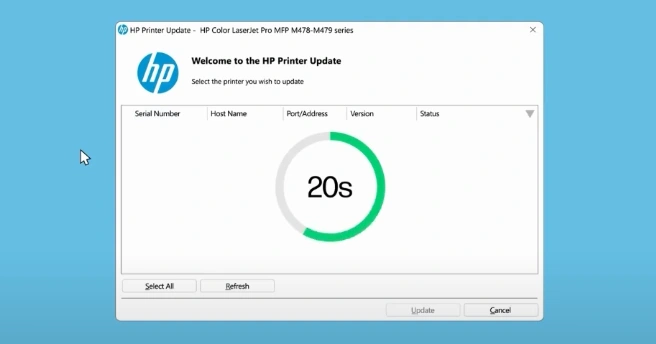
Step 9: Click on Update.
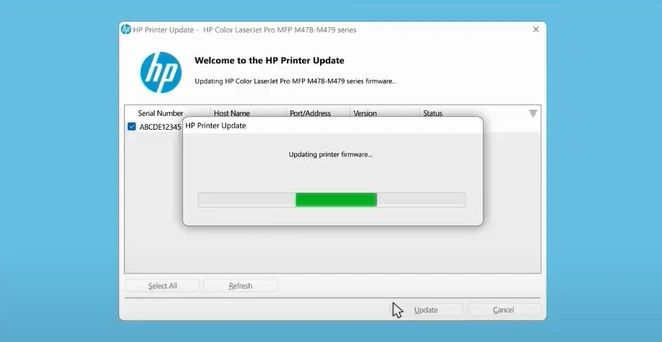
Step 10: Allow the firmware update to complete; do not turn off the printer during the process.
Method 3: Delete All Print Jobs
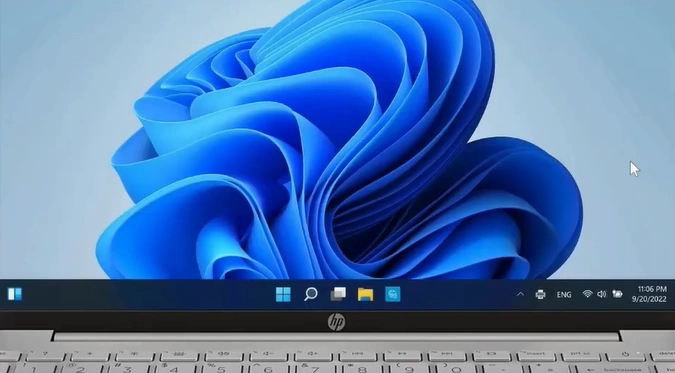
Step 1: Double-click on the printer icon at the bottom right of the taskbar.
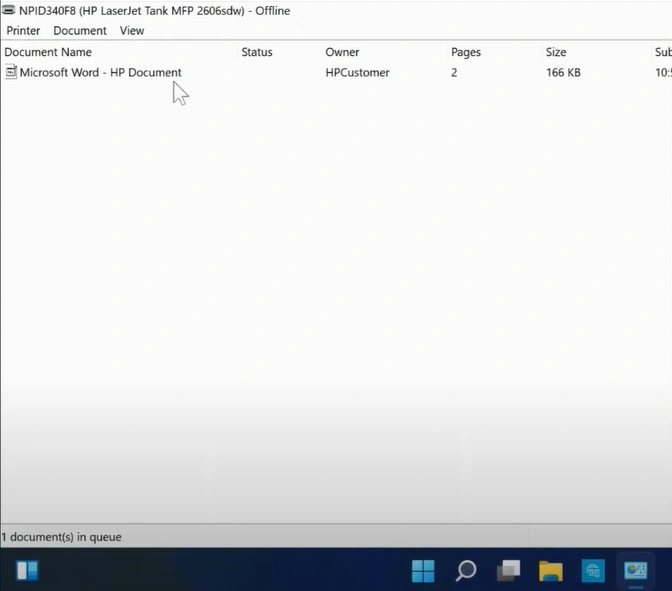
Step 2: Right-click on the print job you want to cancel.
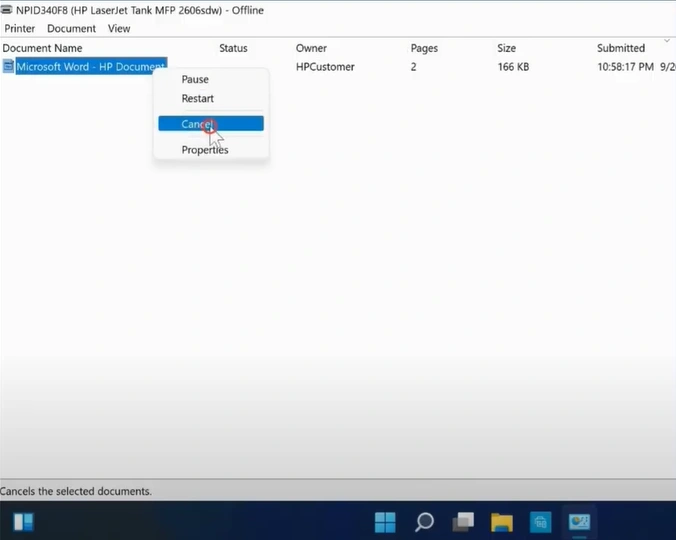
Step 3: Select the Cancel option.
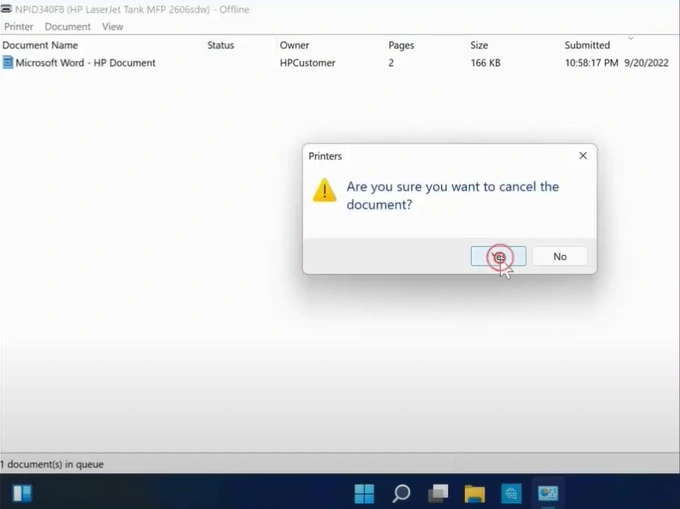
Step 4: Click Yes to confirm your cancellation.
Bottom Line
Use the methods mentioned above to fix HP printer error 79 and get back to printing without interruptions. Follow each step carefully to ensure the issue is resolved efficiently. By doing so, you can avoid disruptions caused by error messages or unexpected printer shutdowns during important print tasks and maintain a hassle-free printing experience.
Related Article

