How to Update Lexmark Printer Driver?

If you are using a Lexmark printer and recently upgraded from Windows 10 to Windows 11, you need to update your printer driver, as the old one may no longer be compatible with the new system.
Without updating the driver, you may face issues such as the printer not being detected, printing blank pages, or showing errors during tasks. An outdated driver can cause these problems. To avoid them, update your Lexmark printer driver – but how? We have explained the complete process below. First, let’s look at the common mistakes to avoid when updating your Lexmark printer driver.
Mistakes to Avoid When Updating Lexmark Printer Driver
Avoid some common mistakes when you are updating the Lexmark printer driver. Let’s take a look at them:
- Forgetting to remove the old driver
- Using the wrong driver version
- Installing from unofficial or third-party sites
- Not disabling security software during installation
- Ignoring firmware updates
Steps to Update Lexmark Printer Driver
Timely updating of your Lexmark printer driver is the key to enjoying consistent performance and minimal errors. Keeping printer drivers up-to-date is essential, particularly after a major OS upgrade.
Follow the steps below to update your Lexmark printer driver the right way:
Step 1: Launch your internet browser and search for your printer driver.
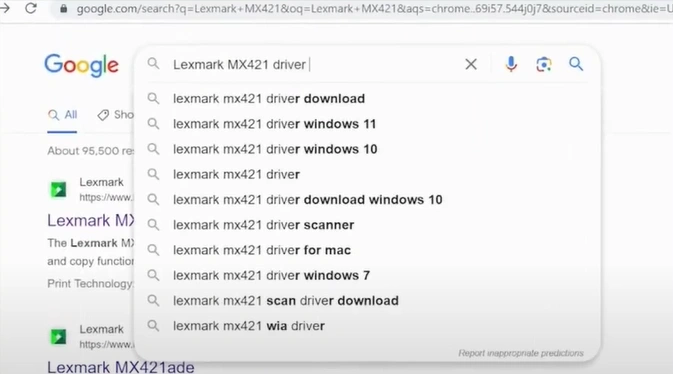
Step 2: Go to the official Lexmark website.
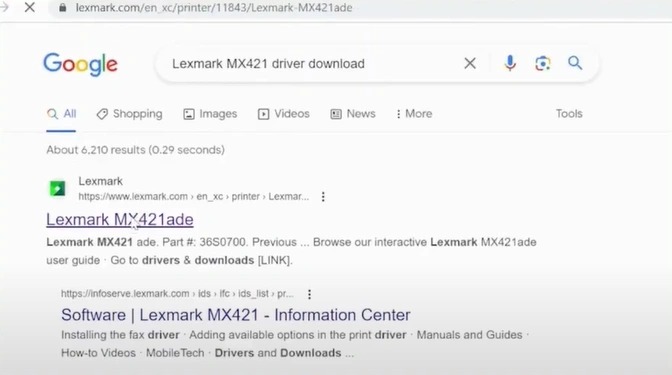
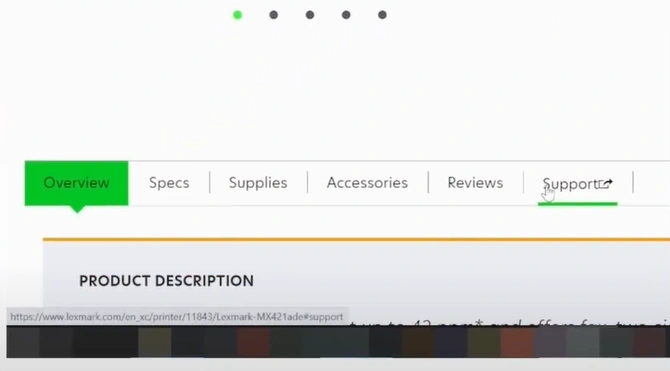
Step 3: Navigate down the page and select the Support option.
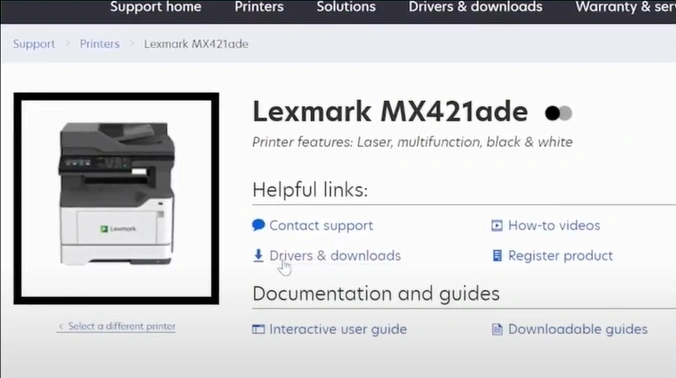
Step 4: Open the Drivers & Downloads section.
Step 5: Use the filters to select your operating system and printer model.
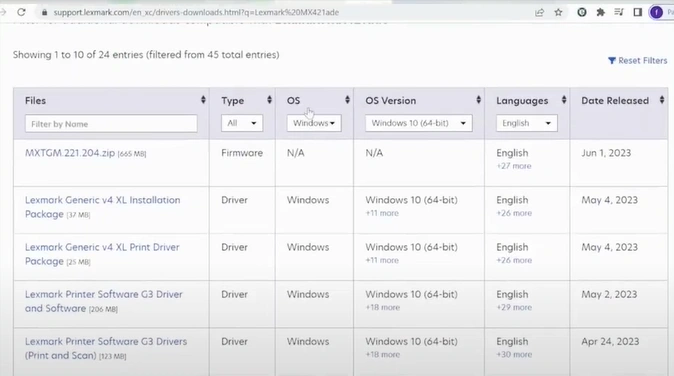
Step 6: Click on the Printer Driver.
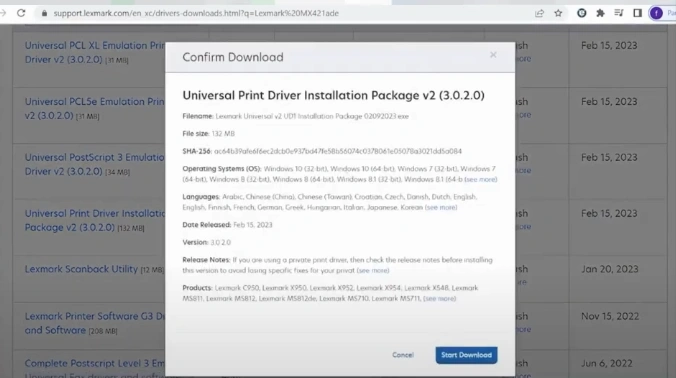
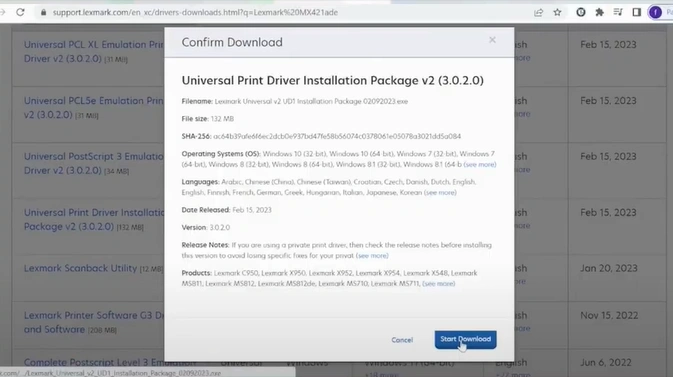
Step 7: In the Confirm Download pop-up, click on Start Download. Once the file is downloaded, open it to start the installation.
Updating your Lexmark printer driver helps prevent issues like connection failures, printing errors, or slow performance. Ensure that the printer driver is updated to the newest version to achieve the best performance and compatibility. Follow the steps above carefully to complete the update successfully.
Always download the driver from the official Lexmark website. Don’t forget to remove the old driver and ensure you select the correct driver version.

