How to Connect Brother Printer to Computer?

Have you just bought a brand-new Brother printer? You might be excited but unsure how to set it up. Maybe you left it unused for a while, but now, with all the pending work, you finally feel the need to use it. After sitting idle for a few days, the pile of documents and a fast-approaching client deadline make it clear - it’s time to set up your printer and put it to use.
To get started with your new Brother printer, the first step is to connect it to your computer. The good news is, you don’t need to be a tech expert - it’s a simple process. However, the connection will only work if you follow the right steps. That’s why we have explained the entire process of connecting a Brother printer to a computer below. So, let’s dive in.
Steps to Connect a Brother Printer to Your Computer
Here’s a simple step-by-step guide to connect your Brother printer to a computer.
Step 1: Open a browser window and search for the Brother printer driver according to your product name.
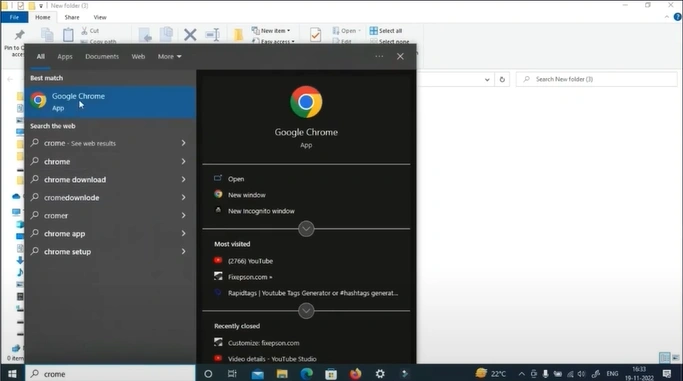
Step 2: Open the official website.
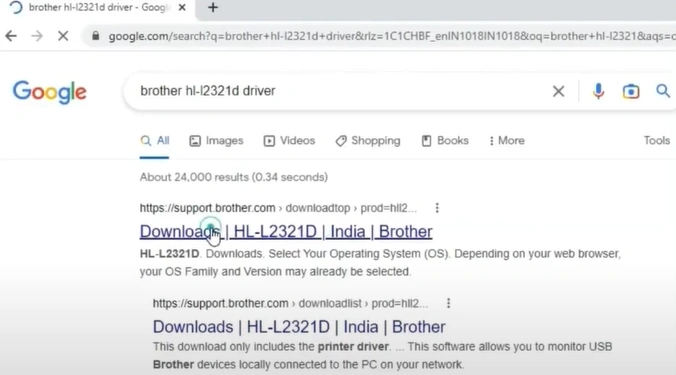
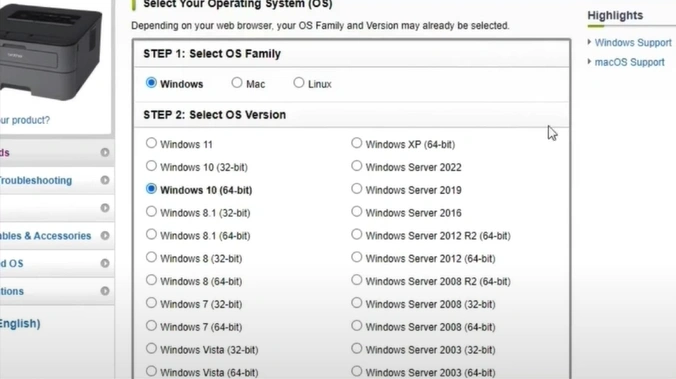
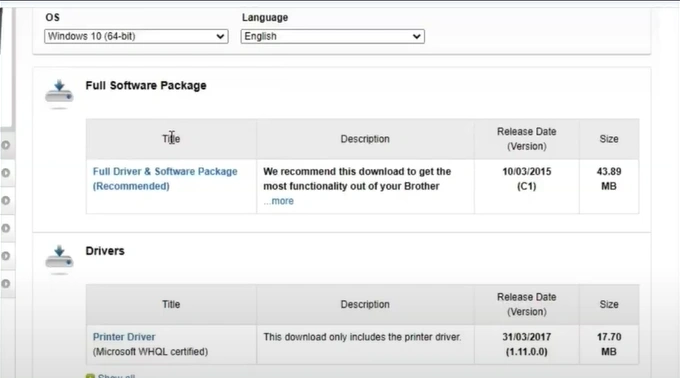
Step 3: Select your operating system from the list provided.
Step 4: Scroll down and select the full driver and software package.
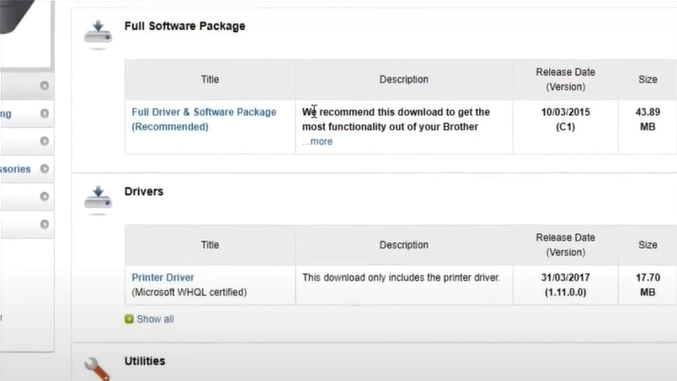
Step 5: Click on the full driver and software package.
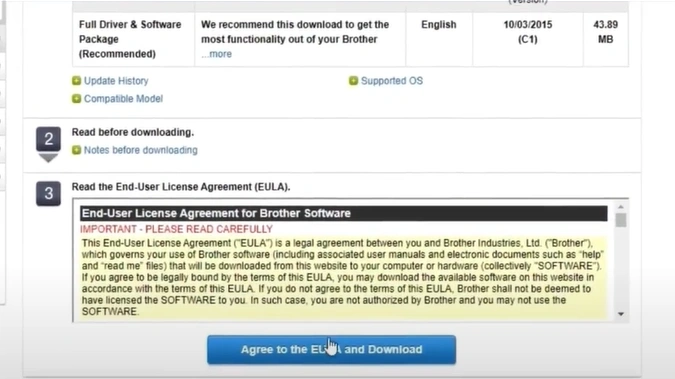
Step 6: Read the license terms carefully, then click on the “Agree to the EULA and Download” button.
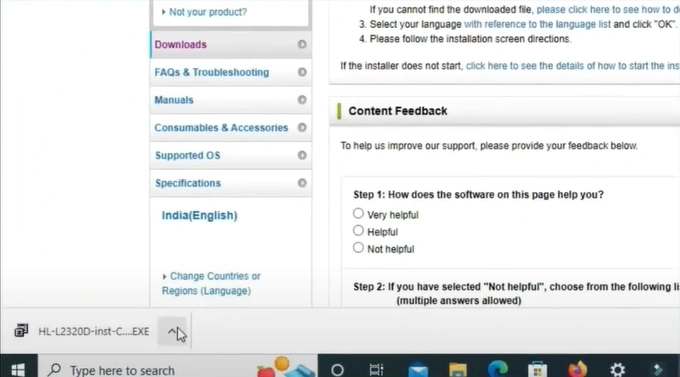
Step 7: Once downloaded, open the file.
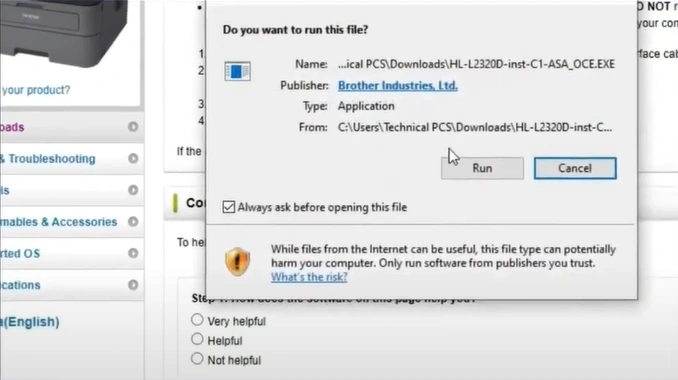
Step 8: In the security warning window, click on Run.
Step 9: Once the decompression is successful, check the language and click on OK.
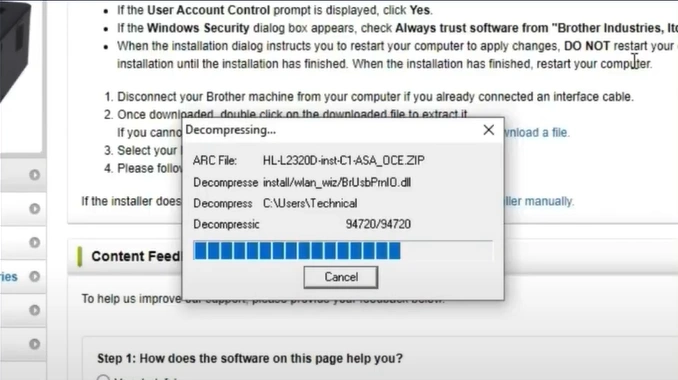
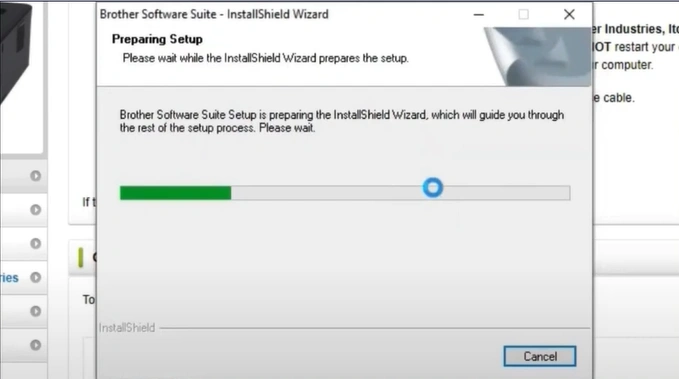
Step 10: Wait for the setup to prepare.
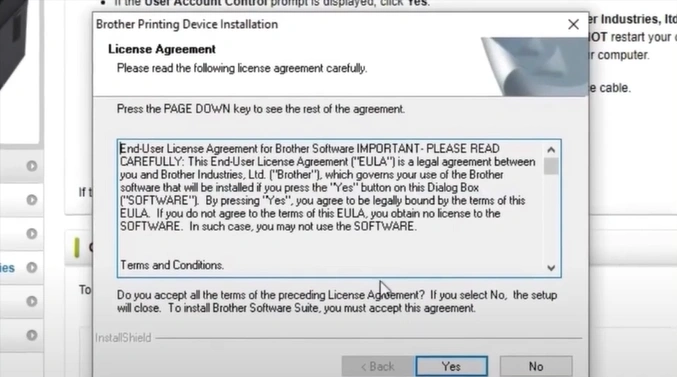
Step 11: Review the license agreement and click on Yes.
Step 12: Choose the setup type and click on Next.
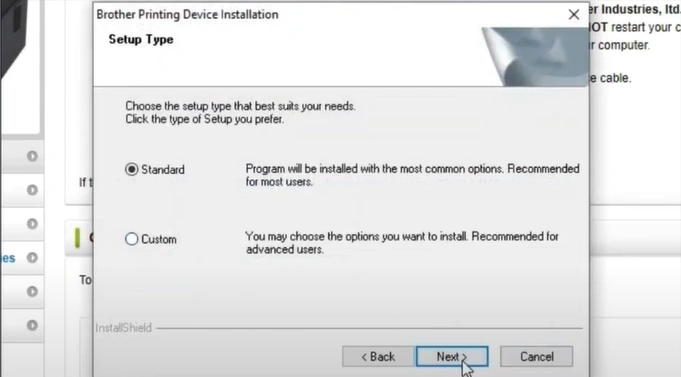
Step 13: If you have selected the standard type, the installation will start.
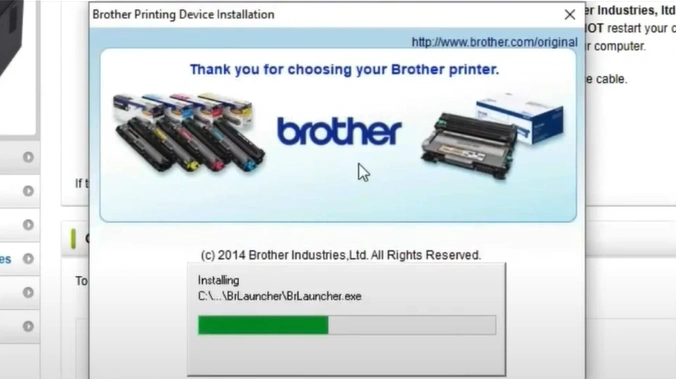
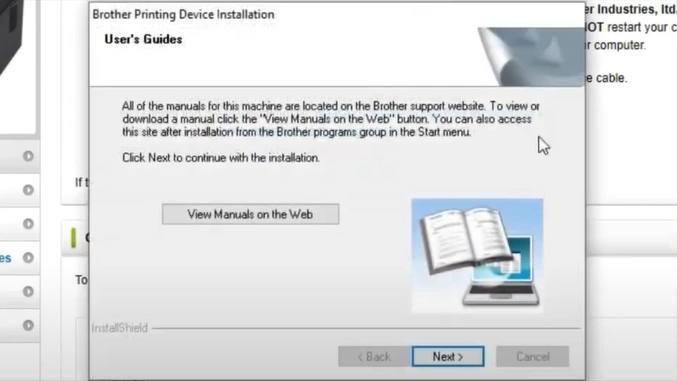
Step 14: In the User’s Guide window, click on Next.
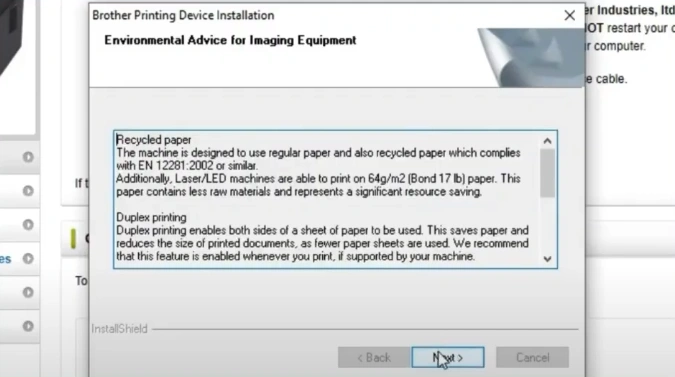
Step 15: Read the environmental advice and click on Next.
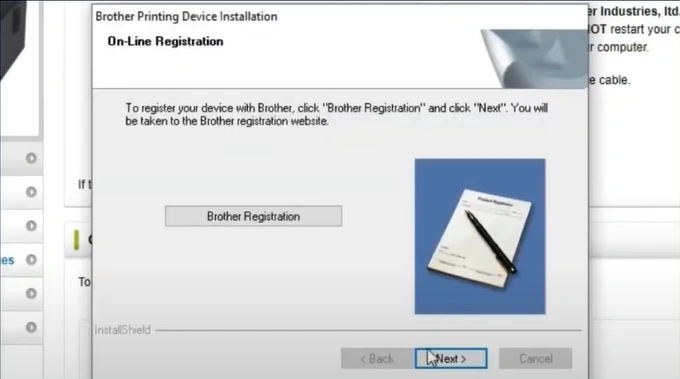
Step 16: Register your device with Brother and click on Next.
Step 17: Once the window show setup is complete, click on Next.
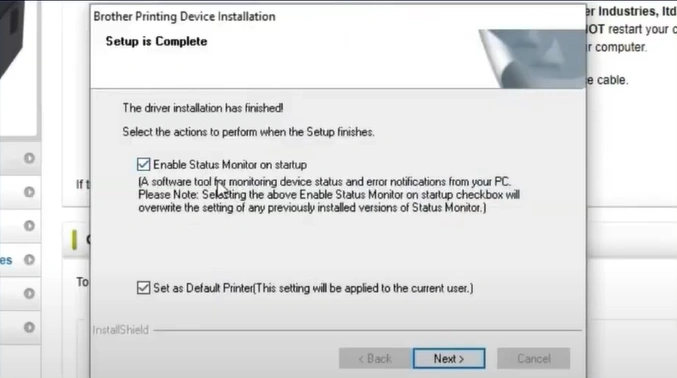
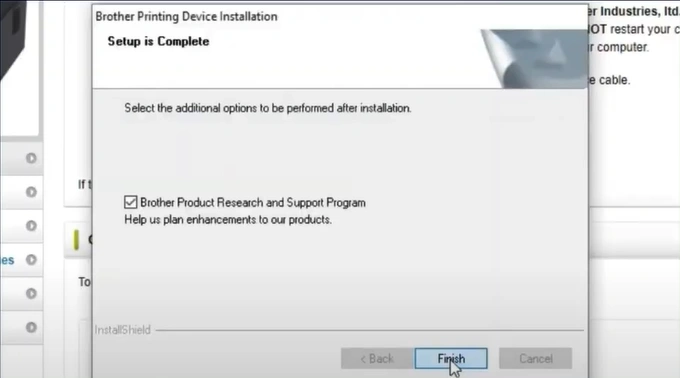
Step 18: At last, click on the Finish button.
To Conclude
That’s how you can connect Brother printer to computer. With the printer connected to your PC, you are all set to print documents and photos directly from your computer. Make the most of the advanced features and functionalities of the Brother printer. Go ahead, explore the features, and start printing and scanning with confidence!
Related Guide

