How to Connect HP DeskJet 4120e to WiFi?

The HP DeskJet 4120e wireless connection allows you to use its functions for printing, copying, and scanning documents hassle-free. The WiFi setup of this printer is easy, yet you must have the proper understanding to complete the process. Otherwise, you may face several problems during the process.
In addition, if you're new, it can be challenging to complete the setup from scratch. As a result, if you are also looking for a guide to connect your HP DeskJet 4120e to WiFi, then here is all you need. Let's walk through the proven guide to setting up a wireless connection using the HP Smart App.
Easy Steps to Connect HP DeskJet 4120e to WiFi
1. Go to the printer's control panel, and you need to enter the printer into setup mode.
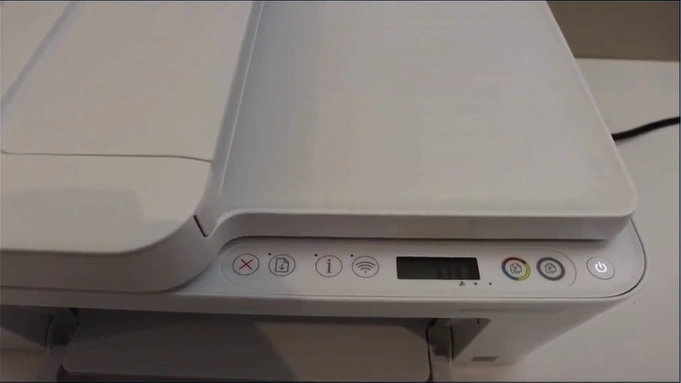
2. Press and hold the Cancel and Wireless buttons together until the power button blinks.
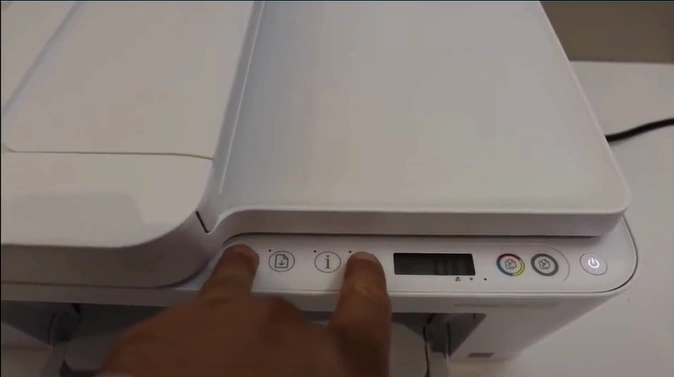
3. Once the power button blinks, release the two buttons.
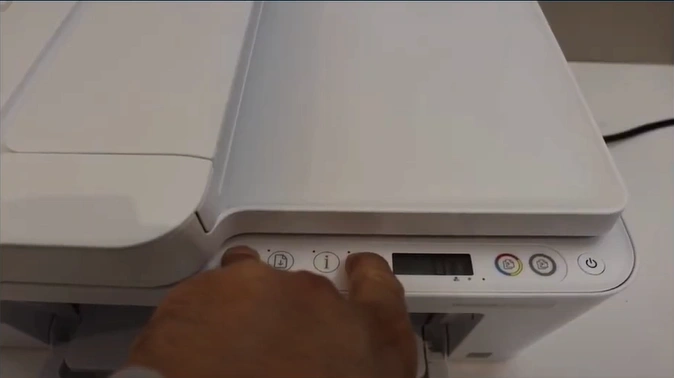
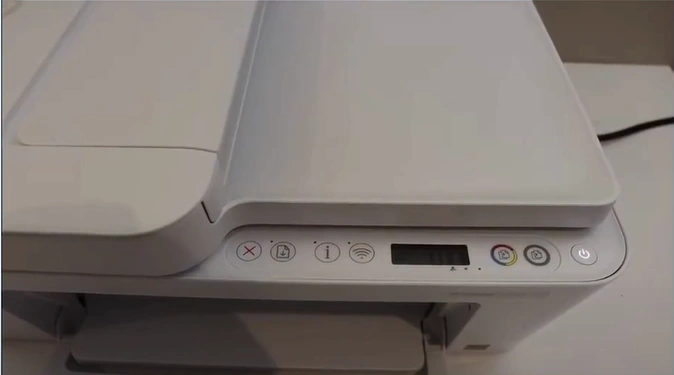
4. Wait for the Power light to stop blinking and the wireless button to start blinking.
5. Go to your device and download the HP Smart application.
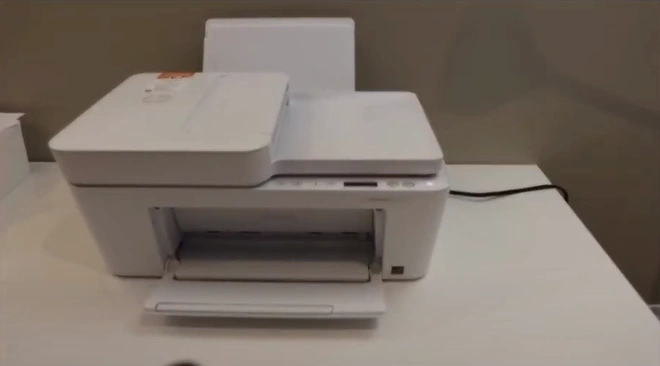
6. Now, open the HP Smart application.
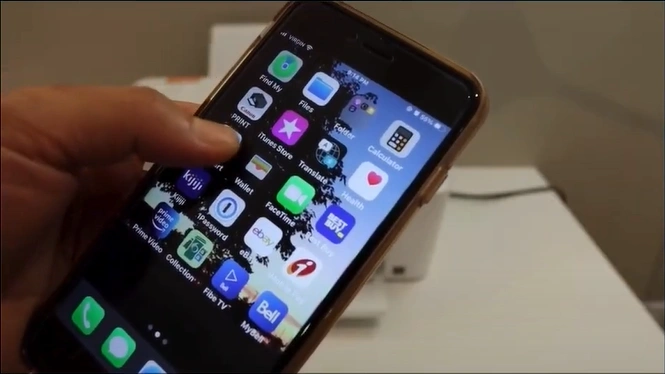
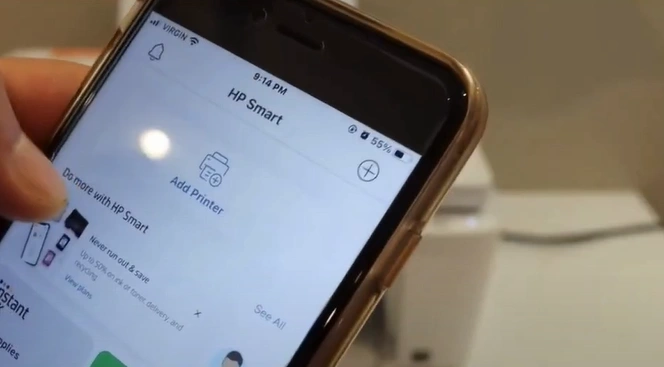
7. Tap on Add Printer.
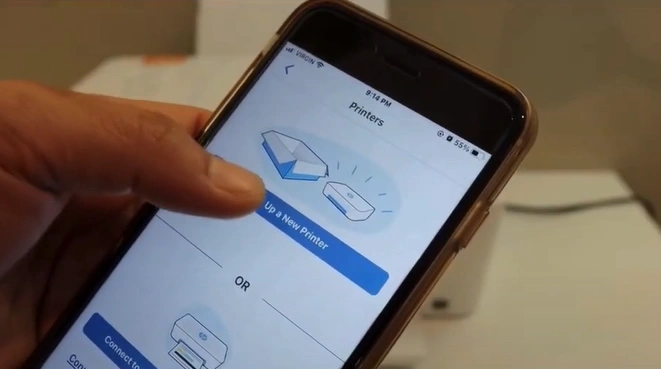
8. Select the "Setup a New Printer" option.
9. Open the WiFi settings on your device.
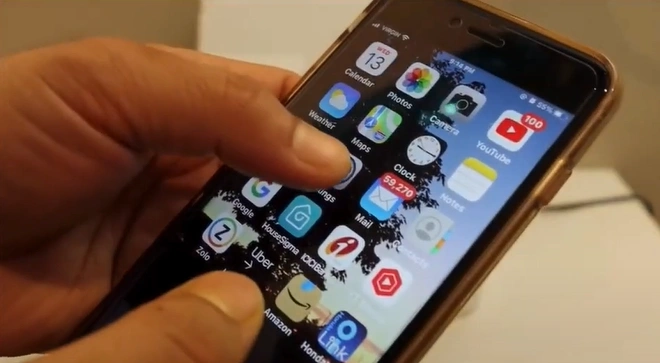
10. Select the HP Setup 4100 series in the available network list.
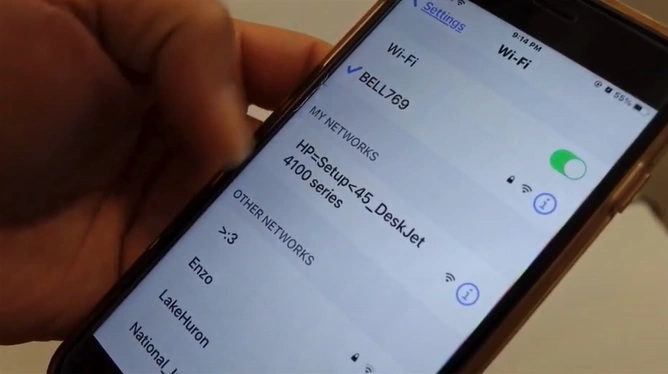
11. Once the printer is connected, go back to the HP Smart App. (Make sure your Bluetooth is turned on.)
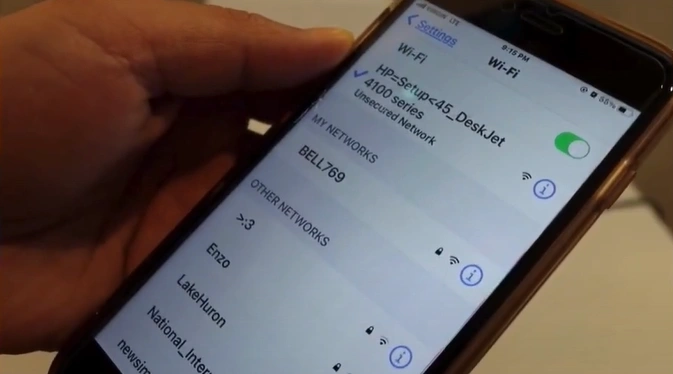
12. Wait for the printer to find the WiFi router.
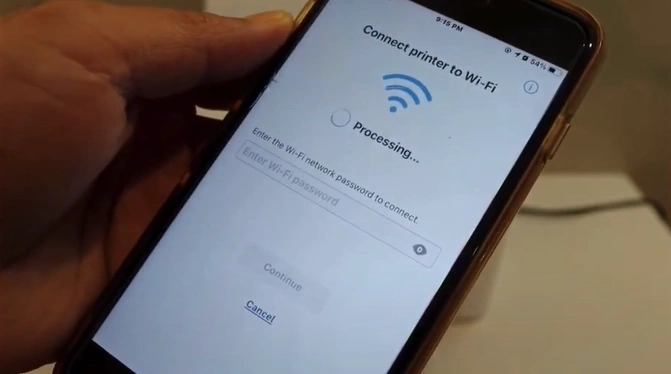
13. Select your WiFi router.
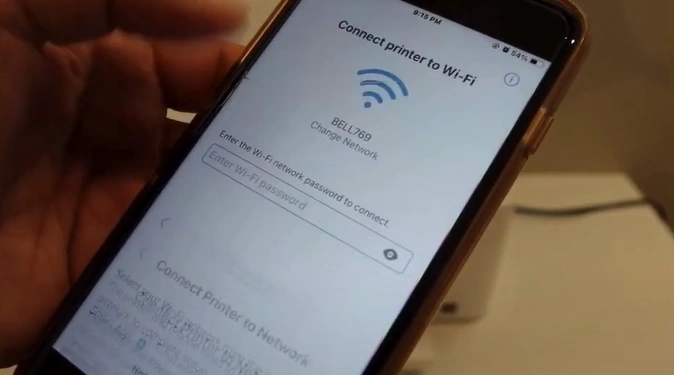
14. Enter your WiFi password.
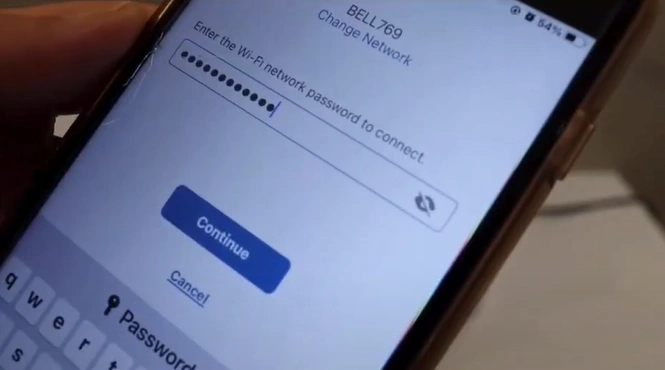
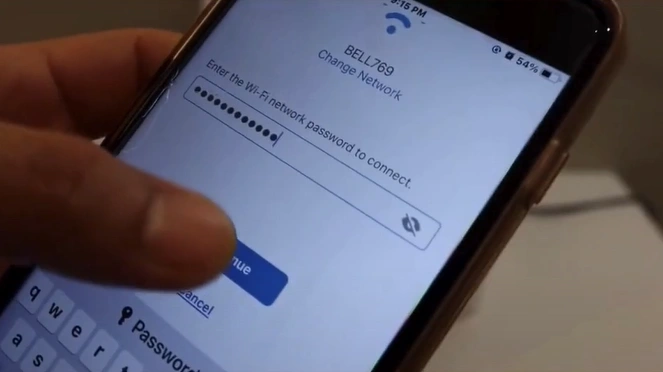
15. Tap on Continue.
16. Press the information button on the printer.
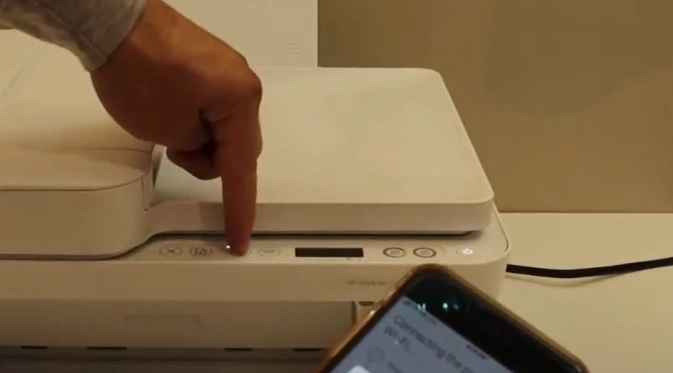
17. Wait for the HP Smart to join the network.
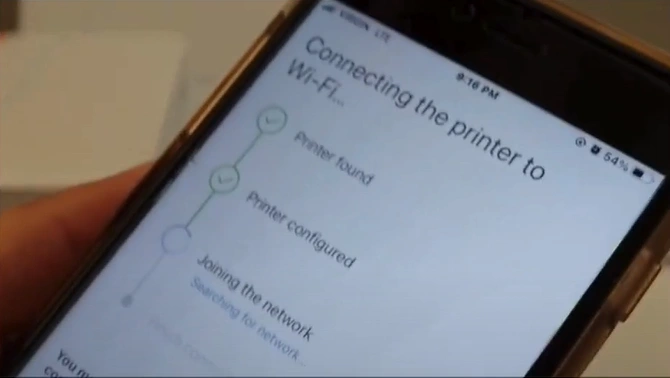
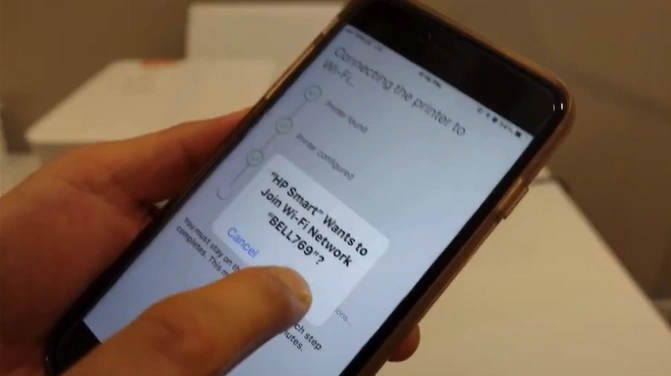
18. Tap on Join if asked.
19. Once connected, tap on the Continue button.
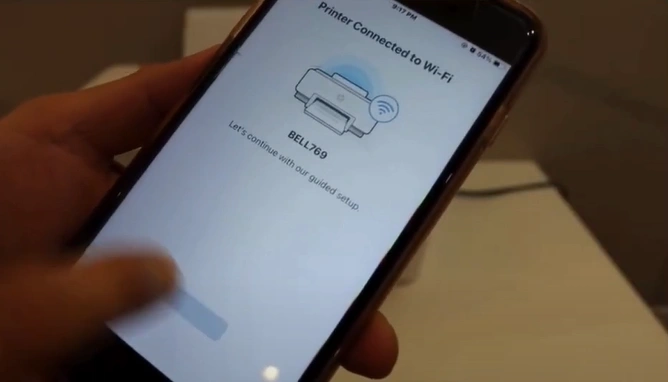
20. Finally, your printer's wireless connection will be complete.
Final Words
These are the step-by-step instructions that will help you easily connect your HP Deskjet 4120e to WiFi. You should follow these instructions to complete the wireless connection to your smartphone device with the help of the HP Smart App.
Related Guide:

