How to Do HP ENVY 6555e WiFi Setup?
It’s been quite a while since you started using your HP ENVY 6555e printer. Everything has been going well, but the clutter of tangled wires and cables around your desk is affecting your convenience. Imagine how much easier it would be if you could complete your print tasks wirelessly, without plugging in a single cord.
This is possible by connecting your HP ENVY 6555e printer to WiFi. The setup takes only a few minutes and requires no technical expertise. We have explained the entire procedure step by step. But before you begin, here are a few important things you should know.
Things to Know Before Connecting
If you want to have a successful HP ENVY 6555e WiFi setup process, it is wise to keep the following points in mind:
Check WiFi Network (Use 2.4 GHz)
Confirm that your internet is stable and not overloaded. Ensure your WiFi is set to the 2.4 GHz band, as most HP printers don’t support 5 GHz networks.
Place Devices Close Together
Place your computer, smartphone, printer, and WiFi router close by during the setup process to avoid any hindrance or disconnection.
Temporarily Turn Off VPN/Firewall
It is advisable to temporarily disable VPN and heavy firewalls during the setup to prevent interruptions. Once you are done with the setup and connected to your network, you can re-enable the VPN and firewall.
Enable Printer Setup Mode
By turning on the Setup mode, your HP printer can broadcast its own signal, and it can be discovered by the HP Smart app or the WiFi setup wizard. The Setup mode is typically enabled by default on new printers or after a network reset.
Common Issues When Connecting HP ENVY Printer to WiFi
These are a few problems that might occur when you try to connect your HP ENVY printer to WiFi:
- Printer and router on different frequencies
- Outdated printer firmware
- Printer connection timeout
- Router not supporting WPA2 security
Steps to Connect HP ENVY 6555e Printer to WiFi
Use the steps below to set up your HP ENVY printer on a WiFi network.
Step 1: Go to your printer’s display panel and tap on Menu.
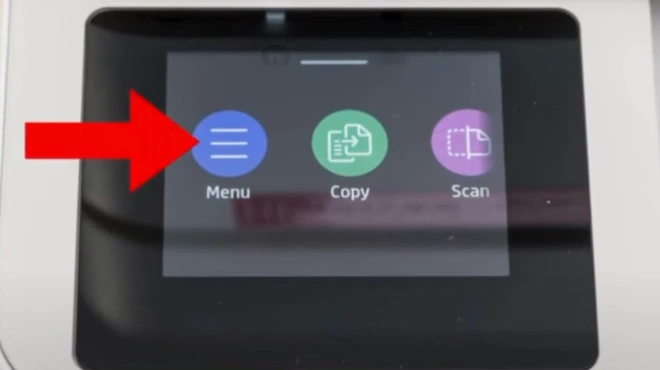
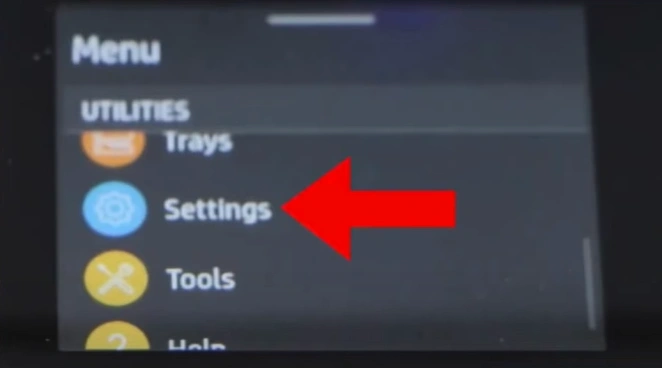
Step 2: Scroll down to Utilities and open Settings.
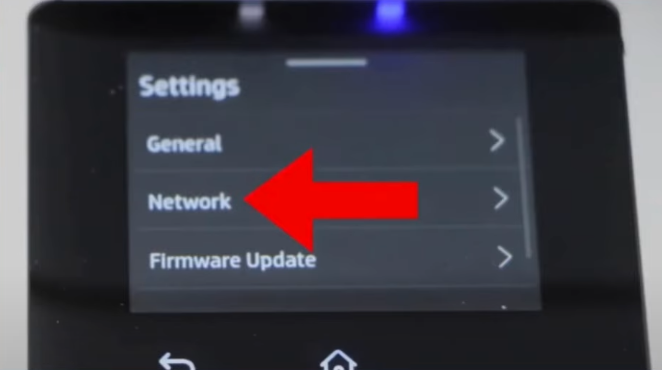
Step 3: From the Settings menu, go to Network.
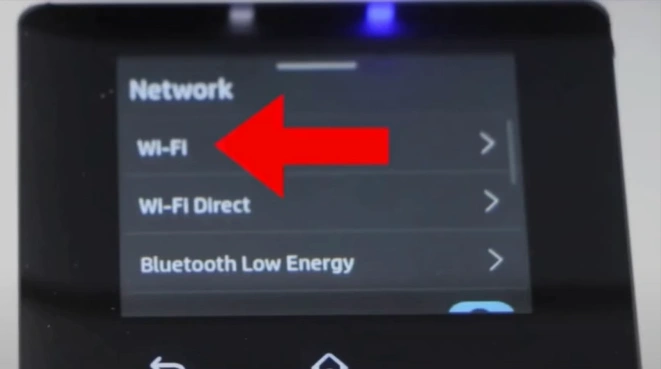
Step 4: In the Network folder, select WiFi.
Step 5: Find the WiFi Setup option and tap on the Start button.
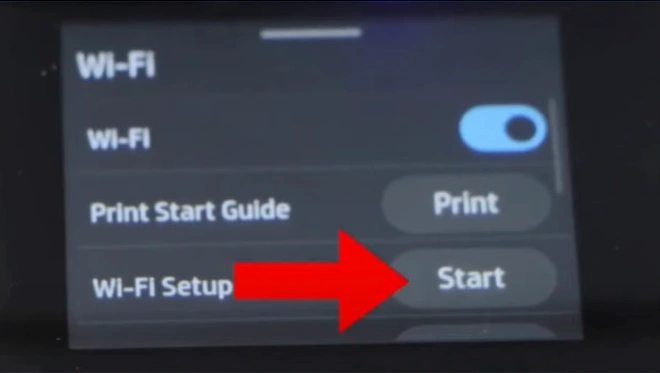
Note: Make sure the WiFi turns on automatically. If not, turn it on.
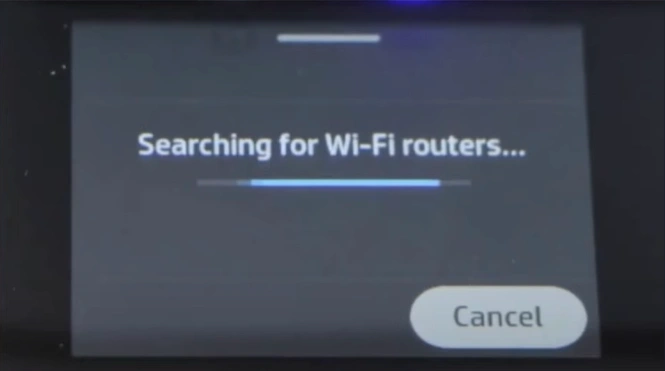
Step 6: Wait for your printer to search for available WiFi networks.
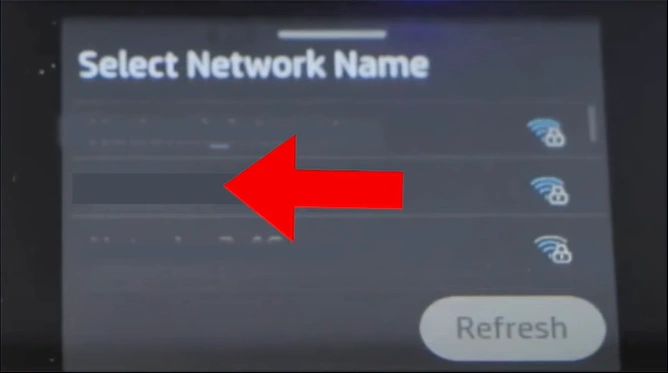
Step 7: In the Select Network Name window, tap on your network name.
Step 8: Select Next to enter the WiFi password.
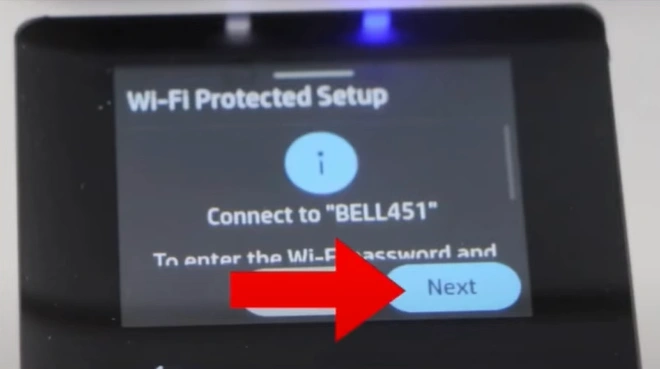
Step 9: On the WiFi Password screen, tap the password field.
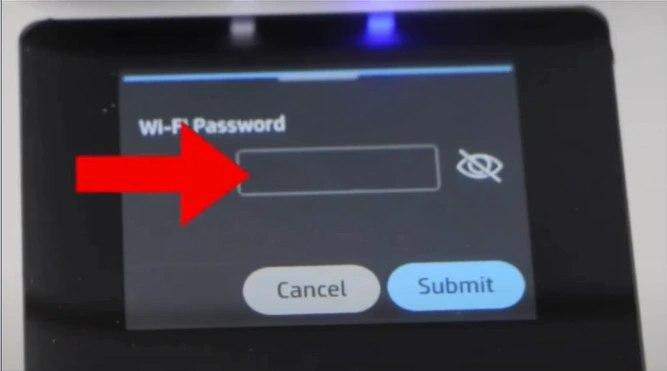
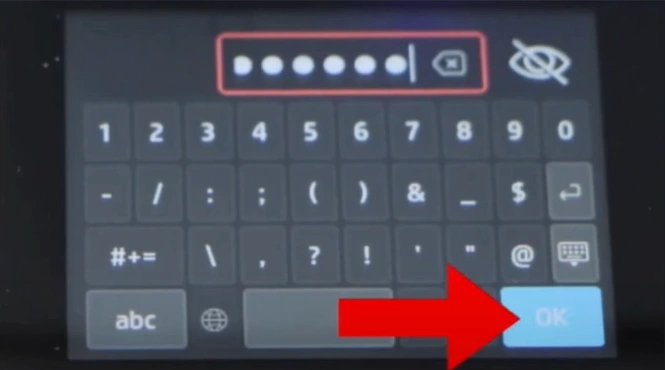
Step 10: Enter the password and press the OK button.
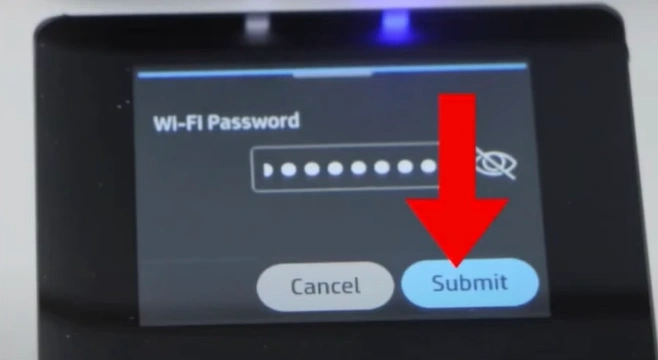
Step 11: Select Submit to connect with the WiFi router.
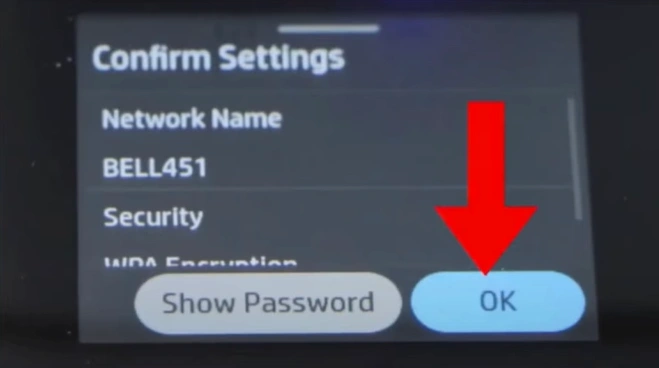
Step 12: Check the network name and settings in the Confirm Settings window.
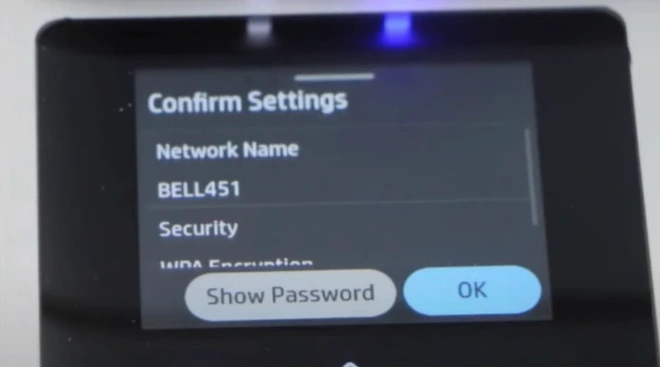
Step 13: Once checked, tap on OK.
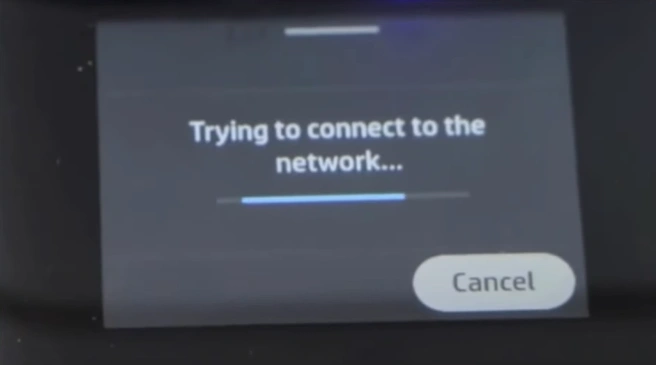
Step 14: Wait for the printer to connect to the network.
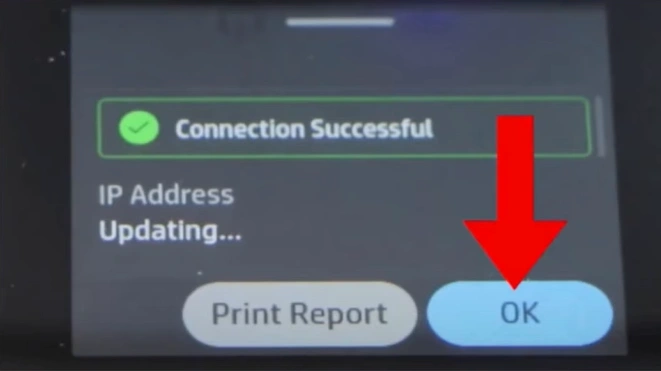
Step 15: Once the screen displays Connection Successful, tap on OK.
Step 16: Open your App Store or Play Store and search for the HP Smart application.
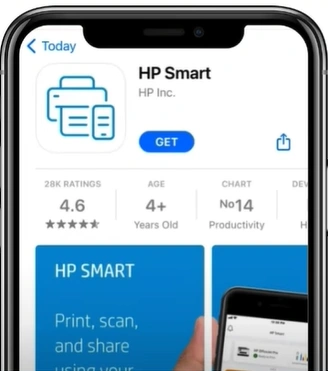
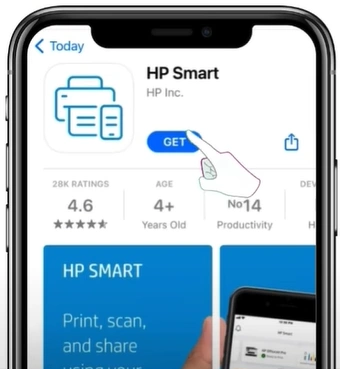
Step 17: Tap on Get to install the app.
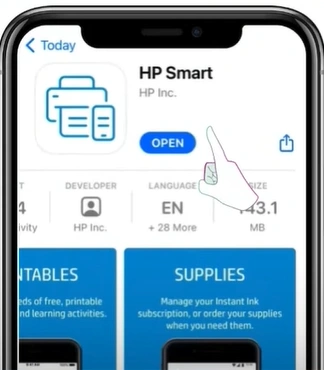
Step 18: Once installed, tap on Open to launch the application.
Step 19: Tap on Add your printer.
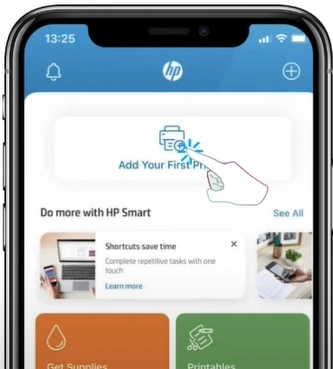
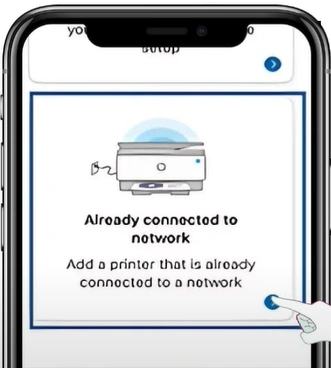
Step 20: Select the “Printer already connected to network” option.
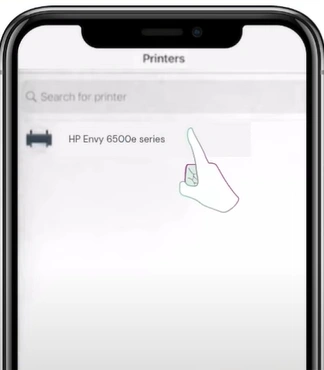
Step 21: Select the HP ENVY 6555e series to connect the device to the network.
Conclusion
Tired of tangled wires making your workspace messy? Connect your HP ENVY 6555e printer to a WiFi network and enjoy a wireless setup. Just follow the steps above to complete the process in minutes. After connecting, you can print from any device and place your printer anywhere that’s most convenient for you.
Related Article

