How to Download & Install Lexmark Printer Driver on Windows?
Does your Lexmark printer show a “driver unavailable” error, or is it failing to be recognized by your computer system? That could be due to a missing or corrupted driver. Now, you’ll have to download and install the correct driver for the printer to work again.
Whether you are setting up your new printer or fixing the “driver unavailable” error, you’ll need the latest driver so your PC and printer can communicate and function properly.
As experts in printers with years of practical experience, we will walk you through the steps to download and install the correct driver for your Lexmark printer. Let’s start with what you need to do before anything.
Things to Check Before Getting Started
These are the 5 important things to remember before you can start the download and installation of the new printer drivers:
- Printer model: Know the exact model number of your Lexmark printer. For example: MX410de.
- Internet connection: Ensure you are connected to a stable internet connection.
- Uninstall old drivers: If you are reinstalling or updating the driver, uninstall the previously installed Lexmark drivers first.
- Windows version: Check which version of Windows you are using (Windows 10, Windows 11, etc.) and whether your system is 32-bit or 64-bit.
- Printer connection: Choose the method to connect the printer (via USB or Wi-Fi). Check if the cable is plugged in properly and the printer and computer are connected to the same network.
Is It Necessary to Remove the Old Drivers?
Yes, in most cases, you need to delete the previously installed drivers before you can install the new ones. If you don’t, there might be chances of:
- Installation conflicts
- Printer offline error
- Compatibility problems
How to Remove Old Drivers?
- On your PC, press the Windows Start button.
- Search for and open the Control Panel.
- Go to Devices and Printers.
- Right-click your printer.
- Select Remove device.
- Open Device Manager.
- Expand Print queues.
- Uninstall any existing Lexmark drivers.
- Restart your computer.
Download and Install Lexmark Printer Driver: The Process
If you’re struggling to get the latest printer driver on your Windows PC, here is what you need to do. Let’s start with the driver download process:
Downloading the Driver
Step 1: First, open any browser on your Windows computer.
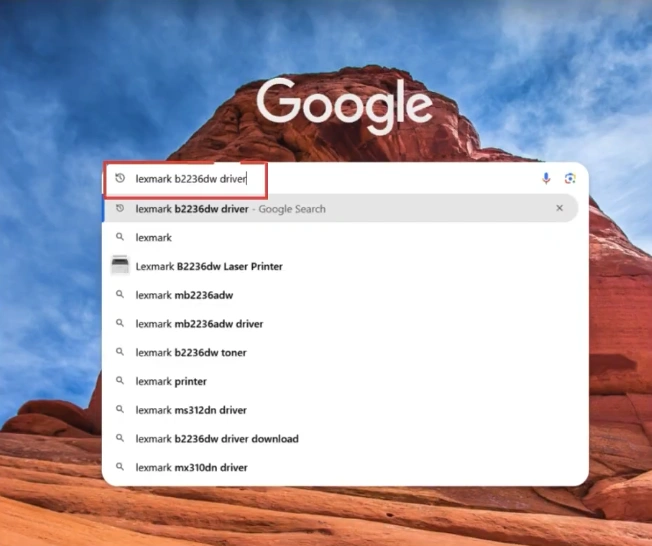
Step 2: In the search field, type “your model name printer driver.”
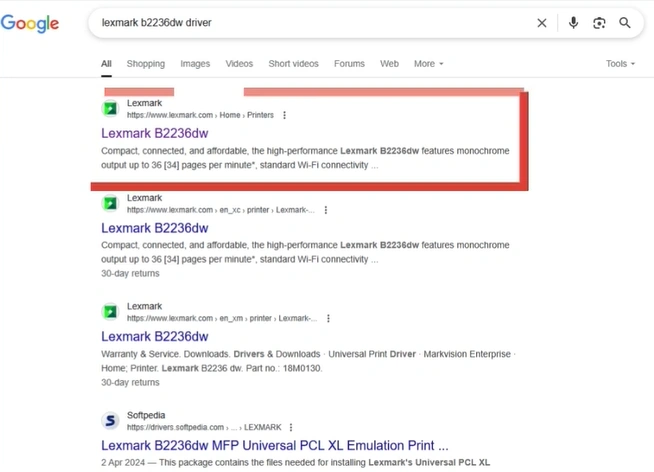
Step 3: You’ll see the official Lexmark support page at the top of the search results. Click on it.
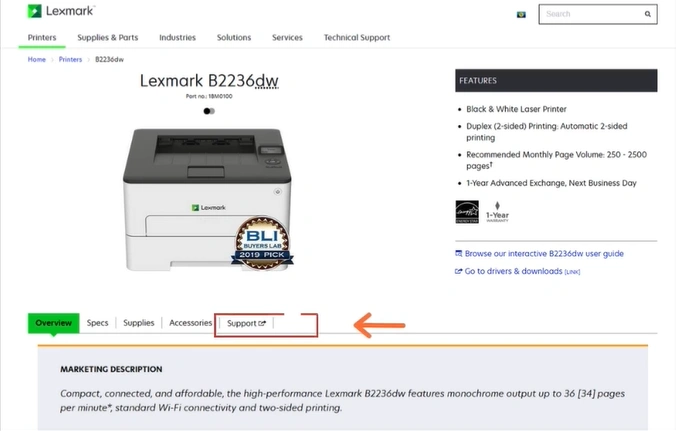
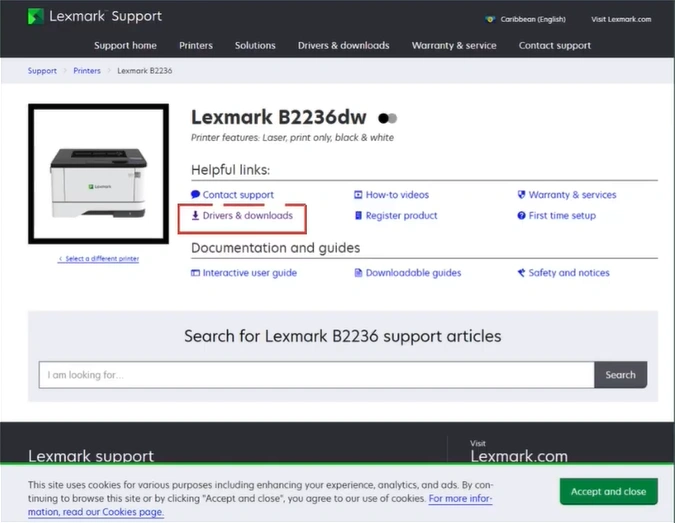
Step 4: Once the site opens, click Drivers & downloads.
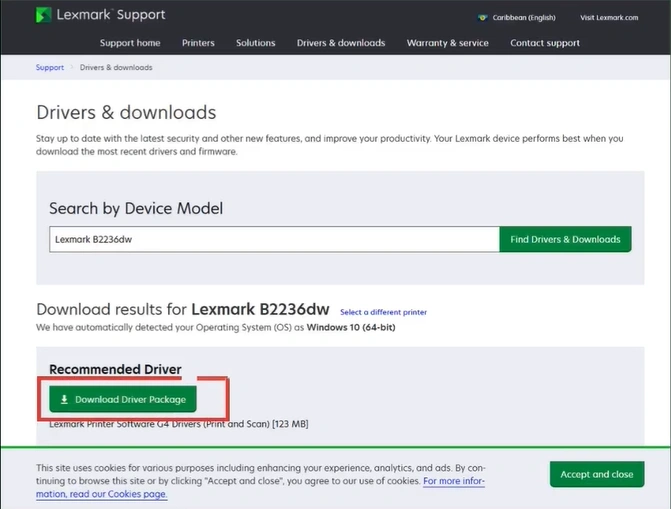
Step 5: Click on the “Download Driver Package” option displayed in green.
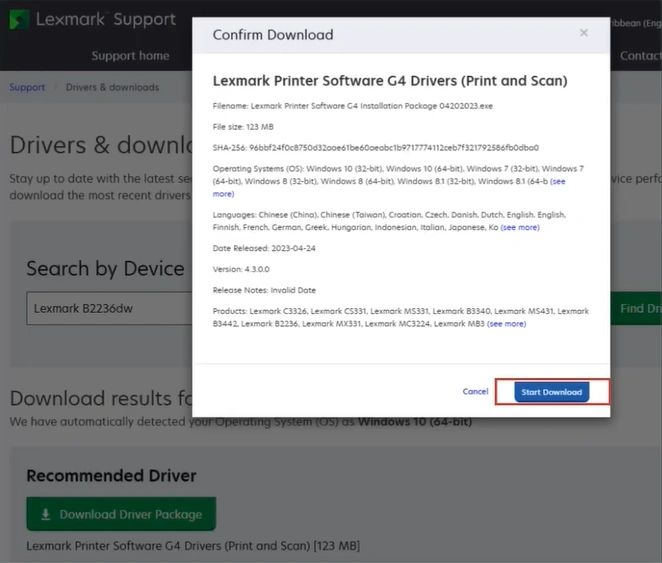
Step 6: The Confirm Download pop-up will appear. Click on the “Start Download” option.
Step 7: Downloading will start here. Once complete, press Ctrl + J on your browser.
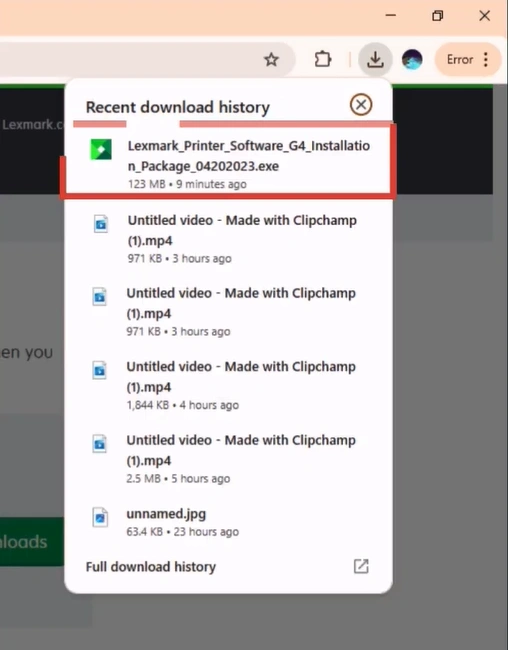
Step 8: The Downloads folder will open. From there, click on the downloaded file.
Remember: Always download the printer drivers from the official sources to avoid malware risks, incompatible software, or system instability.
Installation of the Driver File
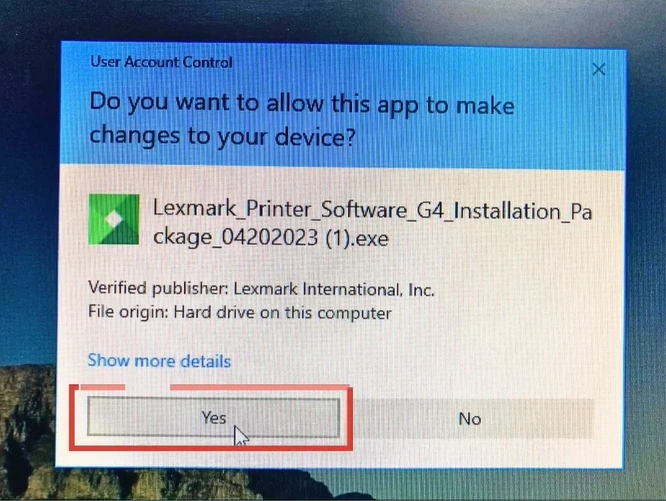
Step 1: After you’ve clicked on the downloaded file, select the “Yes” option to let the application make changes.
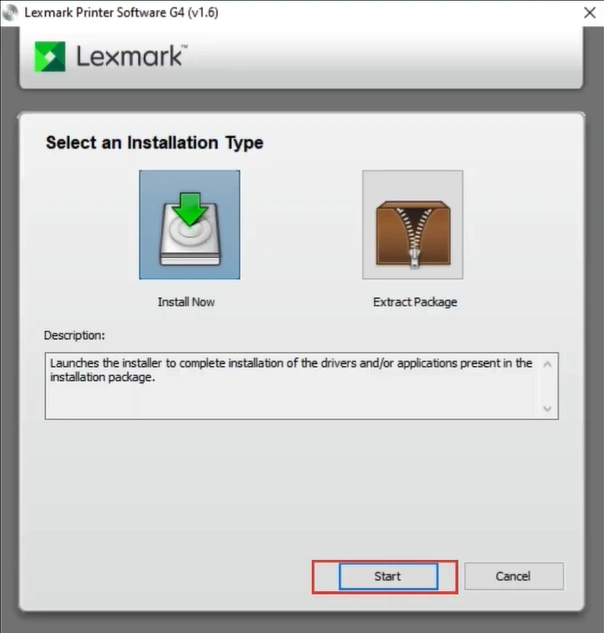
Step 2: In the window that appears, click the “Start” option.
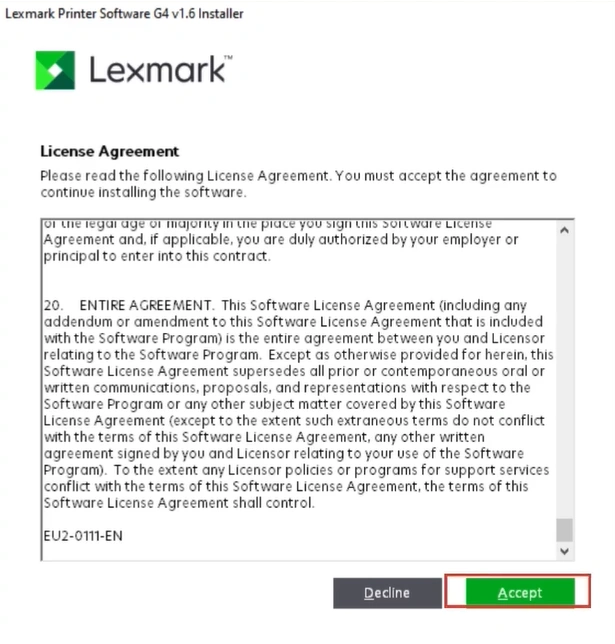
Step 3: Next, you have to agree to the License agreement. Click on “Accept.”
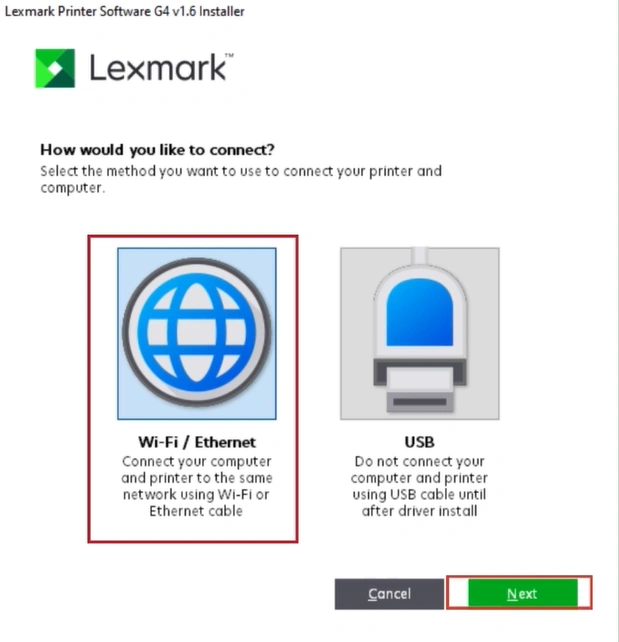
Step 4: The two methods (Wi-Fi/Ethernet and USB) will be shown to you. Select your preferred option and click Next.
Step 5: Select your printer name, then click “Next.”
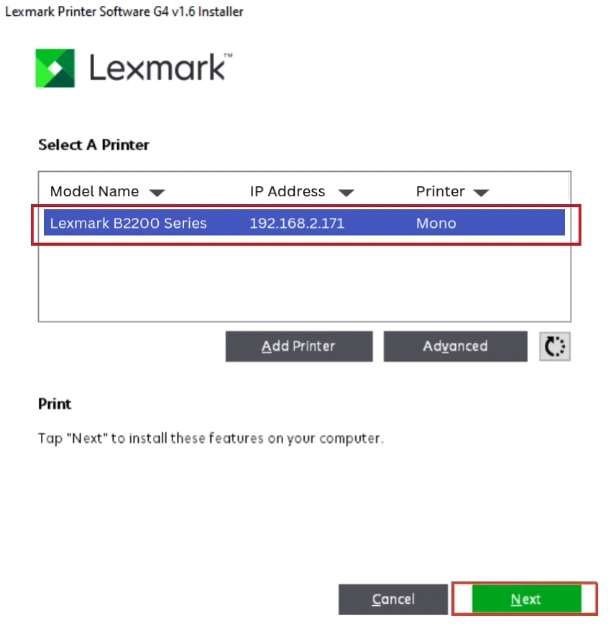
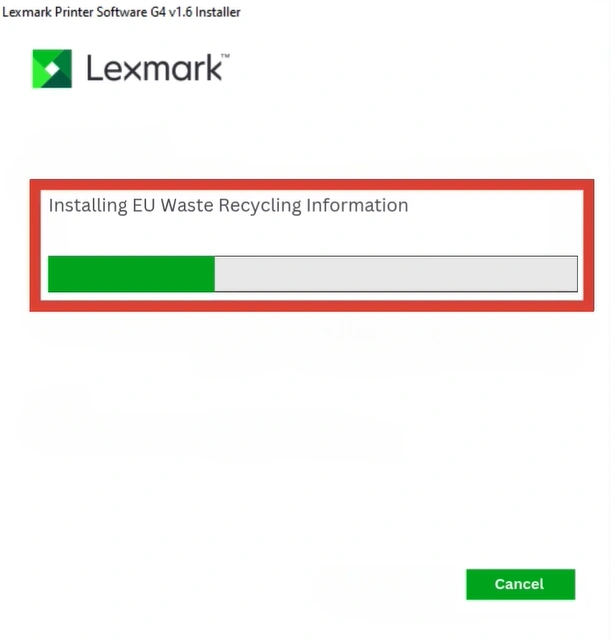
Step 6: From this moment, the installation process will start. Wait for it to finish.
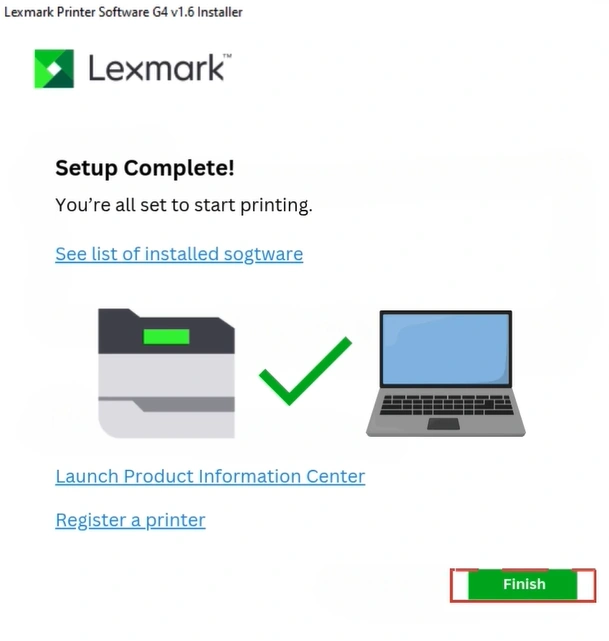
Step 7: Once it is complete, click “Finish.”
Note: To undo any changes if something goes wrong, you must create a System Restore Point before starting the driver installation.
Also Read:- Brother HL-L2300D Printer Toner Reset
Takeaway
It may feel complex when you are about to set up your new Lexmark printer after unboxing it or when you are trying to fix the “Driver Unavailable” error on your own. But, with the above steps, you can keep all your confusions at bay. Follow the instructions carefully, and you will be ready to use your printer again without trouble.
Frequently Asked Questions
What if Windows says “Driver unavailable”?
When you see the “Driver unavailable” error message on your computer screen, it generally means that the driver is missing or incompatible. Here is what you can do to fix this error:
Check the Windows Version
On your computer, press the Windows Start button. Open Settings.
Click on System > About.
Now, check whether your PC is 32-bit or 64-bit and which Windows version you are currently using.
Uninstall Old Drivers
Go to the Control Panel of your PC.
Select “Devices and Printers.”
Right-click the printer, then select Remove device.
Open Device Manager > Print queues > uninstall any Lexmark drivers.
How do I print a test page?
On your PC, open Control Panel.
Go to Hardware and Sound > Devices and Printers.
Locate your Lexmark printer in the list.
Right-click on it and choose Printer Properties.
Under the General tab, click on the “Print Test Page” option.
If the page prints successfully, then it means the driver is installed and working correctly. If it doesn’t print, you might need to check the connection or reinstall the driver.
What if the installation fails?
If the new Lexmark drivers fail to install, here’s what you need to do:
- Restart Both Devices: A quick reboot can help fix temporary glitches.
- Check Compatibility: Ensure the driver is compatible with your printer model and Windows version.
- Run as Administrator: Right-click the driver setup file and select “Run as administrator.”
How to check if the printer driver is installed correctly?
Here are the steps to follow to check if the driver is installed correctly:
On your PC, go to Control Panel.
Select Hardware and Sound > Devices and Printers.
Locate your Lexmark printer. See if it appears and shows “Ready.”
Next, print a test page. Right-click on the printer, select Printer Properties, and then Print Test Page.
Ensure there’s no yellow warning icon under Printers.
Do a print test by sending a small file to confirm it prints properly.

