How to Download Epson Printer Driver?
Downloading the driver for your Epson printer is a crucial step in completing the setup. The right driver enables communication between the printer and the computer software, allowing them to understand the printing commands. If you want to get the right driver for your Epson printer, then you can get it from the official website. However, you may encounter an issue while downloading the driver if you are unfamiliar with the process. If you are also facing the same issue, then it would be beneficial to take a look at the instructions below!
Steps to Download the Epson Printer Driver
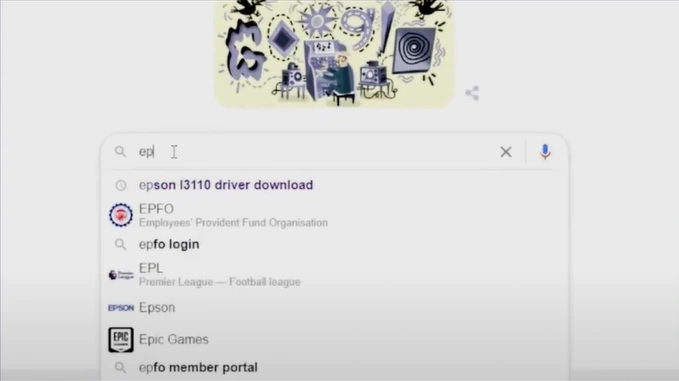
1. First, open your browser and enter “(your printer model name) driver download” to search.
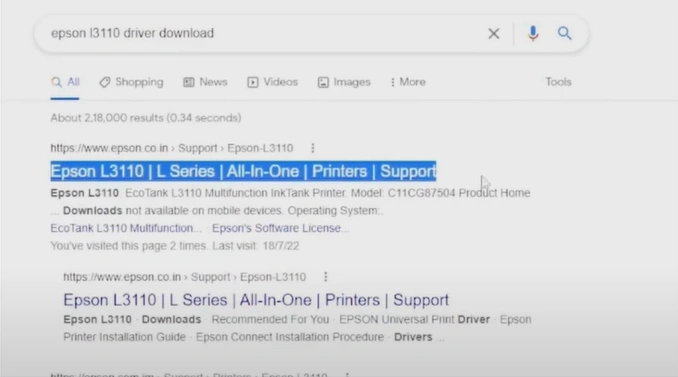
2. Then, launch the Epson official support website.
3. Scroll and verify that the selected operating system is right.
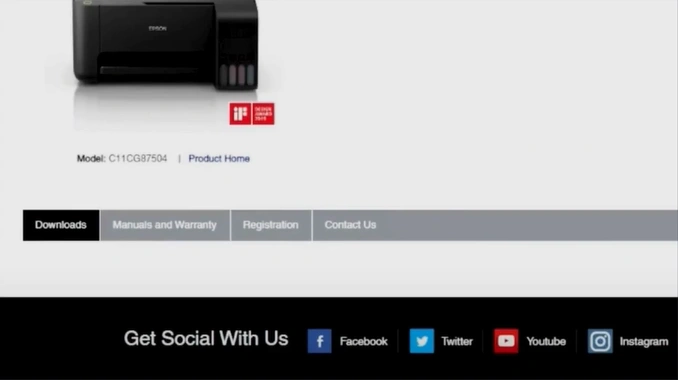
4. Scroll down to the driver section and click the plus (+) icon to expand.
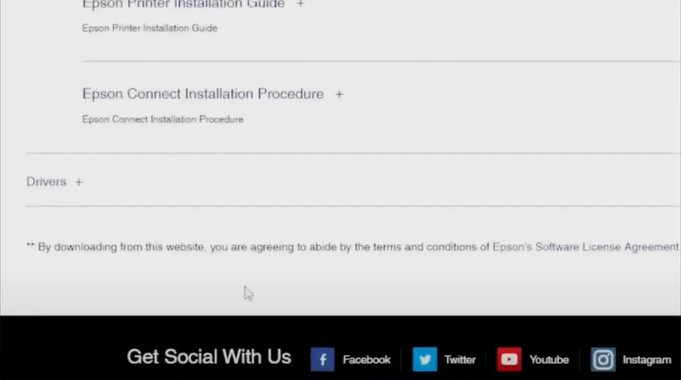
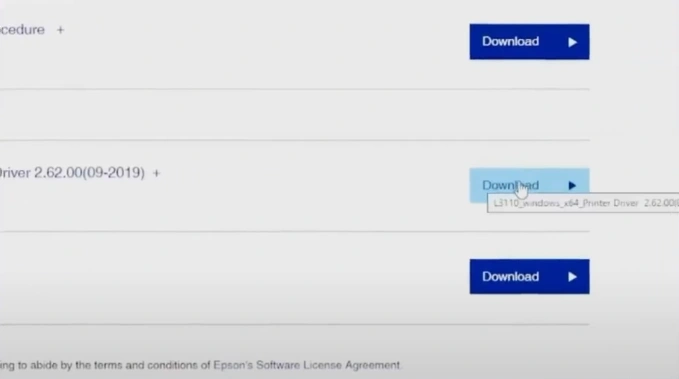
5. Right-click on the Download button next to the latest available printer driver and click on “Open link in new tab.”
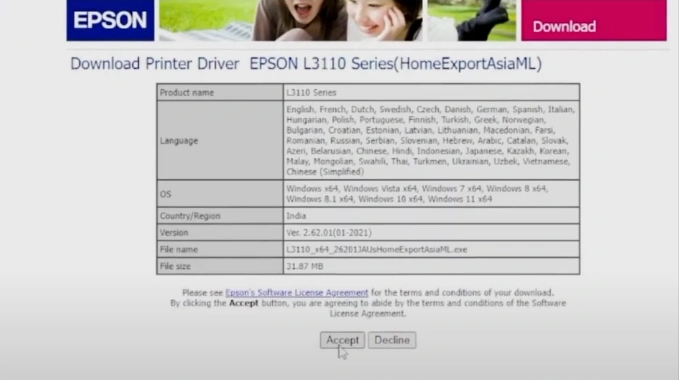
6. Click on the Accept button/key to download the printer driver.
7. Next, open the printer driver file.
8. Check the printer model name and click on OK.
9. Select your preferred language and click OK.
10. Review the end-user software license agreement, select Agree, and click OK.
11. Once the driver is successfully installed, click on OK.
12. Connect your printer for the setup and begin using it right away.
Knowing the proper steps to complete the download and installation of the Epson printer driver makes it easier to get started with your machine. You need to follow the right procedure to prevent any issues from happening. Moreover, it is recommended that you get your hands on further guides if there is any confusion with the steps or any problems appear.

