How to Fix Brother MFC L2750DW Printer Offline Issue?

Are you facing an offline issue with the Brother MFC L2750DW printer? Or do you want to fix the offline issue with your printer? Your printers are prone to showing many issues, and an offline issue is one of them.
A wide variety of reasons, such as corrupt software/firmware, firewall settings, connection problems, etc., can contribute to this problem. Fixing your Brother MFC L2750DW printer becomes easier if you have the knowledge about the exact cause of the problem, so look for it first.
However, if you are clueless about the root cause and want to fix the issue, then worry not! Let's fix your Brother MFC L2750DW printer's offline issue.
Solution 1: Restart Your Device
These are the steps you can follow to restart the device to see if it helps in fixing the offline problem.
1. Turn off your Wi-Fi, PC or mobile, and printer.
_1746095320.webp)
2. Turn on all the devices.
_1746095462.webp)
3. Now, check if the offline issue is gone.
Solution 2: Check Physical Connection
Checking the physical connection of your devices can also get rid of the Brother printer offline problem. These are the quick ways to do that.
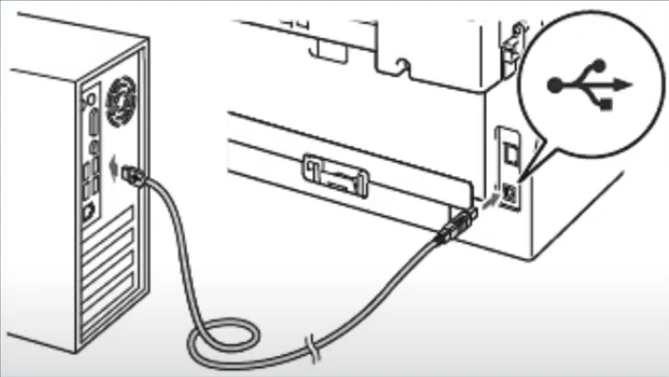
1. Check if the USB cable/cord is connected properly to the printer and computer.
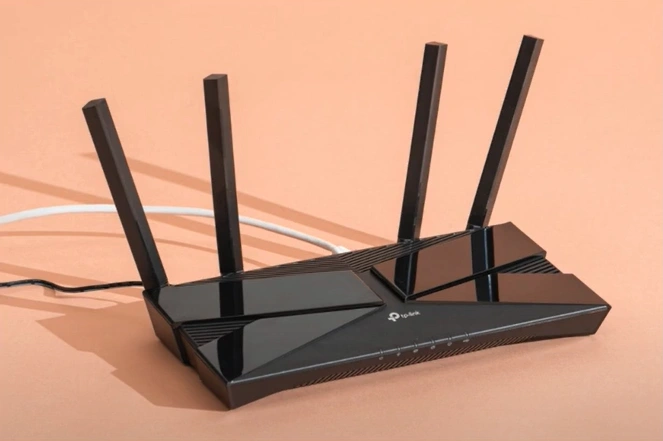
2. If you are using an Ethernet cord, ensure the cable is connected to the printer and router/access point.
3. See the printer status; if the issue persists, move to the next steps.
Solution 3: Set As Default Printer
When the printer is not chosen as your default device, then it could show offline issues.
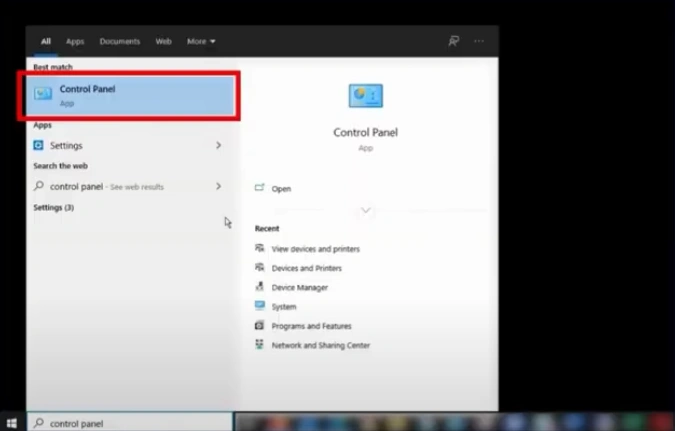
1. First, open the Control Panel.
_1746095575.webp)
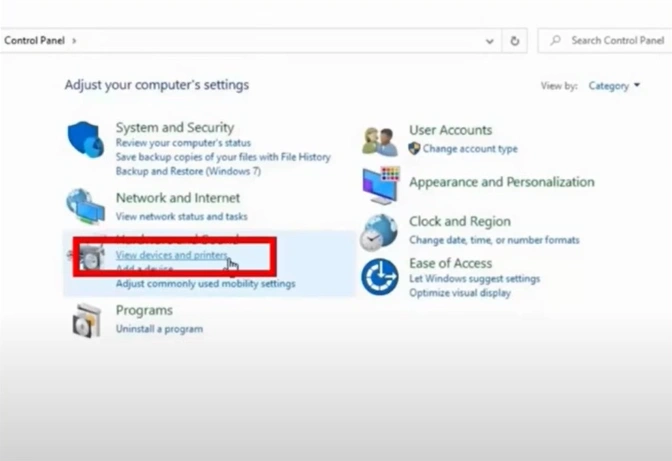
2. Click on View Devices and Printers.
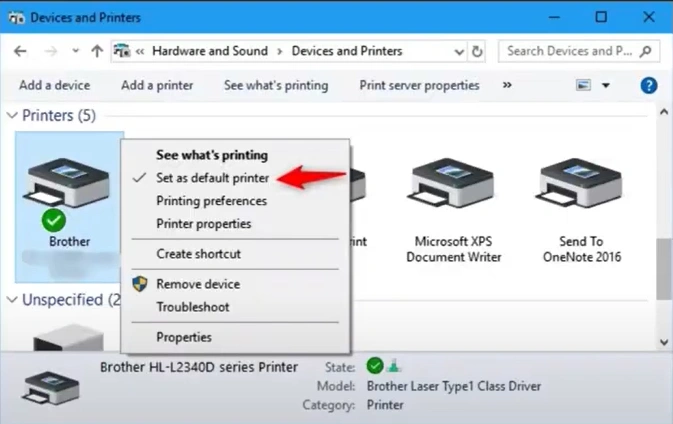
3. Now, right-click on your Brother printer and select the "Set as Default Printer" option.
Solution 4: Delete all Print Jobs
When print jobs are stuck in the queue, you need to delete them to fix the issue. Follow all the steps carefully to remove the print jobs for your Brother printer properly.
1. Open the Control Panel page and click on View devices and printers.
_1746095764.webp)
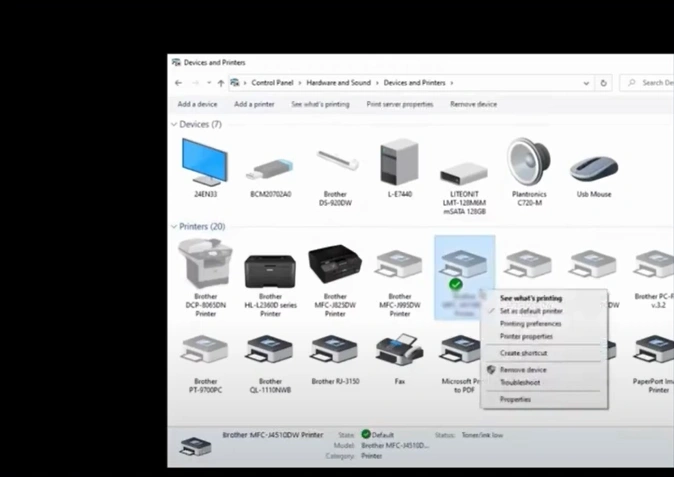
2. Right-click on your printer device and click "See what's printing."
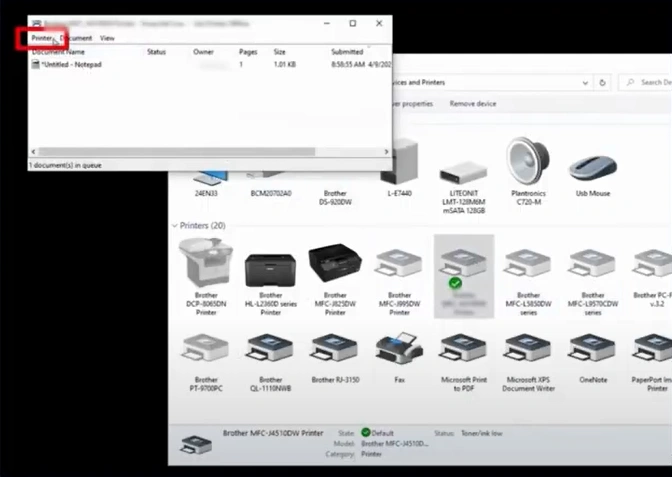
3. Click on the Printer tab, select Cancel All Documents, then click on Yes.
Solution 5: Check Printer Status
You can also check your printer status to fix the offline issue.
1. Go to the Control Panel and click on View Devices and Printers.
2. Next, you need to right-click on your Brother printer.
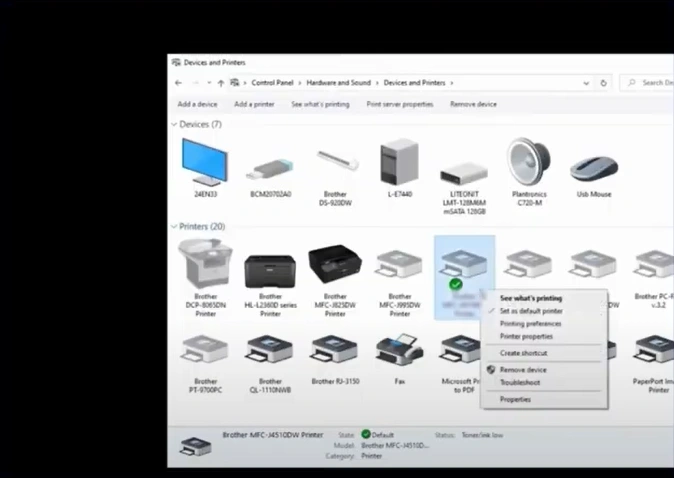
3. Select the "See what's printing" option.
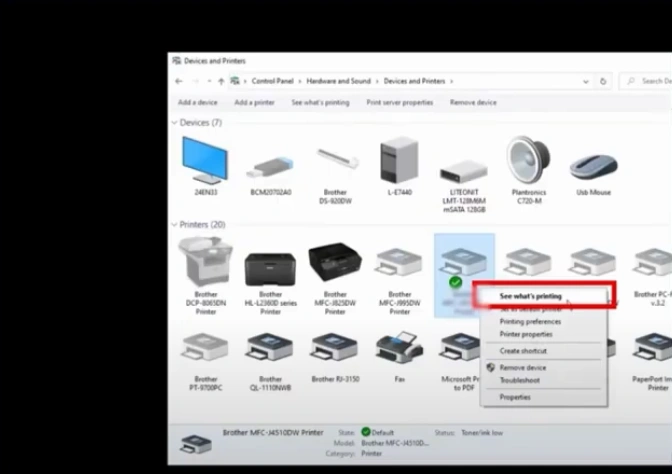
4. Select the Printer, and then uncheck the 'Use Printer Offline' option.
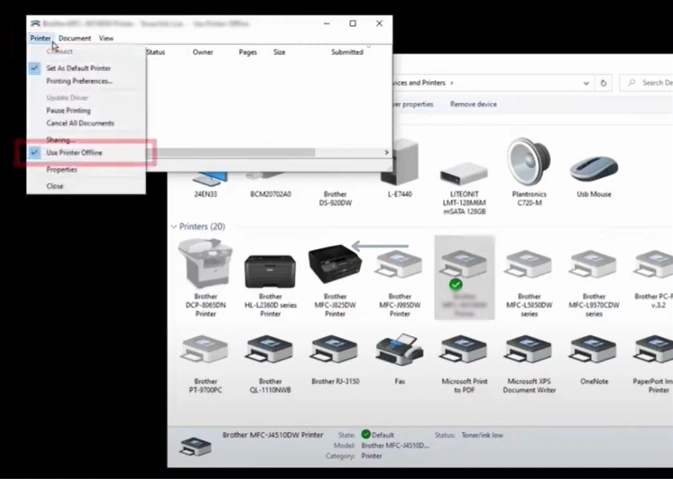
Also Read:- You can also check your printer status to fix the offline issue.
Solution 6: Check the Firewall or Antivirus Settings
If there are some firewall or antivirus settings problems, then you are likely to encounter the offline issue. Here are the quick steps to check your computer's antivirus or firewall settings.
1. Click on the Start menu/icon and click on Settings.
_1746096593.webp)
2. Open the Network & Internet Settings.
_1746096654.webp)
3. Then, go to Advanced Network Settings.
_1746096695.webp)
4. Under related settings, click on the Windows Firewall.
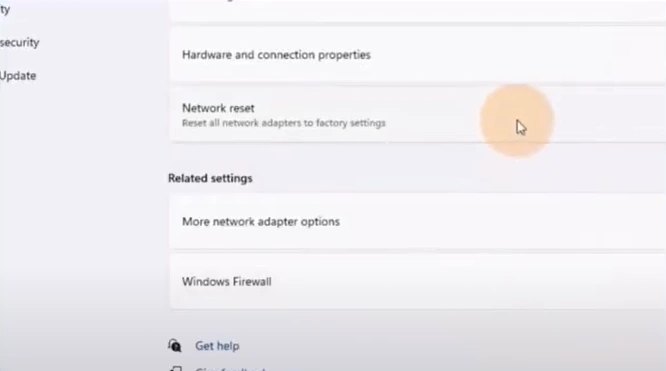
5. Check for any Firewall software settings that might block the printer from establishing a network connection.
_1746096784.webp)
Solution 7: Delete and Reinstall Printer Driver
The driver problem can lead to problems with your Brother printer device. These are the steps you can follow to reinstall the driver and troubleshoot the issue.
1. Open the control panel window and click on View devices and printers.
_1746097006.webp)
2. Next, you need to right-click on your printer device and click See what's printing.
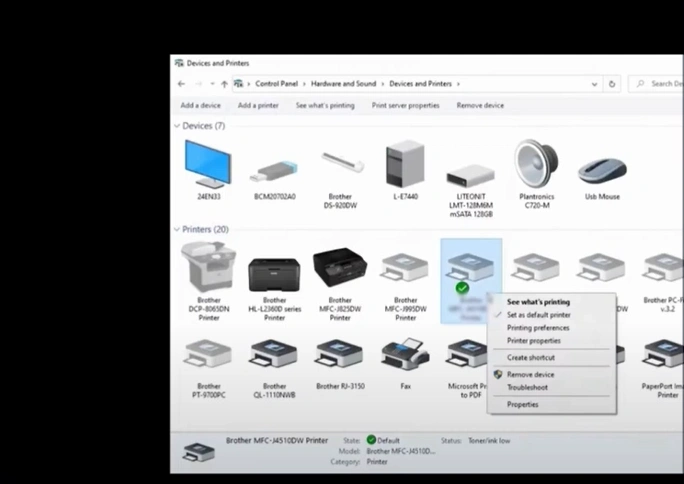
3. Go to the Printer tab, select Cancel All Documents, then click on Yes.
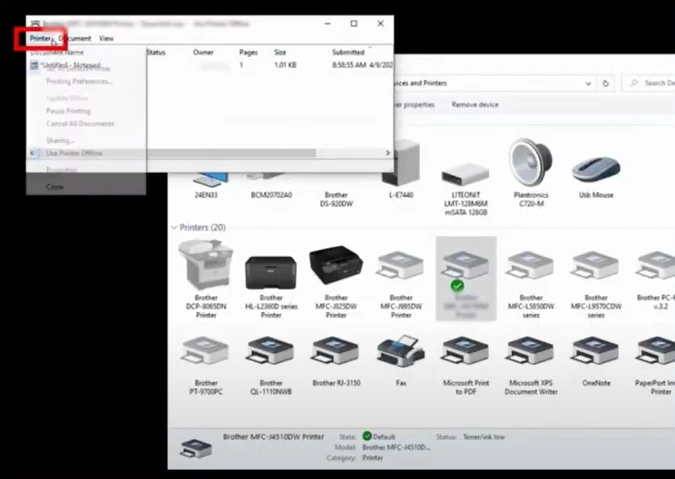
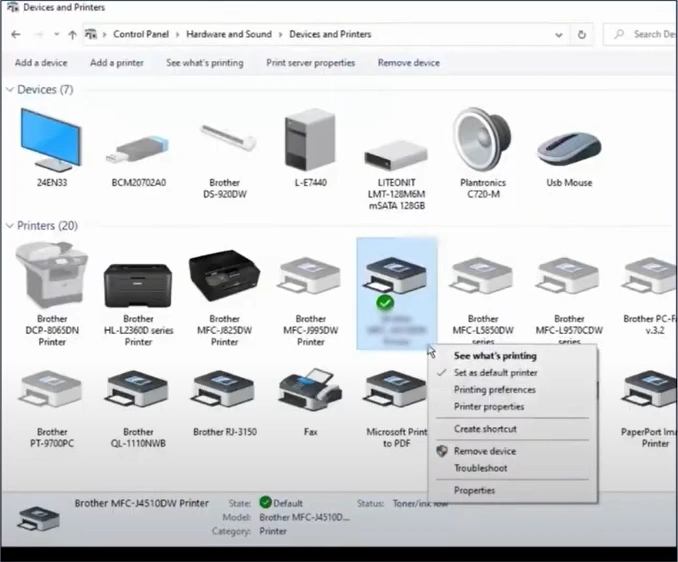
4. Now, right-click on your Brother printer, select Remove, and click Yes.
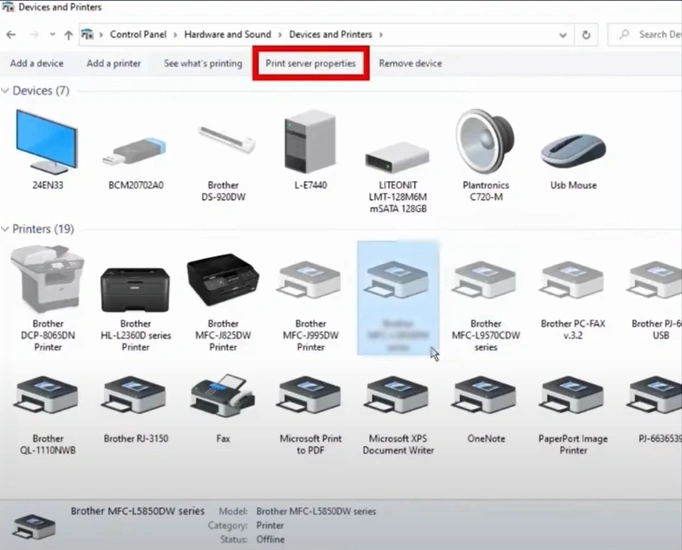
5. Choose any other printer and click the Printer Server Properties tab.
6. Then, you should select the Drivers tab.
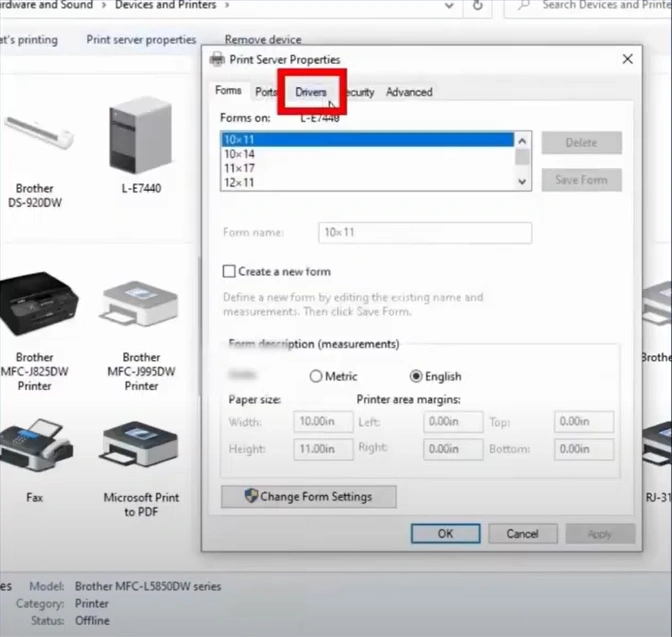
7. Locate your Brother printer driver and click on the Remove button.
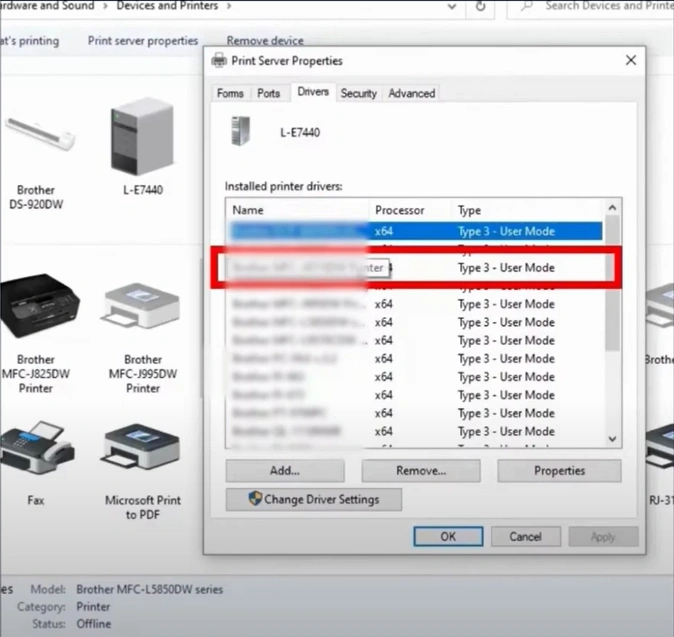
8. Click on Remove Drivers Only, then click on OK.
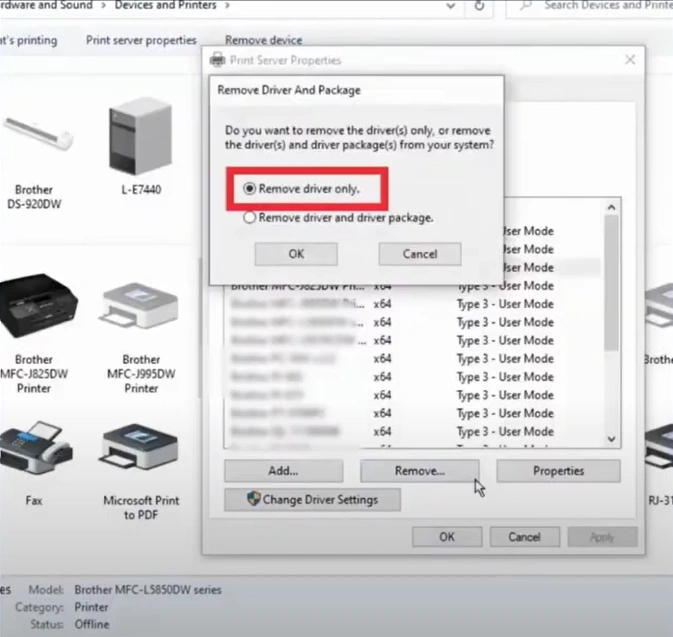
9. Click Yes to delete the printer driver. (Note- if a window appears with "printer driver is currently in use," reboot your computer and perform all steps again.)
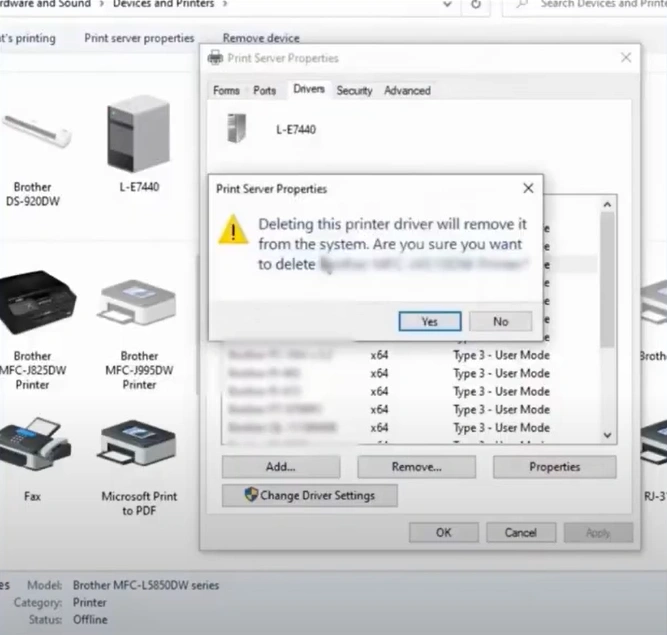
10. Click on the Add Printer option.
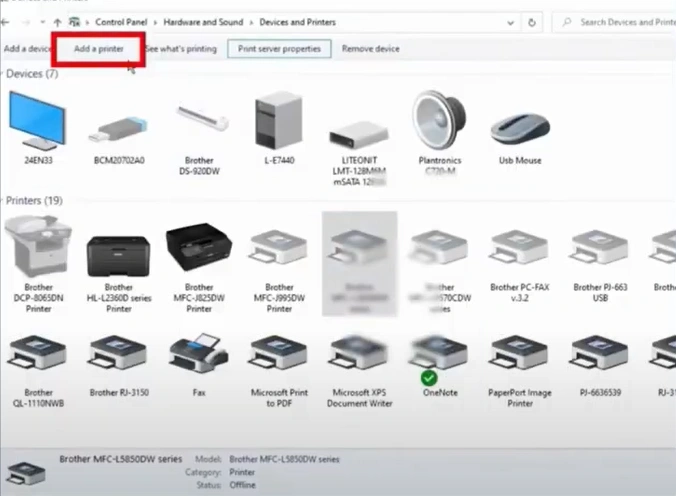
11. Click on the "The printer that I want is not listed" option.
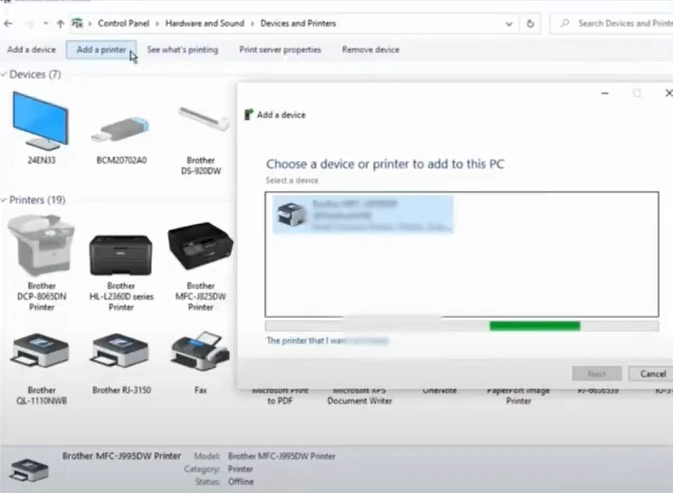
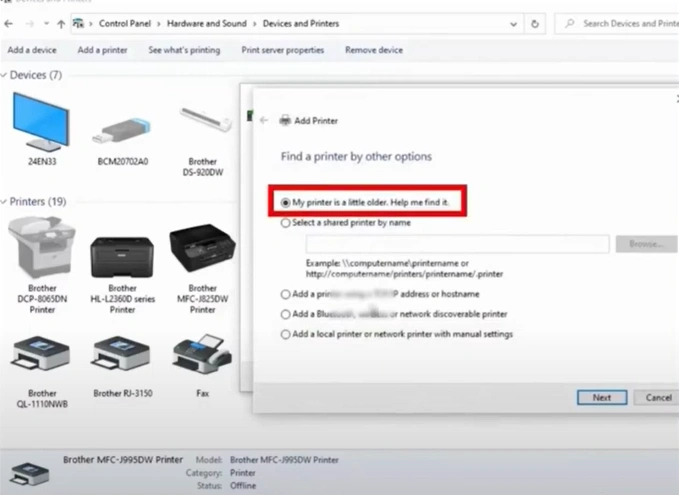
12. Choose the "My printer is a little older. Help me find it" option, then click Next.
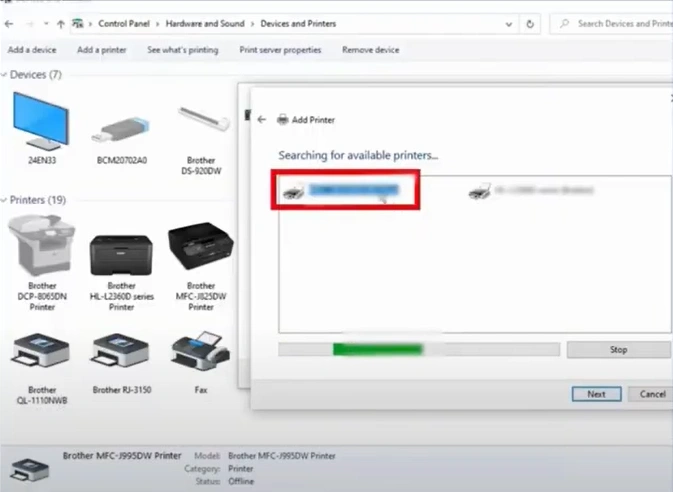
13. Click on your printer and click Next.
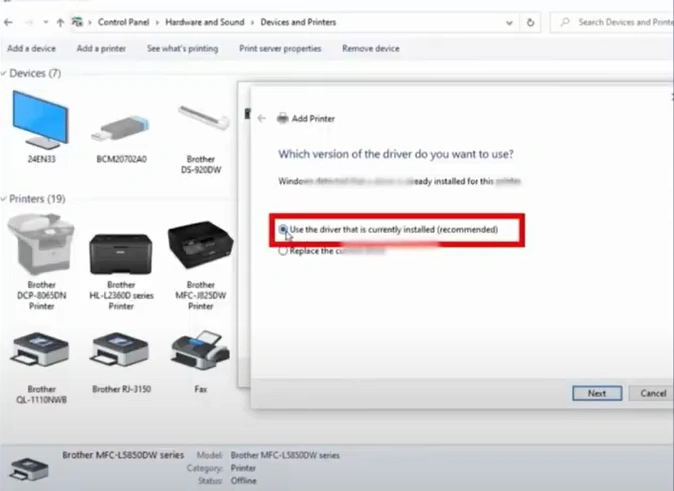
14. Select the "Driver currently installed" option and click Next.
15. Provide the printer name or click Next.
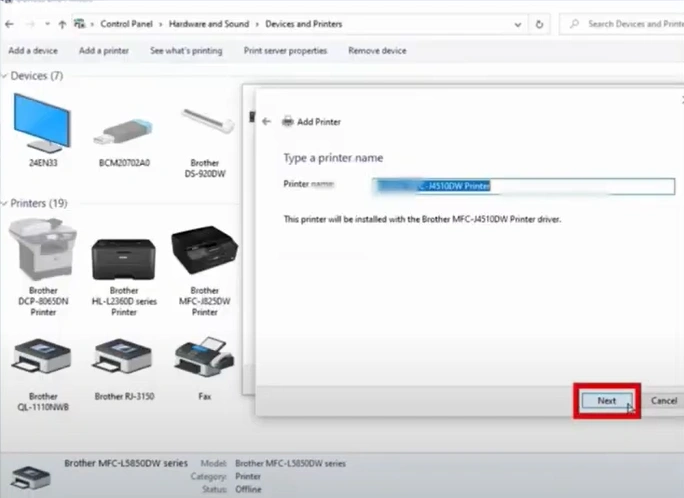
16. Click on the "Print a Test Page" button.
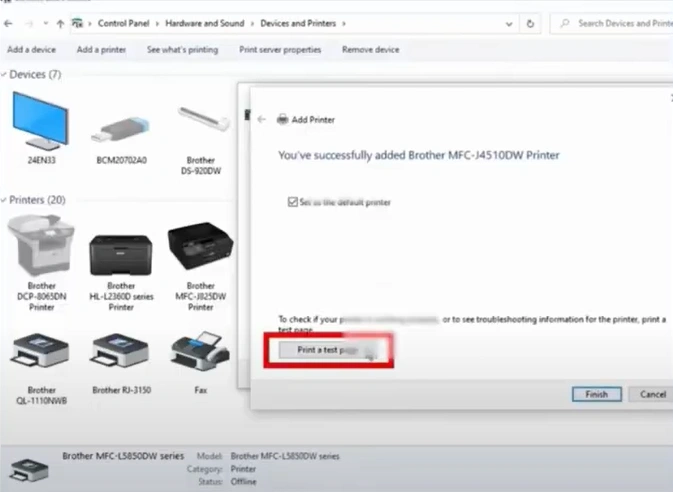
17. Click Close, then click on Finish.
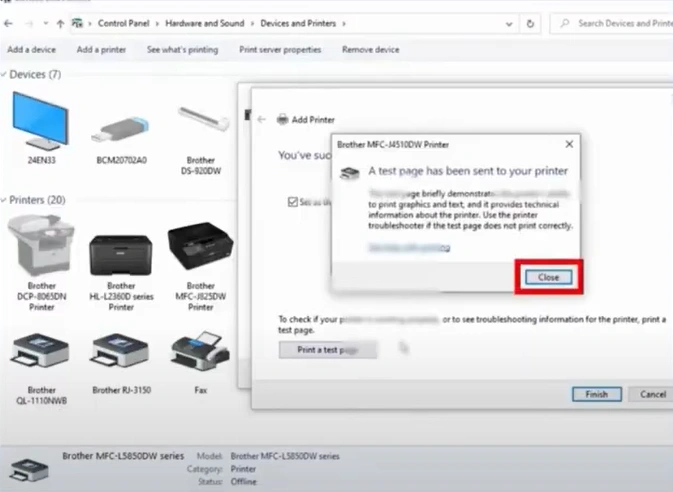
18. Now, see if the printer is still facing the offline issue.
Final Words
We hope your "Brother MFC L2750DW printer offline" issue will be resolved after using these proven solutions. Follow all the steps carefully to get your printer online quickly. In addition, you may need to use other solutions to fix the problem. As a result, it would be best if you try to get your hands on more solutions to tackle this problem.

