HP DeskJet 4252e Not Printing [Fixed]
![HP DeskJet 4252e Not Printing [Fixed]](https://printertales.com/public/upload/blog/68df914b2f3e8_hp-deskjet-4252e-not-printing-fixed-.webp)
Like any other routine day, you turned on your HP DeskJet 4252e printer and your computer to complete the task at hand. You wanted to send some important documents to a colleague, but when you pressed the “print” button, the printer stayed silent instead of making its usual humming sound. After pressing the button several times, you likely began to feel anxious, wondering what could be causing this sudden silence.
The issue of the HP DeskJet 4252e not printing is very common, but there are multiple ways to fix it. Don’t lose hope - your printer can be ready to work again with the right steps. We have explained the 3 best methods to resolve this problem, but before that, let’s look at the common challenges that may appear and interrupt the troubleshooting process.
Problems You May Face When Fixing HP DeskJet 4252e Printing Error
The following challenges are likely to occur when you are trying to fix your HP DeskJet printer:
- Wi-Fi not connecting
- HP Smart app not working
- Outdated or missing driver
- Paper jams or multiple feeding issues
- Print jobs stuck in queue
How to Fix HP DeskJet 4252e Printer Not Printing Issue
Let’s look at the best methods to fix your HP DeskJet printer that’s not working. These are:
Method 1: Manually Reset Your Printer
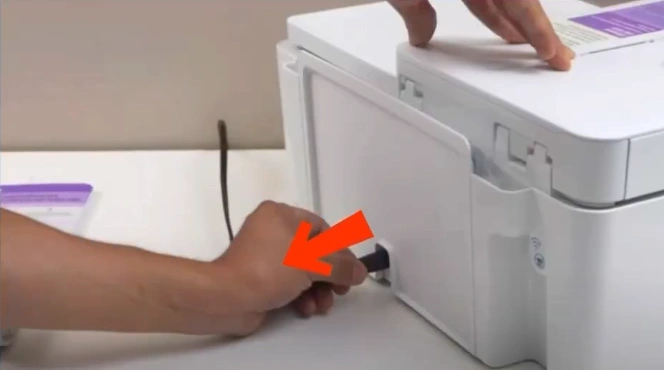
Step 1: While the printer is still on, unplug the power cord from the back of the printer.
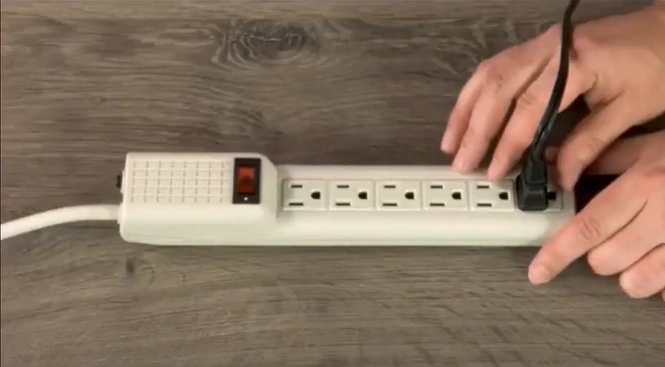
Step 2: Disconnect the other end of the power cord from the power outlet and wait for 60 seconds.
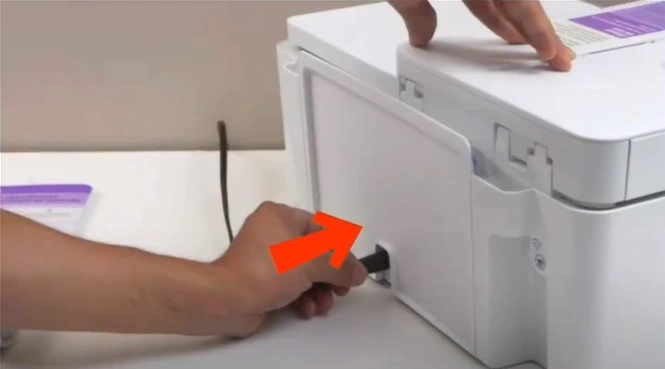
Step 3: After 60 seconds, reconnect the power cord to the printer and the outlet. The printer will reset automatically.
Method 2: Set Printer as Default Device
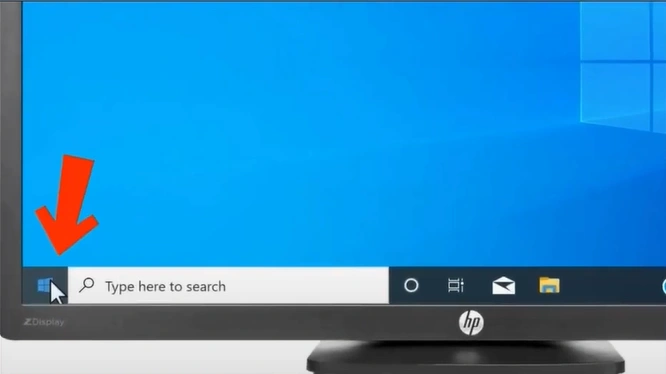
Step 1: Press the Windows Start button on your keyboard.
Step 2: In the search bar, type Printers & scanners and click on “Open.”
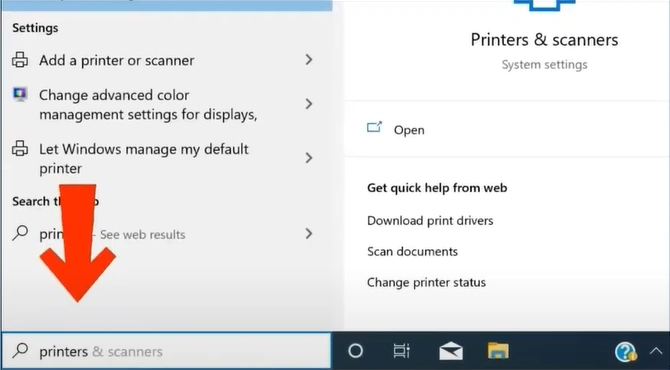
Step 3: Scroll down to “Let Windows manage my default printer” and uncheck the box.
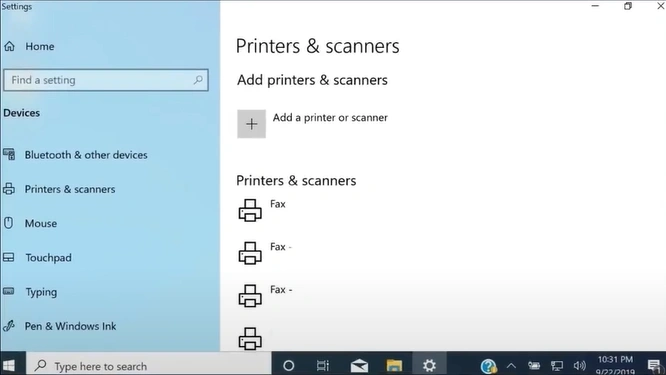
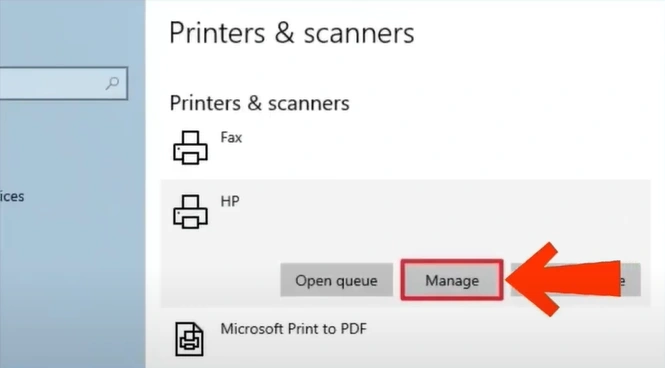
Step 4: Scroll back up, select your printer from the list, and click “Manage.”
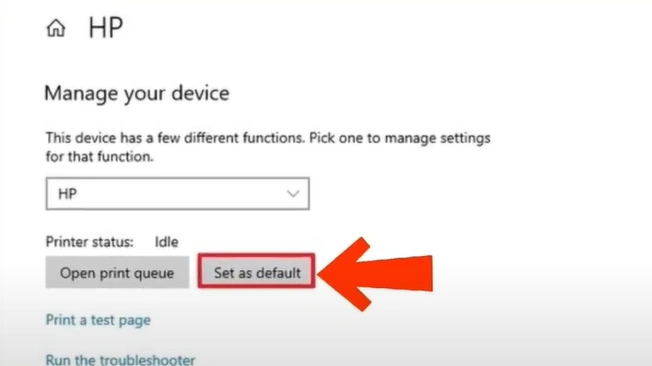
Step 5: Click on “Set as default.”
Method 3: Update Your Printer Driver
Step 1: Open your browser and go to the HP Support page.
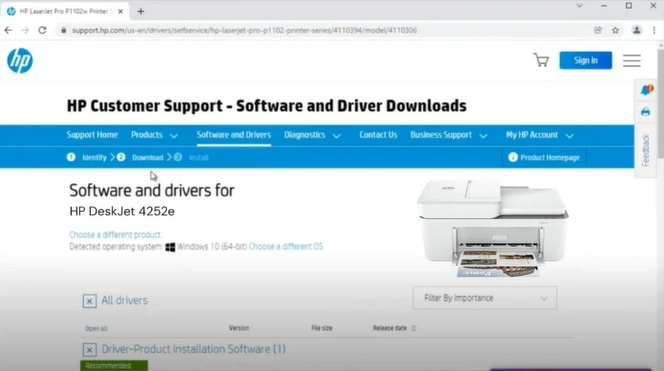
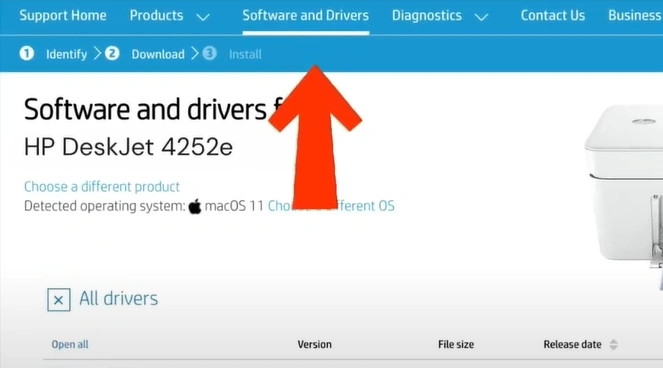
Step 2: Select the Software and Drivers tab.
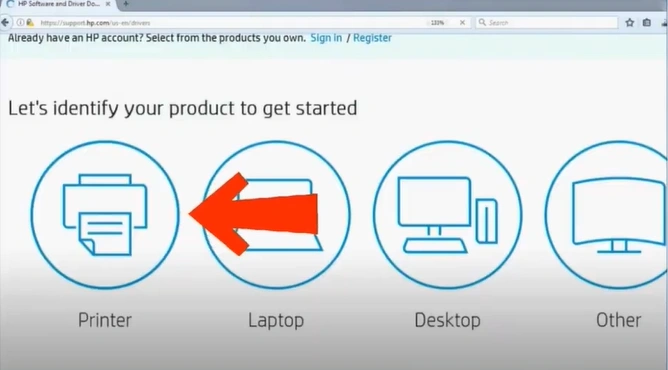
Step 3: Click on Printer.
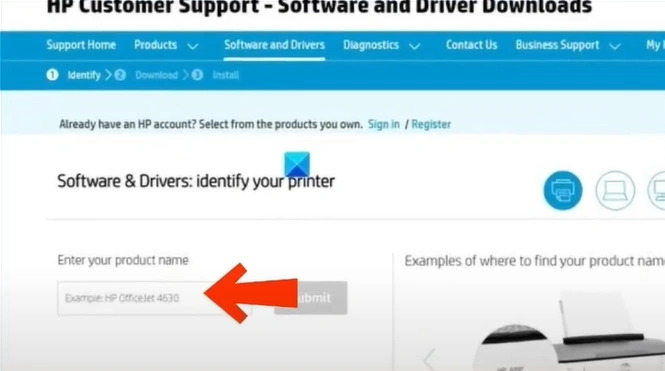
Step 4: On the next page, type “HP DeskJet 4252e” in the search box and click Submit.
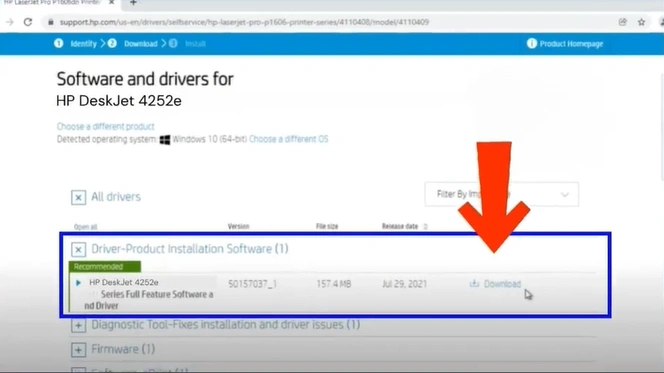
Step 5: Under Driver-Product Installation Software, click “Download” to install the driver.
Preventive Maintenance Tips
Below are some preventive maintenance tips to help your HP DeskJet printer run smoothly without any issues:
Use Good Quality Paper
Do not use torn or crooked paper, as this can cause paper jams or poor print quality. It is recommended to use HP paper for the best results.
Keep Drivers and Software Updated
Always keep your drivers and firmware updated to the newest version. Download the updates only from the official HP site.
Replace Ink Cartridges on Time
Replace or refill ink cartridges before they dry out. Always use original HP ink cartridges to prevent clogging and ensure the best print quality.
Place Printer in a Clean Environment
The printer should be kept away from dusty or humid environments. Place it in a well-ventilated area and keep it away from extreme heat.
Don’t Overload the Paper Tray
Do not overfill the tray, as this can result in paper jams or feeding problems. Before loading the paper into the tray, ensure that it is properly aligned.
To Conclude
These steps will help get your HP DeskJet 4252e printer working again. Begin by resetting the printer, and if that doesn’t solve the problem, set it as the default device. Should the issue persist, update the printer driver directly from the official HP website. With these fixes, you can restore smooth and reliable printing.
Related Guide

