HP DeskJet 4255e Not Printing (How to Fix)

Are you unable to print from your HP DeskJet 4255e printer that you’ve been relying on for years? Missing important deadlines can be stressful, and the pressure builds quickly.
The power light is on, and the paper tray looks fine. You pressed the “print” button multiple times, but there was no response. The issue could be a stuck print job in the queue or an outdated/corrupt driver.
Instead of stressing over the causes, let’s focus on the solutions. Below, we’ve listed the best methods to fix the HP DeskJet 4255e printer not printing issue. But before moving on, here are some important checks you should make first.
Things to Check Before Fixing
Before you can actually start fixing your HP DeskJet 4255e printer that is not working, review these important things first:
- Check Power Supply: Ensure that your printer is properly plugged in and turned on.
- Check Connections: Check that your printer is connected to your PC and Wi-Fi network.
- Look for Paper Jams: Open the printer, look inside, and carefully check for any paper jams or stuck sheets.
- Check Error Messages: Look for any error lights or messages on the printer or your PC.
- Check Ink Levels: Confirm that the ink cartridges are correctly installed and have sufficient ink levels.
Common Problems You May Face When Fixing HP Printer Not Printing
Here is a list of the potential problems that may occur when you are attempting to resolve the HP DeskJet printer not printing issue:
- Wi-Fi is not connected properly
- Driver or software-related issues
- Unsupported file format
- HP account not set up correctly
- Instant ink service is paused or expired
4 Ways to Fix HP DeskJet 4255e Printer Not Printing Issue
Take a glance at these practical methods to troubleshoot the HP DeskJet printer not printing issue:
Method 1: Set Printer as Default Device
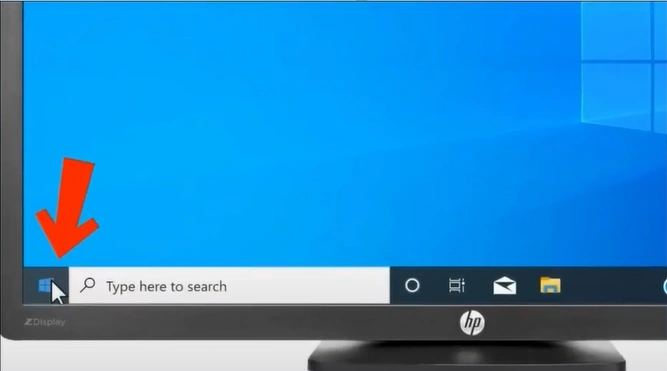
Step 1: Click on the Start menu.
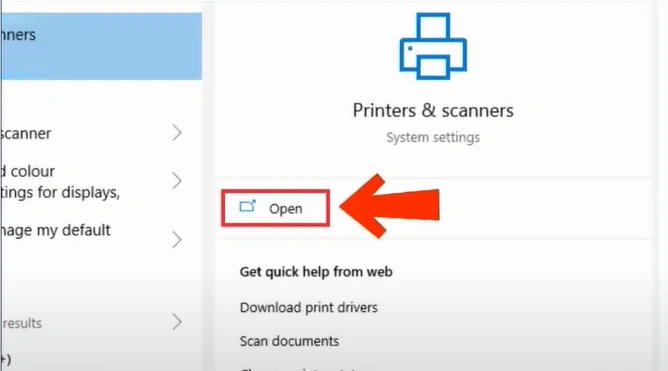
Step 2: Search for “Printers & Scanners” and click “Open.”
Step 3: Scroll down to “Let Windows Manage my default printer” and uncheck it.
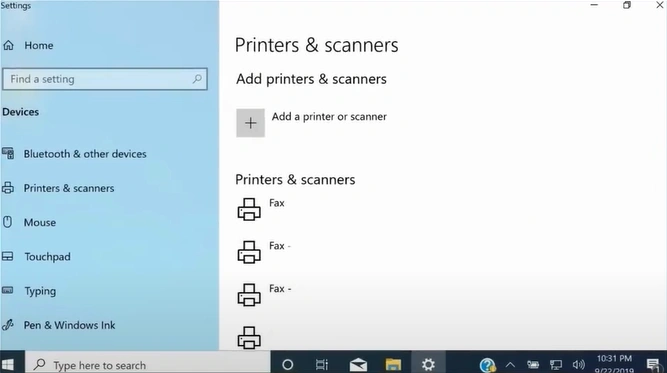
Step 4: Scroll up, select your printer from the list of printers, and then click “Manage.”

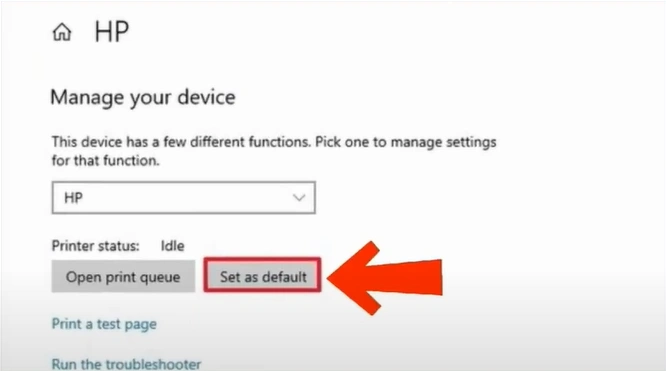
Step 5: Select Set as default option.
Method 2: Reset Your Printer Manually
Step 1: Remove the power cord while the printer is on.
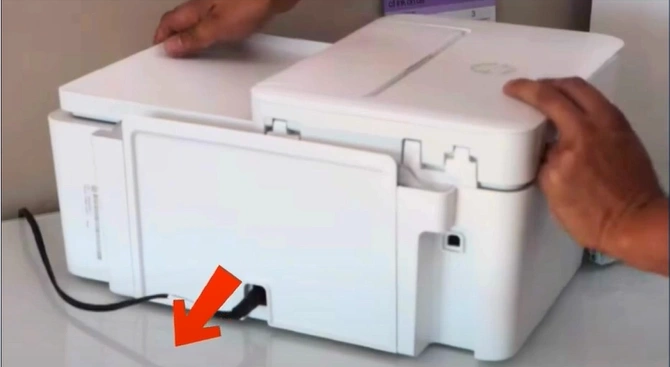
Step 2: Unplug the other end of the power cord from the outlet and wait for 60 seconds.
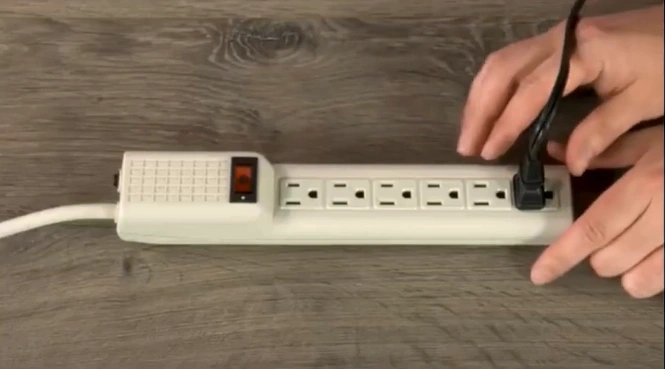
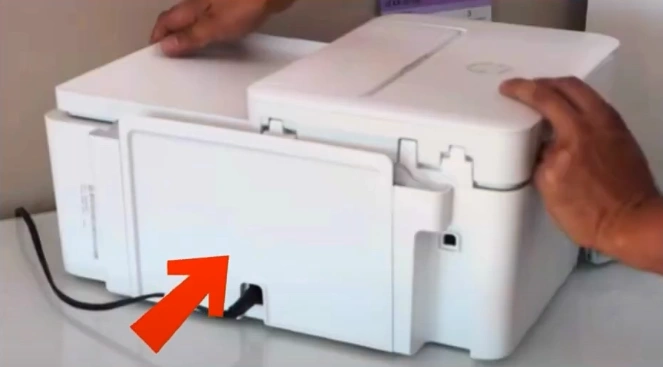
Step 3: After 60 seconds, plug the printer back in to complete the power reset.
Method 3: Update HP Printer Driver
Step 1: Open the HP support website in your browser.
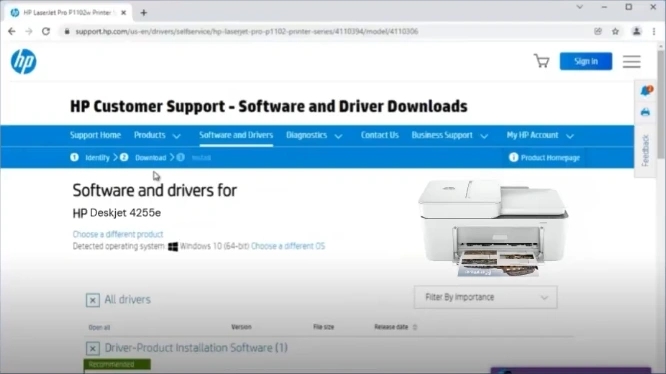
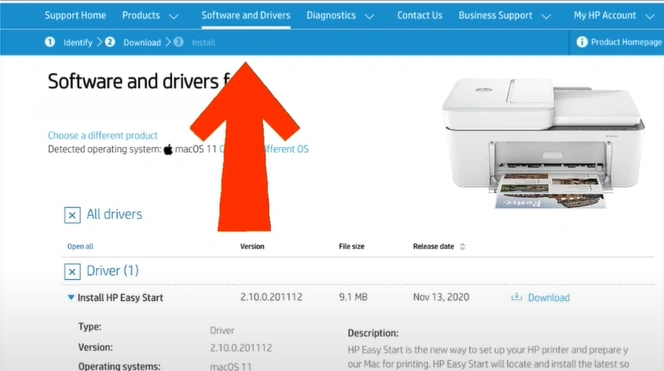
Step 2: Click on the Software and Drivers tab.
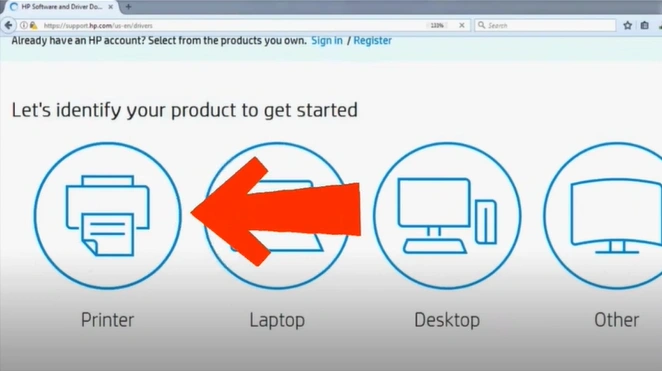
Step 3: Click on Printer.
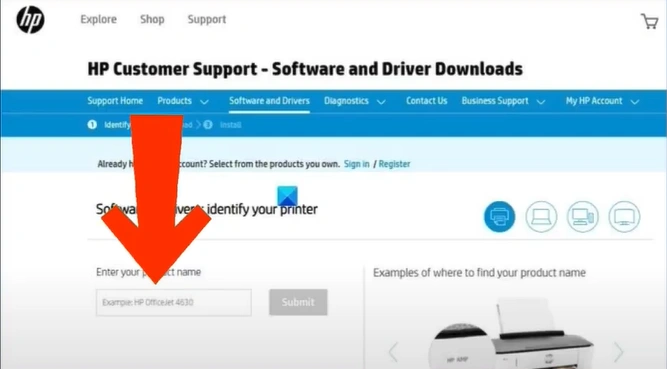
Step 4: On the next page, enter ‘HP DeskJet 4255e’ and click Submit.
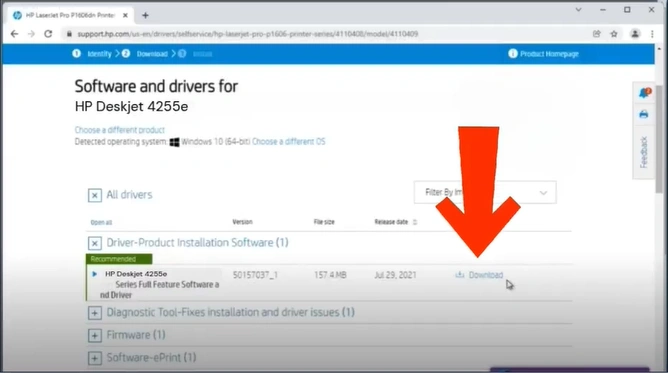
Step 5: Select Driver-Product Installation Software, then click Download.
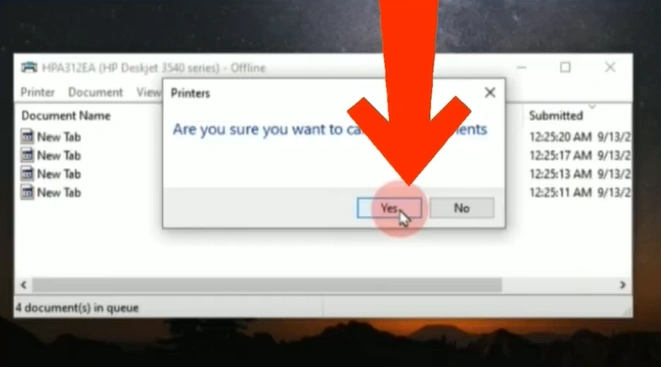
Method 4: Cancel All HP Printer Jobs
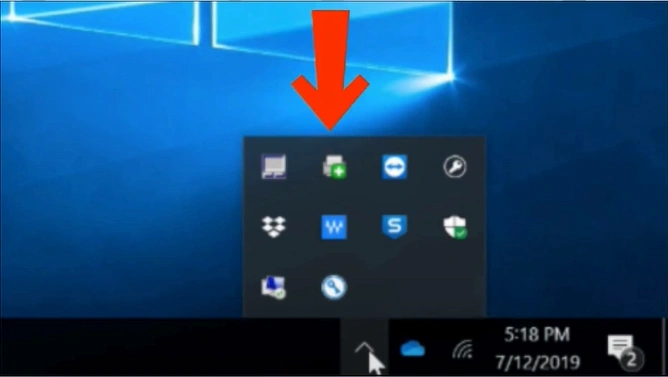
Step 1: In the notification area on the lower right corner of your screen, click the hidden icons arrow.
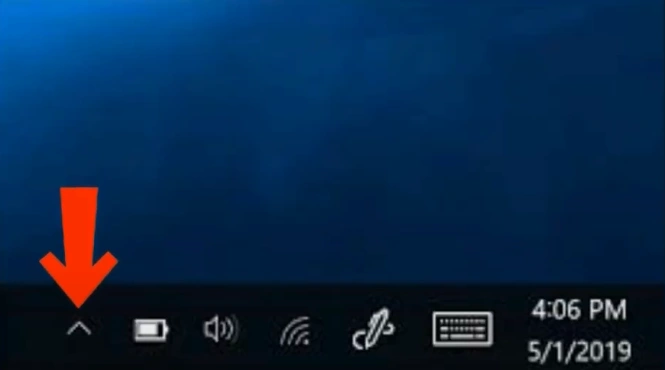
Step 2: Double-click on the printer icon.
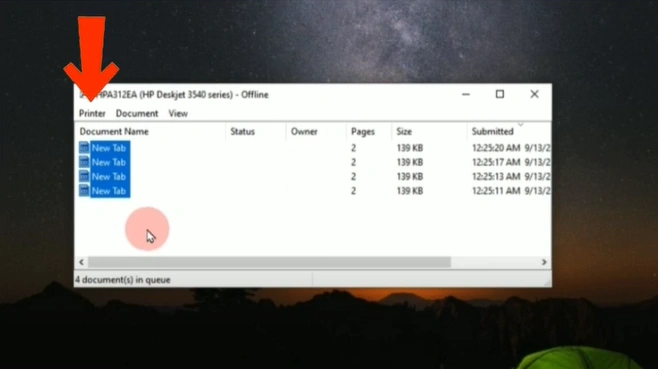
Step 3: On the next pop-up window, click on Printer.
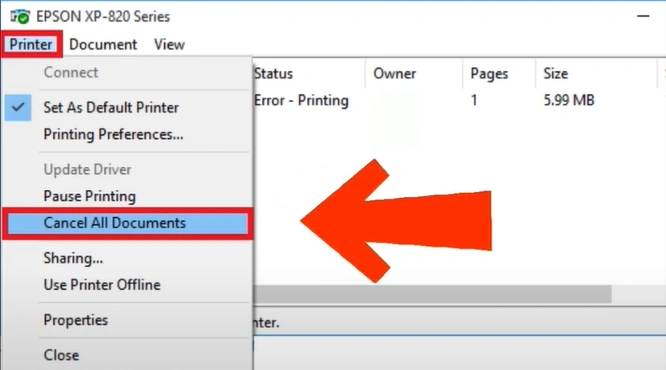
Step 4: Select Cancel All Documents from the dialog box.
Step 5: Press the Yes button to confirm.
What to Do After Troubleshooting
Once you are done troubleshooting the HP DeskJet 4255e printer not printing issue, here is what you must do afterwards:
Test the Printer
Print a test page once you have finished everything. Doing so can ensure that the printer issue is resolved.
Monitor for Recurrence
Use the printer as you used to and keep an eye out for delayed or missing print jobs, paper jams, error messages, blinking lights, and other issues.
Re-enable Any Disabled Features
During troubleshooting, if you have deactivated anything, such as the firewall or printer spooler, don’t forget to turn it back on later.
Summing Up
That’s the ideal way to fix your HP DeskJet 4255e printer. No more unexpected shutdowns or error messages when performing any printing task; instead, enjoy smoother operation. All you can have is a hassle-free printing experience every time you work.
Be sure to check your connections, power supply, paper jams, and ink issues before you start trying the fixes we have mentioned. Also, don’t skip printing a test page once you are through with the troubleshooting.
Related Artice

