HP Printer Stuck In Queue [Fixed]
![HP Printer Stuck In Queue [Fixed]](https://printertales.com/public/upload/blog/684d37fecc653_hp-printer-stuck-in-queue-fixed-.webp)
An HP printer stuck in the queue is a common occurrence that users can bump into every now and then. It happens when the printer is given too many printing tasks at once or when it is unable to understand the commands. Removing the problem as soon as possible is necessary to get your HP printer in working condition once again and prevent any further complications.
Depending on the reason behind the issue, here are our simple instructions to get your HP printer out of the stuck-in-queue problem.
Steps to Fix the HP Printer Stuck in Queue Issue
1. Power off your printer.
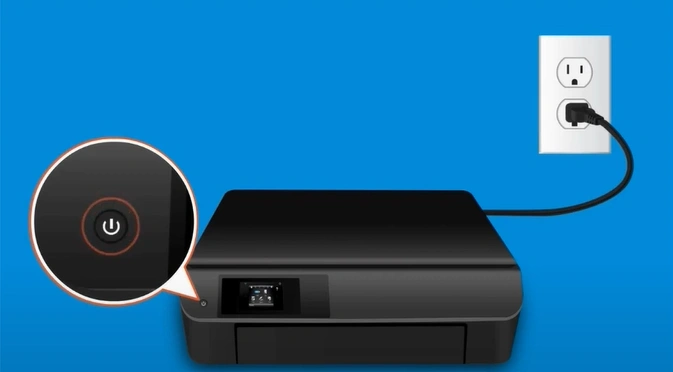
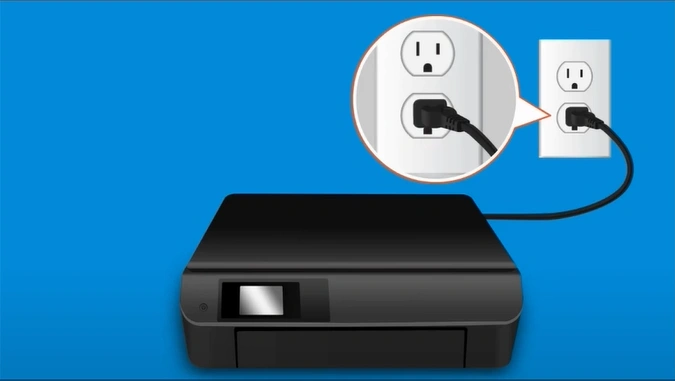
2. Remove the printer power plug from the outlet.
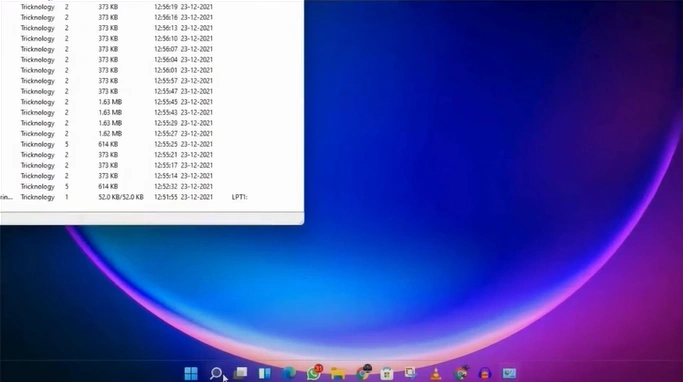
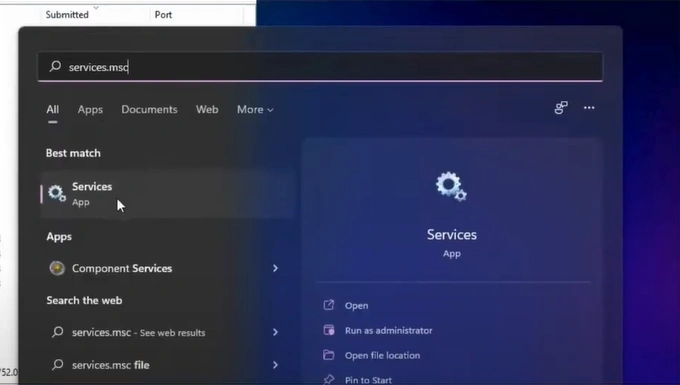
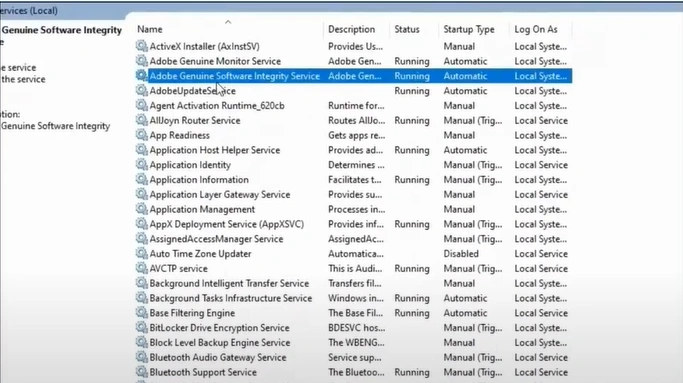
3. Then, on your PC, click on the search icon and enter "services.msc," and search.
4. Next, open the Services application.
5. Scroll and find Print Spooler.
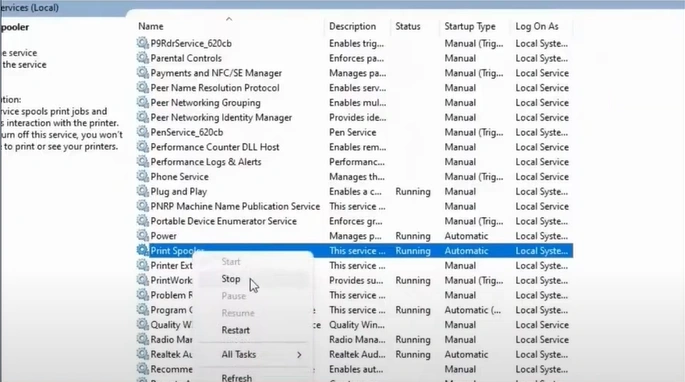
6. Right-click on your print spooler and select Stop.
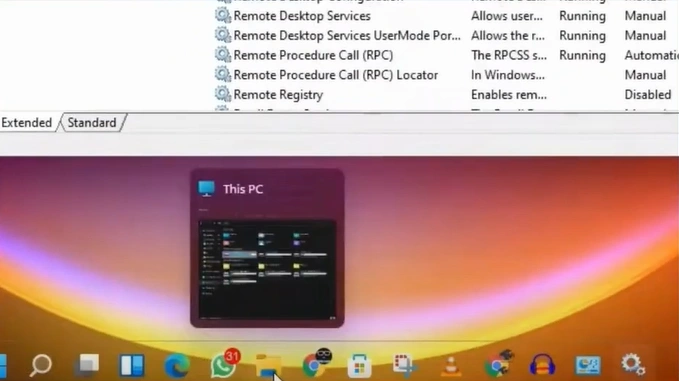
7. Open your File Explorer.
8. Now, open the local disk C, find and open the Windows folder.
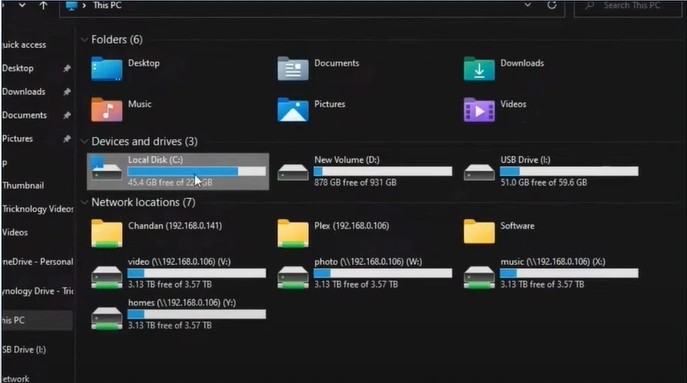
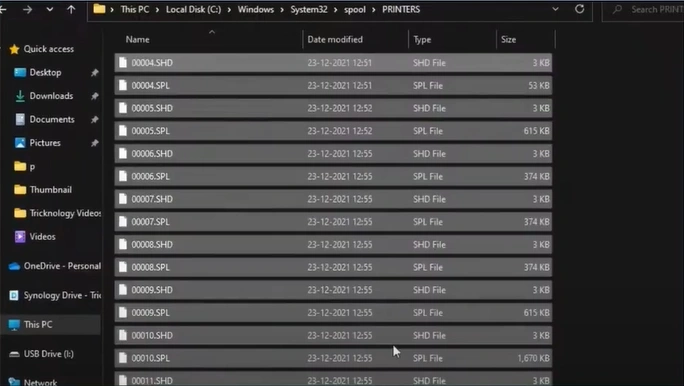
9. Furthermore, you should open the "System 32" folder, double-click on the Spooler folder, and then open the "Printers" folder.
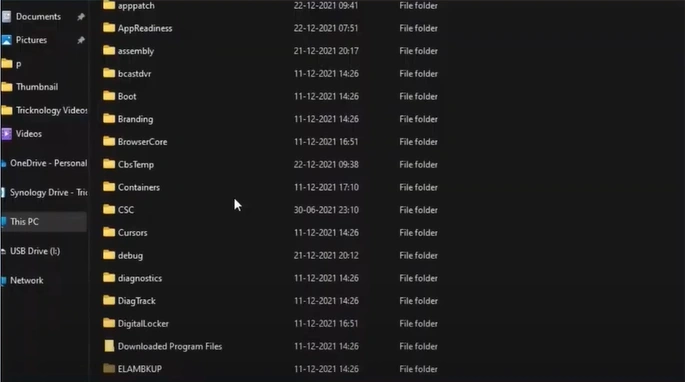
10. In that folder, please select all the files and delete them permanently.
11. Shut down your computer.

12. Insert the power plug of the printer back into the outlet. (Note- Ensure that the printer has remained without power for at least 60 seconds.)
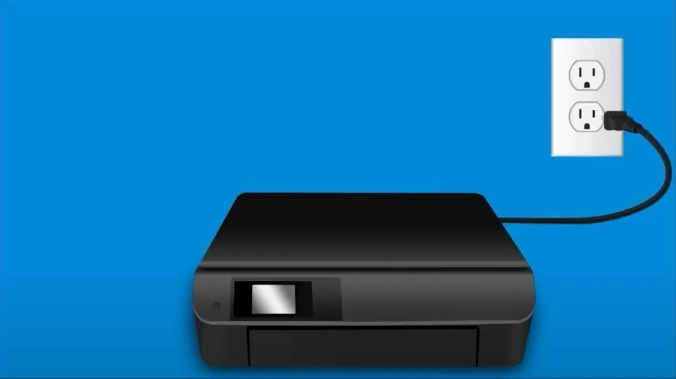
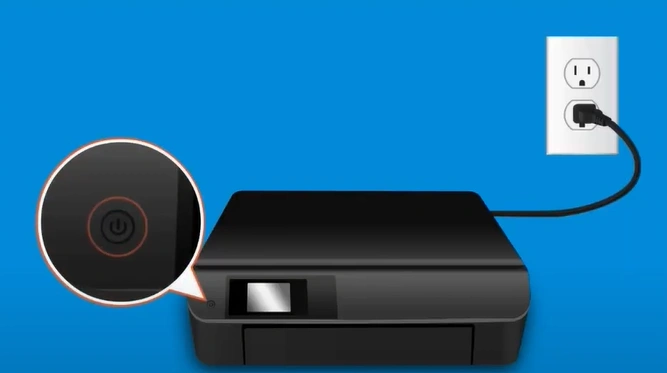
13. Afterward, turn on your printer.
14. Turn on your computer and start printing again.
15. Check if you are still seeing the same problem in your printer.
Also Read:- How to Fix Driver Unavailable For HP Printer?
The comprehensive methods we have shared here can help you resolve the HP printer stuck in the queue problem quickly. In addition, depending on the problem your device is facing, you might need to use several other solutions. It would be helpful to look for the reasons behind the problem if you want to fix it quickly.

