Konica Minolta Print Jobs Stuck In Queue [Resolved]
![Konica Minolta Print Jobs Stuck In Queue [Resolved]](https://printertales.com/public/upload/blog/68663d08ac83d_konica-minolta-print-jobs-stuck-in-queue-resolved.webp)
You find your Konica Minolta printer in a “print jobs stuck in the queue” problem, which indicates that your printer is unable to print all the documents that are given to it.
To put it simply, suppose you send a print command for 10 documents, and your Konica Minolta printer prints 5 of them but gets stuck at 6. Now, not only is the 6th print job stuck in the queue, but the remaining four are stuck, too.
Some of the common causes of getting this problem could be
- Many print jobs are given to the printer, and it is unable to complete them.
- The printer roller is not working properly.
- Wrong printing settings for your Konica Minolta printer
- The printer is unable to communicate with your PC, etc.
If you don't know the procedure for fixing this issue, then please follow the provided guide below.
Procedure to Fix Konica Minolta Print Jobs Stuck In Queue
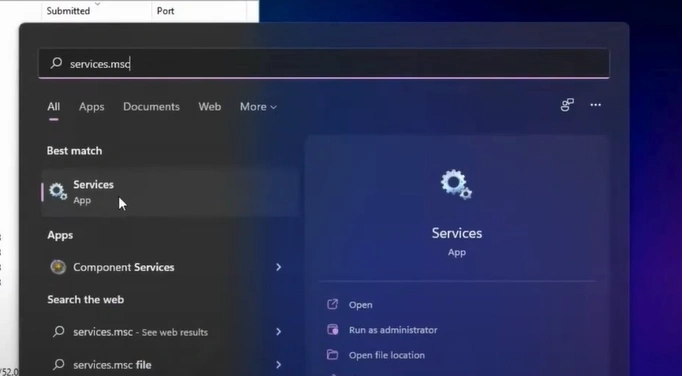
1. Initially, click on the Windows icon on your PC and enter "services.msc" in the search field.
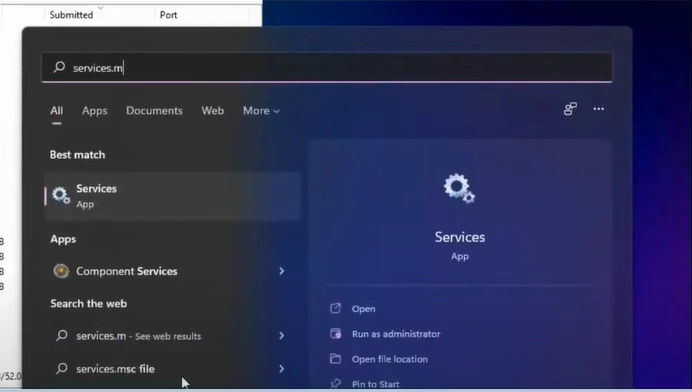
2. Open the Services application.
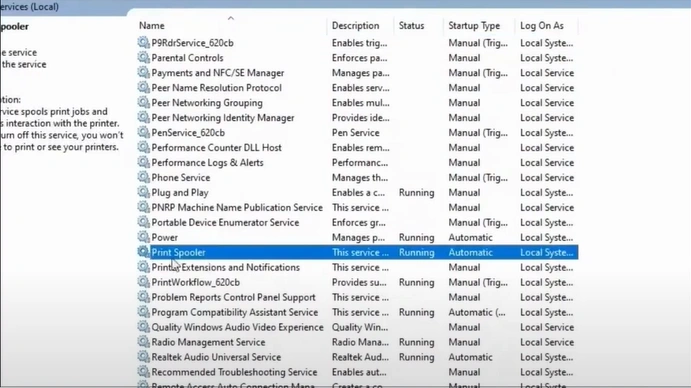
3. Now, scroll and find Print Spooler.
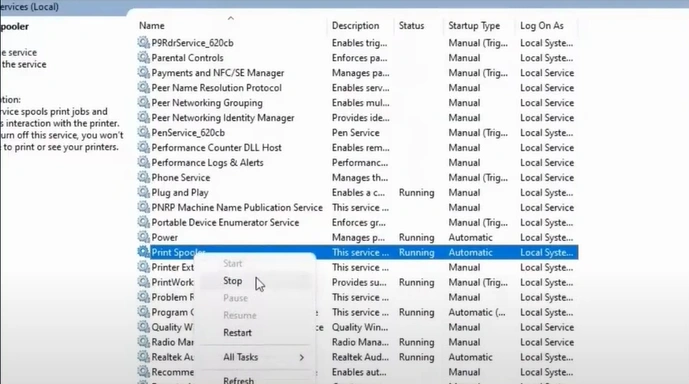
4. You should now right-click on the Print Spooler and select Stop.
5. Then, open your File Explorer.
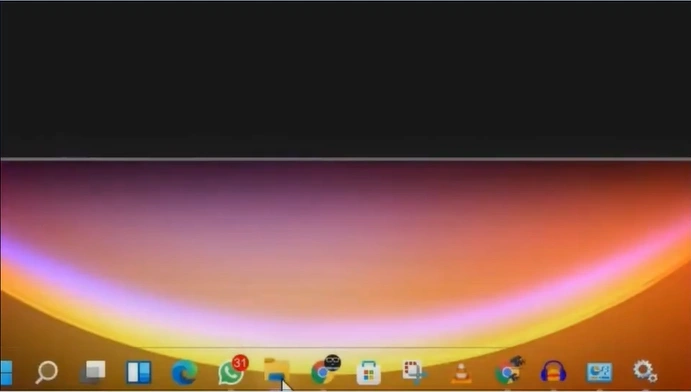
6. Open the Local Disk C, find and open the Windows folder.
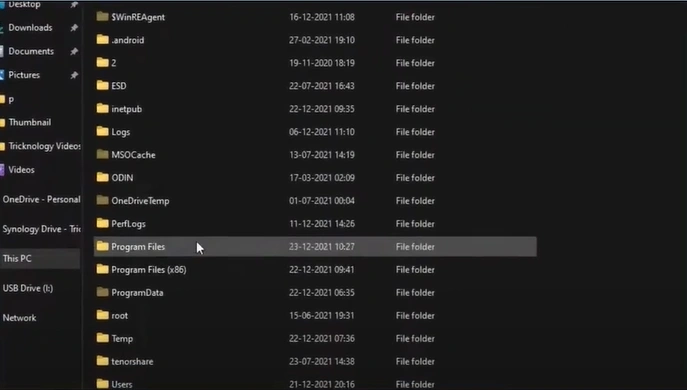
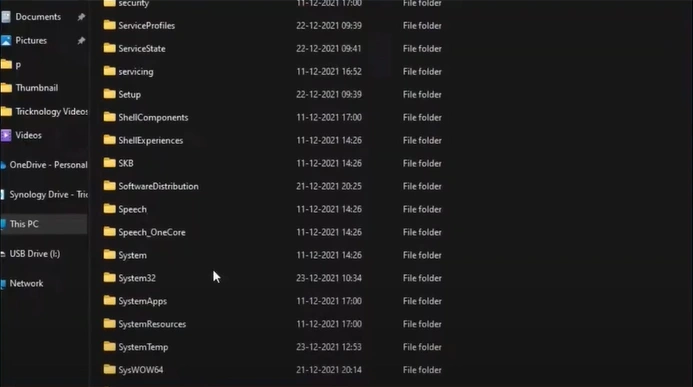
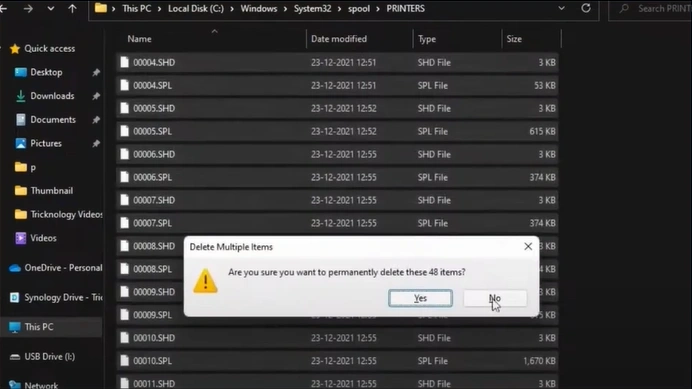
7. Open the "System 32" folder, double-click on the "spool folder," then open the "PRINTERS" folder.
8. Please select all the files in that folder and delete them permanently.
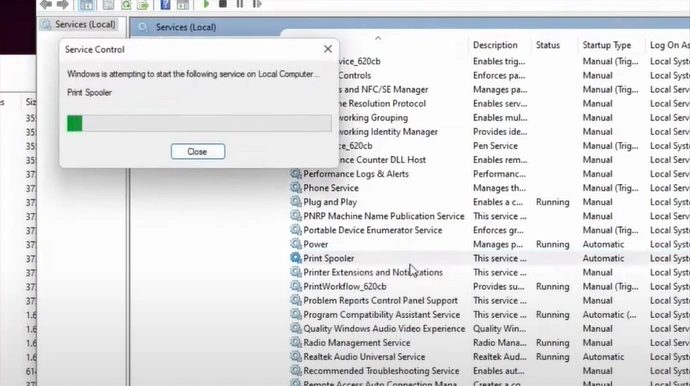
9. Now, close the file explorer and right-click on Print Spooler again.
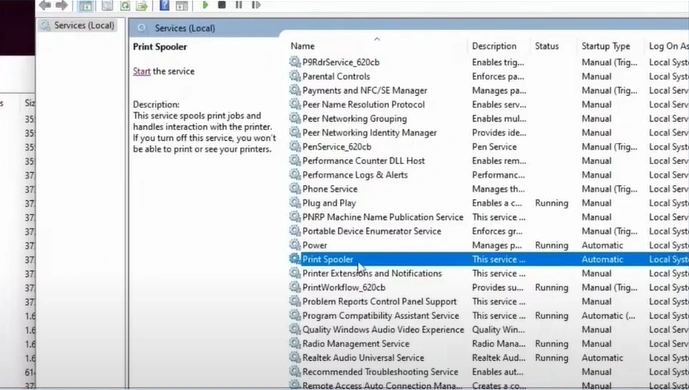
10. Then, click on the Start button.
Also Read:- How to Add Konica Minolta Printer to Mac?
Final Words
In most cases, the print jobs stuck in the queue error are resolved in the Konica Minolta printer using the steps we have shared. Use these methods and try to get your hands on the other solutions to tackle the situation thoroughly. Apart from that, you can ask for help from those who have experience in fixing the issue.

