How to Connect Epson Printer to Computer?

The Epson printer comes with ample top-class features and connectivity options, making it the first choice for many people. These printers are fast and help people stay ahead of their work. If you also have a printer and are planning to connect it to a PC, then there are various options, like USB, Bluetooth, and Wi-Fi.
In addition, choosing the Wi-Fi connection allows you to enjoy wireless printing. However, it is obvious to get overwhelmed if you have to connect your brand-new Epson printer to the computer with no experience. But worry not! We have got your back. Get your hands on the full tutorial, which shares to-the-point info about the connection.
Procedure to Connect the Epson Printer To the Computer
1. First of all, go to the printer display panel, navigate to Settings using the arrow buttons, and then press OK.
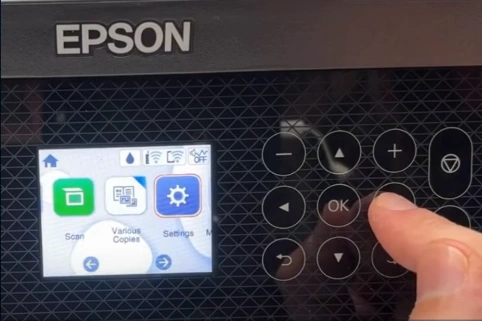
2. Use the up and down arrow buttons to select the Network Settings option and then press the OK key.
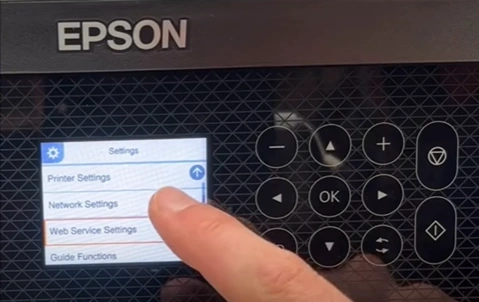
3. Next, press the OK option once again to choose the Wi-Fi setup option.
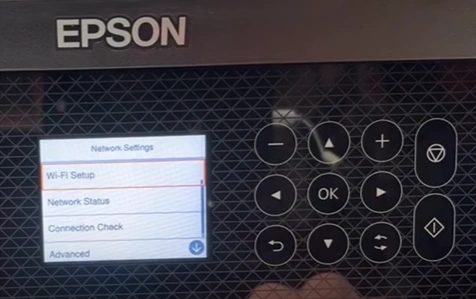
4. After that, you need to ensure that the Wi-Fi (Recommended) option is selected and then press OK.
 option is selected_1744630887.webp)
5. Furthermore, press OK again to choose the Start Setup option.
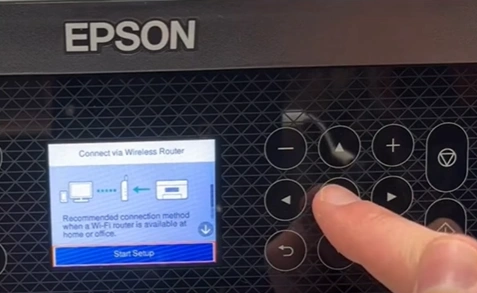
6. Select the Wi-Fi setup wizard and press OK, and it will start searching for wireless routers to connect with.
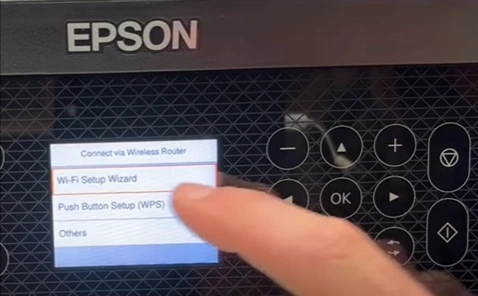
7. Choose the network you want to connect with and press OK.
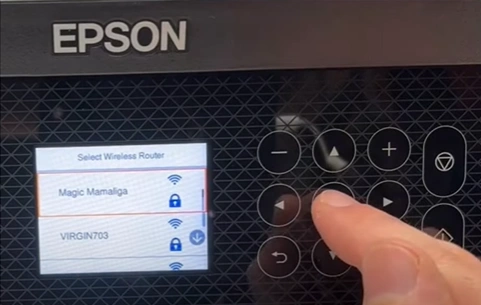
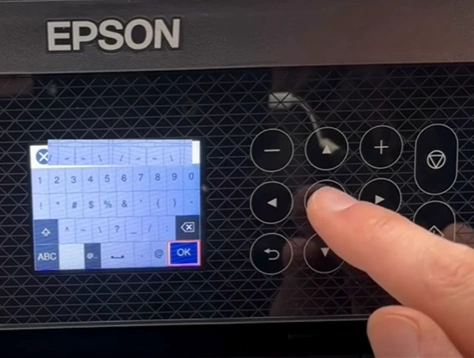
8. Press OK, enter the wireless network password, and press OK.
9. Choose Start Setup and select OK.
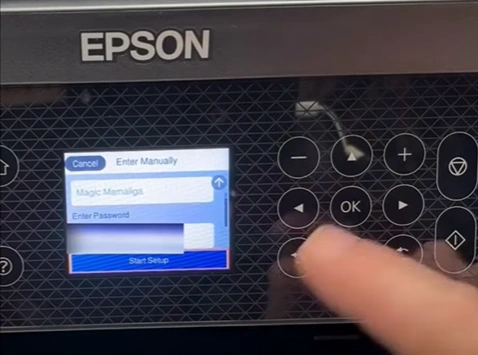
10. Wait for the connection to be established.
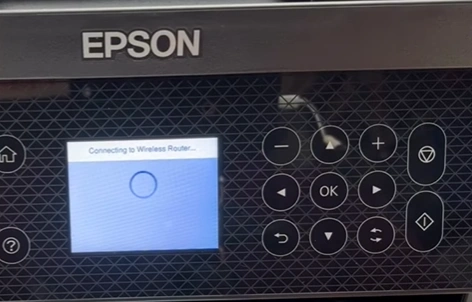
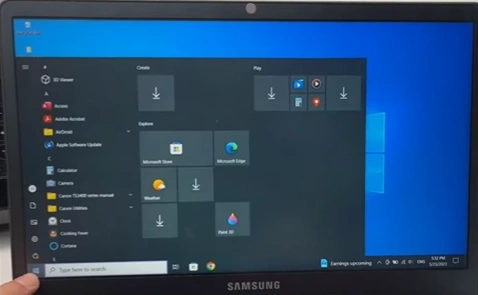
11. Once connected, go to your computer and click the Windows start button.
Also Read: Epson ET-3850 printer's offline issue
12. Choose Settings and go to the Devices option.
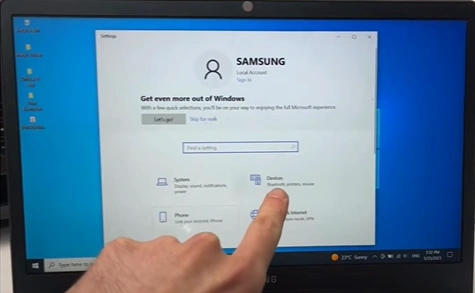
13. Select Printers & Scanners, then click the + button next to Add a Printer or Scanner.
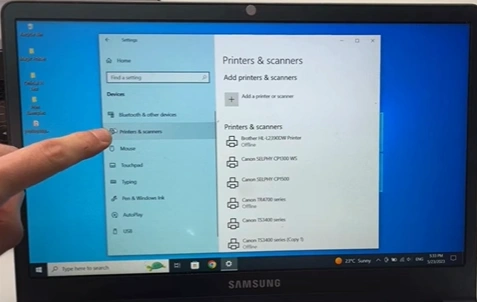
14. It will start searching and display a list of available printers in the same network.
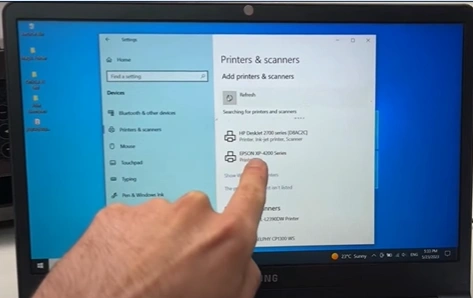
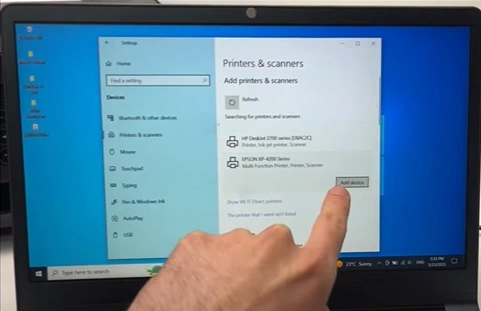
15. Select your Epson printer model name and click the Add Device option.
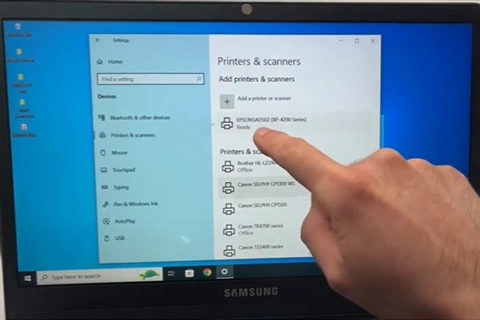
16. Once connected, your device will display Ready under the printer.
Wrap Up
We hope your Epson printer setup process is complete after using this step-by-step instruction. While following these methods, you should make sure to follow other connection requirements to enjoy a seamless connection. If you have some questions related to the connection or are facing problems with any steps, then reach out for further help

