How to Fix Driver Unavailable For Epson Printer?

Having the Epson printer unavailable driver issue? Unable to get the right driver for your printer? Well, there could be numerous situations where you can face driver-related problems. The reason for facing this problem in your printer could be corrupt/outdated drivers, compatibility issues, network problems, firewall protection, and several others. Without the suitable and latest driver for your Epson printer, you will not be able to use the printing operations on the machine.
If you want to fix this issue, the first solution you should try is to uninstall the driver and install the latest one. As a result, keep reading until the end to learn about the complete instructions and resolve your Epson printer driver problem.
Instructions to Fix the Epson Printer Driver Unavailable Issue
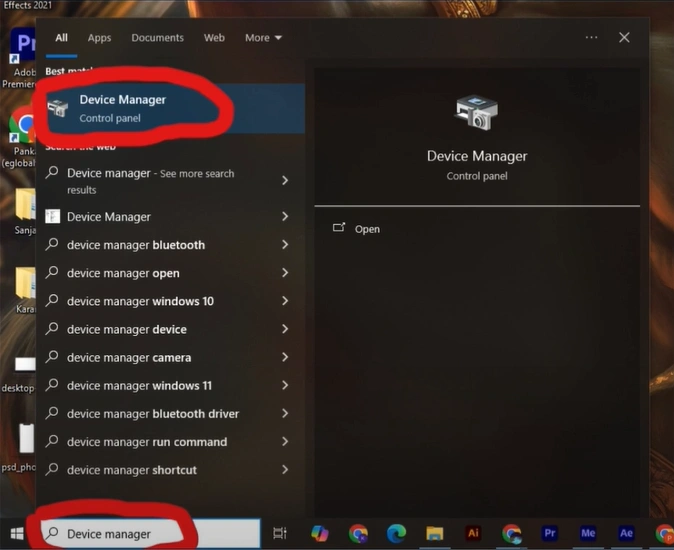
1. First, search for the device manager in the search bar and open it.
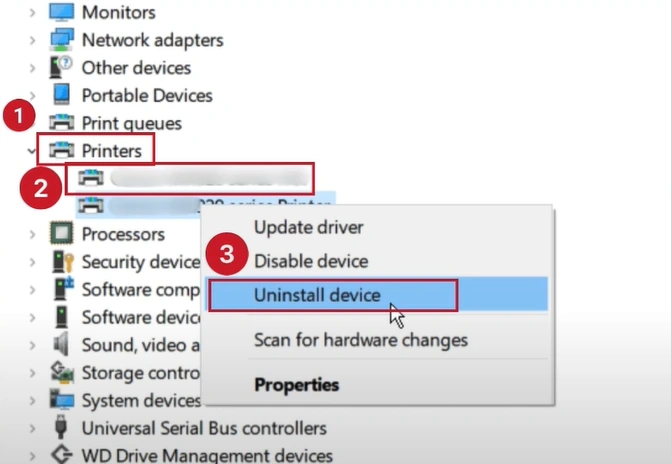
2. On the next page, scroll and expand the Printers section, then right-click on the printer and select Uninstall device.
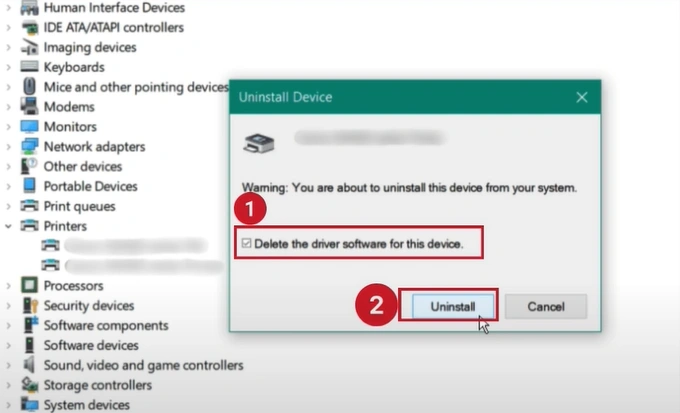
3. In the Uninstall device window, click on the “Delete the driver software for this device” box and click on the Uninstall button.
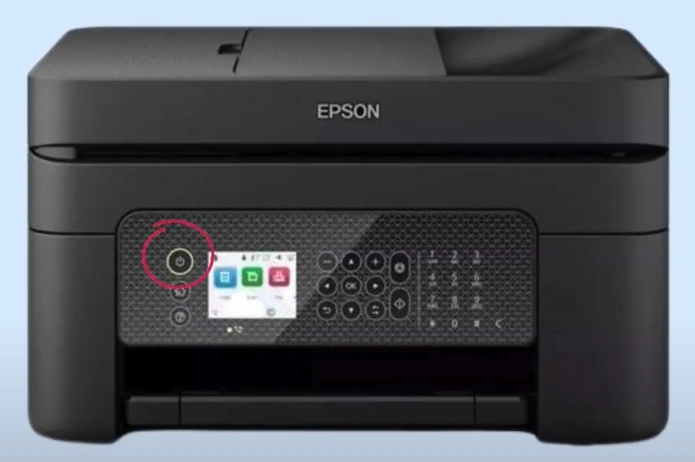
4. After that, you should restart your printer device.
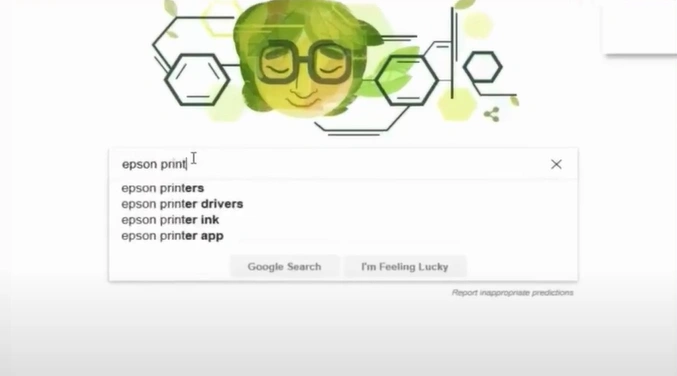
5. Open your browser and go to the Epson printer driver’s official website.
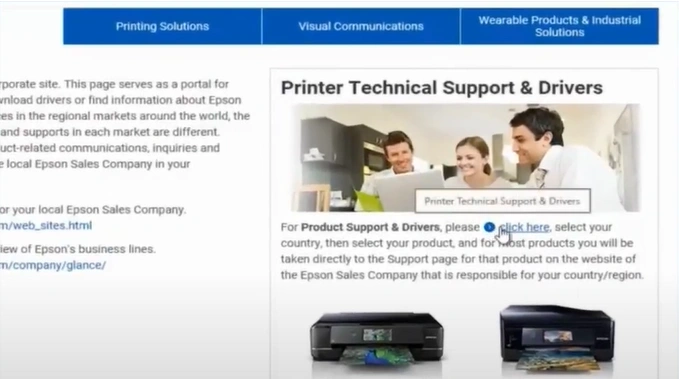
6. Then, click on “click here.”
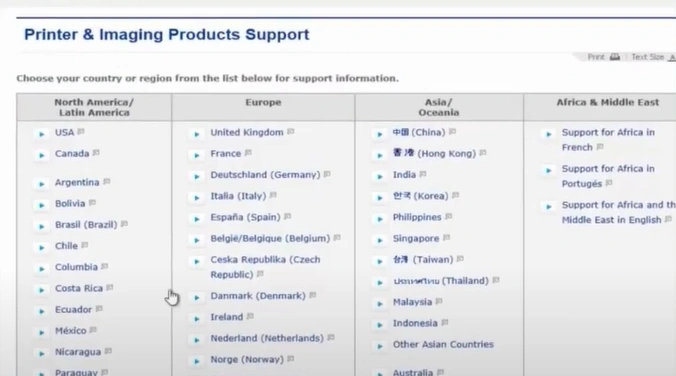
7. Choose your country or region.
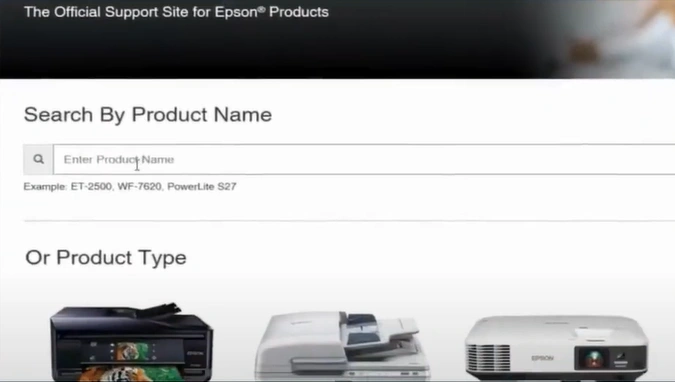
8. Now, enter your product name and search or select from printer types.
9. Select your operating system from the dropdown.
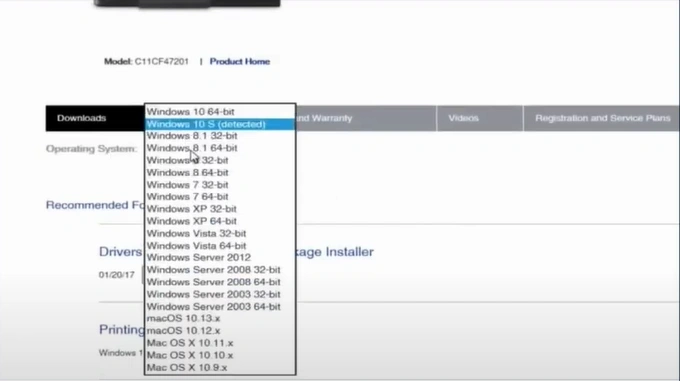
10. Click the Download button, choose Save, and after the download ends, click Run.
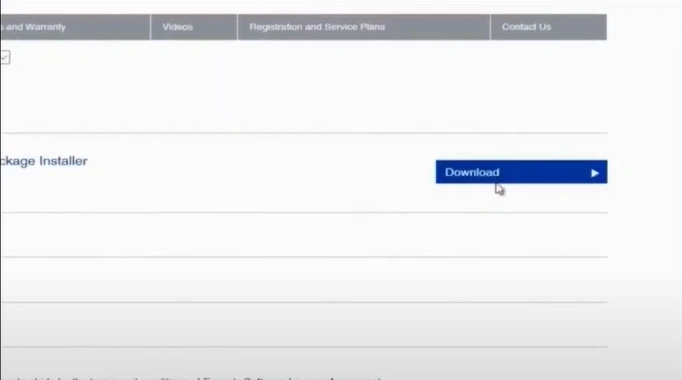
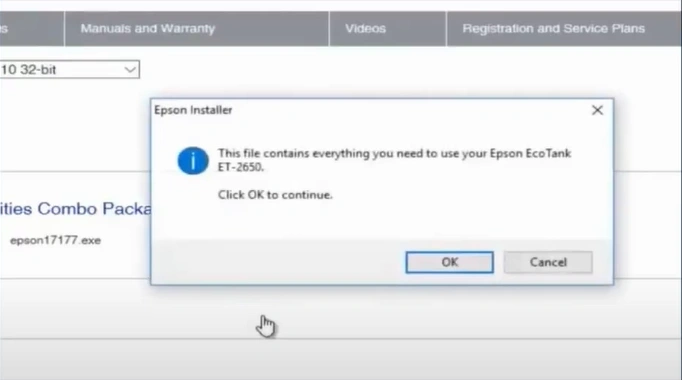
11. Choose Yes, and click OK to continue.
12. After installing, accept the license agreement.
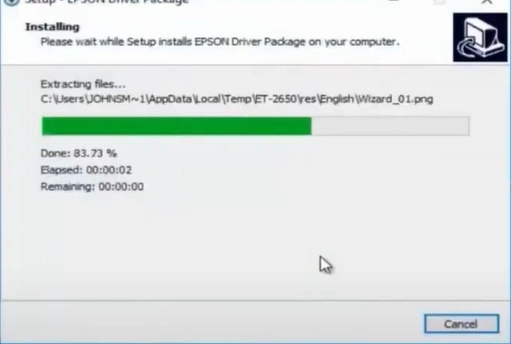
13. Select items of your choice, then click on the Install button.
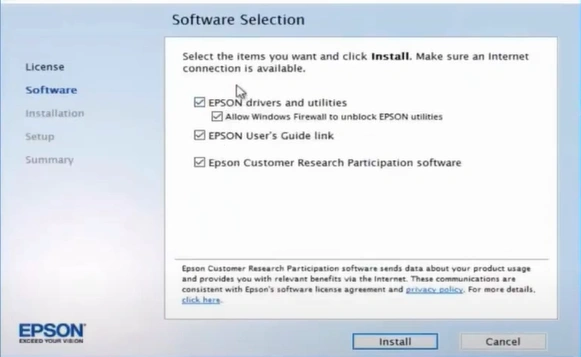
14. After installing, click Next to set up the printer.
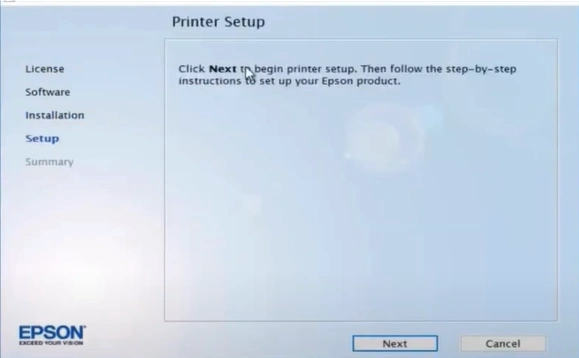
15. Furthermore, choose your connection, then click Next.
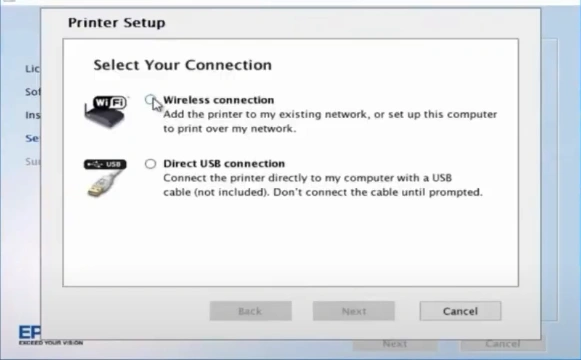
16. Choose the Setup option and then click on Next.
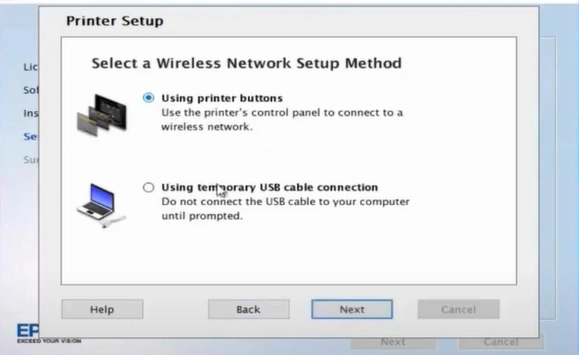
17. Next, select a wireless network setup method, then click Next.
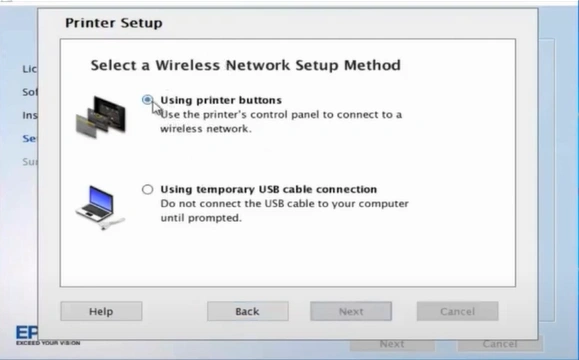
18. Keep on clicking the Next button, then in the Printer setup, select one option and click Next.
_1754644503.webp)
19. Finally, your Epson printer driver installation will be complete, and the driver problem with the unavailable printer will be resolved.
Wrap Up
With the help of the guide we have mentioned here, you can easily troubleshoot the unavailable driver for your Epson printer. Apart from this solution, you need to check for other problems with your device and take the right actions. As a result, it would be good to get your hands on more solutions and assistance to tackle the situation more efficiently.
Related Article

