Epson ET-3950 Paper Jam: How to Clear It in 5 Minutes
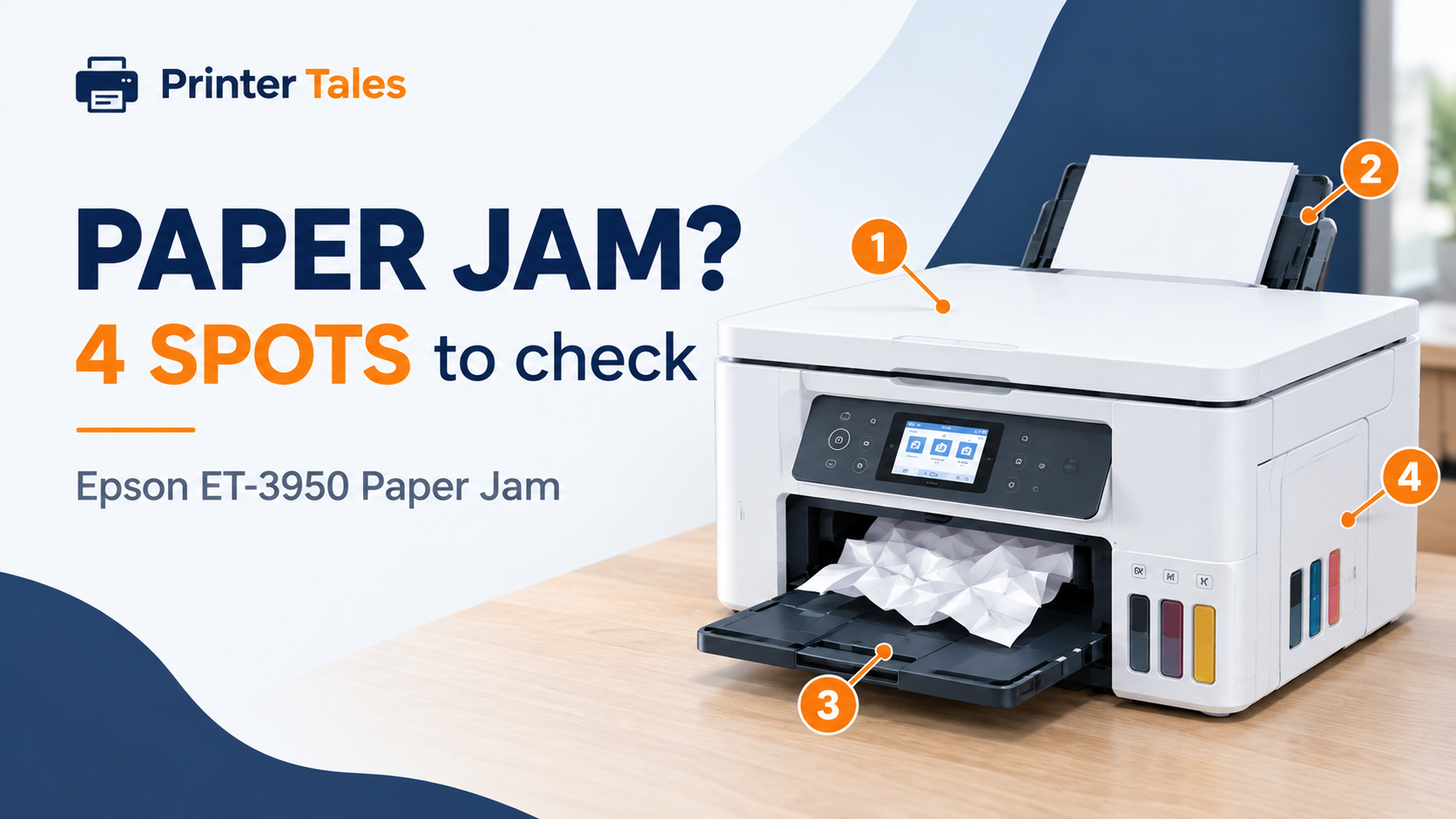
To clear a paper jam on an Epson ET-3950, cancel the print job liked I did in my video below, turn the printer off and unplug it, then check four places in order: inside under the scanner unit, the rear cover on the back, the paper cassette, and the document feeder on top. Pull any paper out slowly in the direction it travels, close everything up, and power back on.
Most jams are out in a few minutes. The printer also helps: when the jam message appears, the ET-3950 plays an animation on its screen showing where to look. You can bring up the same help any time with the help button then click Troubleshooting.
Two rules before you reach inside
Turn the printer off and unplug it first. Epson’s own jam guidance starts here, and it’s worth the extra ten seconds.
Keep the printer flat. The ET-3950 is an EcoTank, so its front tanks hold liquid ink. Epson warns against tilting it, standing it on its side or turning it upside down while clearing a jam, because ink can spill. The one exception is roller cleaning, covered further down, and only with the tank caps shut tight.
One more from Epson’s safety notes: never press the control panel buttons while a hand is inside the printer. If it starts moving, it can catch your fingers.
The four places paper jams on the ET-3950
1. Inside, under the scanner unit
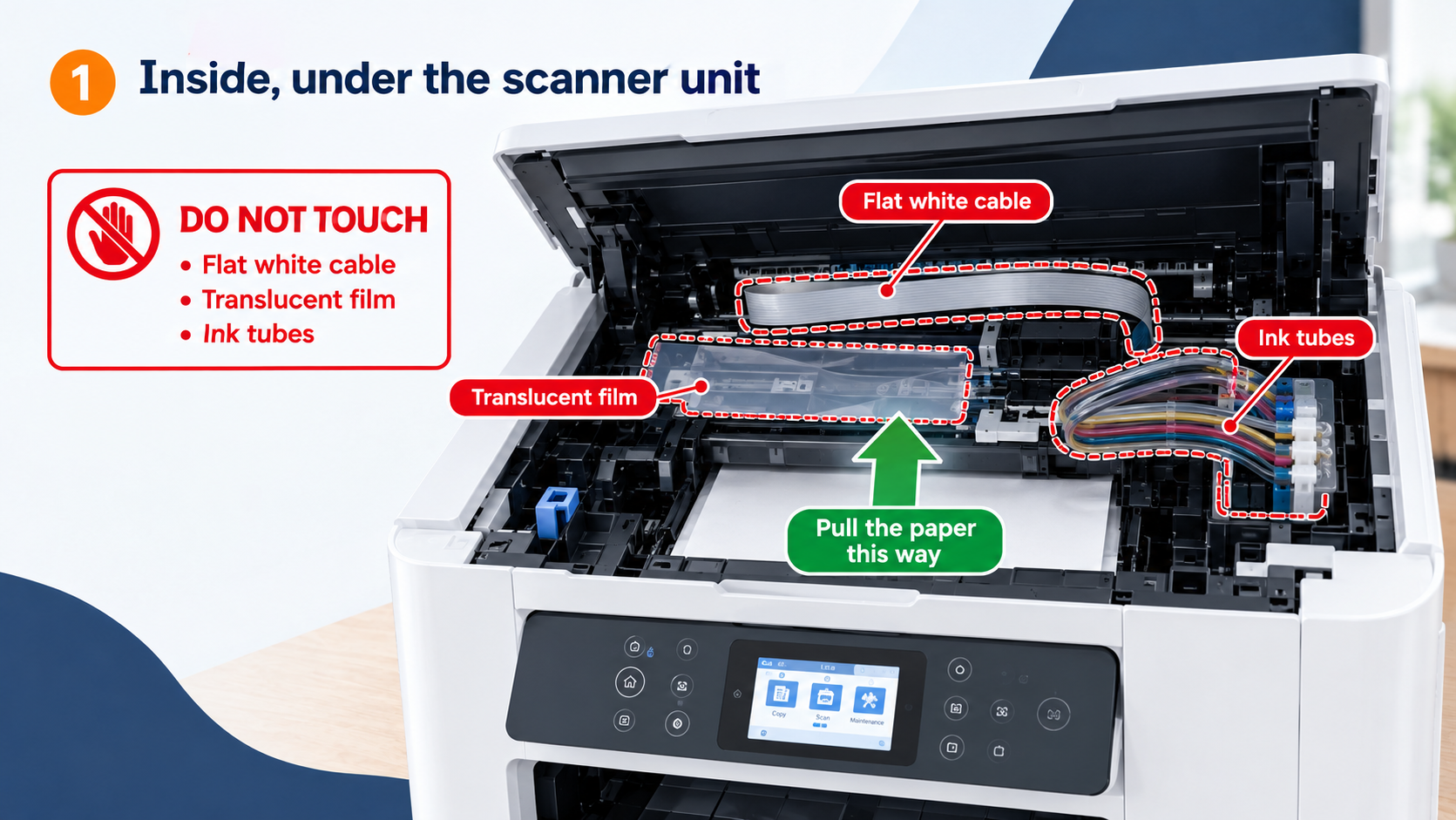
Close the document cover, then lift the scanner unit (the whole top section) until it holds itself open.
Look along the paper path and take out any paper you see. Use both hands and pull slowly, in the direction the paper was travelling. Speed is what tears sheets, and a torn strip left behind is the classic cause of a second jam a few pages later. Check for small scraps too.
There are three things inside you shouldn’t touch: the flat white cable, the translucent film, and the ink tubes. Epson lists all three in its cleaning instructions for this model.
Close the scanner unit when you’re done. It’s built to close slowly with some resistance so it can’t trap fingers. That resistance is normal; keep closing it.
2. The rear cover (duplexer)
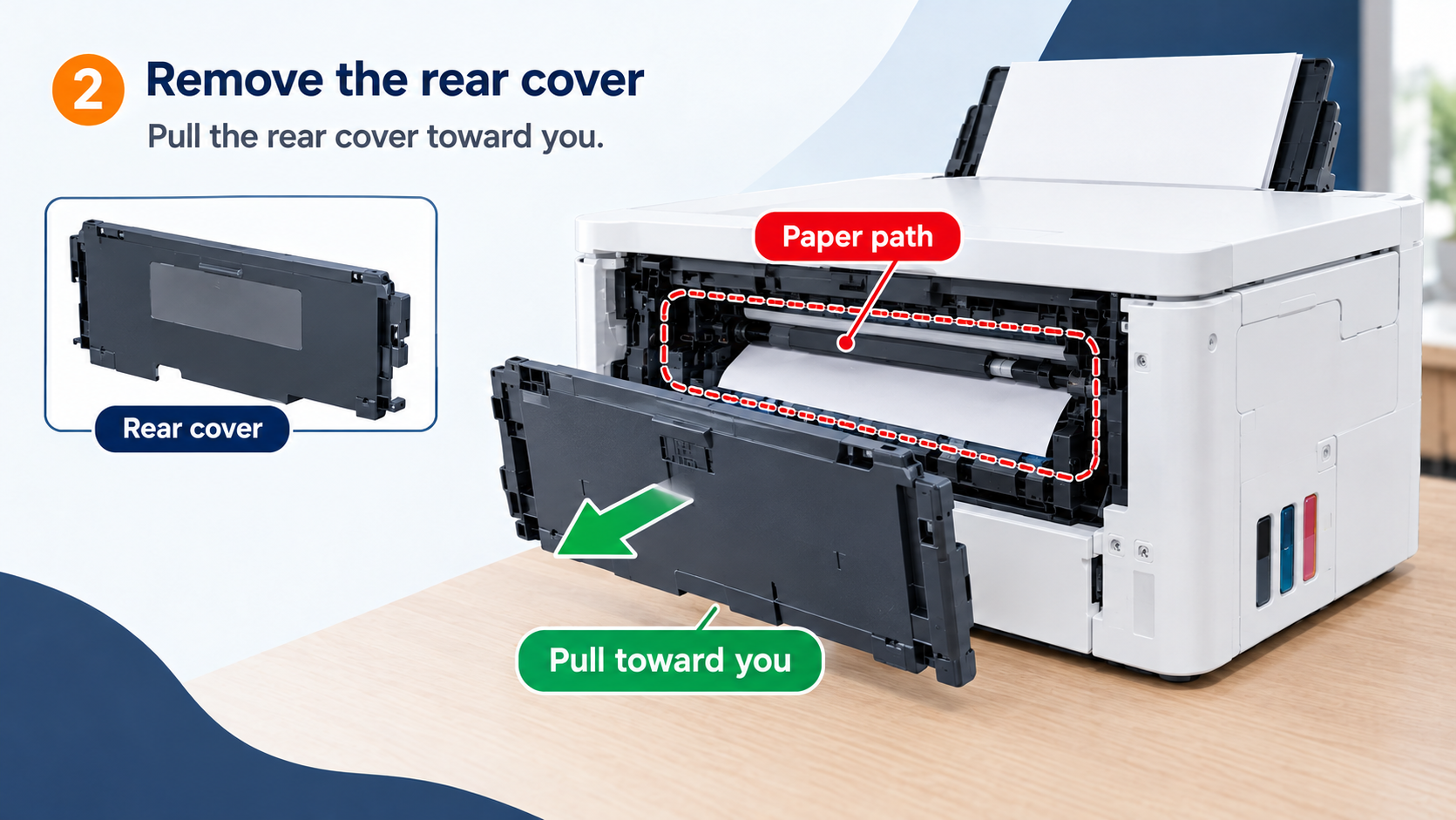
On the back of the ET-3950, the rear cover doubles as the duplexer, the part that turns paper over for two-sided printing. That’s why jams here show up mostly on two-sided jobs.
Remove the rear cover as the on-screen animation shows. Check the opening it leaves and the inside of the cover itself, since a sheet can fold over and stay tucked inside the duplexer. Pull out anything you find, then refit the cover firmly.
3. The paper cassette
Slide the paper cassette out of the front. Look for sheets stuck at the back of the tray and in the empty slot where the cassette sits.
While it’s out, reload the paper properly. Epson’s feeding checklist for this printer comes down to a few points:
- Keep the stack below the tab on the edge guides. For plain Letter or A4 paper, the cassette holds up to 250 sheets.
- Fan the sheets before loading if more than one sheet has been feeding at a time.
- Load the printable side down.
- Slide the cassette all the way in. A cassette that isn’t fully seated causes its own feed problems.
4. The automatic document feeder (ADF)
If the jam happened while copying or scanning, it’s in the ADF on top. Open the ADF cover and gently remove the original.
The feeder takes about 30 sheets of plain Letter or A4 paper, or 10 sheets of Legal. Epson’s list of things to keep out of it is long: photos, stapled or paper-clipped pages, sticky notes, curled or creased sheets, torn pages and anything with wet ink. Put those on the scanner glass instead.
Power back on
Plug the printer in, turn it on, and follow any prompts on the screen. If the jam message is still there, go back through the four spots. A scrap the size of a fingernail is enough to keep the error showing.
Jams keep coming back? Clean the paper rollers
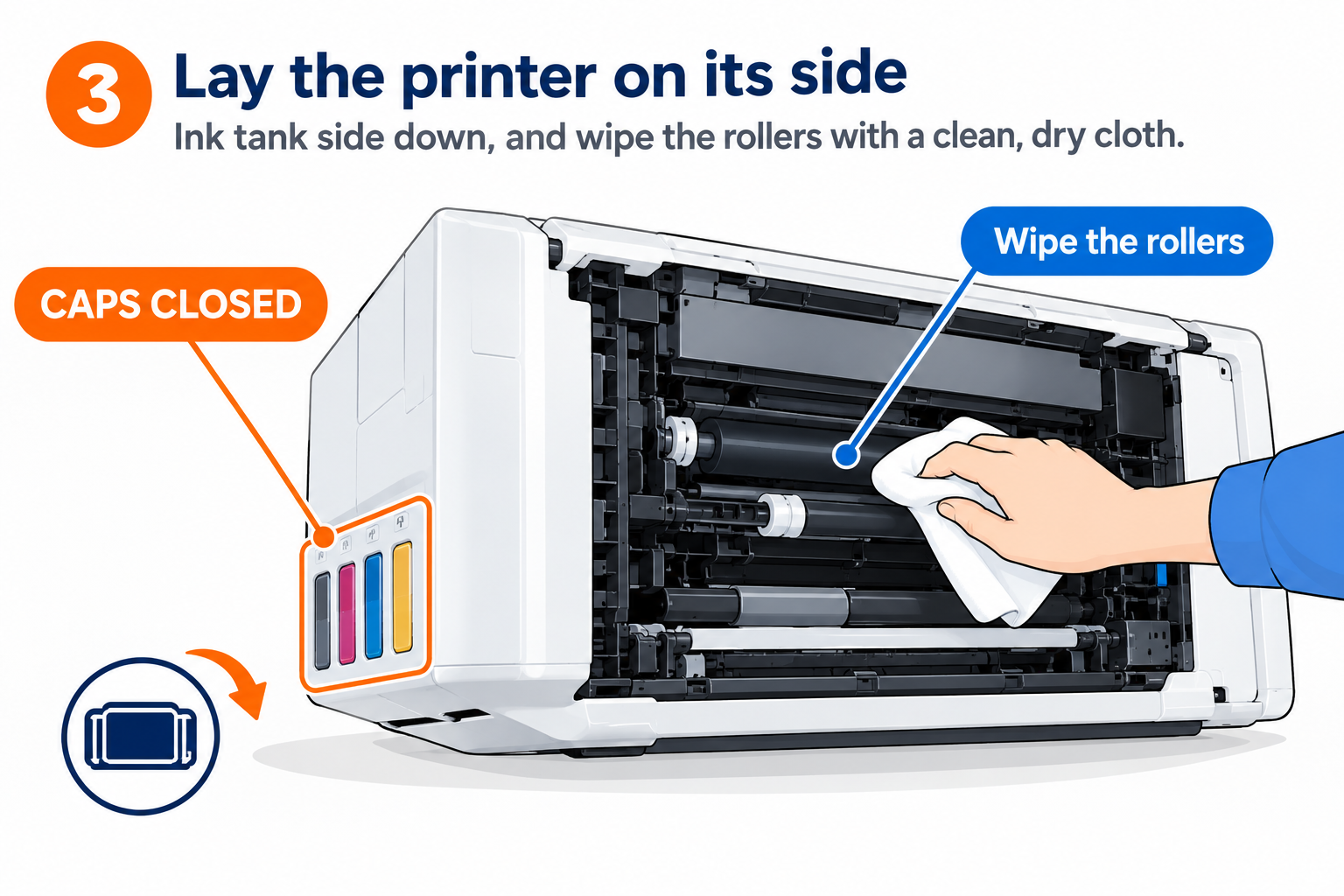
Repeated jams or feed problems from the cassette usually point to dirty pickup rollers issue. Epson’s fix for this model takes longer than five minutes, but it’s the one that actually stops the repeats.
Turn the printer off, unplug the power cable and disconnect any other cables. Close the document cover. Then check that every ink tank cap is closed tight; Epson notes ink can leak if they aren’t, and the next step is the reason that matters.
Slide out the cassette and remove the paper. Now, and only for this job, lay the printer on its side with the ink tank side at the bottom. Mind your fingers as you tip it.
What Habits that prevent most Printer jams
Use fresh, flat paper. Epson’s guidance for this printer rules out paper that’s curled, creased, old, or too thin or thick.
If two-sided jobs jam, load fewer sheets in the cassette. Epson’s own feed checklist suggests exactly that.
Set the right paper size and type on the printer. Mismatched settings don’t usually cause jams, but they can cause ink smears and ink build-up inside, which leads to its own problems. The setting lives under Settings → General Settings → Printer Settings → Paper Source Settings → Paper Setting.
If you see ink on the back of printouts after a jam, run Maintenance → Paper Guide Cleaning with plain Letter or A4 paper loaded, and repeat until the sheets come out clean.
Sources for my research
- Epson ET-3950 User’s Guide: Paper Jams Inside the Product
- Epson ET-3950 User’s Guide: Paper Feeding Problems
- Epson ET-3950 User’s Guide: Cleaning the Paper Rollers
- Epson ET-3950 User’s Guide: Cleaning the Paper Guide
- Epson ET-3950 User’s Guide: Originals Do Not Feed From the ADF
- Epson ET-3930/ET-3940/ET-3950 Series User’s Guide (PDF)
- Epson: How to Remove Jammed Paper
Related articles to this blog
- How to Fix Epson EcoTank Paper Jam: Phantom & Real Jam Fix
- Printer Says Paper Jam But There’s No Paper: Ghost Jam Fix
- How to Fix the Epson ET-4800 Paper Jam Issue
- Why Does My Printer Keep Jamming? The Hidden Sensor Nobody Cleans
- Why Your Epson Printer Keeps Jamming Paper (and the Fix)
- Printer Says Paper Jam but No Paper Is Stuck
Frequently Asked Questions
The ET-3950 says paper jam but I can’t see any paper. What now?
Check all four spots again, including the inside of the rear cover. Small scraps are the usual cause. If you still find nothing, press the help button and choose Troubleshooting for the animation that matches the message on screen.
Can I tip the printer to get a jam out?
No. Epson warns that ink can spill from an EcoTank if it’s tilted, laid on its side or turned over. The only time to lay it on its side is roller cleaning, with the tank caps firmly closed.
Why does it jam only on two-sided prints?
The paper takes an extra trip through the rear cover (duplexer). Clear that area, and load fewer sheets when printing two-sided.
How many sheets can the cassette hold?
Up to 250 sheets of plain Letter, Legal or A4 paper, and 20 sheets of most Epson glossy photo papers.
Is it safe to touch the parts inside?
Avoid the flat white cable, the translucent film and the ink tubes. Removing paper from the paper path itself is fine, gently and with both hands.