How to Fix Epson Printer Offline Issue on Windows & Mac?
Imagine you have urgent work, but your Epson printer refuses to print and instead shows an “offline” error. Is this the same situation you’re facing? Then this is the right place to resolve the error and get your printer working again. To simplify things, a printer showing offline means it is not communicating with your computer for several reasons.
An offline issue is mainly caused by a fault in the cable or network connection, or a technical glitch in the printer or computer. In other cases, it may also be caused by incorrect printer settings, a print spooler issue, or a printer misconfiguration. Hence, if you’ve been facing the offline error on your Epson printer, you’ll learn the best troubleshooting methods in this guide.
Initial checks:
- Ensure that the correct printer is selected on your computer
- Disable any VPN or proxy connection
- Check and confirm that all the cables are securely connected
- Ensure the PC and printer are using the same Wi-Fi network
Basic Methods to Fix Epson Printer Offline Issue
In many cases, the offline problem is not caused by a major fault, and only minor troubleshooting is required. Therefore, there are a few initial checks you can follow to resolve the problem.
Method 1: Check the Printer Connection
- Ensure that your printer is powered on.
- Verify that your USB or Ethernet cable is properly connected to the printer and to the computer or router.
- If you’re using a wireless connection, check if the printer shows a blinking Wi-Fi light. If it does, it's disconnected from Wi-Fi.
- Check if your printer and device are connected to the same network.
- Run an internet speed test online to check whether your network connection is stable.
- If the internet connection is weak, unplug the router and plug it back into the wall outlet.
Method 2: Restart Your Printer and Computer
A temporary technical glitch in your printer or computer may cause an offline issue, which may be resolved by restarting your computer and the printer.
Restart Your Computer
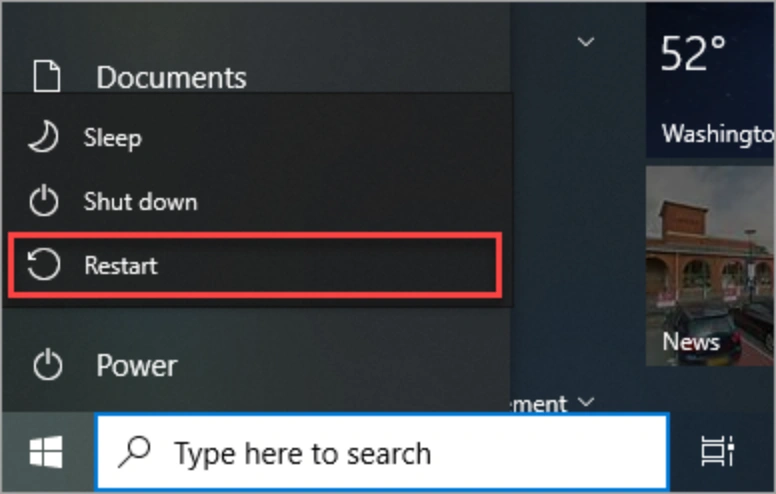
- Windows: Go to the Start menu, select the power icon, and select the Restart button.
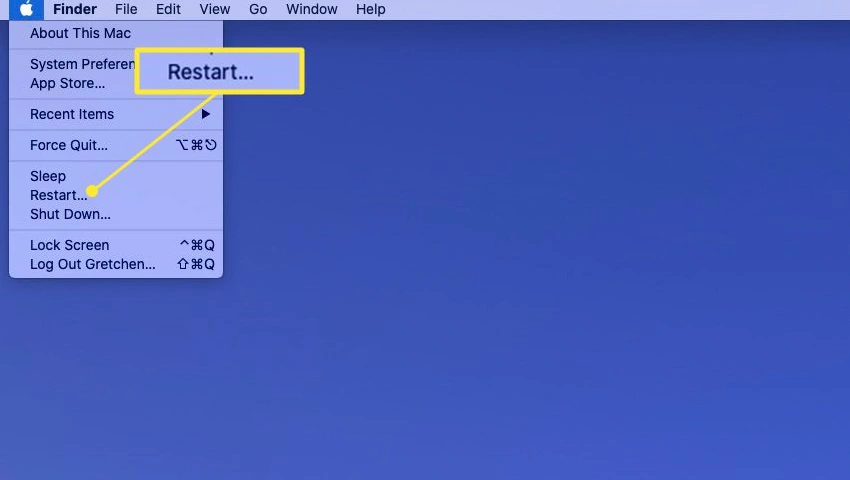
- Mac: Go to the Apple menu and select Restart, or press and hold the power button until it shuts off.
Restart Your Epson Printer
- Turn off the printer by pressing and holding its power button.
- Then disconnect it from the power outlet, and wait for 60 seconds.
- Reconnect the printer to the wall outlet, and press the power button.
Method 3: Check If the Printer Shows Error Lights
Sometimes the offline problem occurs due to other reasons, which the printer indicates through blinking lights or error messages. These messages tell you the exact cause.
Advanced Methods to Fix Epson Printer Offline Issue
If primary methods couldn’t fix your printer’s offline error, you’re good to go with the advanced methods.
Method 1: Uninstall & Reinstall the Printer on Computer
If your printer has configuration issues, this method will work most effectively. Here are the steps for Windows and Mac:
On Windows
- Disconnect your printer from the computer.
- Then, search for "printer" in the search bar at the bottom, and select Printers and Scanners from the results.
- Select your Epson printer, choose “Remove device,” and click “Yes.” Now, your printer is uninstalled.
- To reinstall your printer, connect it back to your computer and power it on.
- Open Printers and Scanners again, and then select “Add a printer or scanner.”
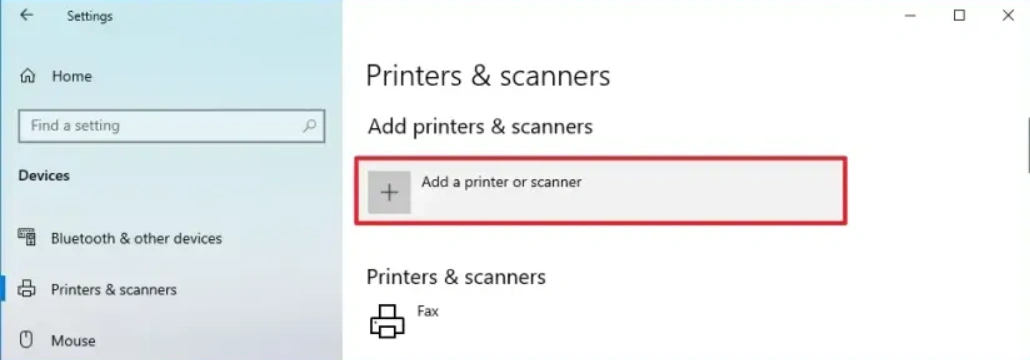
6. Next, click on “Add device," and your computer will start searching for your printer. Once you find your printer’s name, select it, and finally, your printer is reinstalled.
On Mac
- Go to System Preferences or System Settings on your Mac and click on “Printers & Scanners.”
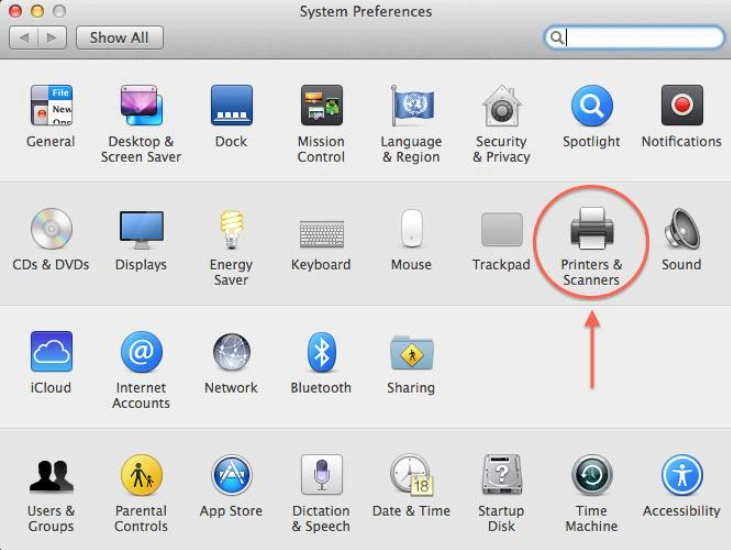
- Choose your Epson printer from the list, and then select the minus sign to remove it from your computer.
- To reconnect, go to Printers & Scanners again, and then click the plus sign to add the printer.
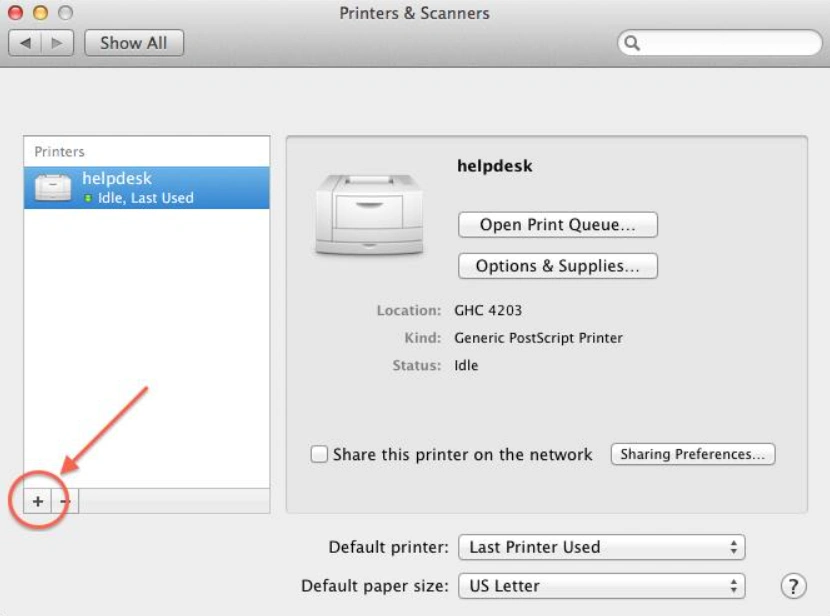
- Click the “Add” option once you see your printer in the list.
- You can also manually add your printer if your printer isn’t listed.
Method 2: Disable the “Use Printer Offline” Option
Sometimes your printer is set to offline mode by mistake or due to a technical problem. Therefore, you need to disable that setting in order to make your printer online.
On Windows
- Go to the Start menu at the bottom, search for “Control Panel," and then select it from the results.
- Select “Hardware and Sound” and then select “Devices and Printers.”
- Find your printer in the list, and then right-click on that.
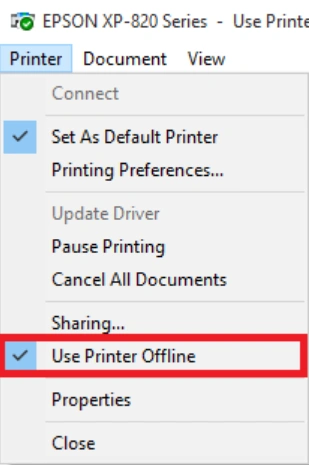
- Click on “See what’s printing” or “Open print queue.”
- Select the printer at the top, and ensure that the “Use Printer Offline” option is unchecked. If it's turned on, turn it off.
On Mac
- Go to the Apple menu and select System Preferences.
- Select “Printers & Scanners/Print & Scan," and select your printer from the list.
- Then, click on the “Options & Supplies/ Open Print Queue” option.
- Click on “Printer” and click on the “Resume” or “Unpause” option to disable the offline mode.
Method 3: Restart the Print Spooler
The print spooler is a feature on Windows systems that manages the prints you send to your printer. If your printer is offline, you can restart the print spooler. On a Mac, you need to reset the printing system to fix this issue.
On Windows
- Press the Windows and R keys together to open the run command box, and enter “services.msc.”
- Search for the “Print Spooler” option in the service window.
- After that, right-click on the Print Spooler option and select Stop.
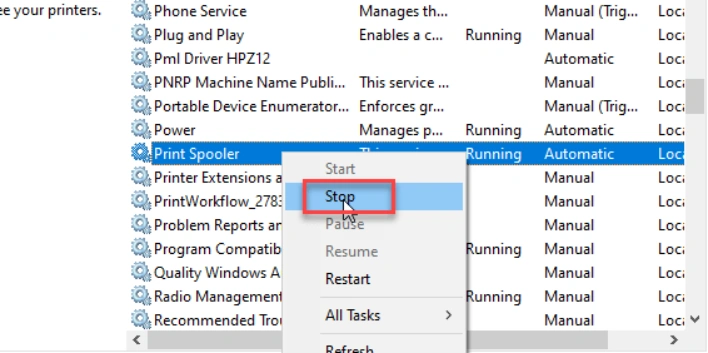
- Wait for a while, and then select Start.
- Wait a while and check if the offline error has been resolved.
On Mac
- Open the Apple menu, and go to System Settings.
- Select Printers & Scanners, and right-click on the printer list area, and choose “Reset printing system.”
- Select “Reset” when a pop-up appears saying that resetting your printing system will delete the printer from your system.
- Provide your administrator password, and click OK.
- Click the plus sign to reconnect your printer in the Printers & Scanners section.
Method 4: Set Your Printer as the Default
A printer set as the default is automatically recognized by your computer. If it's not set as the default, it may show an offline error and stop printing. Here are the steps to set it as the default:
On Windows
- Type “control” in the search bar at the bottom, and select Control Panel from the results.
- Then, select Hardware and Sound, and then select Devices and Printers.
- Select your printer, right-click on it, and check the “Set as Default Printer." Once you see a green check on your printer, it means that it has been set as the default.
On Mac
- Choose the System Preferences option in the Apple menu.
- Select Printers & Scanners, and select the printer you want to set as the default.
- Select the option to set your printer as the default, and you’ll see a green check mark on your printer icon.
Method 5: Update Epson Printer Drivers
A printer driver is specific software that allows your printer to communicate with your computer. Sometimes an outdated driver version may cause the printer to go offline. In this situation, you should uninstall the old version and update your printer software to fix the offline error.
On Windows
- Search for the Control Panel in the search bar at the bottom, and select it from the results.
- Select “Add or remove programs,” and right-click on your Epson printer software and select “Uninstall.”
- Now, press the Windows and R keys together to open the Run box.
- Then, type devmgmt.msc, and then Device Manager will open.
- Open the Printers or Print Queue category and find your printer.
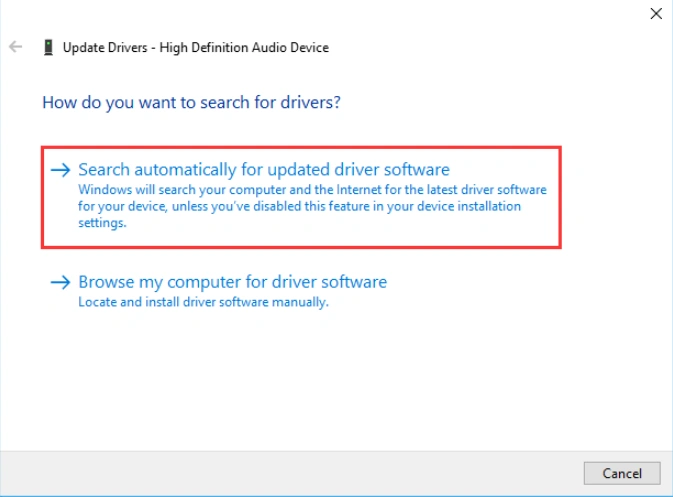
- Right-click on your printer and select Update driver.
- Select “Search automatically for updated drivers,” and then your system will install the latest drivers.
On Mac
- Go to the Apple menu, and select “System Preferences.”
- Select “Software Update” in the System Preferences window.
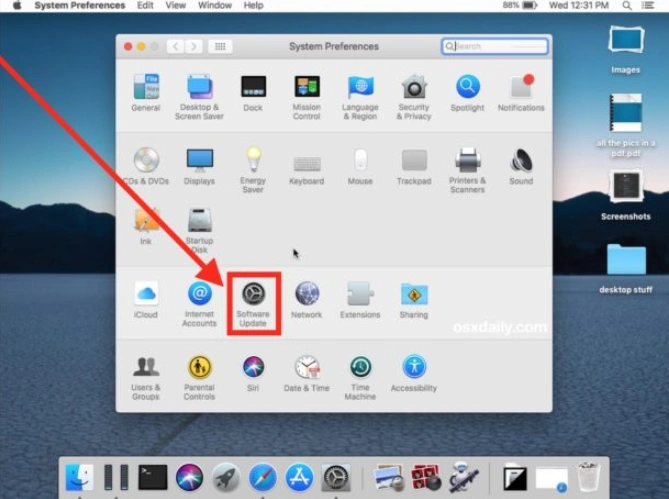
- Verify if your printer name is in the list of software updates.
- Find your printer, and click the Update button to start installing the latest drivers.
Wrapping Up
You learned the basic and advanced methods to fix the offline issue on your Epson printer. A printer going offline is an error almost every user faces once in a while. There are many reasons behind this issue, and the most common ones are explained here. In conclusion, you need to check the printer's connection, restart your devices, and remove and re-add your printer as basic troubleshooting. If the issue persists, set your printer as the default, turn off offline mode on your printer, restart the print spooler, and update the printer drivers. These methods are easy and effective for an offline printer error.
Related Article
Frequently Asked Questions
Why is my Epson printer showing offline?
- Configuration issues in your devices.
- Cable or Wi-Fi connection issue.
- Outdated or corrupted printer drivers.
- The “Use Printer Offline” mode is on.
How do I fix offline Epson printer on Mac?
- Restart your printer and Mac computer.
- Check your printer’s wired or wireless connections.
- Check your network.
- Reset the printing system.
- Update the printer drivers.
How do I get my Epson printer from offline to online on Windows?
- Set your printer as the default printer.
- Turn off the “Use Printer Offline” option.
- Update the printer drivers to the latest version.
- Restart the print spooler service.

