Epson ET 4800 Not Printing Color [Fixed]
![Epson ET 4800 Not Printing Color [Fixed]](https://printertales.com/public/upload/blog/6914421b63b22_epson-et-4800-not-printing-color-fixed-.webp)
All of a sudden, your Epson ET 4800 has stopped producing prints in color. What went wrong - you asked yourself. This is a common hiccup that usually occurs due to a clogged printhead or empty ink cartridges. Minor software glitches can also disrupt the printer's operation, preventing it from printing in color.
You may have tried your own ways to resolve this problem, but luck was not on your side. Don't worry, there are a few simple methods you can apply to get your Epson ET 4800 printer back to its normal condition. We have discussed a few solutions here and will share them with you soon. First, we want you to look at the potential issues that may show up during the troubleshooting process.
Issues When Resolving Epson ET 4800 Not Printing Color
There may be certain challenges that arise when trying to resolve the Epson ET 4800 not printing color problem. Here are a few of them:
- Incorrect ink installation or low ink levels
- Firmware glitches or network issues
- Air bubbles in ink lines
- Printhead alignment or calibration errors
Epson ET 4800 Not Printing Color: The Solutions
Here are some of the best troubleshooting solutions to resolve the Epson ET 4800 not printing color problem:
Method 1: Clean the Printhead
Step 1: Go to your printer’s display and ensure you’re on the home screen.
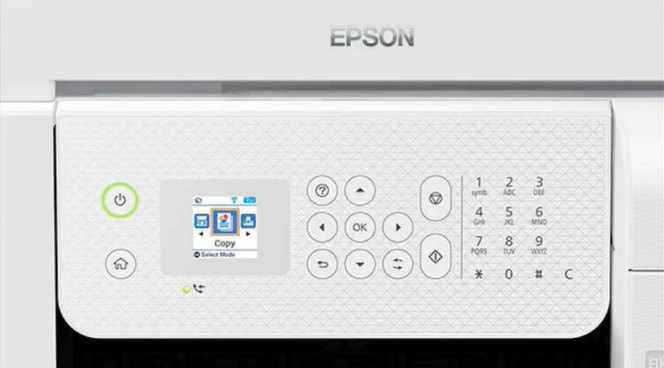
Note: If you’re not on the home screen, press the Home button on the printer.
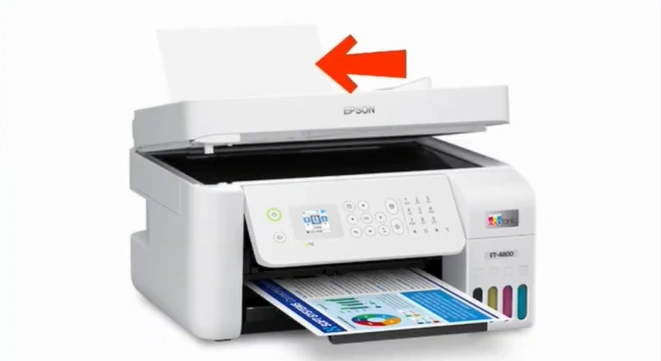
Step 2: Insert letter-sized paper into the printer’s rear paper feeder.
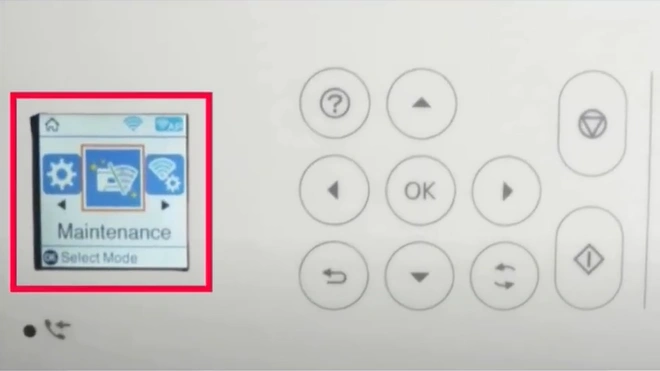
Step 3: Scroll and select maintenance, then press the OK button.
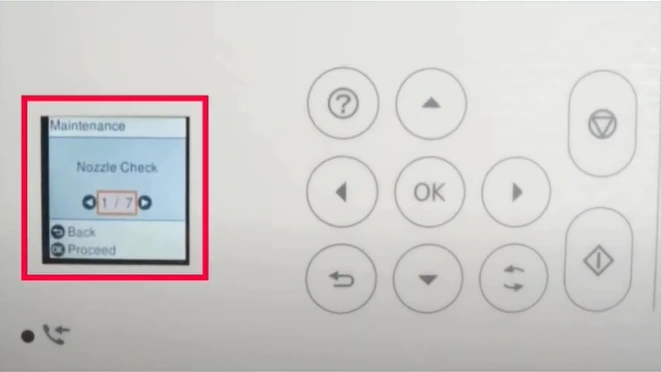
Step 4: Under Maintenance, select Nozzle Check and press OK.
Step 5: If you have loaded the plain paper, press the start button.
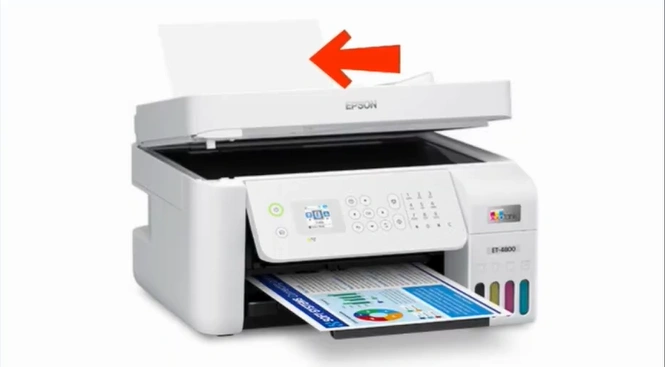
Step 6: Receive the print and check if the ink flow is not breaking.

Step 7: If the lines are breaking, you need to do a printhead cleaning.
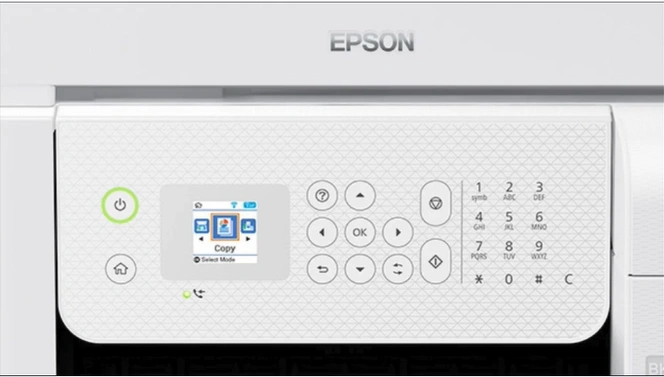
Step 8: Go to your printer display and select Yes if there are missing segments.
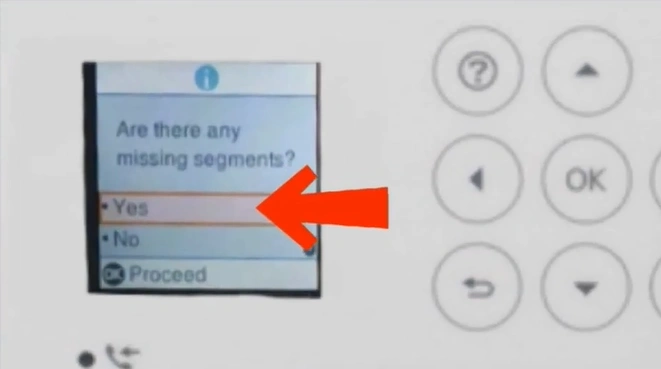
Step 9: On the Clean print head screen, select “Yes” and press OK.
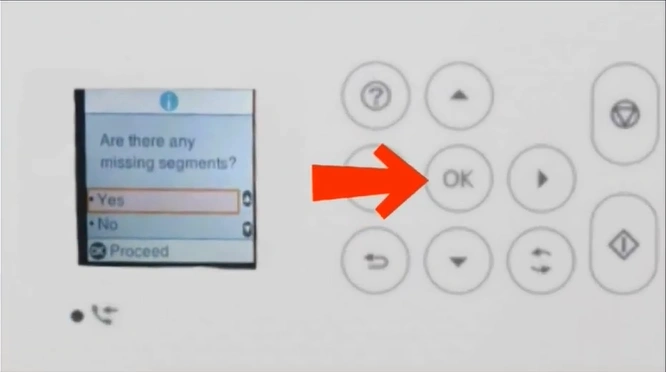
Step 10: Press OK to start the print head cleaning and connect the missing dots.
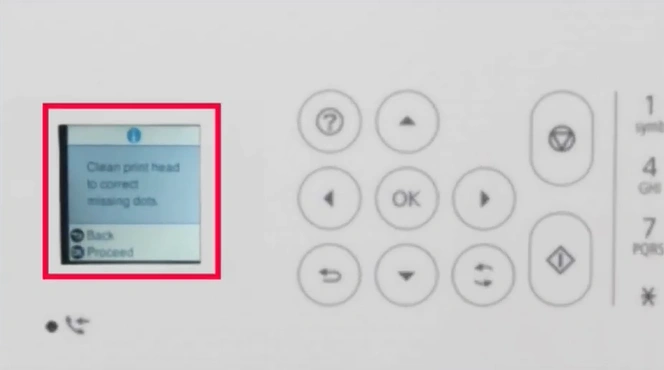
Step 11: Ensure you’ve more papers in the rear feeder and press the Start button.
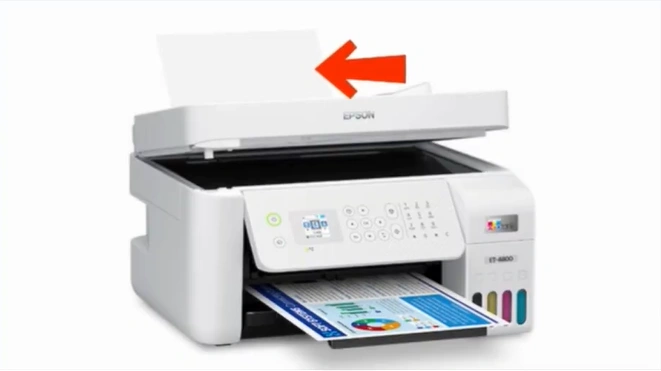
Step 12: Wait for at least three minutes for the print head cleaning process to complete.
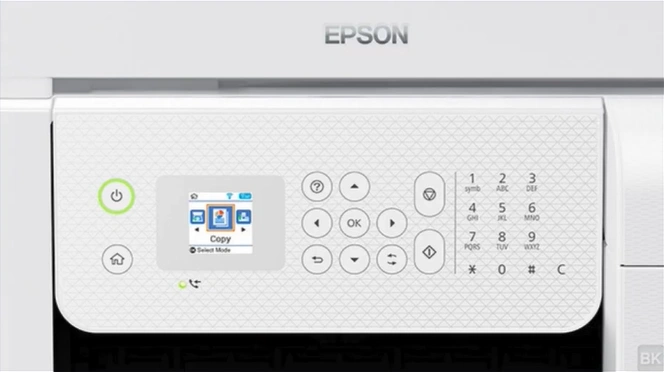
Step 13: Receive the print head cleaning result and verify that the ink flow is continuous.

Step 14: If there are no missing segments, select No.
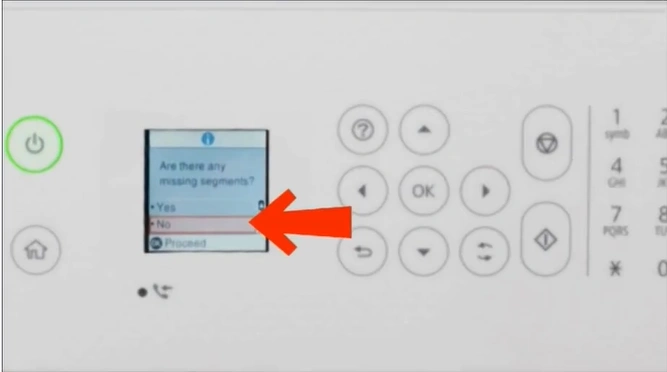
Note: If the print head result has missing segments, perform print head cleaning again or power cleaning.
Method 2: Update Printer Driver
Step 1: Open your browser and go to the Epson printer driver’s official website.
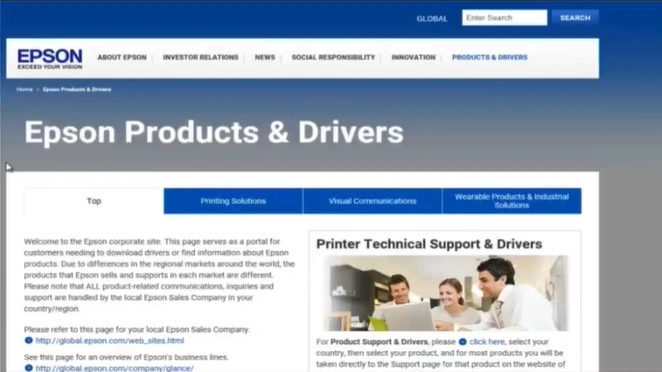
Step 2: In the Product Support & Drivers section, click on the “click here” hyperlink.

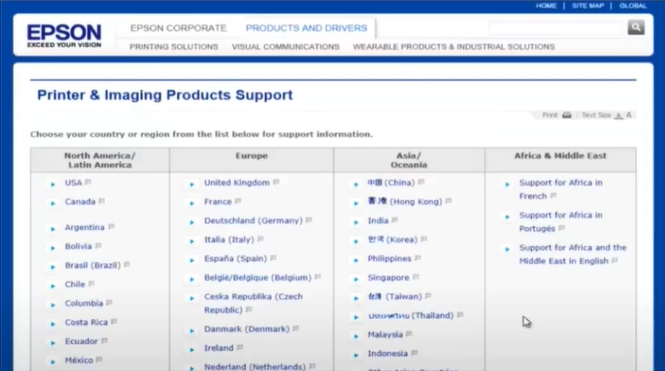
Step 3: Select your country or region.
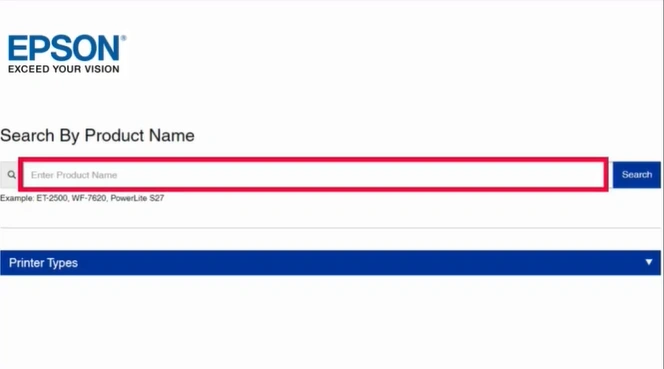
Step 4: Enter ET 4800 in the product name field and click on Search.
Step 5: Select your operating system from the dropdown.
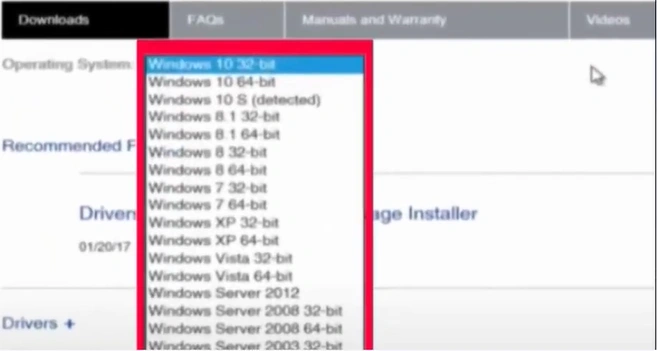
Step 6: Find the latest driver package and click on the Download button.
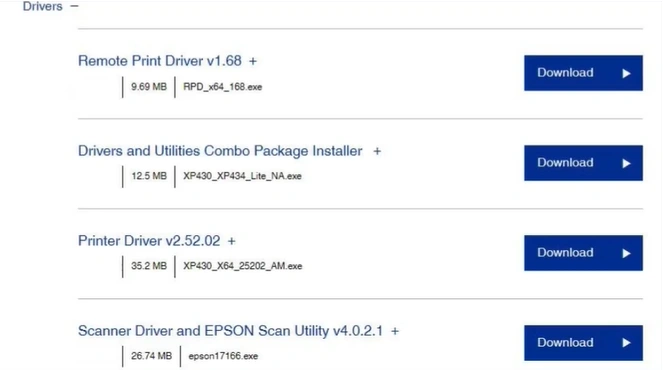
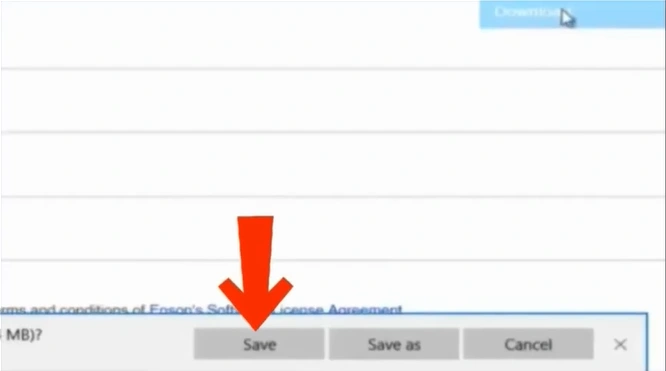
Step 7: In the action pop-up, choose Save.
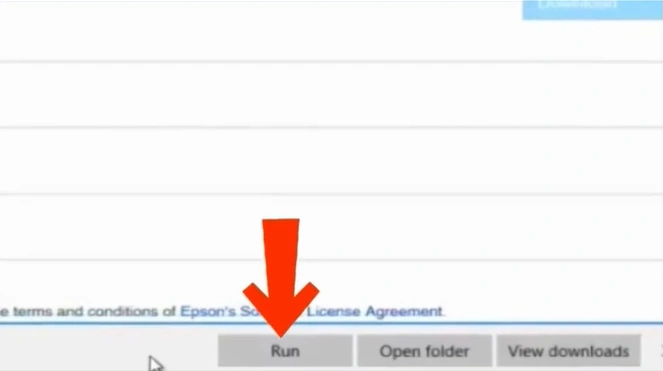
Step 8: Once downloaded, run your file.
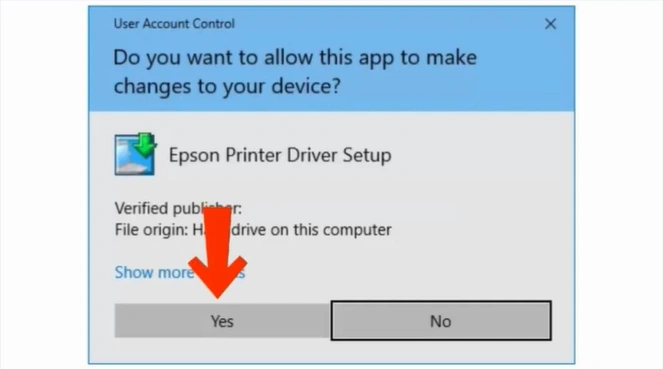
Step 9: In the Allow app to make changes pop-up, click on Yes.
Step 10: In the Epson Installer pop-up, click on OK to move to the next steps.
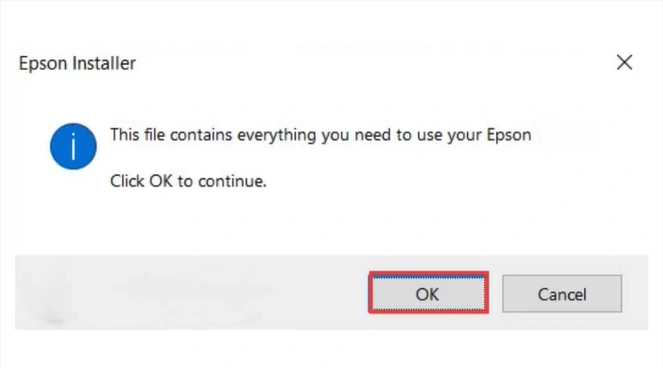
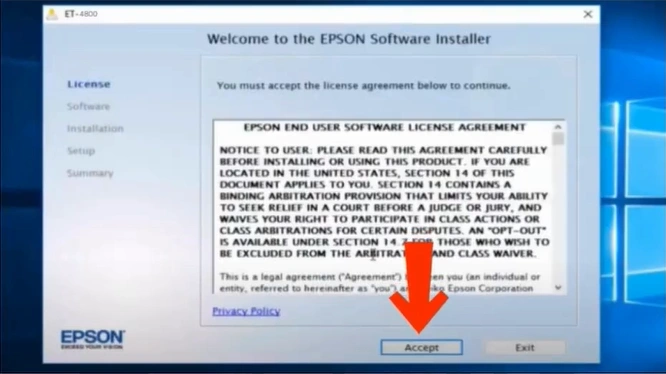
Step 11: After installation, read the license agreement and click on the Accept button.
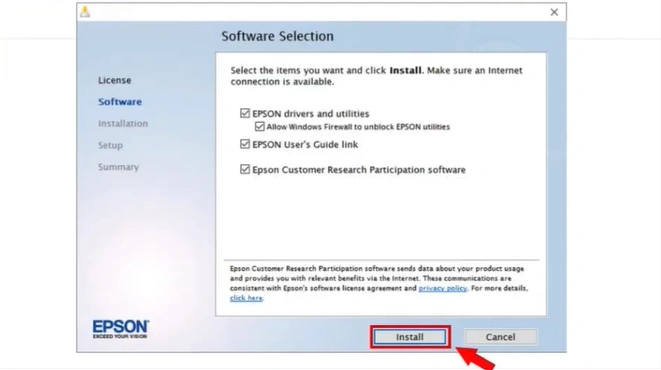
Step 12: In the Software Selection window, select the items you want, and then click Install.
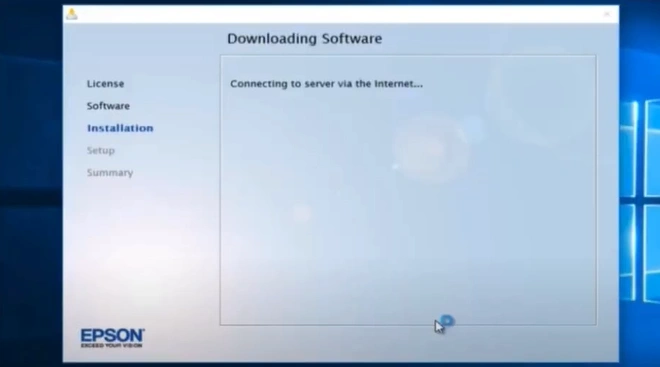
Step 13: Wait for the installation to end.
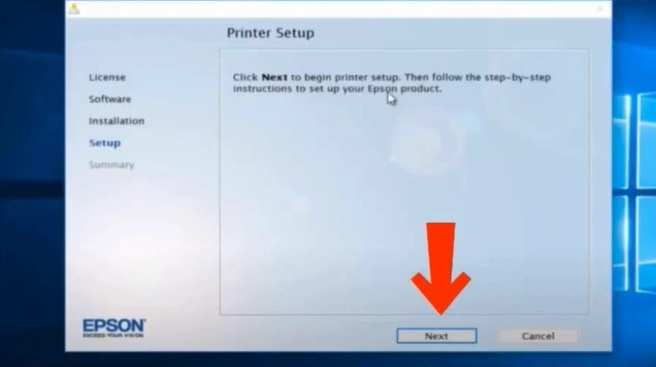
Step 14: In the Printer Setup window, click on Next to start the setup process.
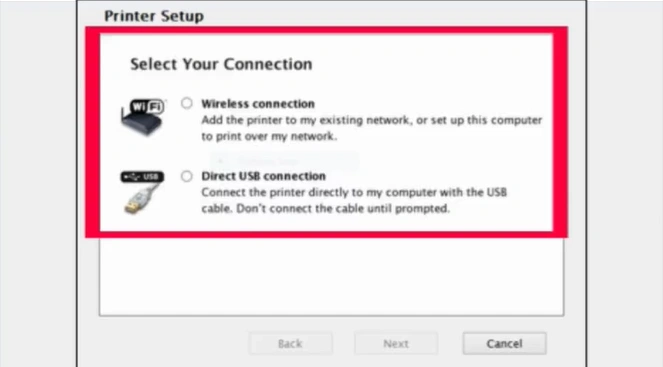
Step 15: Select your connection type, then click on Next.
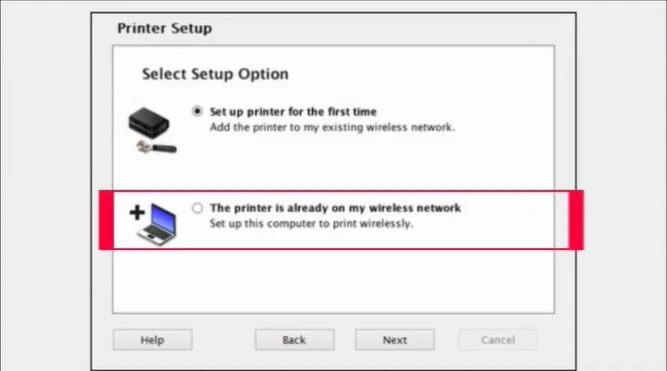
Step 16: Select the “Printer is already on my wireless network” option and click on Next.
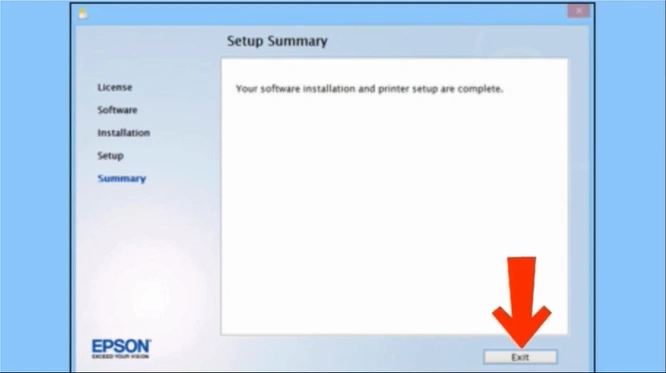
Step 17: Once your software installation and printer setup are complete, click on Exit.
To Conclude
That’s how you can fix your Epson ET 4800 printer that is not giving color printouts. Clean your printhead and update your printer driver using the steps we have explained above. Follow every instruction and address the potential issues that often occur during troubleshooting.
Get your printer back to its original state and continue printing with full color. No more feeling any kind of disruptions in your daily tasks.
Related Article

