How to Fix the Epson ET 4800 Paper Jam Issue?

You turned on your Epson ET 4800 printer expecting smooth printing, but instead, a flashing error light appeared with the message: “Paper Jam.” Here’s how you can fix it.
Paper jams are one of the most common problems printer users face. They usually occur due to the wrong paper size, overfilled trays, or sheets that are not loaded straight.
If you are looking for a solution to fix the paper jam on your Epson ET 4800 printer, you’re in the right place. Let’s begin with the key preparations before starting the actual troubleshooting.
Preparations Before You Start Troubleshooting
Here are some key considerations before you get started with the paper jam troubleshooting for the Epson ET 4800 printer:
Let the Printer Cool Down
Your printer may be in use for a long time in your home or office. It is recommended to let the internal components cool for 5 to 10 minutes or longer before starting the troubleshooting.
Keep Workspace Clean and Ready
The surface where your printer will be placed should be clean and stable. Also, there should be enough light and space to open the trays and panels.
Gather All the Necessary Tools
Use a flashlight to see inside the printer clearly. Keep tweezers or needle-nose pliers handy to remove small, stuck paper pieces.
Check Status or Error Messages
Don’t overlook any status updates or error codes displayed on the printer’s control panel or screen. These alerts can help you pinpoint where exactly the paper jam is located.
Common Issues When Fixing Epson Printer Paper Jam
Take a quick look at the potential problems that you may encounter when resolving the paper jam error on your Epson ET 4800 printer:
Paper torn inside
Not able to open all access points
Forgetting to turn off the printer before removing paper.
Pulling paper too hard
Using unsupported paper types (thick, glossy, or wrinkled papers).
Now, let’s jump straight into the troubleshooting steps for the Epson ET 4800 paper jam issue.
Steps to Fix Epson ET 4800 Printer Paper Jam Issue
Follow the instructions below to correctly troubleshoot the paper jam error on your Epson ET 4800 printer:
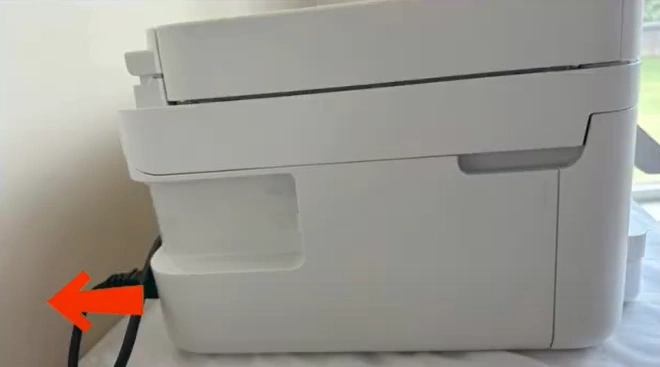
Step 1: First, power off the printer. From the back side of the printer, unplug the cable.
Step 2: Next, check the rear paper feeder for any jammed paper.
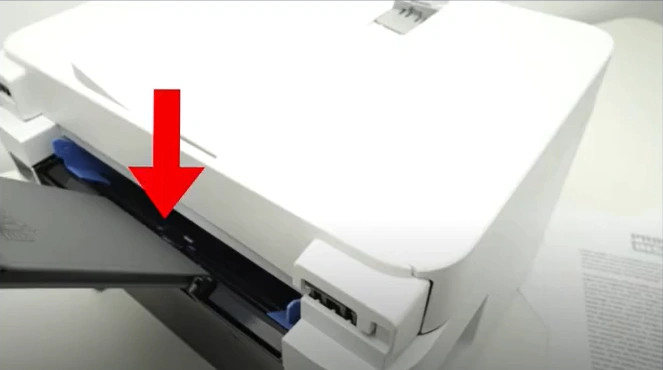
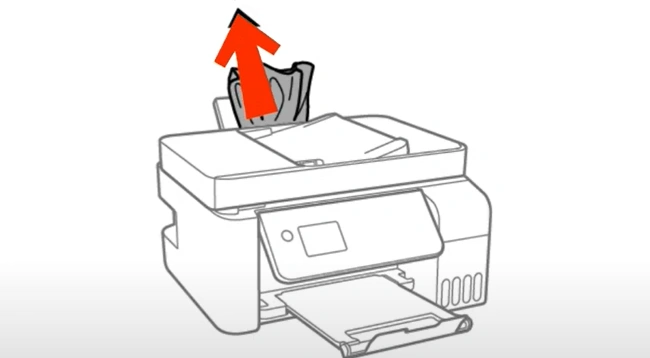
Step 3: If the paper is stuck, carefully pull it out without using force.
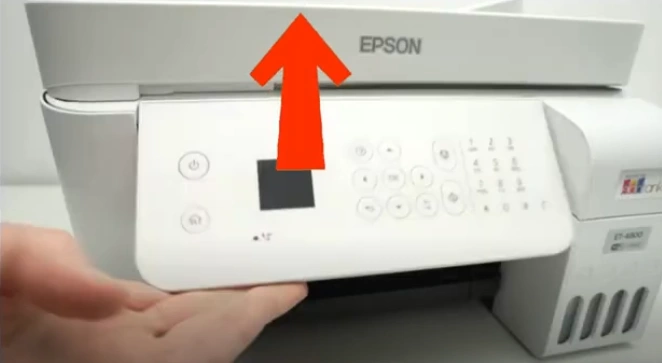
Step 4: After that, you need to lift your printer’s control panel upward.
Step 5: Now, open the printer’s inner cover.
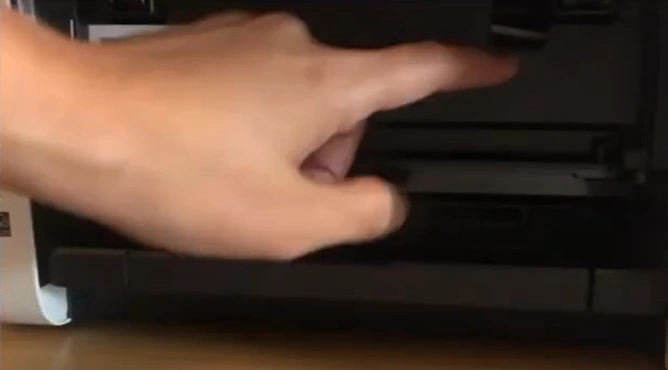
Step 6: Lift the scanner unit until it locks into position.
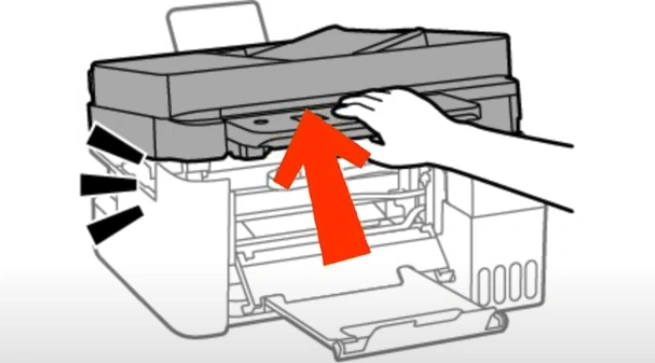
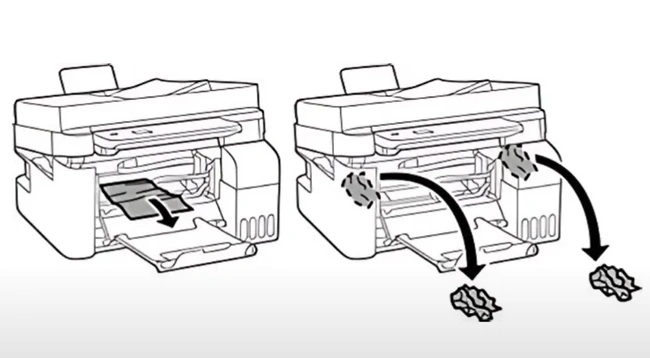
Step 7: Look inside the printer, and if you spot jammed paper, gently remove it.
To Sum Up
See how easily you can resolve the paper jam issue on your Epson ET 4800 printer. Fixing a paper jam doesn’t take long, but it’s important to follow the steps carefully. Always turn off the printer first to prevent mechanical damage.
When removing the paper, avoid using too much force and be gentle. After clearing the jam, restart or reset the printer to ensure it functions normally again.
Related Guide
Epson Printer Not Connecting to WiFi [Fixed]

