How to Setup Canon MegaTank PIXMA G3270 Printer to a Computer?

Setting up your Canon MegaTank PIXMA G3270 can seem like a complicated task if you are doing it for the first time. Additionally, during the setup, some users may encounter various issues, including incomplete setup, driver problems, connection issues, and others. As a result, to set up your printer without facing any issues, it is good to learn about the whole process beforehand. Below, you will discover the simple steps to set up your Canon MegaTank PIXMA G3270 on a computer without facing any issues.
Steps to Set Up Canon MegaTank PIXMA G3270 Printer on a Computer
1. First, scroll down on the printer control panel and select Settings.
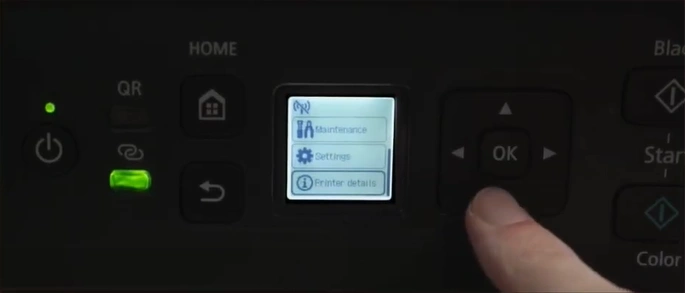
2. Then, press OK.
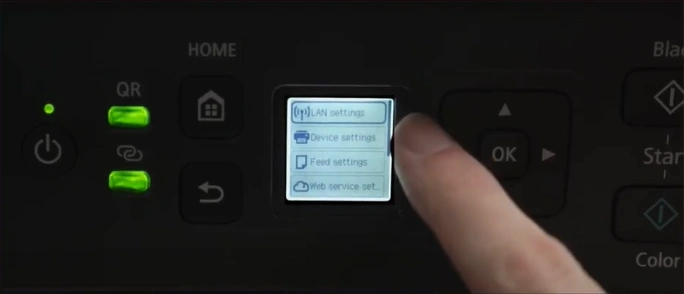
3. Select LAN Settings.
4. Next, choose Wi-Fi.
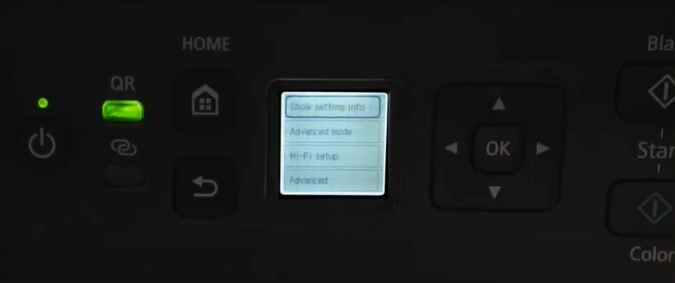
5. Scroll to the Wi-Fi setup and open it.
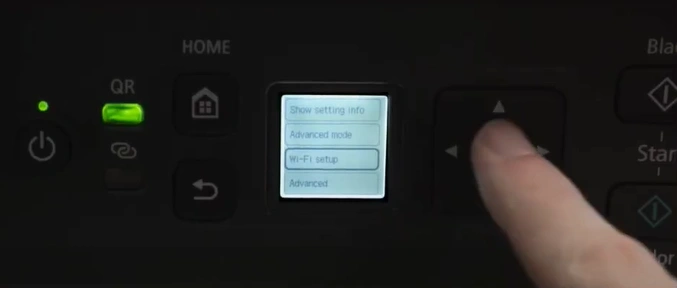
6. Select Manual Connect.
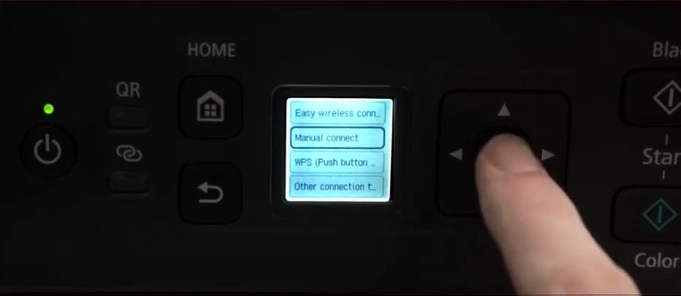
7. Then, select your Wi-Fi router.
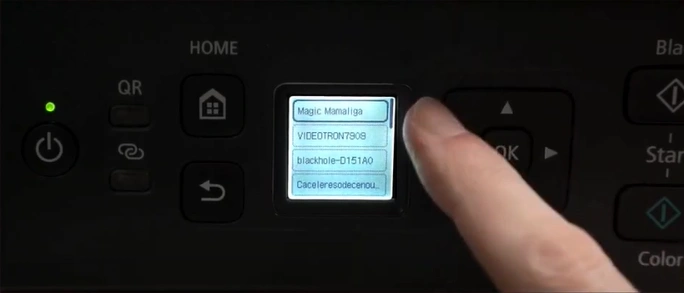
8. In Enter the Password, press OK on Next.
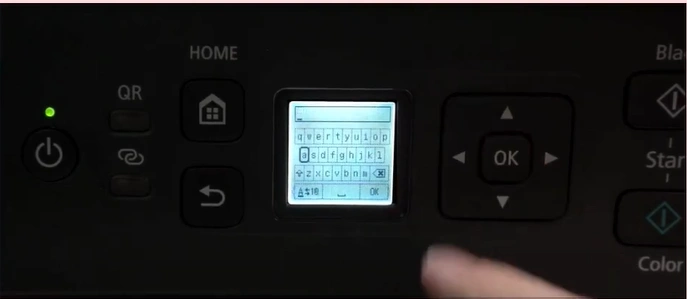
9. Enter the password and press OK on OK.
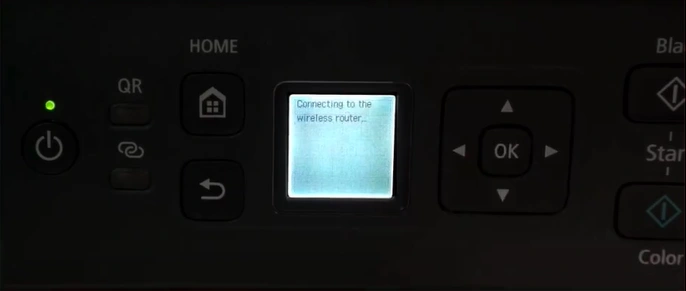
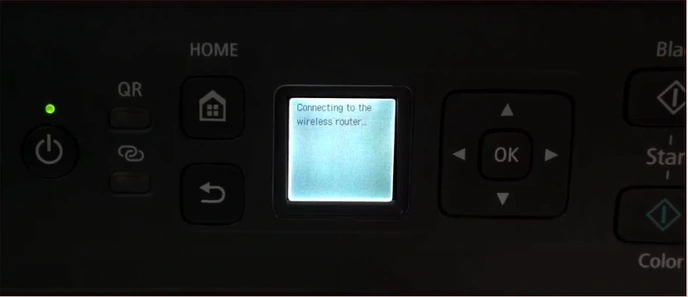
10. Now, you should wait for the printer to connect to the wireless network.
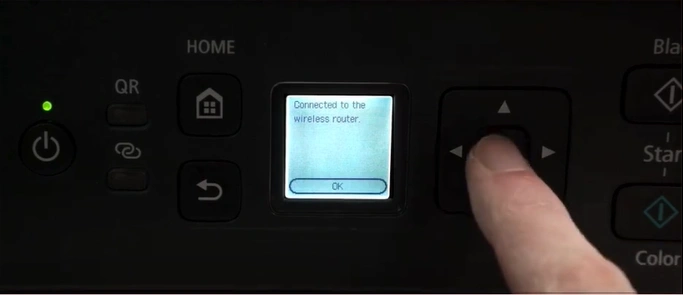
11. Once connected, press OK.
12. Open your browser and search for “https://ij.start.canon/G3270.”
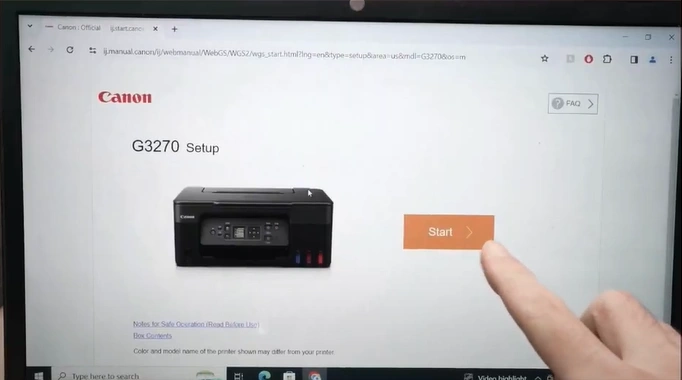
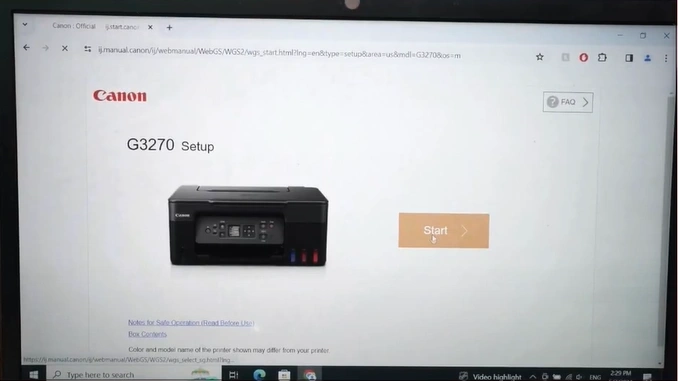
13. Now, the setup page will open. Click on Start.
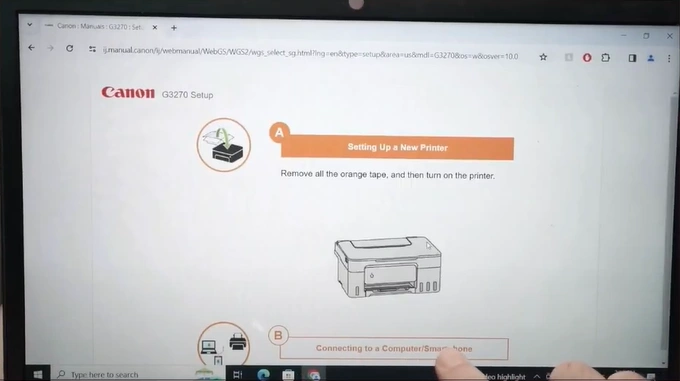
14. Go to step B and click on Connecting to a Computer/Smartphone.
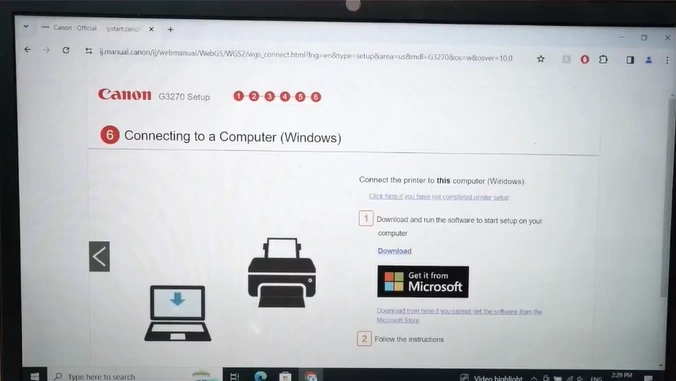
15. Under Connecting to a computer, click on Download.
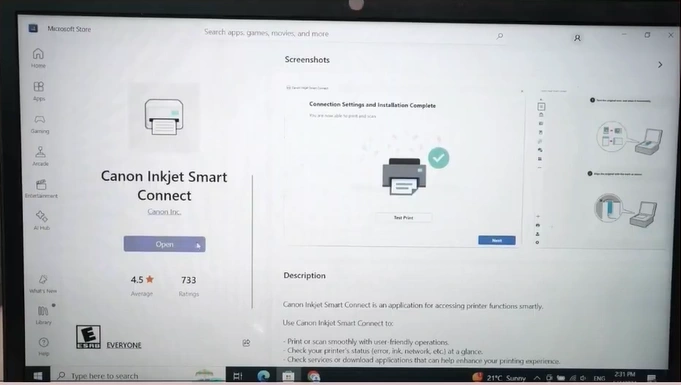
16. In the Microsoft Store, click on Get to download the app.
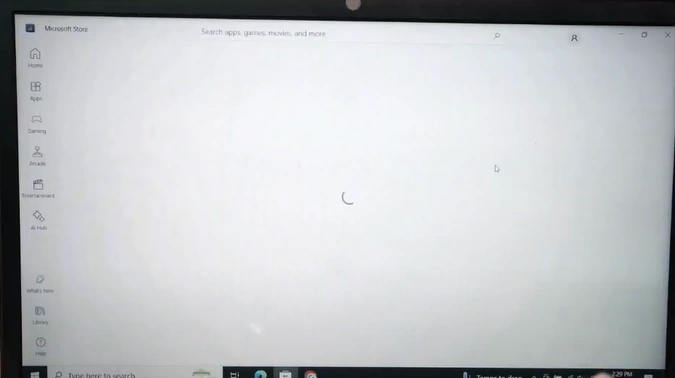
17. Click on Open.
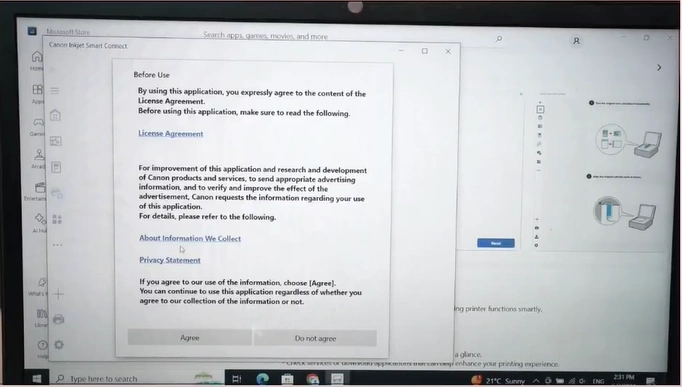
18. Once the app is opened, review the Before Use content and click on Agree.
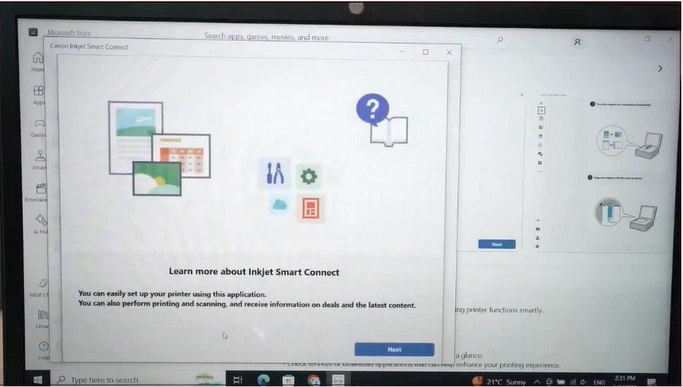
19. Click on Next on the Learn more about Inkjet Smart Connect page.
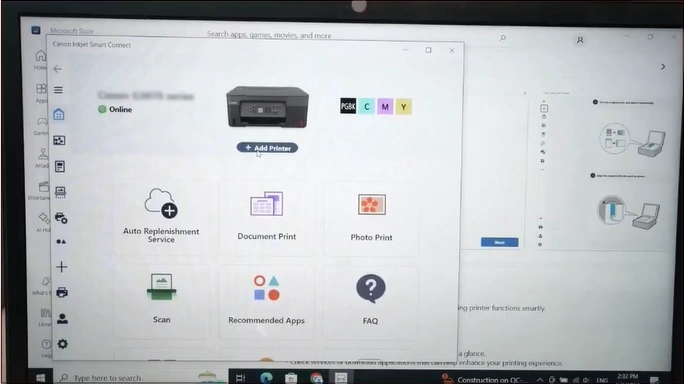
20. Then, click on Add Printer.
21. Wait for the download to end.
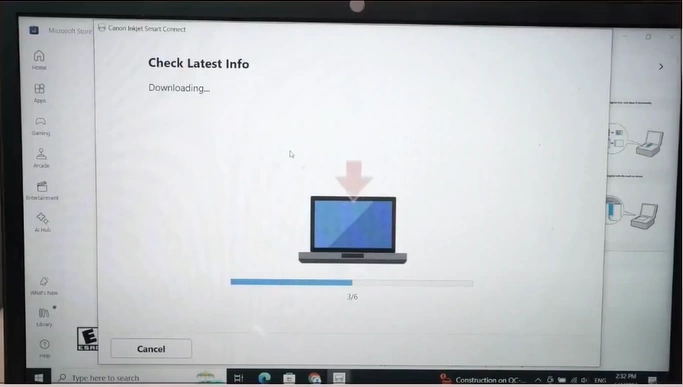
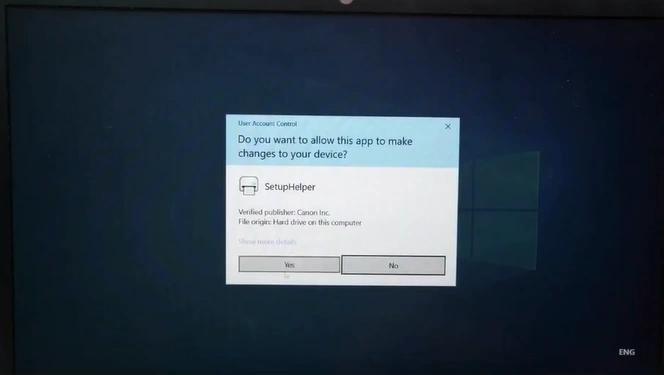
22. Select Yes to allow all the applications to make changes.
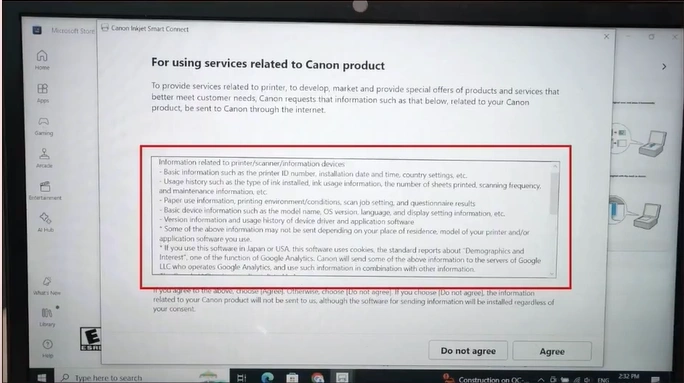
23. Review the “For using services related to Canon products” information.
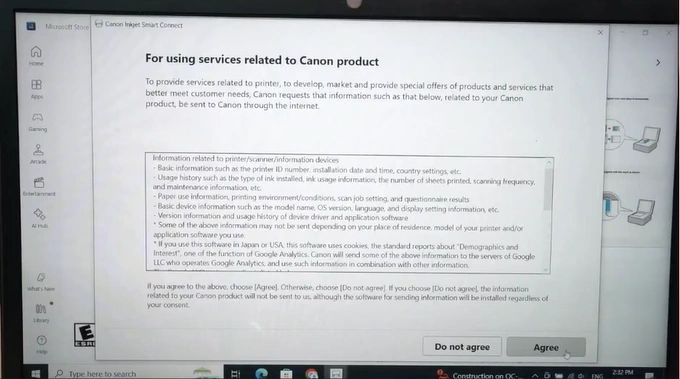
24. Click on Agree.
25. If your printer is turned on, click on Next.
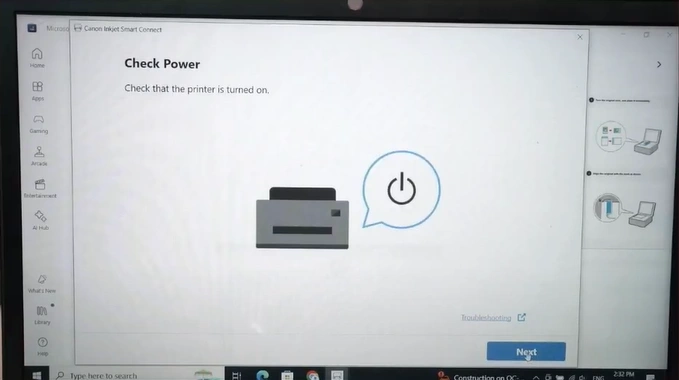
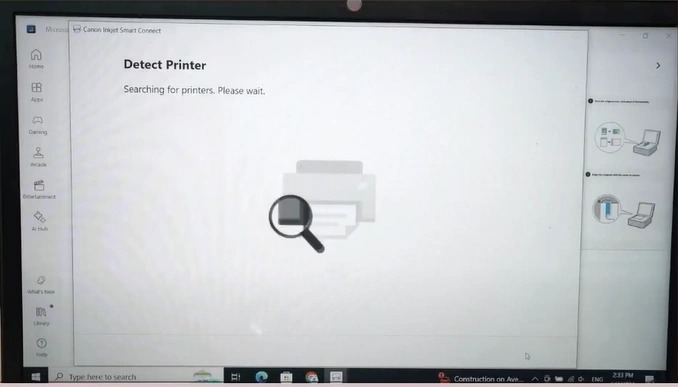
26. Wait for the app to search for the printers.
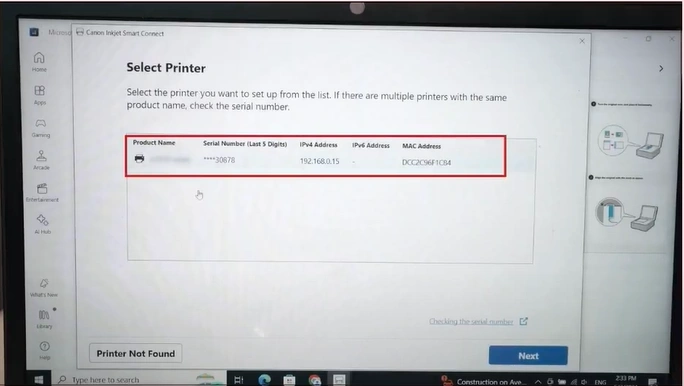
27. Now, from the list of available printers, select your printer and click on Next.
28. On the Connect printer via Wi-Fi page, press the Continue button.
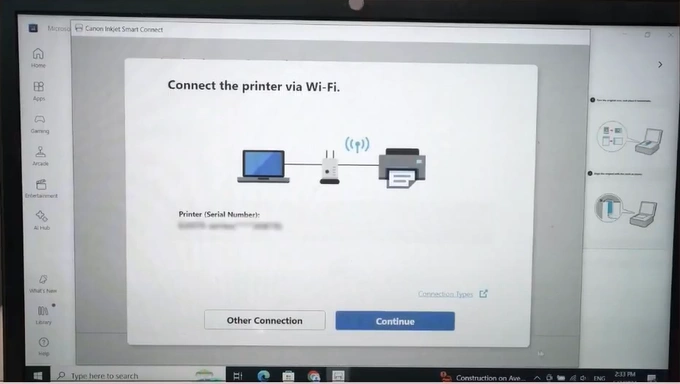
29. After a successful connection, the software download will begin.
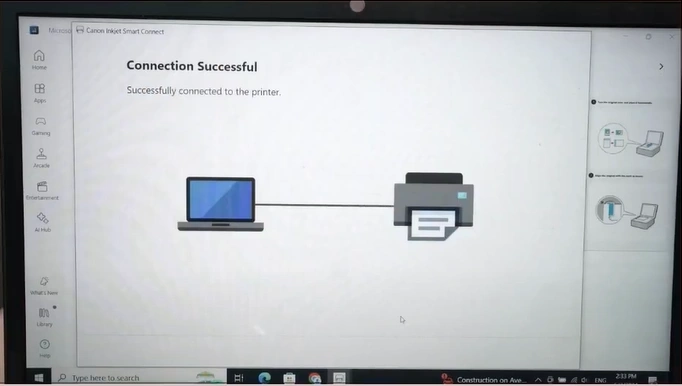
30. Wait for the software installation to end.
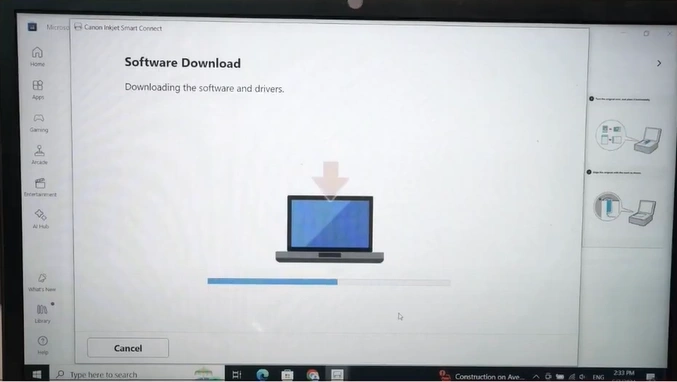
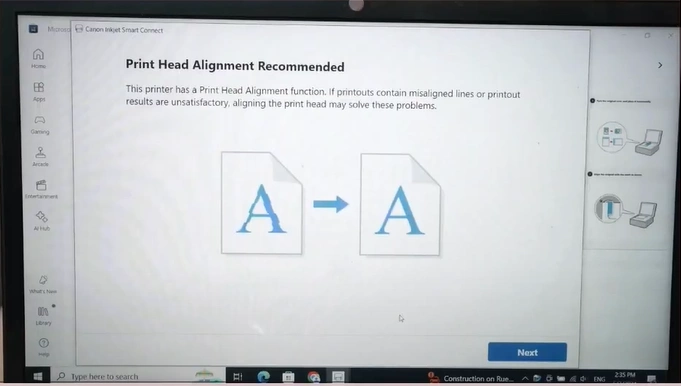
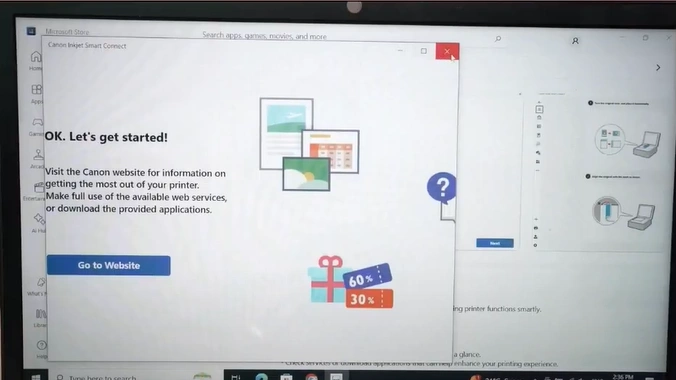
31. In the Print Head Alignment Recommended page, click on Next.
32. Once the connection settings and installation are completed, click on Next. (Note- click on Test Print or manually run a test print.)
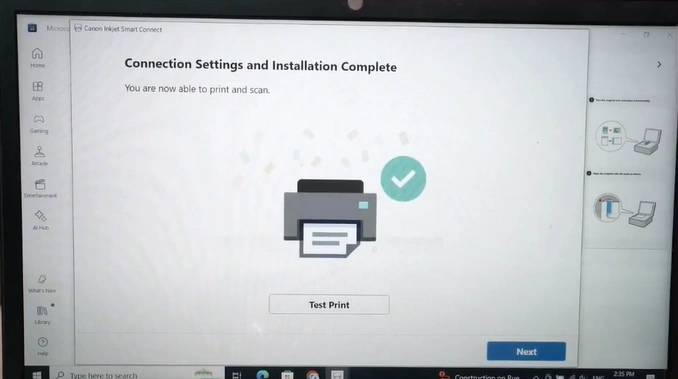
33. Close the Canon Inkjet Smart Connect window.
Also Read:- How to Do Canon MegaTank PIXMA G3270 Printer WiFi Setup
Final Words
Here you learned about the step-by-step process to connect your Canon MegaTank PIXMA G3270 printer to a computer wirelessly. With the help of these steps, you can successfully connect both devices using the Wi-Fi network and start your printing work. You should use all these methods carefully to prevent any issues from happening. However, if you are unable to complete the connection using these methods, then it would be wise to seek more guidance and proper assistance.

