Canon Printer Not Connecting to WiFi – Top Fixes That Work
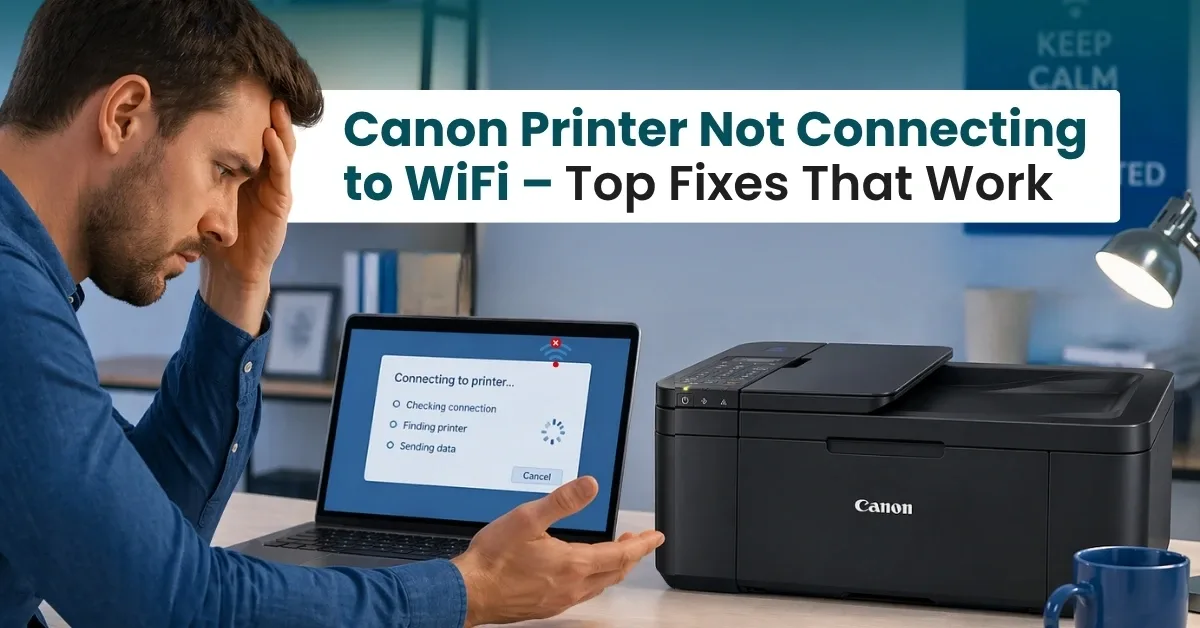
Is your Canon printer not connecting to WiFi? It’s frustrating, especially if you rely on wireless printing for daily tasks. A connection issue can completely stop your work and delay important printing tasks. Here are a few simple troubleshooting steps to reconnect Canon printer to WiFi and print your documents again without interruption. In this guide, you’ll learn the 5 main fixes to try for your Canon printer. After that, you’ll be ready to print easily without any connection issues.
Common Reasons Why Canon Printer Won’t Connect to WiFi
If your Canon printer is not connecting to WiFi, there is usually a specific reason behind it. Here are the common reasons why your printer disconnects from a WiFi connection.
- Incorrect WiFi details (SSID or password)
- Weak or unstable WiFi signal
- Corrupted network settings on the printer
- Temporary glitches in the printer or router
- Outdated printer driver software
- A VPN or firewall is blocking the connection
Basic Checks Before Fixing the Issue
Before jumping straight into troubleshooting, you need to ensure a few things. These checks will help you apply the troubleshooting steps correctly and avoid unnecessary issues.
- Ensure your network is working on other devices.
- Check if your Canon printer is in range of the router.
- Confirm your network (SSID name) and password.
Fix 1: Reconnect Your Canon Printer to WiFi
If the wireless connection is not working, you can reconfigure it on your printer to use the correct WiFi network. Follow these steps to set up the wireless connection on your printer.
- Turn on your printer, and navigate to its settings using the touchscreen or the arrow buttons.
- Go to LAN Settings, and then select WiFi.
- Select WiFi Setup, then choose your wireless network from the screen.
- After that, enter the correct password.
- If your printer has a WiFi button, press and hold it, then press and hold the WPS button on your router for 3 seconds.
Fix 2: Restart Your Printer, Computer, and Router
Wireless interruptions may occur due to device issues or temporary glitches. Therefore, restarting these devices will resolve that issue.
Restart Your Canon Printer
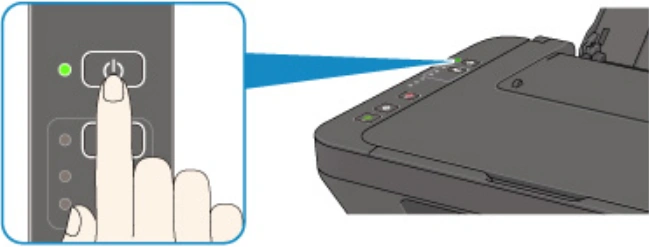
- Press and hold the power button on your printer to turn it off.
- Disconnect it from the wall outlet and wait for 30 seconds.
- Reconnect the printer to the wall outlet.
- Press and hold the power button to turn on your printer.
Restart Your Computer
1. Go to the Start menu, and click on the power icon.
2. Select the Restart option, and let your computer restart.

3. If you have a Mac computer, go to the Apple menu and select Restart.
Restart Your Router
- Unplug your router from the wall outlet, and wait for 30 seconds.
- Connect the router back to the power outlet.
Fix 3: Run Canon Printer Setup Again
If your printer is still not connecting to WiFi and is unable to print, set it up again. Reconfiguring the printer may help it connect to a wireless network by removing outdated or incorrect settings.
- Turn on your Canon printer.
- Go to Settings on your printer.
- Navigate to Network Settings, and then select Wireless Settings or Reset LAN.
- Confirm the reset to remove the old WiFi details and fix the Canon printer WiFi setup problem.
- Download the printer drivers from the official Canon website using your browser.
- Open the file, and launch the Canon setup program.
- Select the option to set up a new printer or choose Wireless Connection.
- Choose your wireless network, and then enter your password.
Fix 4: Update or Reinstall Printer Drivers
Outdated printer drivers can interrupt the connection between the printer and the computer. As a result, your printer stops responding, and you can’t print. Here are the steps to update drivers to fix Canon printer WiFi issue.
1. Visit usa.canon.com/support on an internet browser.
2. Search for your printer model name in the search bar.
3. Select the “Software & Drivers” option.
4. Choose your operating system and its version from the drop-down list.
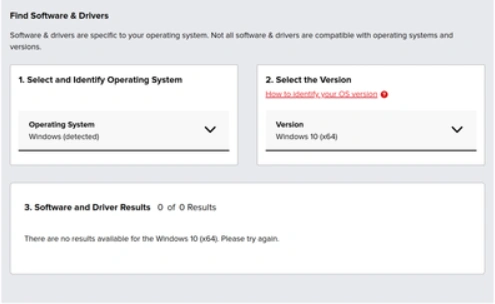
5. You’ll see a list of recommended driver options. Select a package for your printer, and then click the Download button.
6. Wait for the driver package to download to your computer in the Downloads folder.
7. Open the driver’s file by double-clicking on it, and then let it install on your computer.
Fix 5: Disable VPN or Firewall Temporarily
A VPN may stop your Canon printer from connecting to WiFi by creating a new virtual network that can’t recognize your local printer. A firewall may block your printer by restricting the network connection. Therefore, you need to disable the VPN or firewall temporarily using these steps.
- Open Settings on your computer, and select Network & Internet.
- Select VPN, and then select the VPN connection you want to disable.
- Turn off or disconnect the VPN connection.
- To disable the firewall, go to Settings on your computer.
- Select Privacy & Security, and select Firewall & Network Protection.

6. Click on your active network, whether private or public.
7. Disable the firewall.
Related Article
Frequently Asked Questions
Why is my Canon printer not finding my WiFi network?
Your printer may not find your WiFi due to outdated drivers, firmware issues, or a weak signal. It may also happen due to a VPN connection or firewall issue.
How do I reconnect my Canon printer to a new network?
Power on your printer.
Go to the Menu or Settings button.
After that, select Wireless LAN Setup and press OK.
Select Wireless LAN Setup and press OK.
Then, select Manual Connect or Easy Setup.
Select your new wireless network from the list, and enter the password.
How do I fix my Canon printer that keeps disconnecting from WiFi?
Power cycle your printer and router.
Reinstall the printer drivers.
Set up your printer again.
Disable VPN or firewall.

