Canon Printer Showing Offline? Easy Fix for Windows & Mac
Are you wondering, “Why is my Canon printer offline?” You’re printing an important document, and suddenly your printer goes offline. It's frustrating and annoying. A printer being offline means that its connection is interrupted, whether wired or wireless. If it’s not connected to the network, it won’t be able to print and will show an “offline” error. But what causes this problem?
In most cases, this problem occurs due to connectivity problems, incorrect settings, or internet connection problems. However, other factors may also cause the Canon printer to show offline. In this guide, you will learn troubleshooting methods to fix an offline issue on Windows and Mac computers.
Basic checks before starting:
- Make sure that your printer is on
- Restart the printer and your computer
- Make sure that all the cables are securely connected
- Connect both the printer and computer to the same Wi-Fi network
Main Reasons for a Canon Printer Offline Issue
A Canon printer going offline does not happen randomly; there is usually a reason behind it. You need to identify the actual problem and apply the correct method. Here are the main reasons your printer may show as offline.
Network or Connectivity Issue
It is possible that your internet or cable connection is weak or unstable, which may interrupt the communication between your computer and printer and prevent it from printing properly.
Incorrect Printer Settings
You need to check the printer settings on your computer, such as setting the printer online and making it the default device. Sometimes these settings change automatically, which may cause your printer to go offline.
Outdated Printer Drivers
Printer drivers are essential components that allow a printer to connect to a computer. If printer drivers are outdated or corrupted, the printer will not recognize your device and will show as offline.
Stuck Print Queue
If a document is corrupted, it may stop printing and block other pending documents. In this situation, you need to clear the print queue to resolve the issue.
Resolve Canon Printer Offline Issue on Windows
If you use a Windows computer, fixing the offline issue is simple. Here are the top solutions for your printer.
Fix 1: Check Your Printer Connection
As you know, a weak cable or internet connection can cause an offline issue. Follow these steps to check your connection:
- If you’re using a USB or Ethernet connection, make sure the cable is securely connected to both the printer and the wall outlet.
- Remove the cable from the printer and the wall outlet, then reconnect it after 1–2 minutes.
- If you’re using Wi-Fi, check whether your network signal is strong. You can perform an online internet speed test to verify if your connection is stable.
- If you find the internet is slow, unplug the router from the wall outlet, then plug it back in after 1-2 minutes.
- Then check if the offline issue has been removed. Otherwise, move on to the next method.
Fix 2: Set Your Printer as Default
A default printer is the printer your computer automatically uses to print documents when you click the Print option. If your printer is not set as the default, it will cause an offline issue. Here are the steps to set your Canon printer as the default:
Windows 10:
- Go to the search bar at the bottom of your Windows screen and search for "Printer."
- Then, select Printers & Scanners, and then select your printer.
- Now, select the “Open Queue” option.
- Select “Set as default printer” and click OK when the “Let Windows manage my default printer” is unchecked.
Windows 11:
- Search for Printers & Scanners in the search bar.
- Select Printers & Scanners from the results, and ensure that the “Let Windows manage my default printer” is disabled in the printer preferences.
- Select your printer, and click on the “Set as default” option.
Fix 3: Set Your Canon Printer to Online Mode
If the “Use Printer Offline” option is selected on your computer, it will make your printer go offline. Here are the steps to disable this option:
- Open the Windows search bar, type Control Panel, and select it from the search results.
- Select the “Hardware and Sound” or “Devices and Printers” option.
- Locate your Canon printer in the list, and right-click on it.
- Choose “See what’s printing” from the menu or “Open print queue.”
- Select the “Printer” option in the print queue at the top, and uncheck the “Use Printer Offline” option if it's checked.
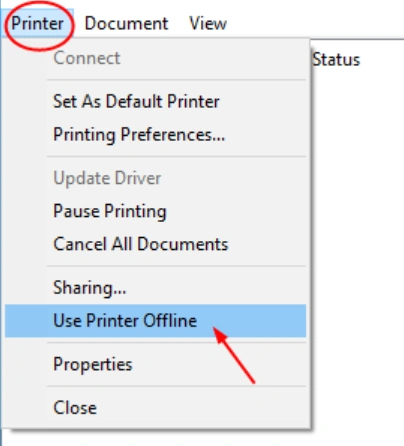
- Finally, your Canon printer will go back to an online mode.
Fix 4: Clear the Print Queue
The print queue is the list of documents to be printed. If a document is faulty, it will stop other ones from printing. Therefore, you have to clear the print queue using these steps:
- In the search bar, type printer at the bottom of the screen and open Printers and Scanners from the results.
- Select your printer’s name from the list, and click on “Open Print Queue.”
- Click Document, then click Cancel to remove the files from the print queue.
Fix 5: Update Canon Printer Drivers
Printer drivers are software installed on your Windows computer that transfer the computer’s commands to the printer. You can update the printer drivers if they are outdated or corrupted using these steps:
1. Press the Windows and R keys to open the Run command box.
2. Enter devmgmt.msc to open the Device Manager.

3. Open the Printers or Print queues option, and locate your printer.
4. Right-click your printer and choose the Update driver option.
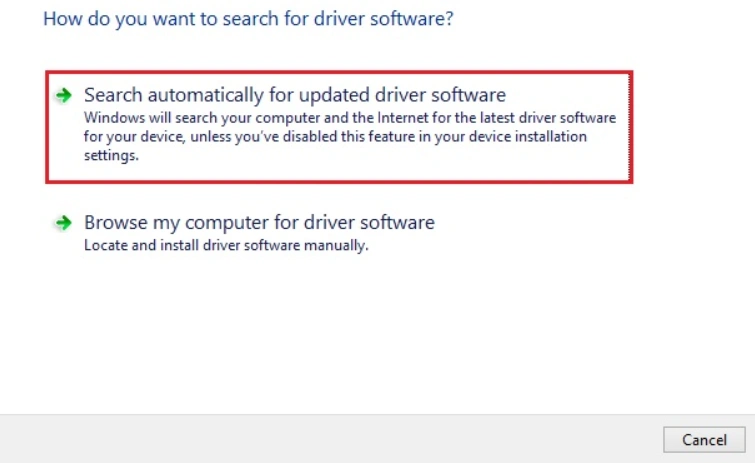
5. Choose "Search automatically for the updated printer driver, and your PC will install the latest drivers.
Resolve Canon Printer Offline Issue on Mac
If you’re a Mac user facing an offline issue, follow these steps to resolve it and start printing from your Mac again.
Fix 1: Check Your Network Connection
The first step is to check the printer’s connection before trying other methods. Here is how you can check the connection:
- If you’re using a cable connection, ensure that the cables are connected properly and aren’t loose or damaged.
- Unplug the cables, and then connect them after a few minutes.
- If you’re using a Wi-Fi connection, search for "online internet speed" on your computer and verify if your internet connection is strong enough.
- Remove your wireless router from the wall outlet, and then reconnect it.
Fix 2: Set Your Mac Computer as Default
If your Canon printer is not set as the default, it won’t be recognized by your Mac. Here are the steps to set it as a default printer:
- On your Mac, open the Apple menu and click System Preferences.
- Then, select the Printers & Scanners option.
- Select the printer that you want to set as the default, and click “Set Default Printer.”
Fix 3: Turn Off the “Use Printer Offline” Option
If the offline mode is enabled on your Mac, it will automatically make your printer go offline. You need to disable this option using the steps below:
- Go to the Apple menu and select System Preferences.
- Open Printers & Scanners, then choose your printer’s name from the list on the left.
- After that, select the “Options & Supplies/Open Print Queue” option.
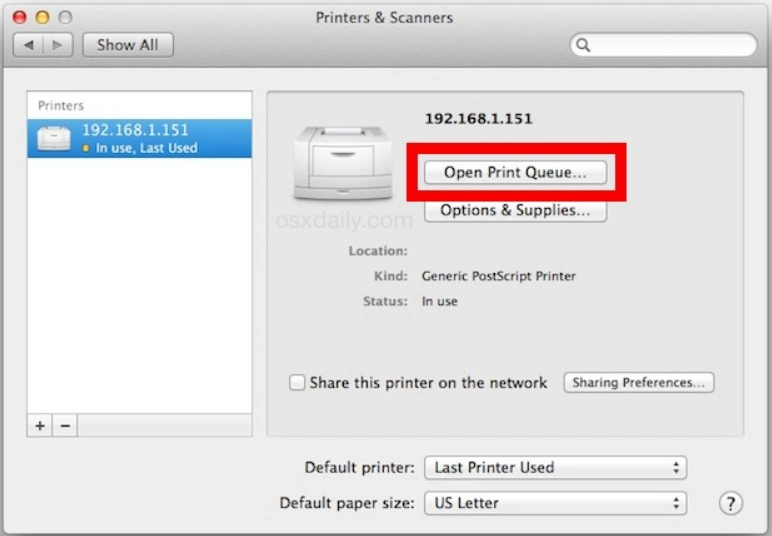
- Now, click “Printer” at the top, and select the “Resume” or “Unpause” option to turn on online mode again.
Fix 4: Remove the Stuck Print Job
A faulty or incompatible document may stop other print jobs from printing, leading to an offline printer issue. Here are the steps to clear the print queue and resume printing:
- Go to System Settings from the Apple menu and select Printers and Scanners.
- Choose your printer, and select “Open Print Queue.”
- Select your print job to cancel, and click the cross sign next to it.
- Alternatively, select Command and A to select all jobs at once, and then press Command + Delete to cancel all together.
Fix 5: Update or Reinstall Canon Printer Driver
Printer drivers are important to set up communication between your printer and your Mac computer. If they get outdated, install the latest version using these steps:
- Click the Apple menu and choose System Preferences.
- Select the “Software Update” option.

- Find your printer name in the list, and hit the “Update” button to update the printer drivers.
Final Words
A Canon printer being offline happens when the cable or wireless connection is interrupted. In addition, inappropriate printer settings, outdated printer drivers, or a jammed print queue may also cause it. Troubleshooting the offline printer issue is simple if you follow the steps. Start by checking the connection, then review the printer settings. One common reason for this problem is not updating printer drivers or clearing the print queue regularly. If you keep everything up to date and well managed, the offline issue is less likely to occur.
Frequently Asked Questions
Why is my Canon printer showing offline?
- The internet or cable connection may be weak.
- Printer drivers are outdated or corrupted.
- The printer is set as an offline device on the computer.
- An incompatible document is stuck in the print queue.
How to get a Canon printer back online?
- Restart your printer and computer.
- Set your printer as the default.
- Uncheck the “Use Printer Offline” setting on your computer.
- Update the Canon printer drivers.
How do I prevent my Canon printer from having an offline issue?
- Ensure that your internet connection is stable.
- Keep the printer drivers updated to the latest version.
- Ensure that your printer is set as the default on your computer.
- Ensure that your printer is not set to offline on the computer.

