How to Download and Install Toshiba Printer Driver?

Is your Toshiba printer at home or in the office not working properly? You may face problems like slow printing speeds or print jobs stopping halfway. This often happens because the printer driver is missing or corrupted.
Don’t get frustrated with the power button or blame the printer’s hardware, as the issue is usually software-related. Instead, install the latest Toshiba printer driver. This driver is essential for smooth printing performance, so keeping it updated is very important.
To make the process easier, we have outlined the steps to download and install the Toshiba printer driver. But before that, let’s look at the common problems that may occur during the download and installation.
Common Problems When Downloading Toshiba Printer Driver
These are a few problems that might occur and interrupt the downloading or installation of the Toshiba printer driver:
- Incomplete or corrupted downloads
- Downloading the wrong driver
- Errors during installation
- Problems after installation
- Compatibility issues with your system
Steps to Download and Install Toshiba Printer Driver
Here are the recommended steps to download and install the appropriate Toshiba printer driver correctly:
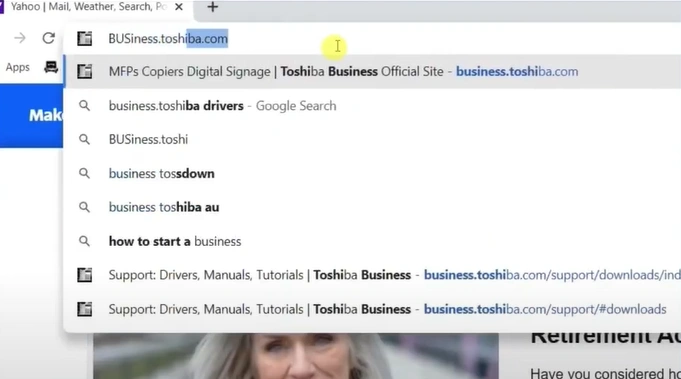
Step 1: Open your browser and go to business.toshiba.com.
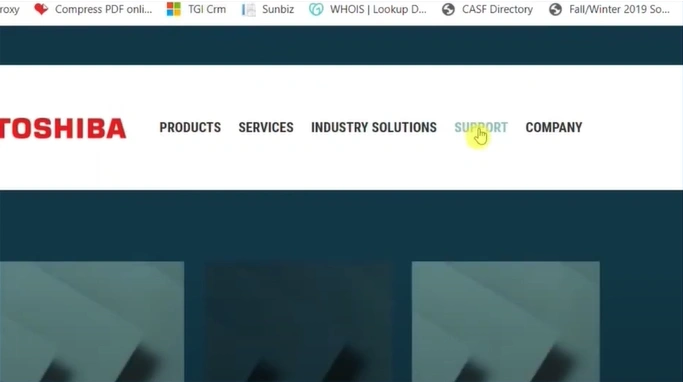
Step 2: Once the website opens, click on the Support tab.
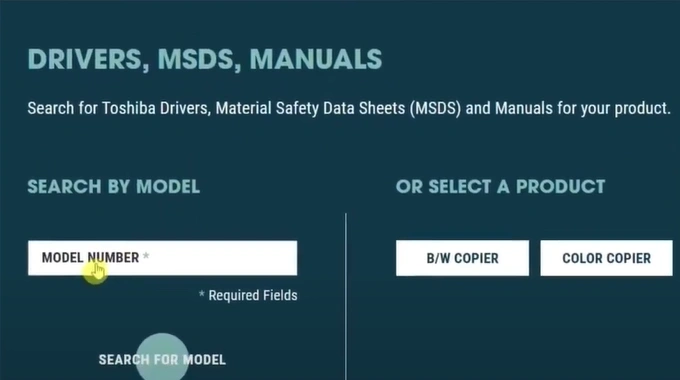
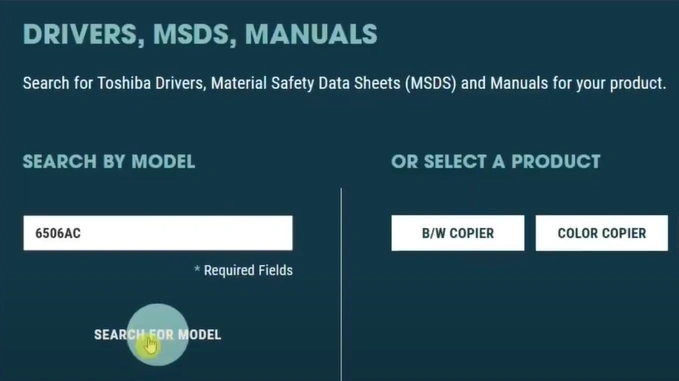
Step 3: Scroll down to the Search by Model section.
Step 4: Enter your printer model.
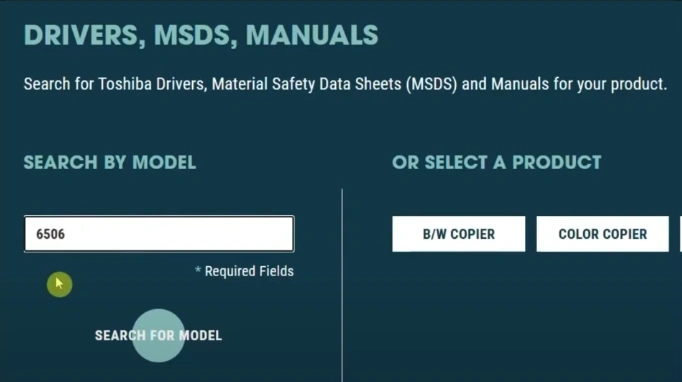
Step 5: Click on Search for model.
Step 6: You will be redirected to the driver’s page.
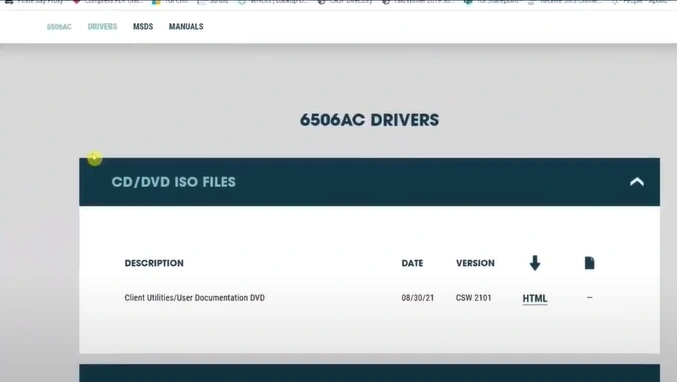
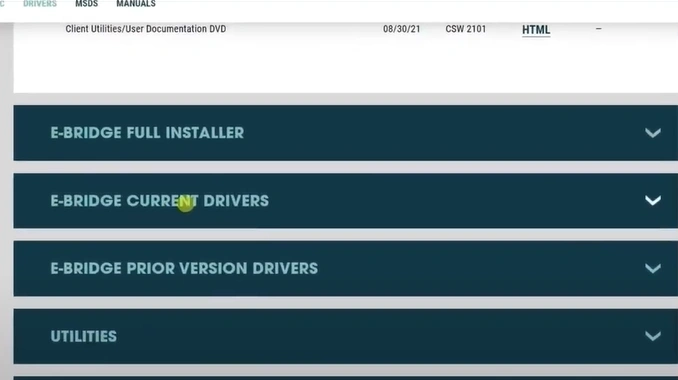
Step 7: Scroll to the driver section and expand it.
Step 8: Download your desired printer driver.
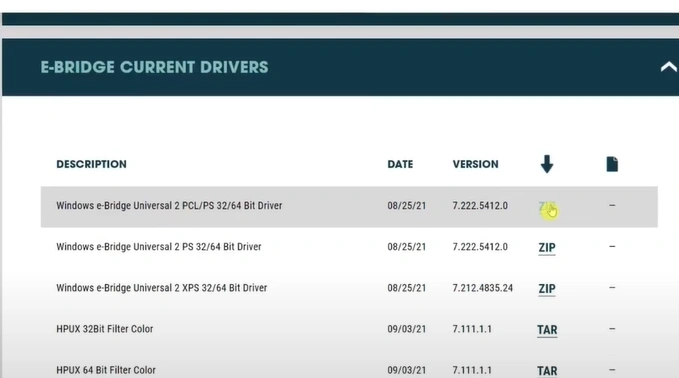
Step 9: Once the file is downloaded, open it.
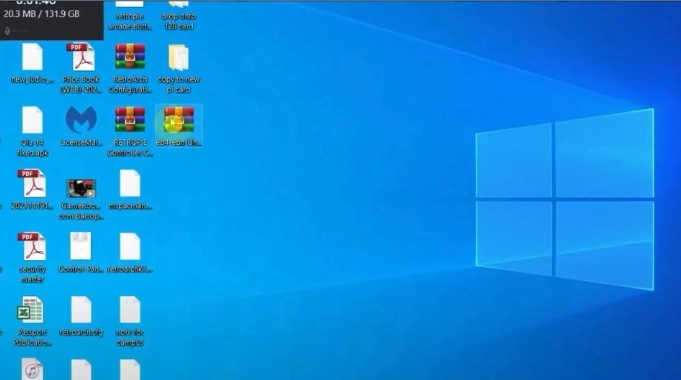
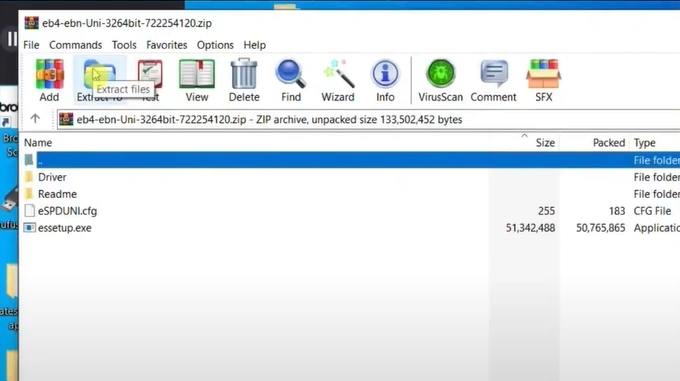
Step 10: Click on Extract to.
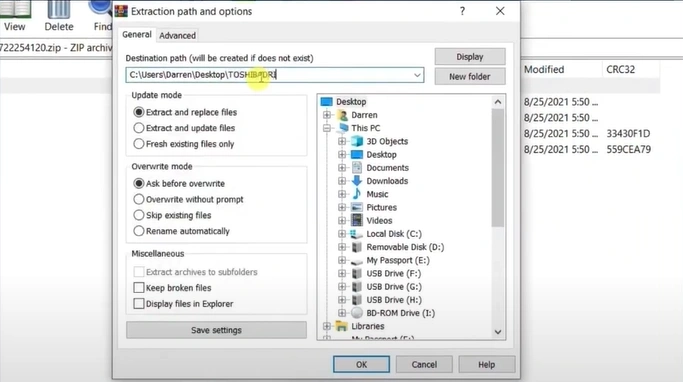
Step 11: Select a destination path.
Step 12: Open the extracted file.
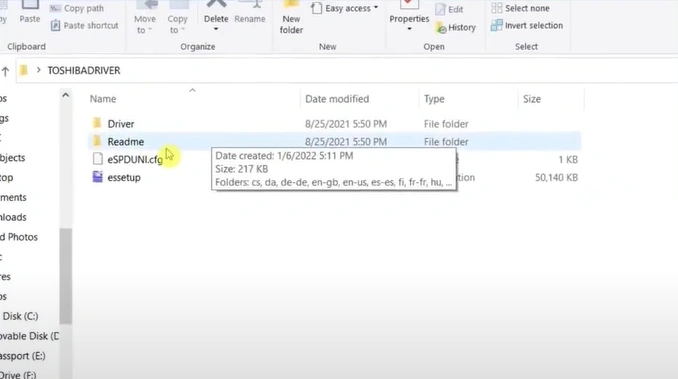
Step 13: Open the setup application.
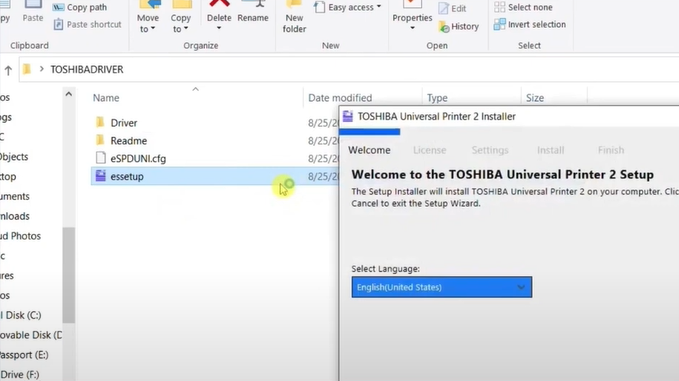
Step 14: Select language.
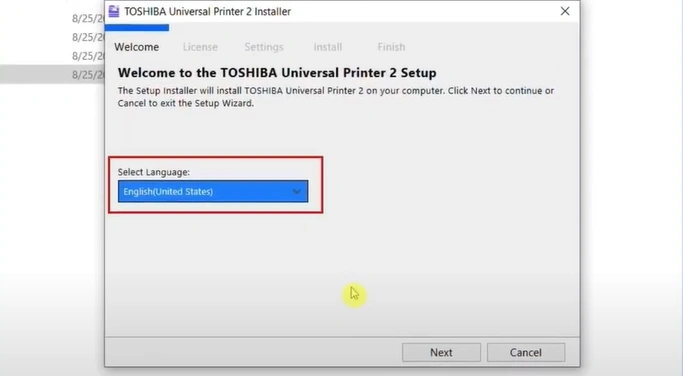
Step 15: Click on Next.
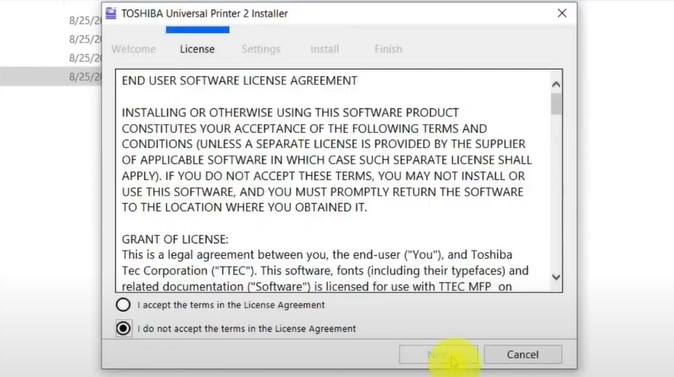
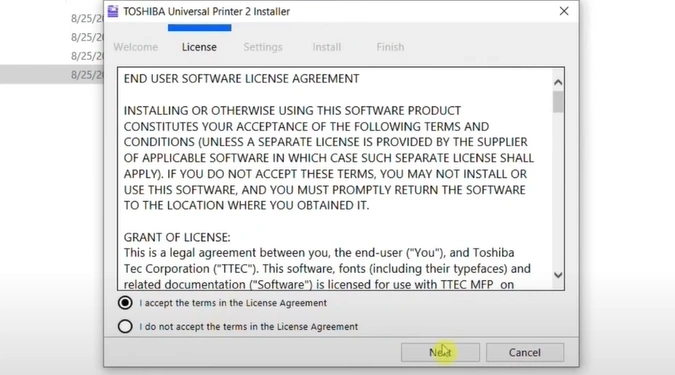
Step 16: Review the license agreement.
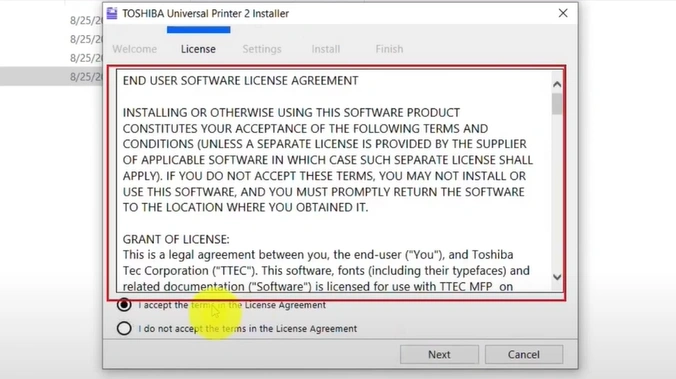
Step 17: Select the “I accept” option and click Next.
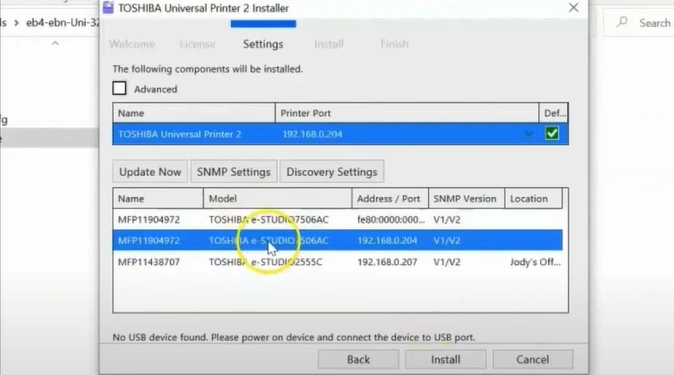
Step 18: Select your printer model.
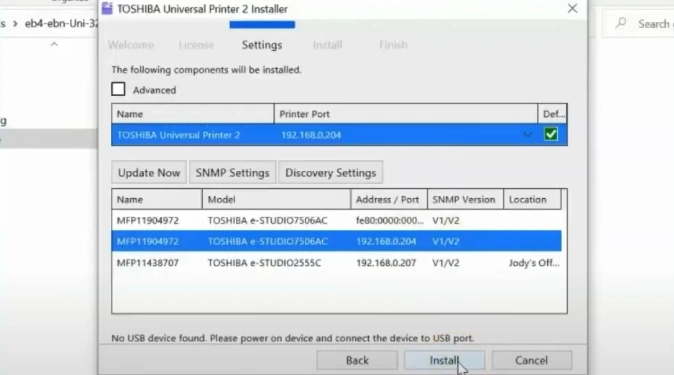
Step 19: Click on the Install button.
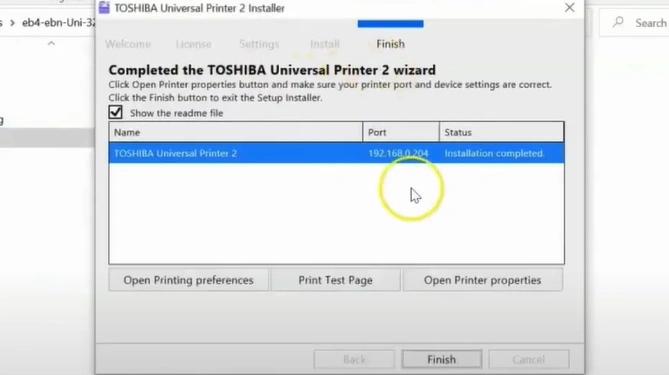
Step 20: Wait for the installation to complete.
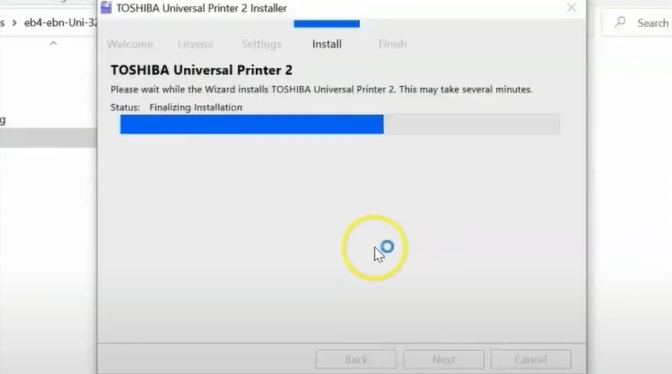
Step 21: Once the printer driver is installed, click on Finish.
Bottom Line
That’s how you can download and install Toshiba printer driver. Make sure you know your printer’s exact model number before starting. Always download drivers from the official Toshiba website - third-party sites can be unsafe and may contain malware or outdated software.
Related Guide
What Are the Quick Solutions for Toshiba Printer Offline Issue?

