How to Fix Driver Unavailable for Canon Printer?

You had to pause your work on an important document because your Canon printer suddenly stopped printing. On your screen, a message popped up saying “Driver Unavailable.” Since this was the first time you had seen it, one thought kept running through your mind: “How can I fix this now?”
The good news is that resolving the “Driver Unavailable” error on a Canon printer is quite simple. You don’t need to be a tech expert - just follow the right steps. But before we jump into the fixes, let’s look at some common problems that may cause this issue and slow down the repair process.
Problems You Might Face While Resolving Driver Unavailable Error
Although fixing the Canon printer driver unavailable issue is usually simple, you may still face some common problems, such as:
- Incomplete driver installation or corruption
- Lack of admin permissions
- Connection problems
- Wrong printer model selected
- Outdated firmware
4 Ways to Fix "Driver Unavailable" Error on Canon Printer
Here are four quick methods to fix the "Driver Unavailable" error on Canon printers:
Method 1: Roll Back Your Printer Driver
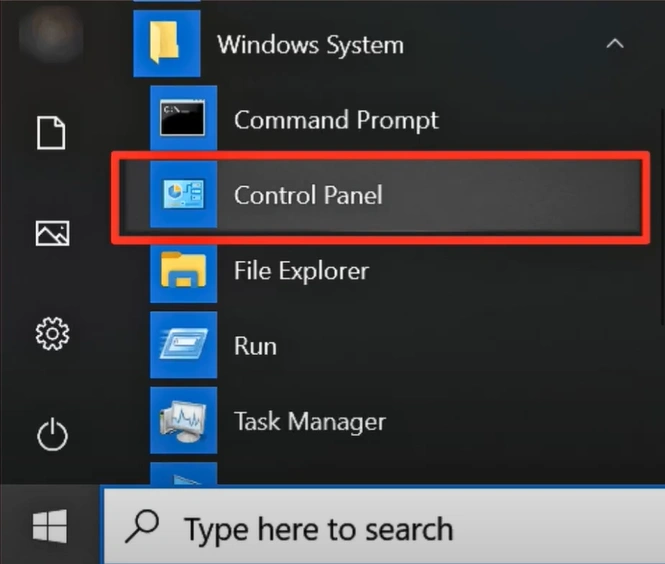
Step 1: Open your Control Panel on your computer.
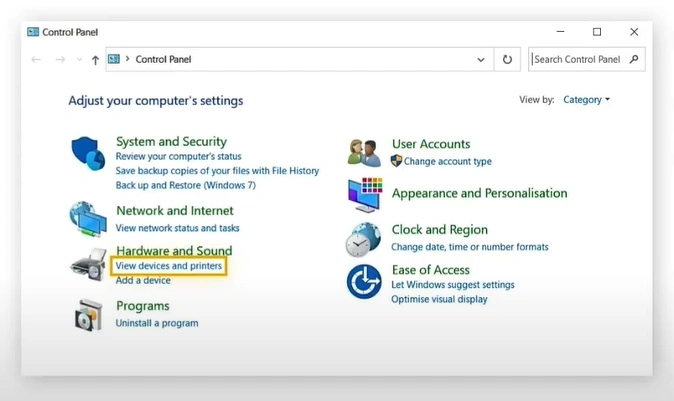
Step 2: Open “View devices and printers.”
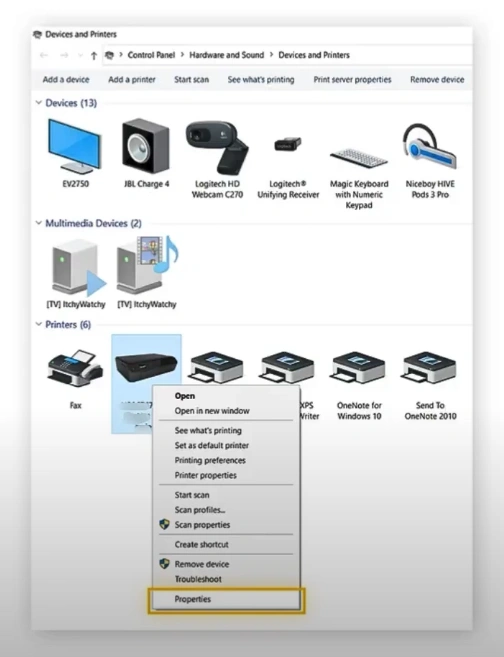
Step 3: Right-click on the Canon printer and open Properties.
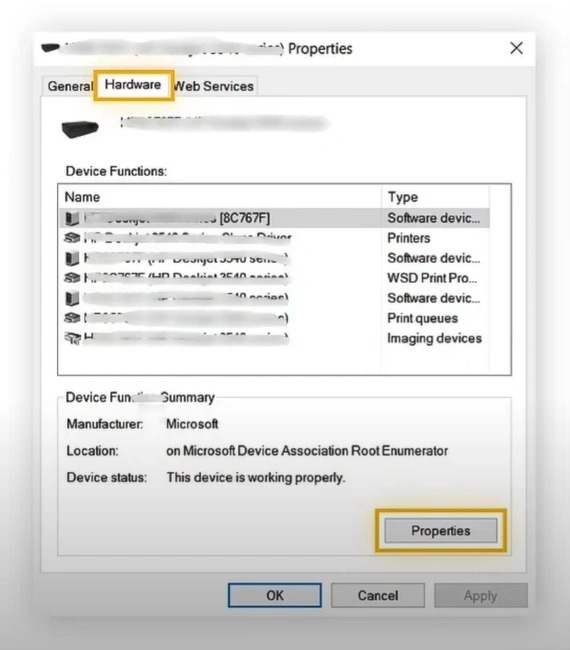
Step 4: Open the Hardware tab and click on Properties.
Step 5: In the properties window, open the Driver tab and click on Roll Back Driver.
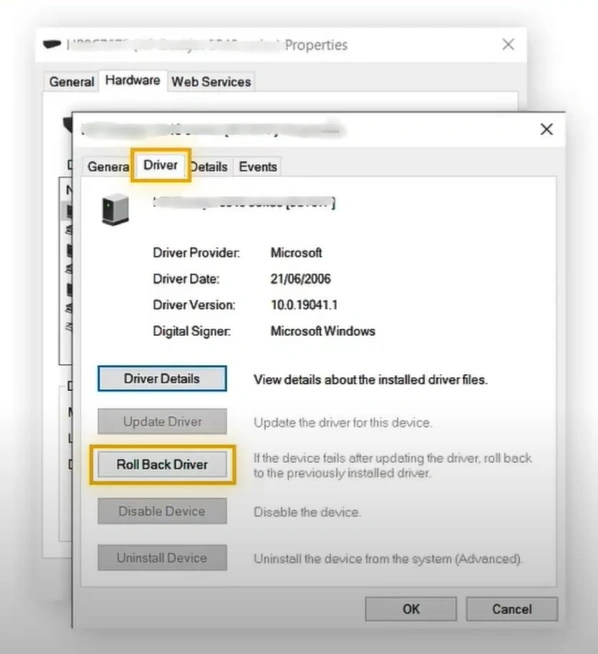
Note: If prompted, confirm by clicking Yes or OK.
Method 2: Update Your Printer Driver
Step 1: Press the Windows + R keys to open the Run dialog box and search “devmgmt.msc.”
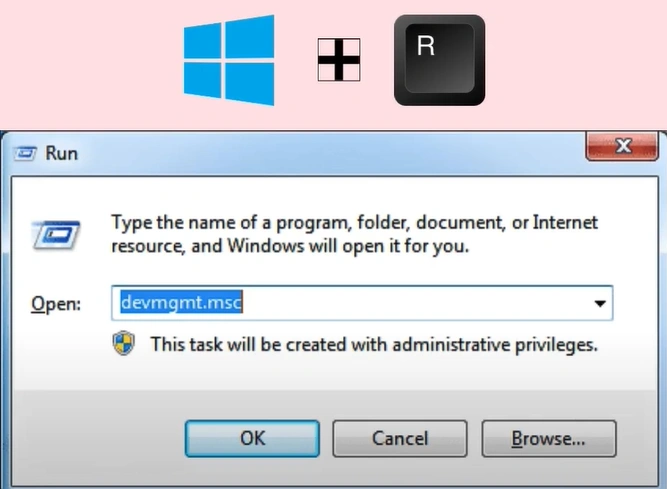
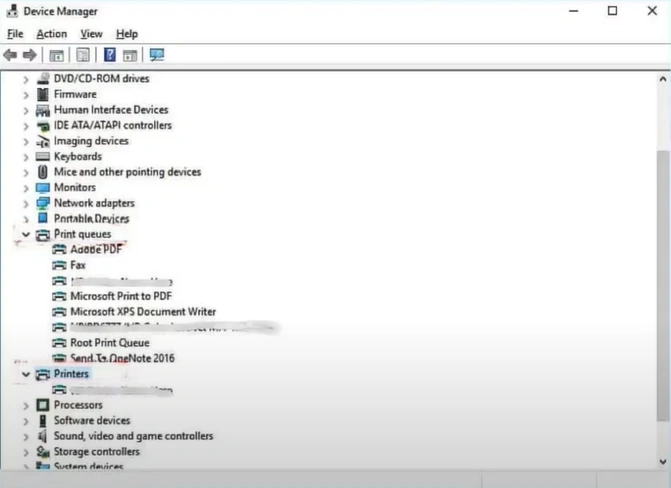
Step 2: Locate Print queues or Printers from the list, then expand it.
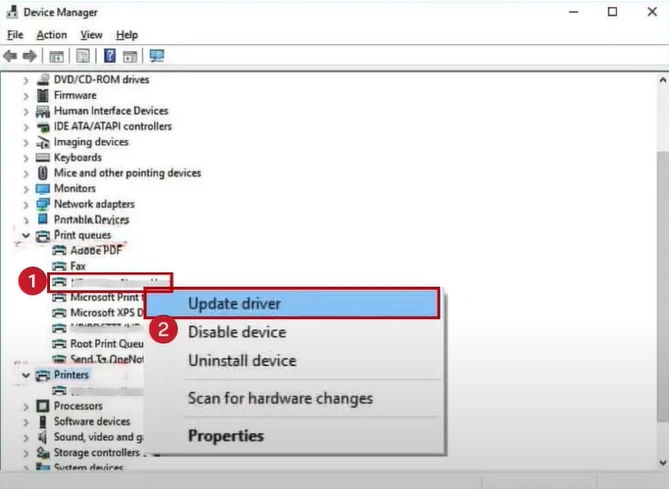
Step 3: Find your Canon printer, right-click on it, and select Update driver.
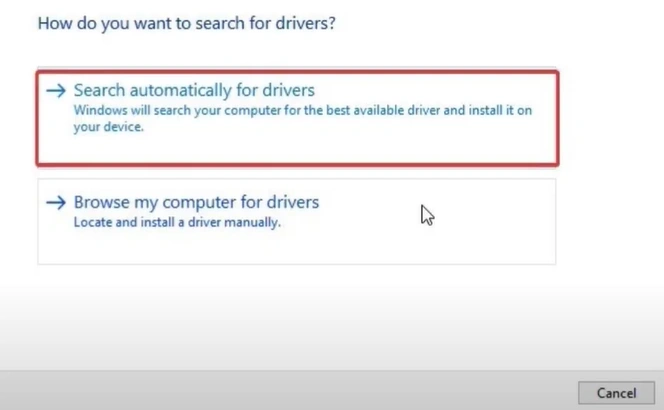
Step 4: Choose the option that says “Search automatically for the drivers.”
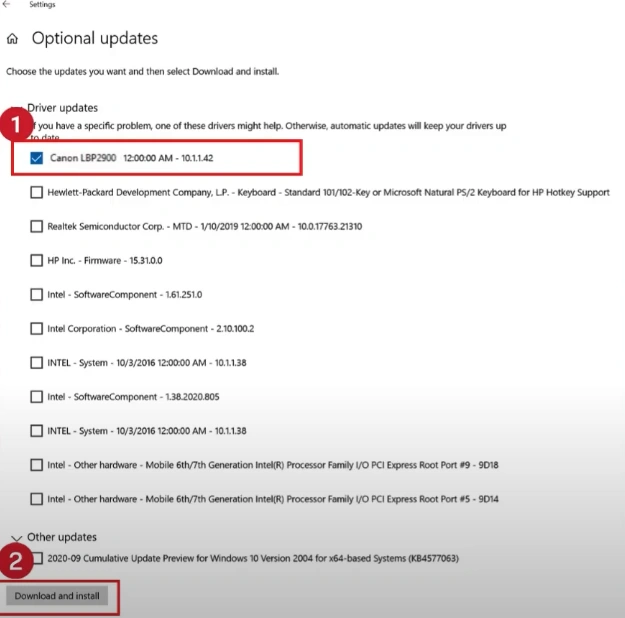
Step 5: If updates are found, go ahead and complete the download and installation process.
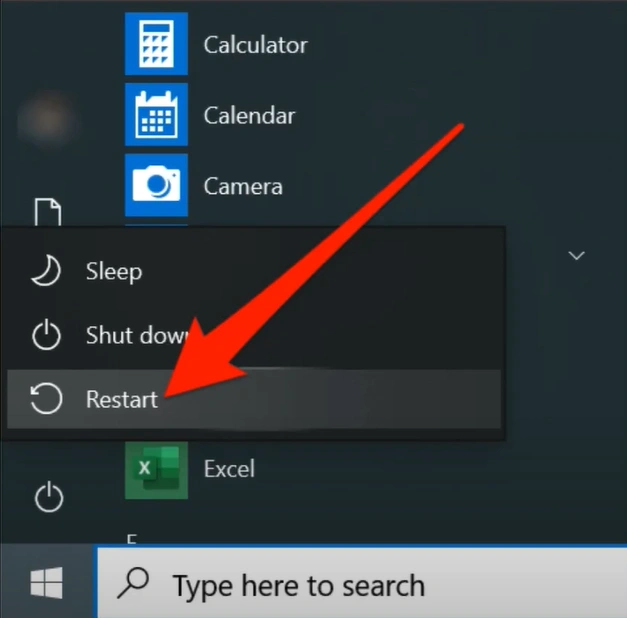
Step 6: Once the driver is updated, restart your computer.
Method 3: Update Windows
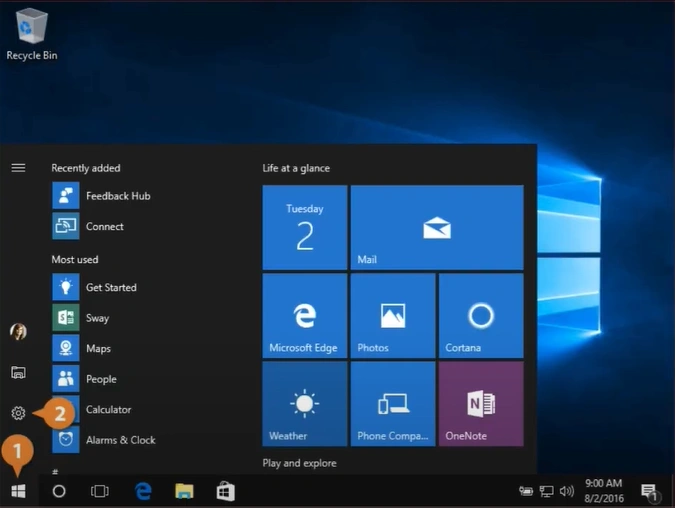
Step 1: Press the Windows Start icon and go to Settings.
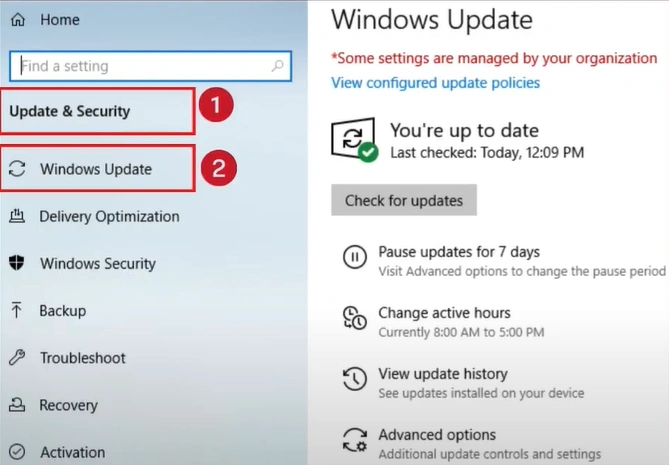
Step 2: Select Update & Security and then Windows Update.
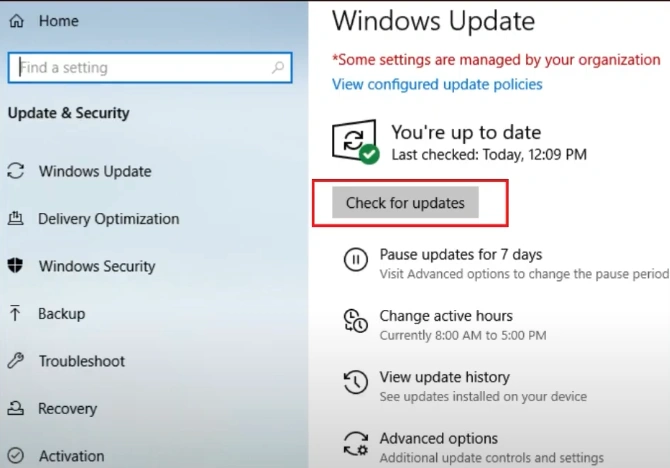
Step 3: Hit the Check for updates button, and wait while Windows looks for the latest updates.
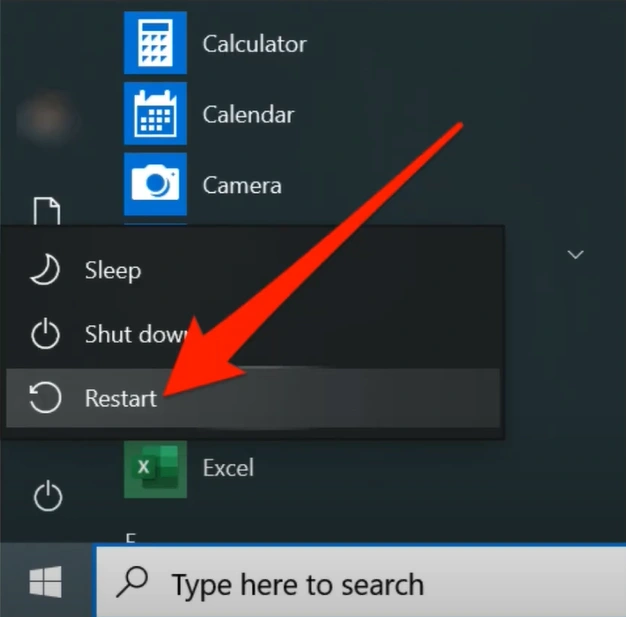
Step 4: After completing the update, turn your system off and back on.
Method 4: Reinstall Printer Driver
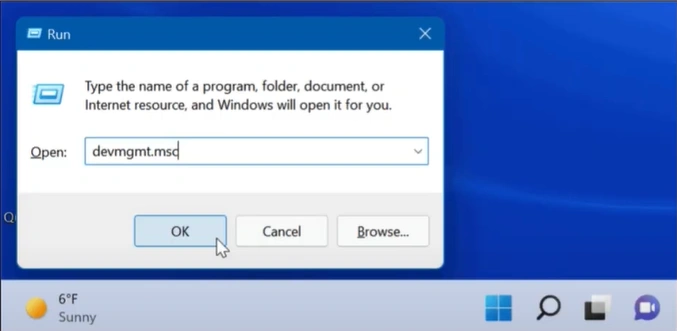
Step 1: Start the Run window and input “devmgmt.msc.”
Step 2: Scroll down to Printers, expand it, right-click on your printer, and choose Uninstall device.
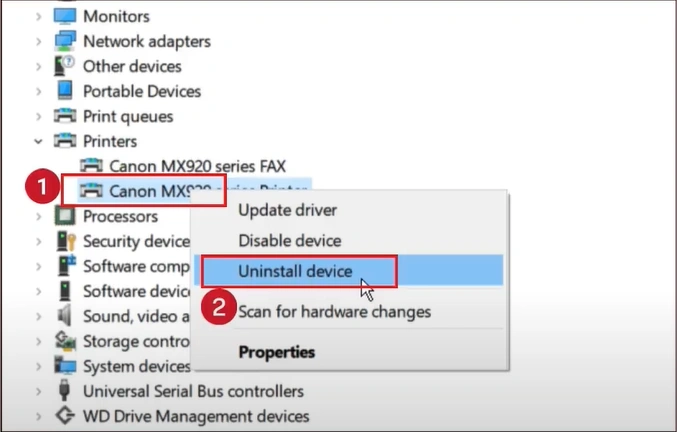
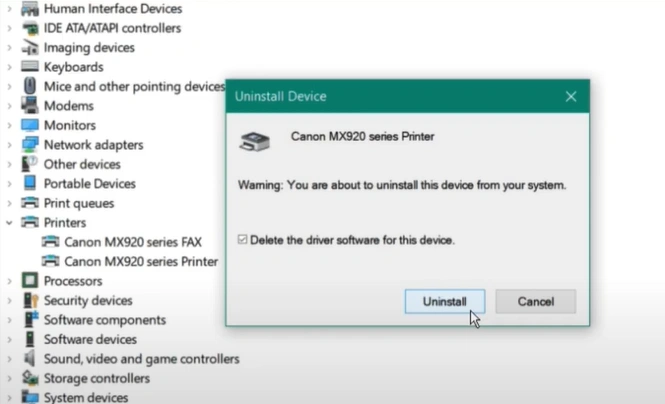
Step 3: In the Uninstall Device window, select the option Delete the driver software for this device. Then, press the Uninstall button.
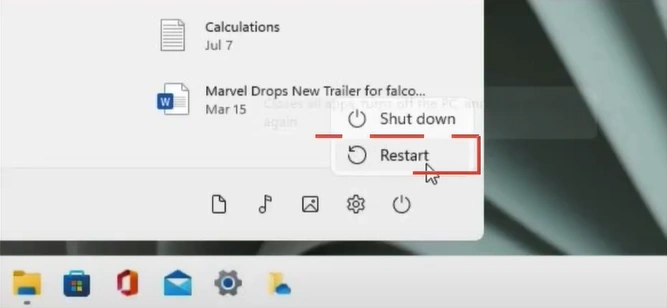
Step 4: Restart your computer.
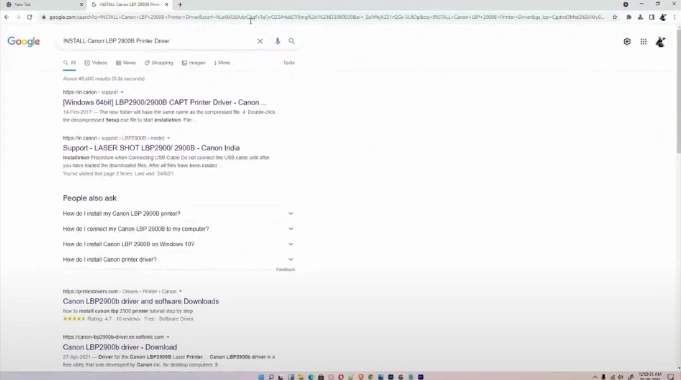
Step 5: Open a web browser, go to the official Canon support website, and type in your printer model.
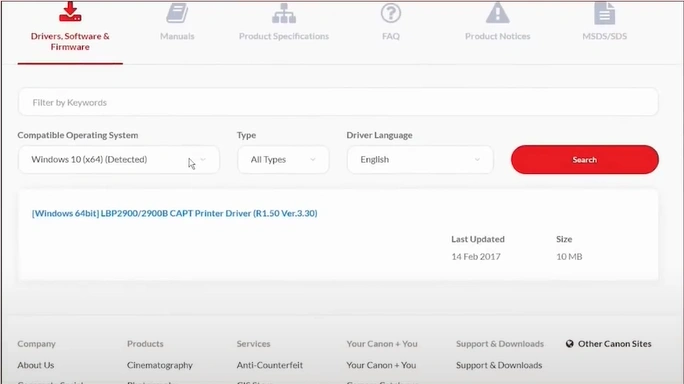
Step 6: Under the Drivers, Software & Firmware section, make sure your operating system is correct.
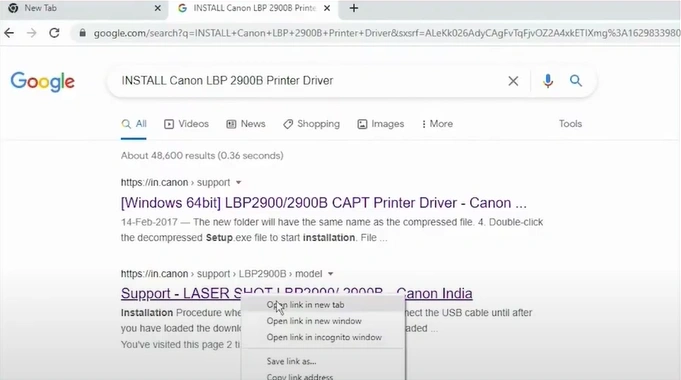
Step 7: Click on your desired printer driver.
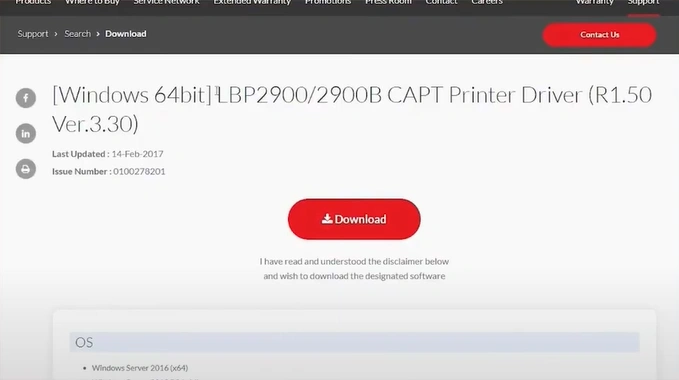
Step 8: Click the Download option.
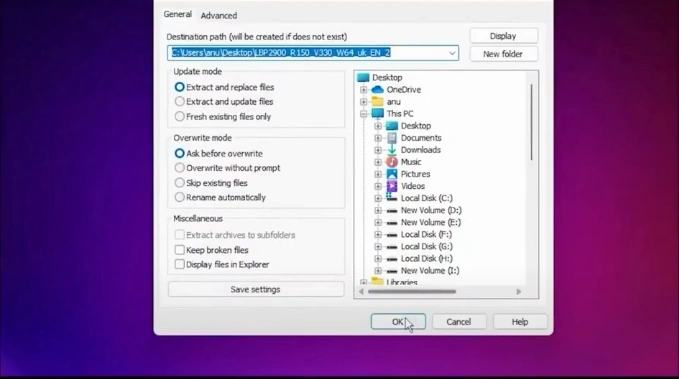
Step 9: After the file finishes downloading, right-click it and choose Extract files.
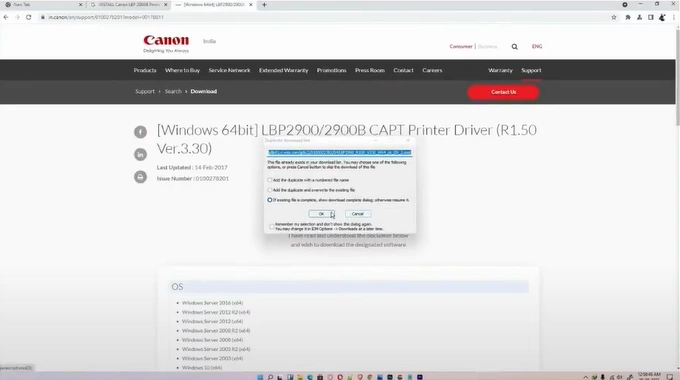
Step 10: In the Extraction path and options window, simply press OK.

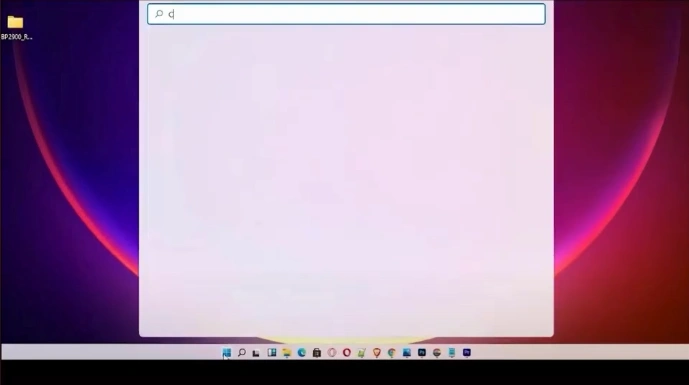
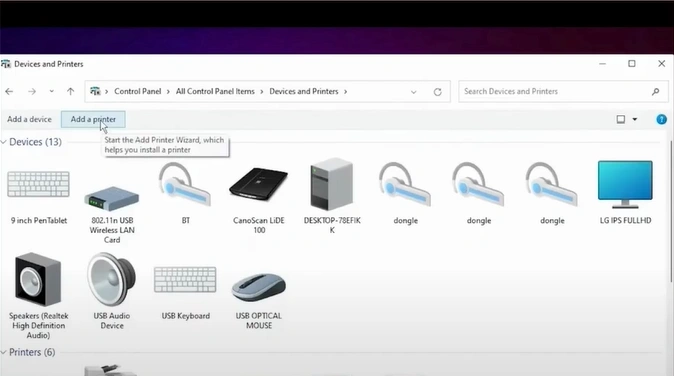
Step 11: Open the Control Panel again and go to Devices and Printers.
Step 12: Choose the Add a printer option.
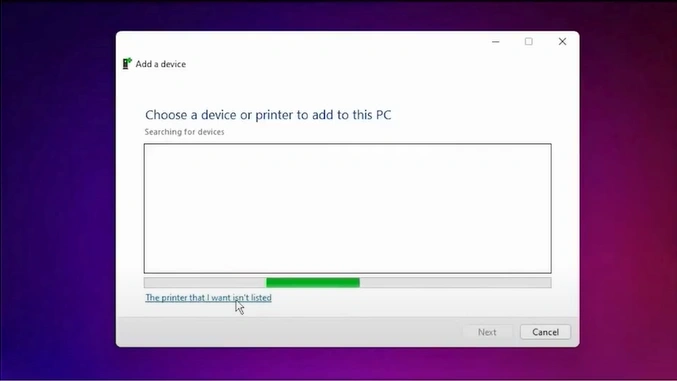
Step 13: Click on “The printer that I want isn’t listed.”
Step 14: Select “Add a local printer or network printer with manual settings,” then press Next.
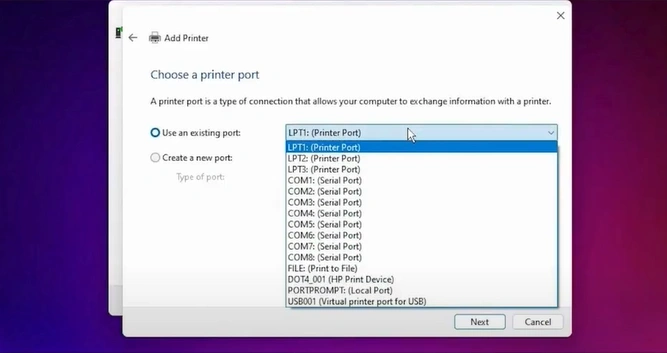
Step 15: Choose “Use an existing port,” pick USB_001 from the list, and hit Next.
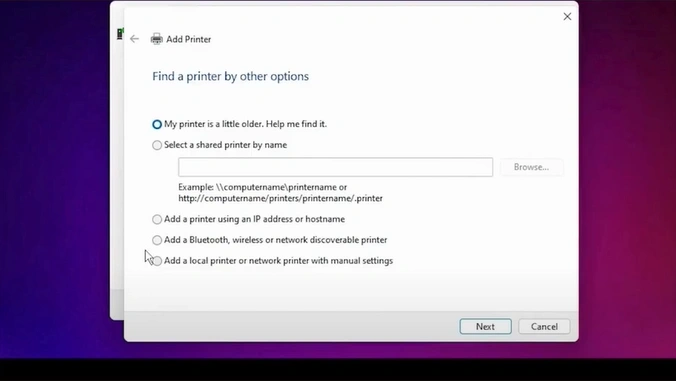
Note: If USB isn’t listed, select com4_001 or any available Canon port option.
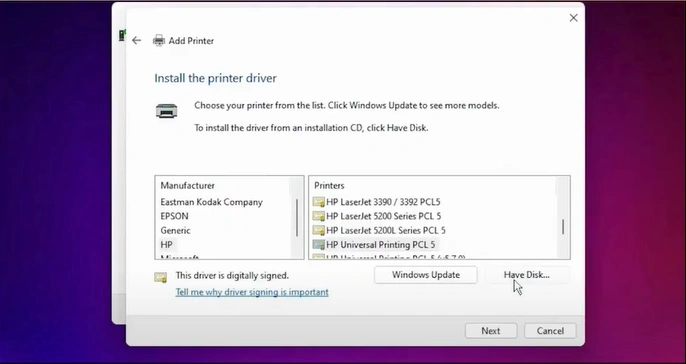
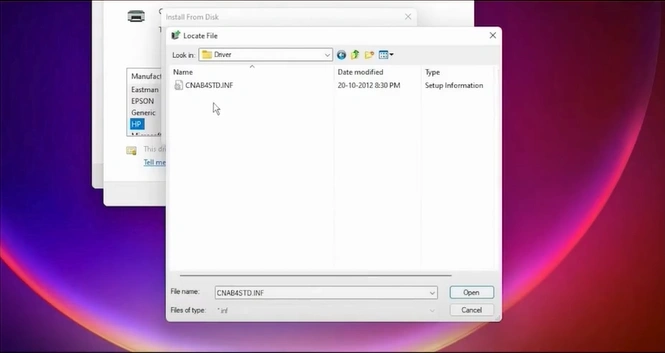
Step 16: On the next screen, click Have Disk.
Step 17: Tap Browse, find your downloaded driver folder, and open it.
Step 18: Look for the file that ends with .inf and select it.
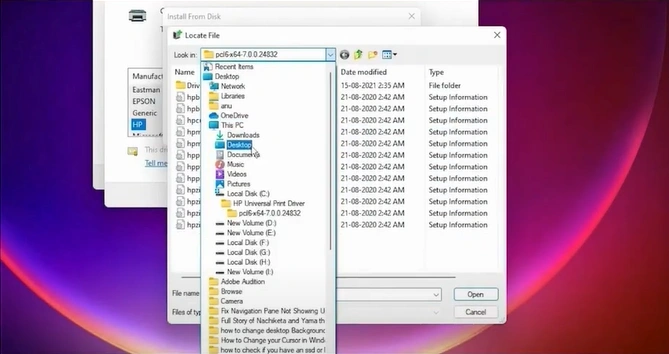
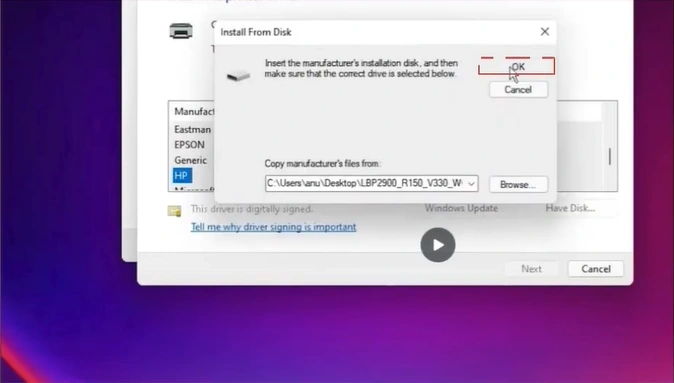
Step 19: Click on OK.
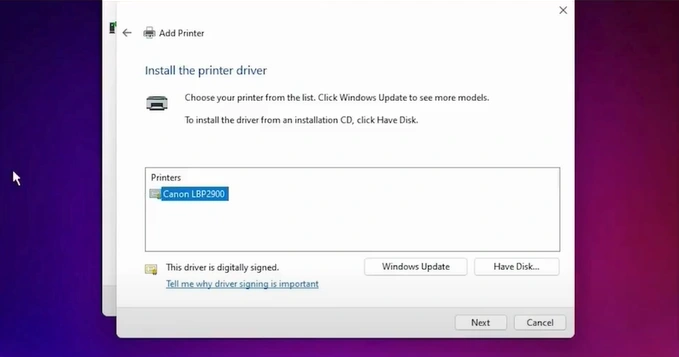
Step 20: Pick your Canon printer model from the list.
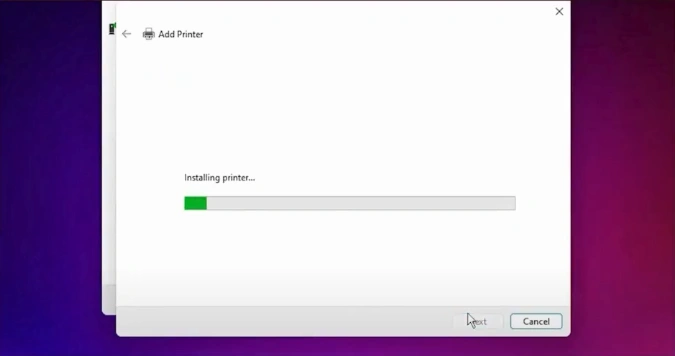
Step 21: If you want, give your printer a custom name, then press Next.
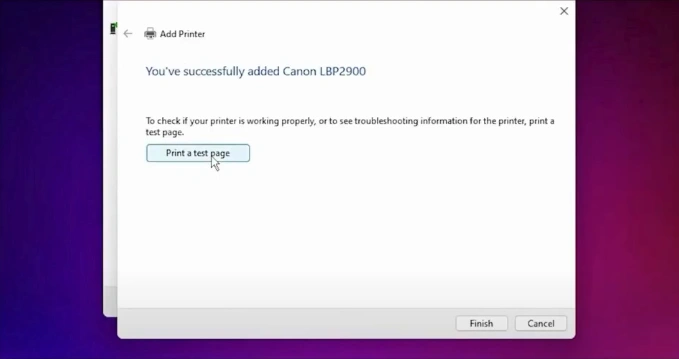
Step 22: You can either print a test page right away or just click Finish.
Step 23: Finally, check under Devices and Printers to confirm your Canon printer is listed and ready to use.
In a Nutshell
To sum up, these methods can help resolve the “Driver Unavailable” error on Canon printers. Rolling back restores a previously working driver, updating Windows makes sure you have the latest updates and fixes, and reinstalling clears out corrupted files with fresh ones. Once you apply these methods, your Canon printer should be detected and ready to use without issues.
Related Article

