[Resolved] Canon Printer Queue Not Printing
![[Resolved] Canon Printer Queue Not Printing](https://printertales.com/public/upload/blog/68678fd4289d9_resolved-canon-printer-queue-not-printing.webp)
Numerous problems, such as printing too many pages at once, the printer spooler not working properly, and others, can be caused by the printer queue not printing issue in your Canon printer. If your printer is showing this problem, then you will not be able to perform any printing tasks.
As a result, it is necessary to get your printer out of the “printer queue not printing” state as soon as possible. Fixing this problem can seem challenging for many. If you are also looking forward to resolving the Canon printer queue not printing issue, then the effective steps are below. So, without any further delay, let’s get right into it!
Quick Steps to Resolve the Canon Printer Queue Not Printing Issue
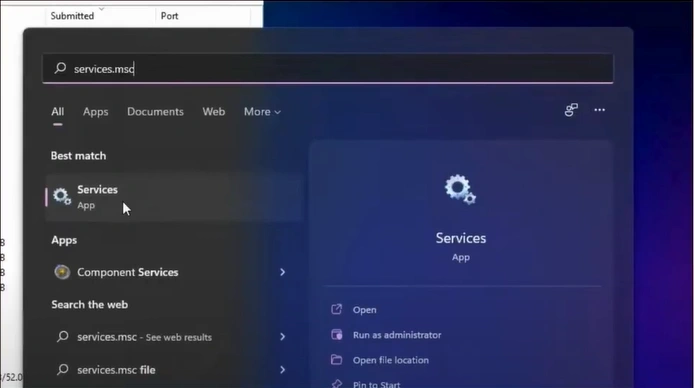
1. Click on the service icon, enter “service.msc,” and search.
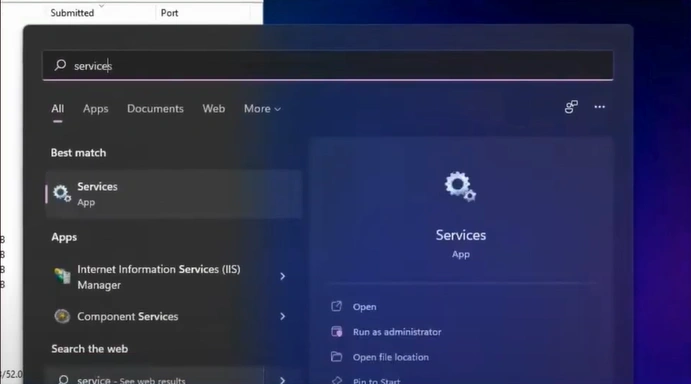
2. Open the Services application.
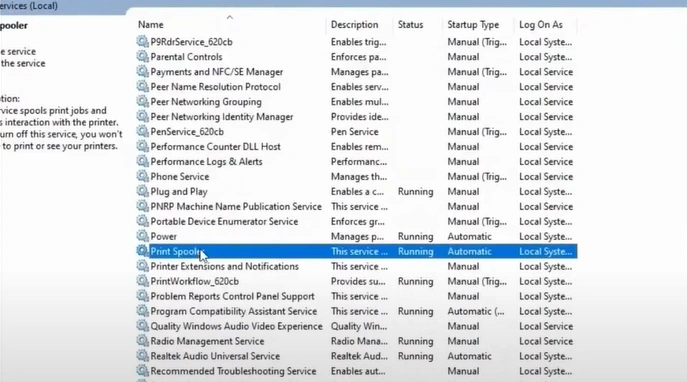
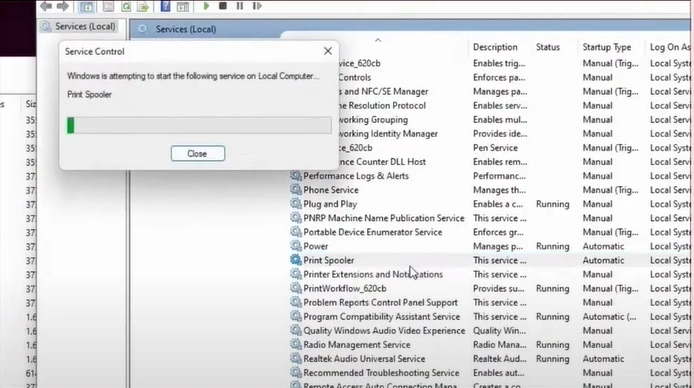
3. After that, scroll and find Print Spooler.
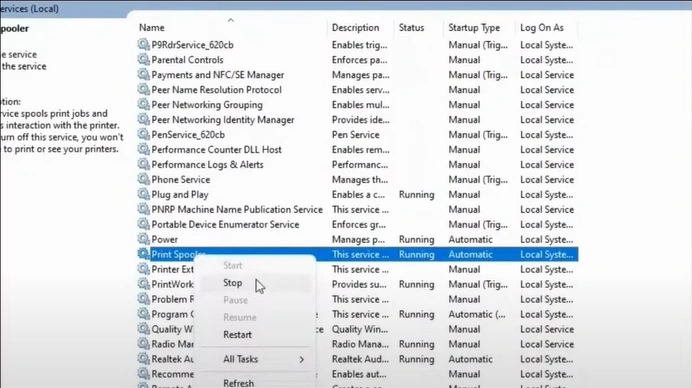
4. Right-click on the Print Spooler and select Stop.
5. Open your File Explorer.
_1751618105.webp)
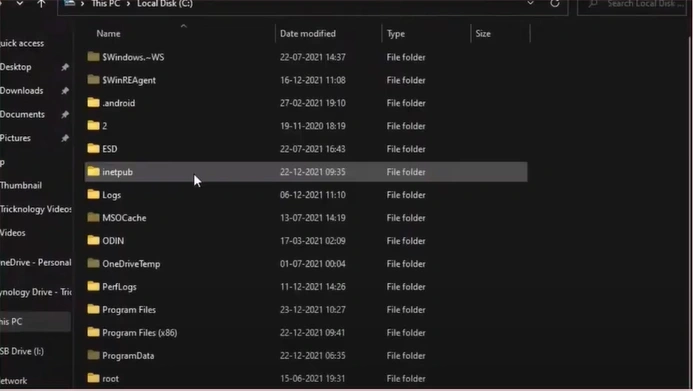
6. Open the Local Disk C, find and open the Windows folder.
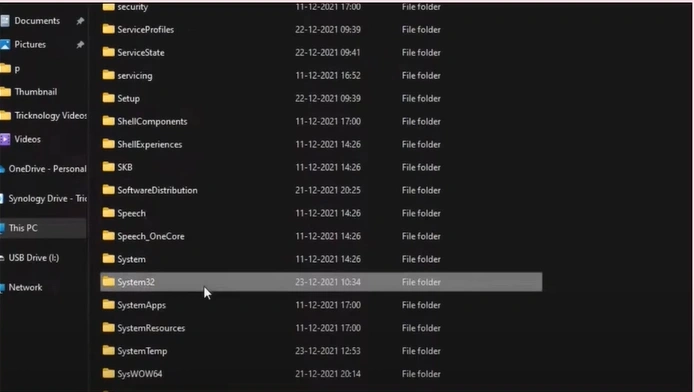
7. Open the “System32” folder, double-click on the “Spool” folder, then open the “PRINTERS” folder.
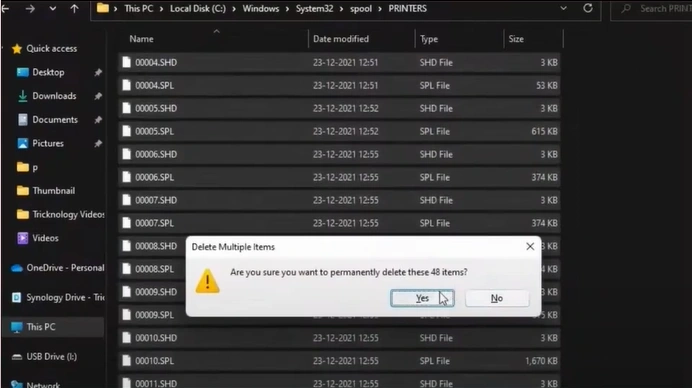
8. Select all the files and delete them permanently.
9. Close the File Explorer and right-click on the Print Spooler again.
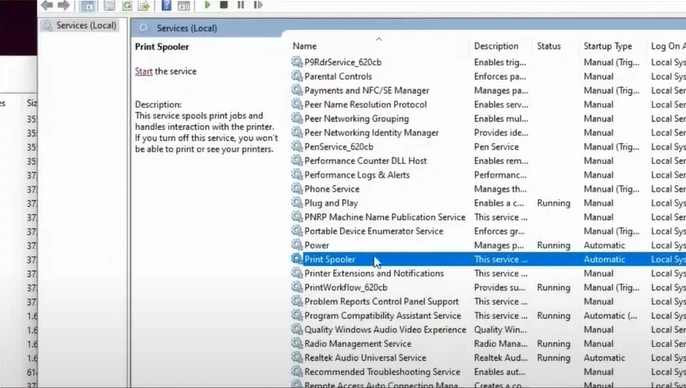
10. Then, click on Start.
11. Now, check if your problem has been resolved or not.
Also Read:- How To Clear Printer Queue Windows 11?
Wrap Up
A number of problems can put your Canon printer in a situation where too many print jobs can lead to the print queue error. This error affects your printer's functionality and stops you from completing your tasks. To fix this issue quickly, you need to use the steps we have shared here. In addition, you may need to use other solutions if the issue is more complex. Apart from that, looking for additional help could be a good choice to get in-depth information about fixing this issue.

