How to Fix Paper Jam in Canon Printer?

Due to some components malfunctioning or technical faults in your Canon printer, it can show a paper jam problem. Too many print jobs stuck in a queue, using incompatible paper, print rollers not working properly, wrong print settings, etc., are the major causes of the paper jam issue. As a result, you first need to check all these points on your printer to see if it resolves the error.
However, do not worry if you have no clue how to fix it. Here, take a look at the quick tutorial to remove any jammed paper from inside the printer to get it working perfectly once again.
Quick Steps to Fix Canon Printer Paper Jam
1. First of all, turn on your printer.
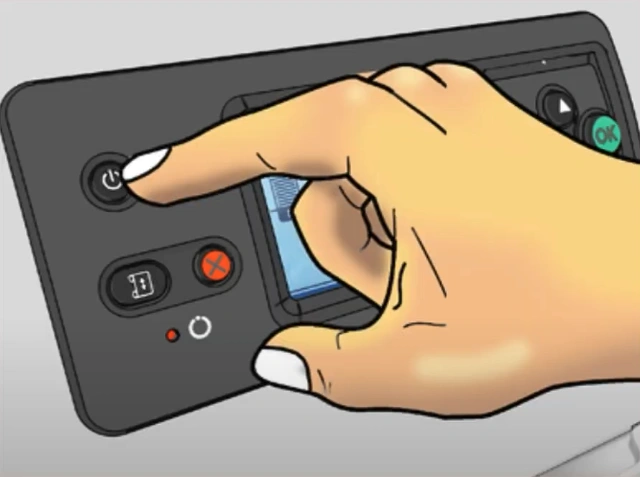
2. Next, remove the power cord from the printer.
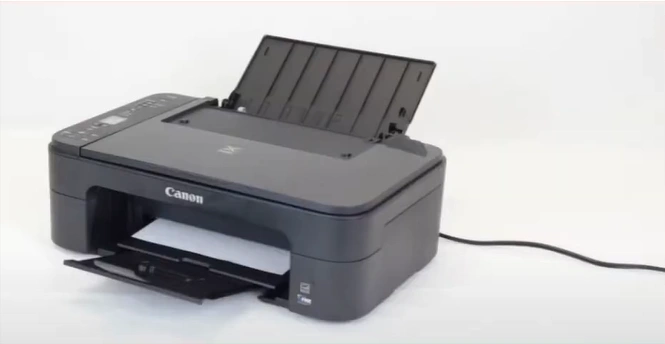
3. Then, open the cover of the printer.
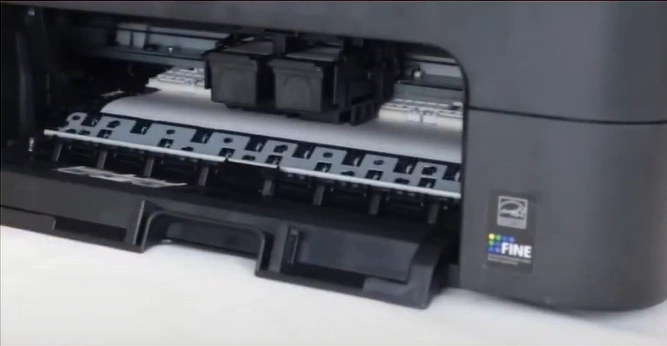
4. Gently move the FINE cartridge to the right.
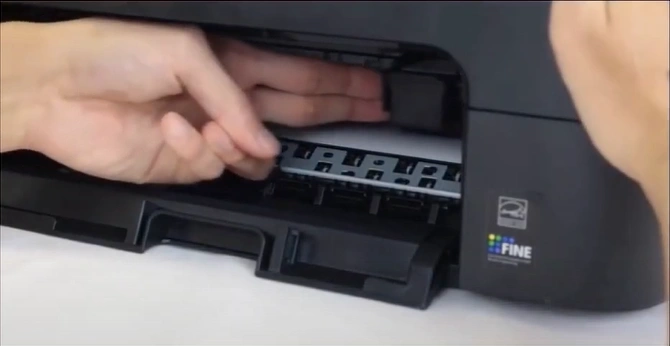
5. Remove the jammed paper slowly without touching other printer parts.
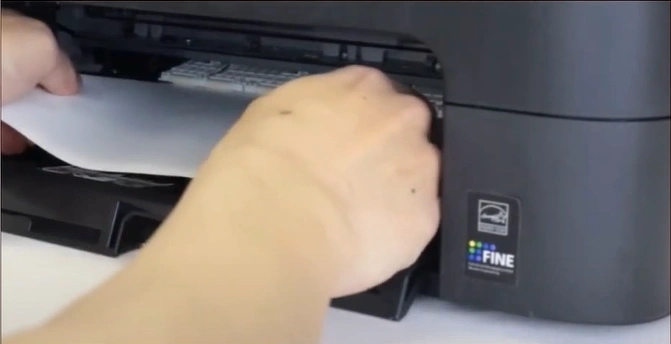
Also Read:- How to Do Canon G3260 WiFi Setup?
6. Check and remove any left pieces of the printer.
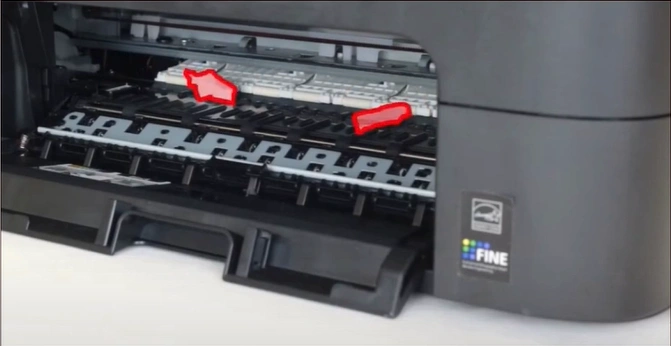
7. Slowly remove the jammed paper from the rear paper tray.
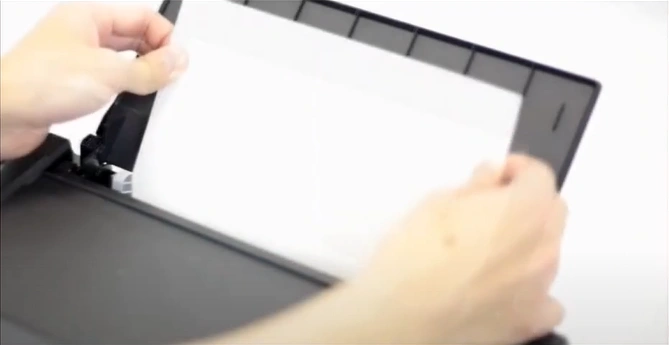
8. Once the process is complete, check if your Canon printer is out of the paper jam error.
There could be a bunch of reasons for the paper jam problem in your Canon printer. Use our simple instructions to check if it is able to remove the error from your device. Besides that, you need to look for more solutions and assistance to fix the issue if the printer is still in a paper jam state.

