[Resolved] Canon Printer Misaligned Printing
![[Resolved] Canon Printer Misaligned Printing](https://printertales.com/public/upload/blog/68665b2b45515_resolved-canon-printer-misaligned-printing.webp)
Imagine you are at work, and your boss has given you a pile of work to finish, but your printer is printing misaligned copies. I have seen many people face this problem with their printers. If you are using a Canon printer, the problem could be the result of the wrong printing settings, the print roller not working properly, or other issues. We have helped people fix this problem. So, below, I will walk you through the simple methods to troubleshoot the Canon printer's misaligned printing error thoroughly.
Solution 1: Reset the Printer
First, you should reset your Canon printer to see if it fixes the misaligned printing.
1. Keep the printer Off, then press the ON and STOP buttons together for 5 seconds.
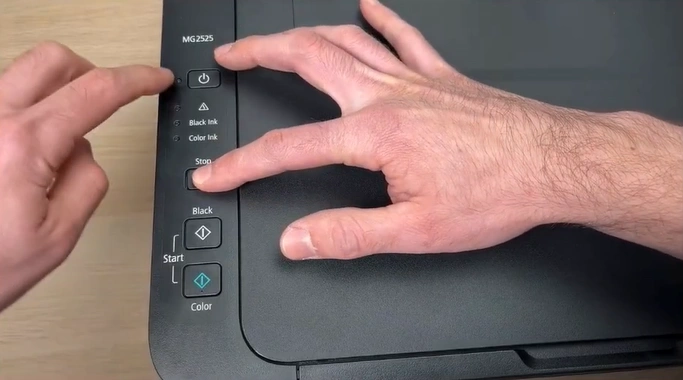
2. Release the ON button after the light starts blinking, and press it again with the STOP Button.
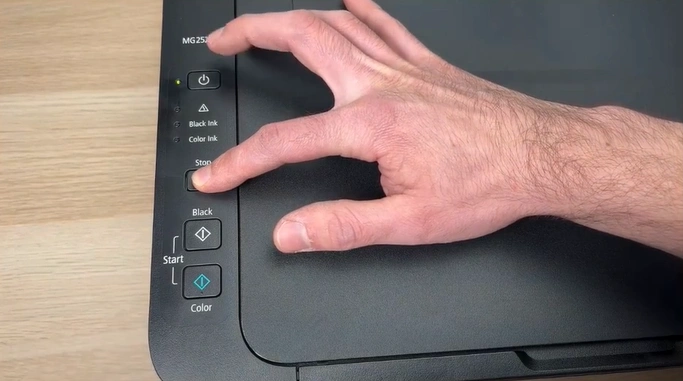
3. Leave the STOP button and press it five times with the ON button.
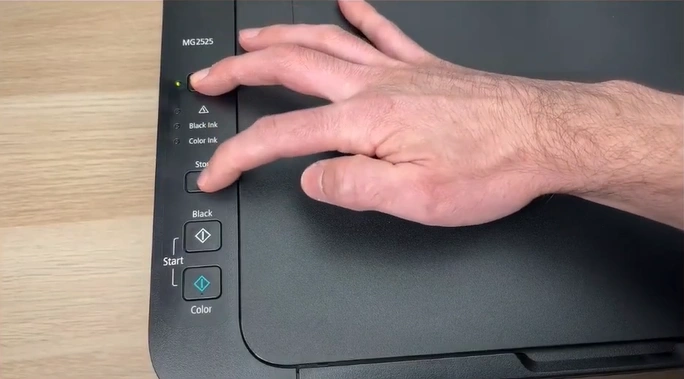
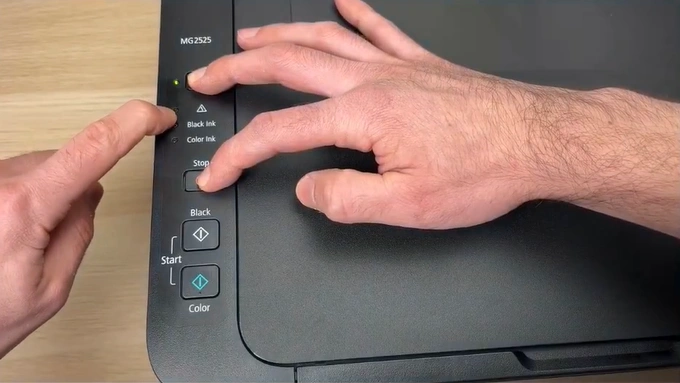
4. After 5 presses, press and hold the ON and STOP buttons again for 5 seconds and wait for the orange light to flash.
Solution 2: Run a Print Head Alignment
Run the print head alignment for your printer by following the below steps.
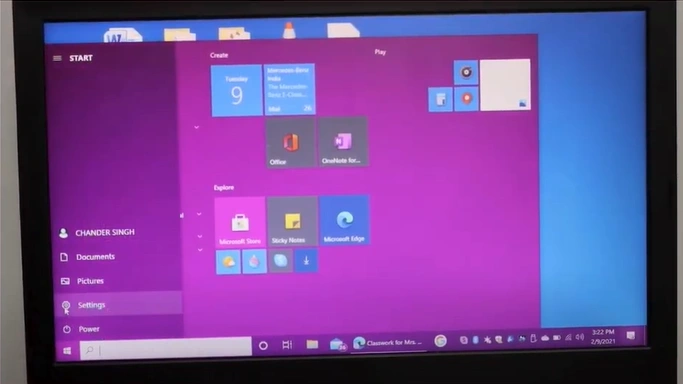
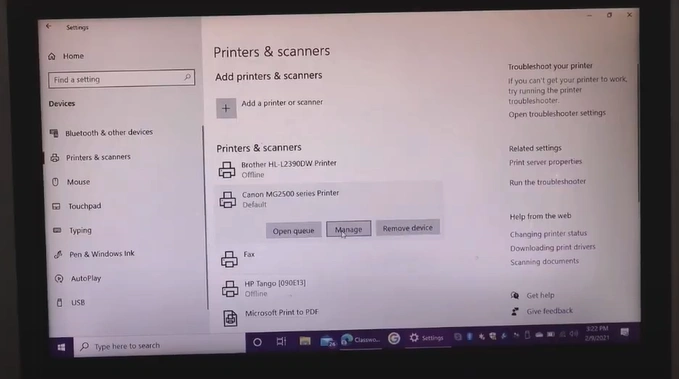
1. Click on the Start menu/option and go to Settings.
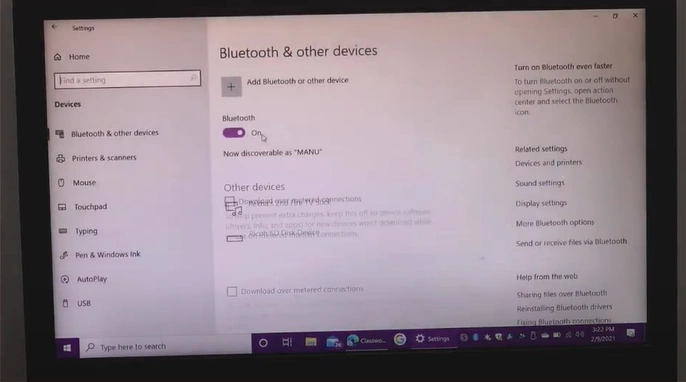
2. Click on Devices.
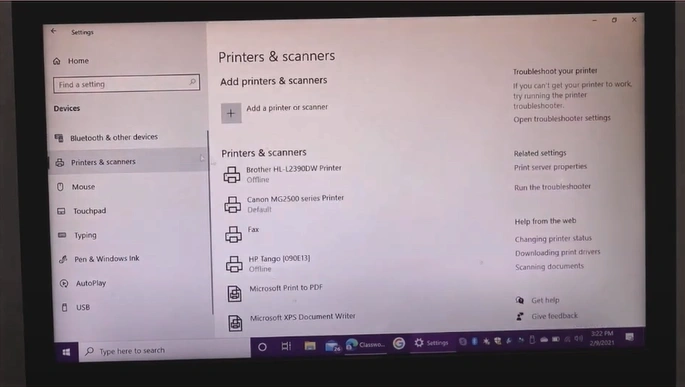
3. Open the Printers & Scanners tab.
4. Click on the Canon printer.
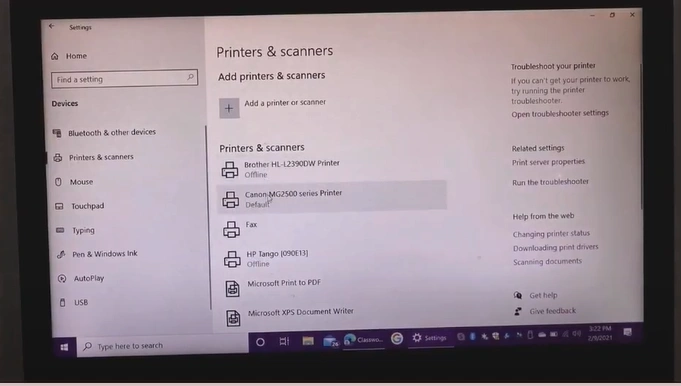
5. Click on the Manage button.
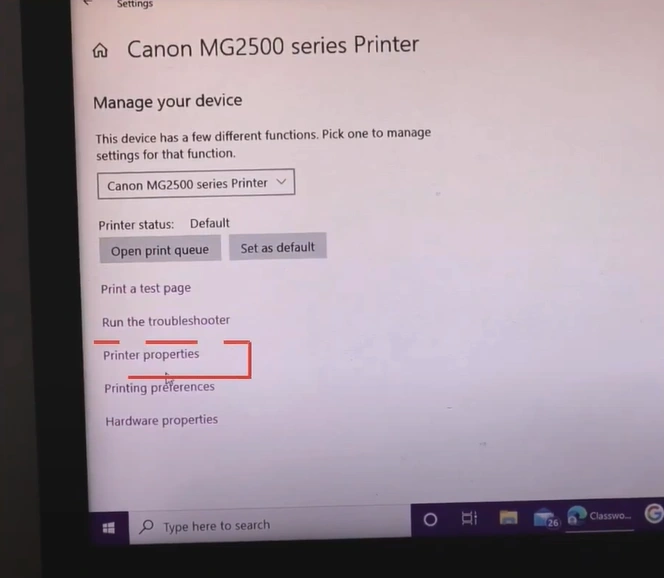
6. Open Printer properties.
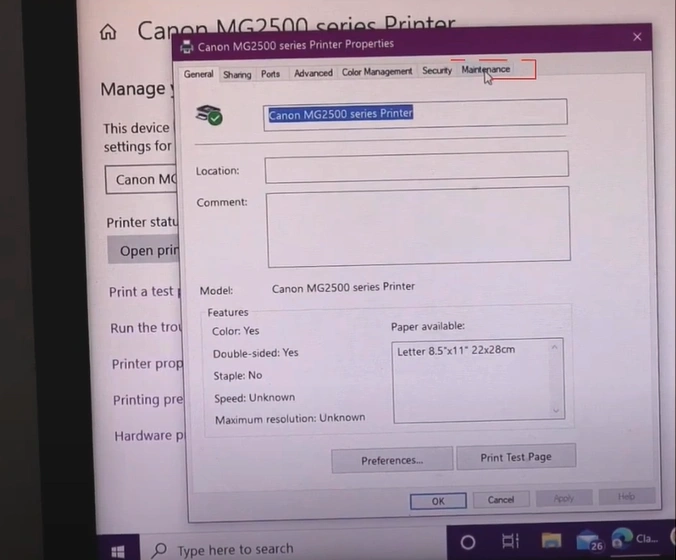
7. Next, open the Maintenance tab.
8. Click on Print Head Alignment.
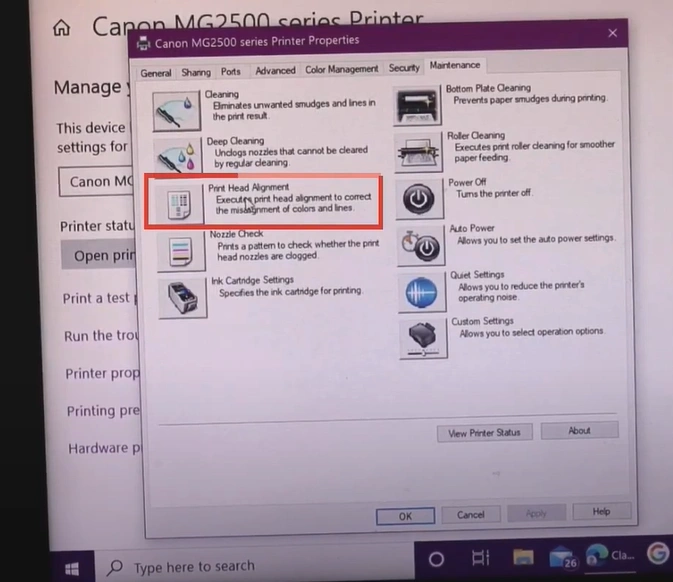
9. Click on Align Print Head.
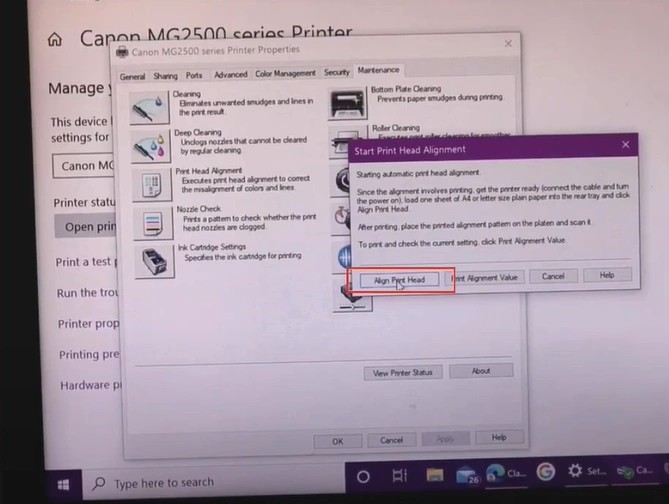
10. Wait for the printer to align the print head.
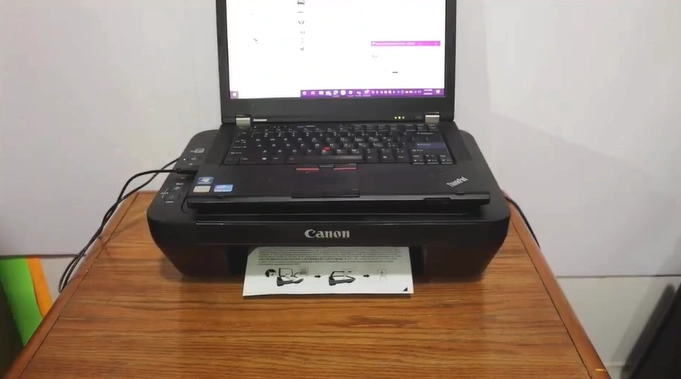
Solution 3: Remove any Empty Cartridges
You need to remove the empty cartridge if you are facing a printing issue on your device. Follow these steps to do that.
1. While printing is on, open the front lids.
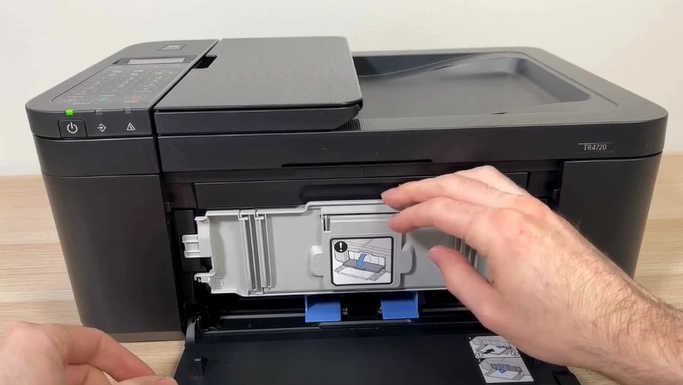
2. Wait for the ink cartridge to come into position.
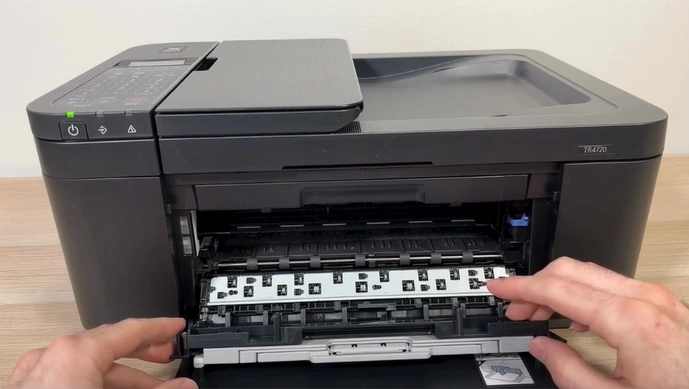
3. Push down the lock lever and remove the ink cartridge.
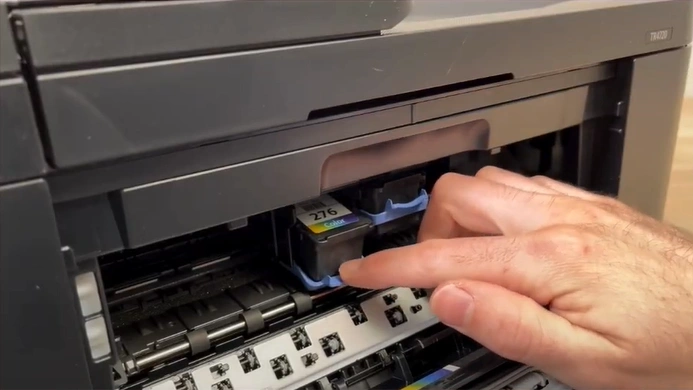
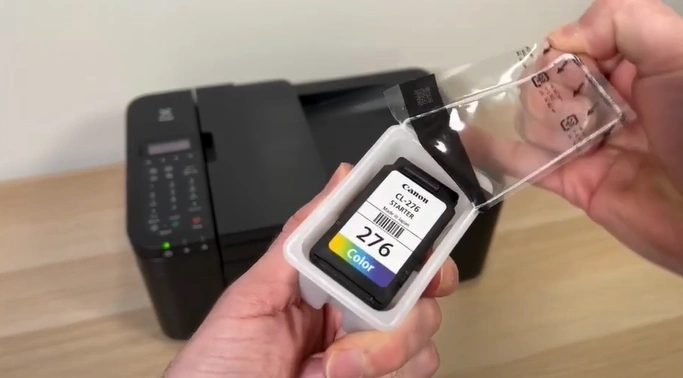
4. Unpack your new ink cartridge without touching the contacts on the print head.
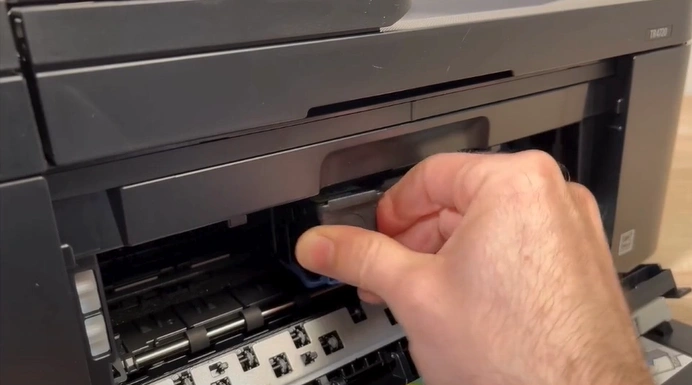
5. Push the ink cartridge to the back and lift up the lock lever.
Solution 4: Clean the Cartridge or Printhead
Cleaning the cartridge and printhead also helps in fixing misaligned printing. Here is how to do it.
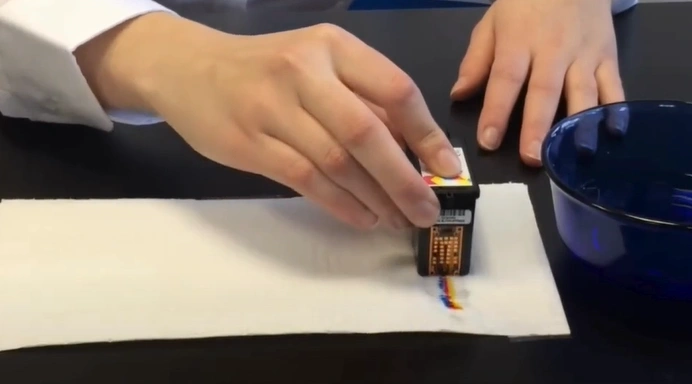
1. Gather a bowl of warm water, your ink cartridges, and a try pepper towel.
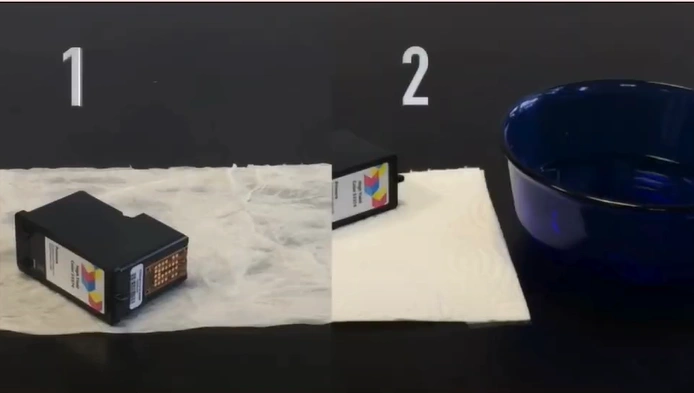
2. Dip the contact head of the ink cartridge in warm water for 10 seconds.
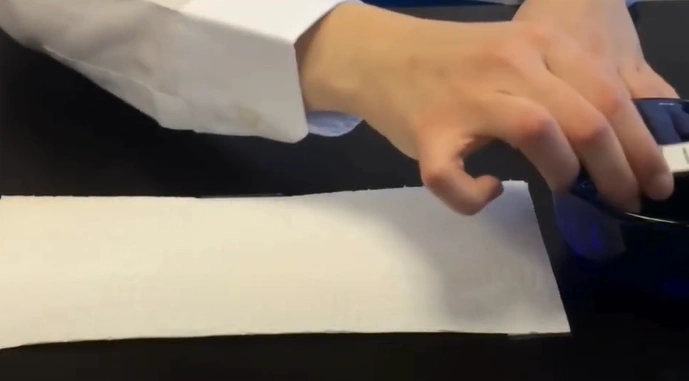
3. Wipe the printhead on a dry paper towel until the colors are precise and visible.
Also Read:- How to Fix Paper Jam in Canon Printer?
I hope your problem will be gone after using these solutions on your printer. Make sure to follow all the steps carefully to fix the Canon printer misaligned printing error and start printing documents correctly. However, if your problem still persists, then make sure to get your hands on more solutions and a guide to resolve the issue. With the additional solutions, you can get a profound understanding and fix the issue thoroughly.

