Fix Canon G6020 Not Printing Color Issue

It is common to see some printing issues in your Canon G6020 printer, but it becomes troublesome if they are difficult to resolve. Facing the "printer not printing in color" issue can also happen due to various reasons and needs to be resolved easily to get your printing functioning properly. In order to fix the issue properly, you need to use the most effective methods.
Don't know how to resolve the Canon G6020 printer not printing in color problem? Worry not! We explained two methods here to troubleshoot the issue with minimal hassle.
Solution 1: Clean the Printhead Manually
Below are the steps to perform the manual cleaning of the printer's printhead. Follow all the steps carefully.
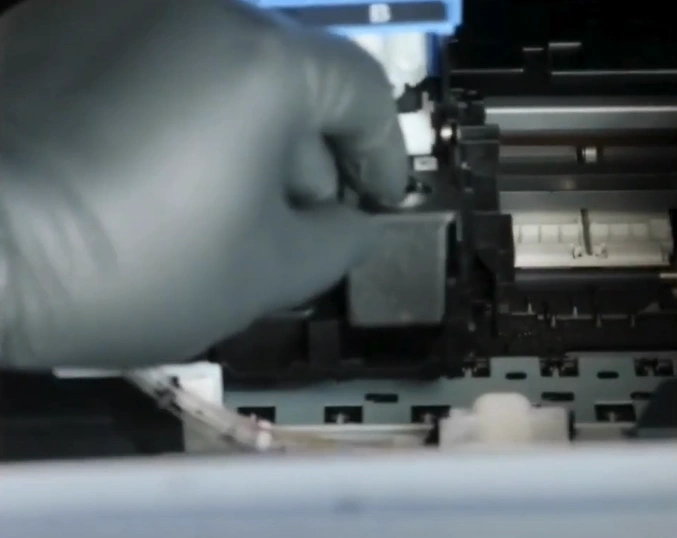
1. Lift the scanner unit to access the printhead.
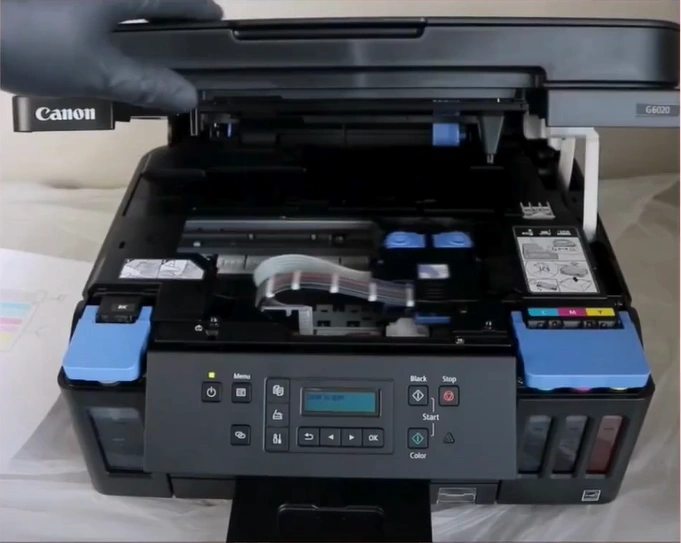
2. Once the printhead comes to the position, grab and slide it over to the middle.
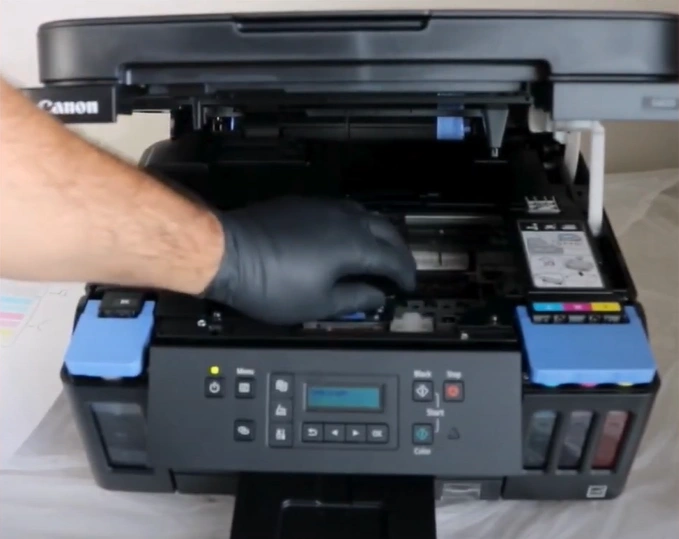
3. Unplug the power cable from the back of the printer.
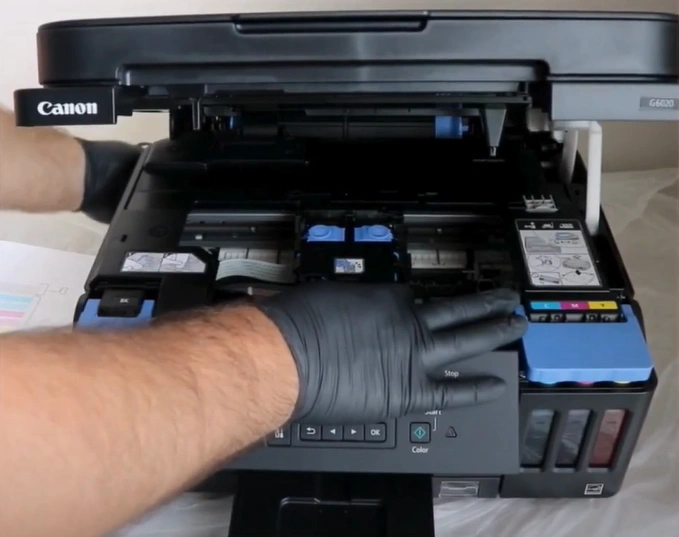
4. Lift the top cover of the printhead carriage.
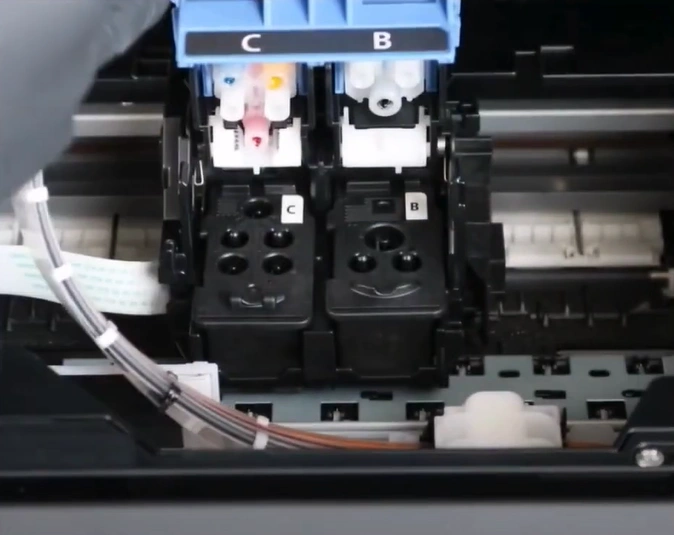
5. Remove both ink cartridges and set them aside.
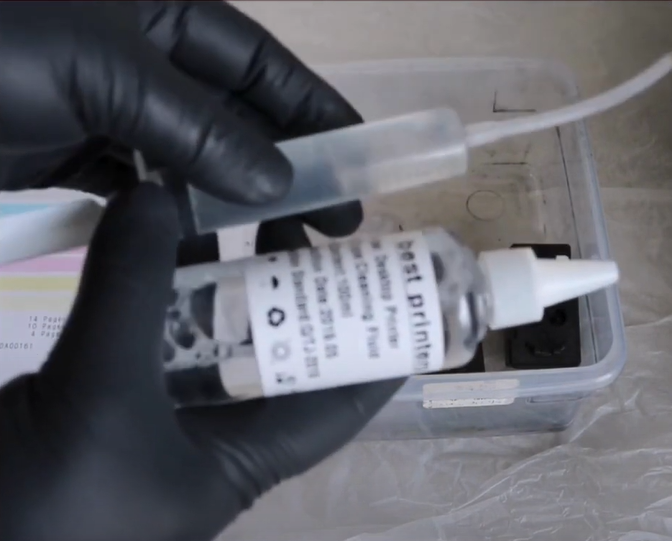
6. Grab a syringe with a cleaning solution and silicone tubing.
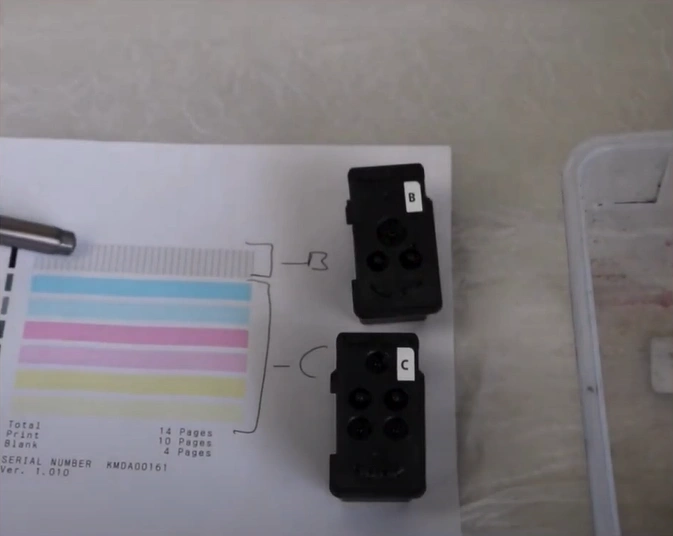
7. Check the printhead nozzle to determine the color.
8. Place the silicone tubing of the syringe on the nozzle of the printhead and flush it.
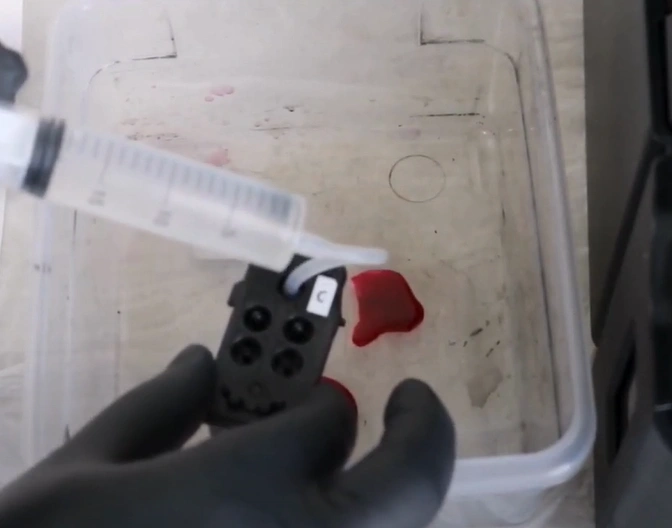
9. Repeat the same steps for the rest of the colors you are having problems with.
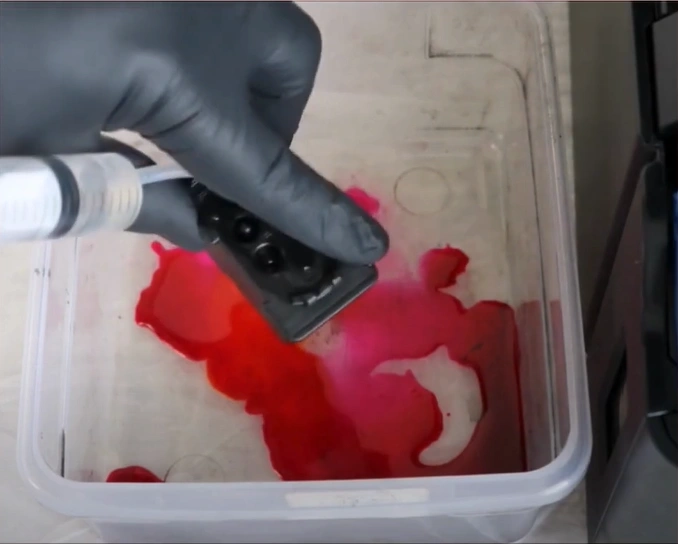
10. Once done, grab a paper towel and wipe everything off to make sure that the print head is cleaned.
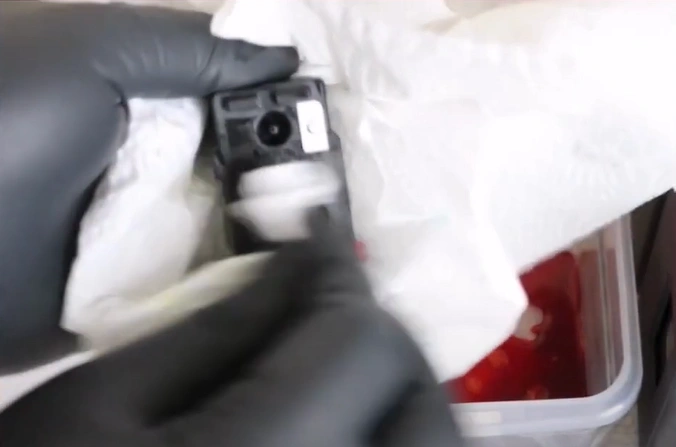
11. Once everything is dried, reinstall the printheads into their original position.
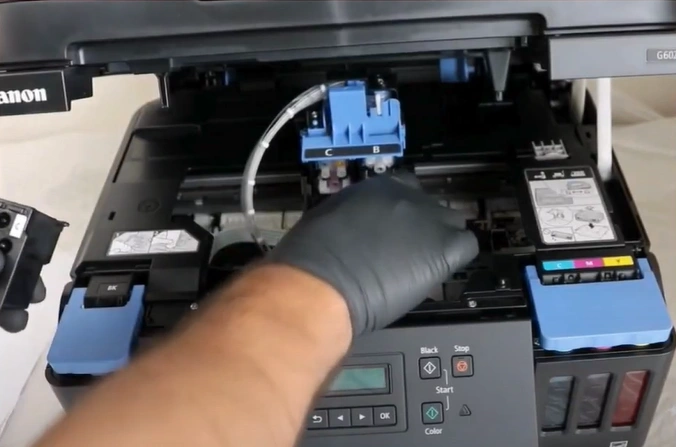
12. Close the printhead carriage and press down the fasteners.
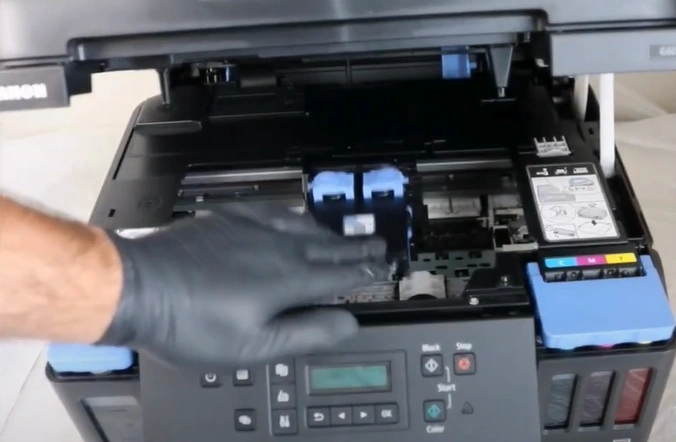
13. Close the cover, reinsert the power cable, and turn on the printer.
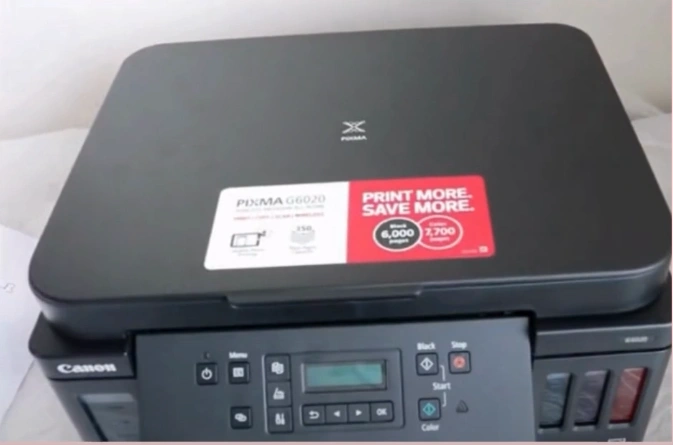
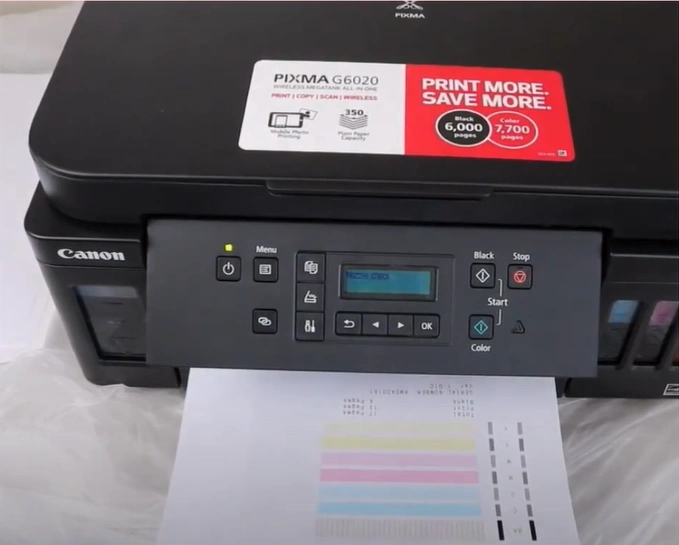
14. Once done, print a nozzle check pattern and see if the issue has been improved.
Also Read:- How to Fix Paper Jam in Canon Printer?
Solution 2: Perform an Ink Flush
By following the guide below, you can perform the ink flush of the printer to resolve the issue. Follow these properly to get the results.
1. On the printer control panel, navigate to the Maintenance option and press OK.
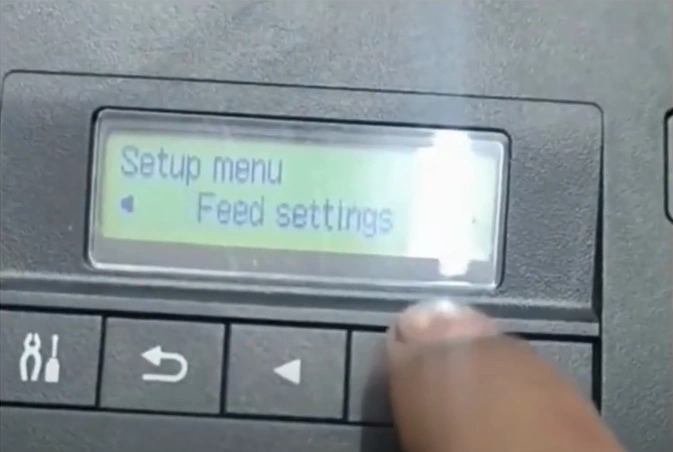
2. Choose Ink Flush and press OK.
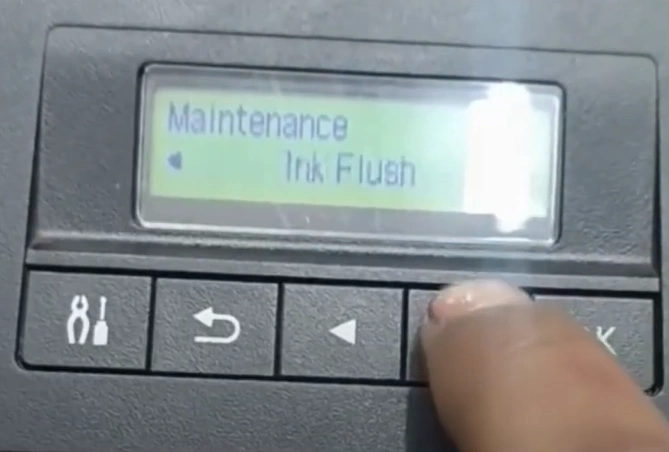
3. Select Color and press OK.
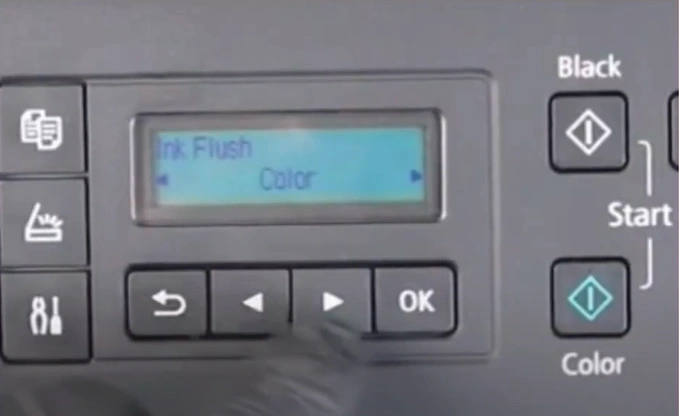
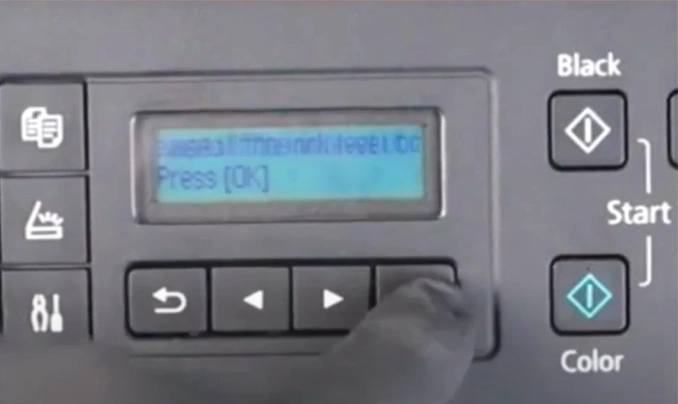
4. Choose the OK option once again, select Yes, and press OK to proceed.
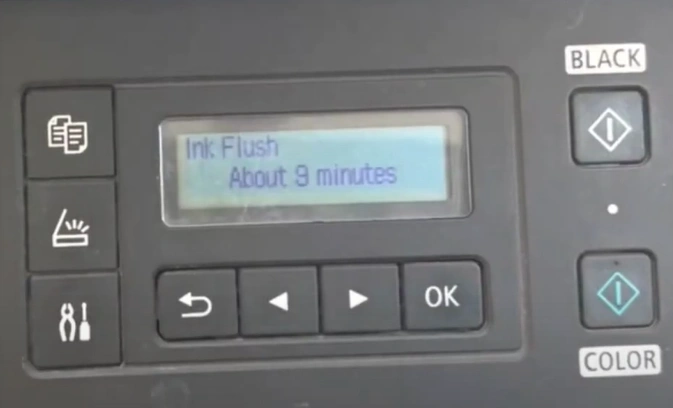
5. The ink flush process will take about 9 minutes.
6. Once done, print a nozzle check pattern and see if the issue has been improved.
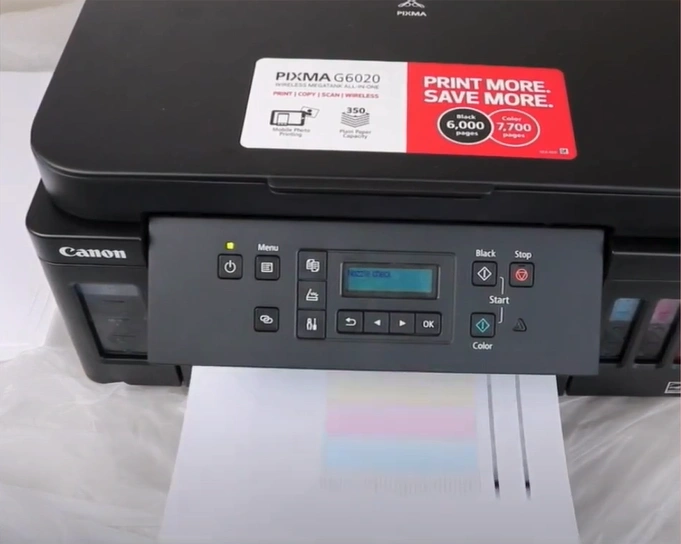
After using these two methods, you can get the proper knowledge to get the Canon G6020 printer to print in color properly. Make sure to use these two methods one by one and see if they are able to fix the issue. In addition, you may have to use several other solutions to get rid of the issue. As a result, it would be good to seek further assistance and guidance to fix the issue efficiently.

