How to Install Canon Printer Driver?

Users must install the suitable printer driver according to the printer model to ensure smooth communication between their Canon printer and computer device. The right Canon driver is an essential component for completing printing, scanning, and copying tasks without any hurdles. During the setup, you can download the driver for your printer from the official website.
Plus, the process of downloading and installing the driver is straightforward. But, many people find it daunting if they are doing it for the first time. In addition to that, some people can face numerous problems. To avoid these troubles and install your Canon printer driver without inconvenience, follow-up the instructions carefully and attain thorough knowledge.
Procedure to Install the Canon Printer Driver on a PC
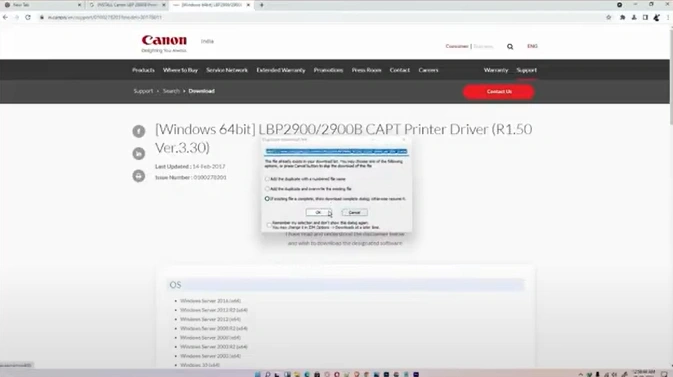
1. Initially, open your web browser and search for your model printer driver.
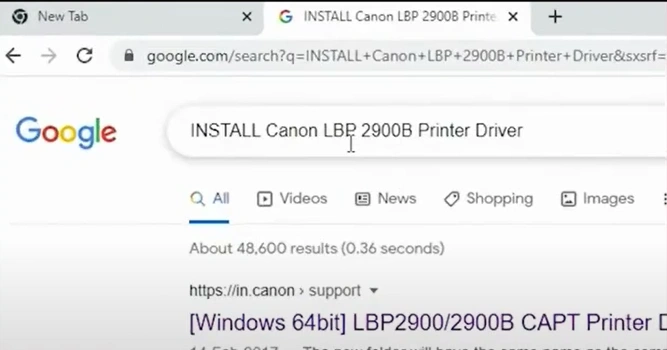
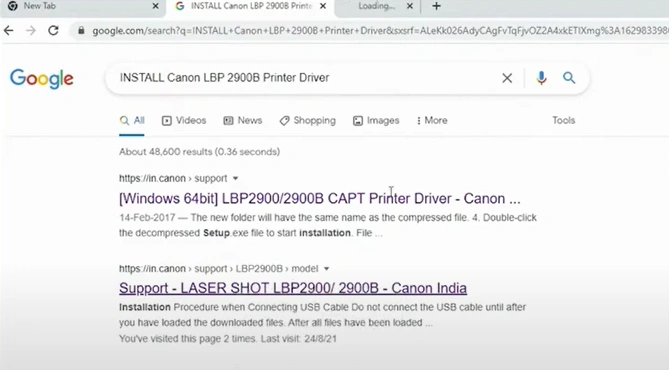
2. Now, open the Canon website.
3. Under the “Drivers, Software & Firmware,” verify your operating system.
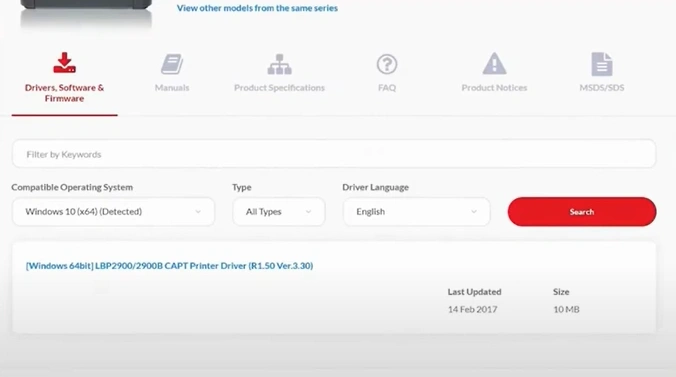
4. Click on the available printer driver.
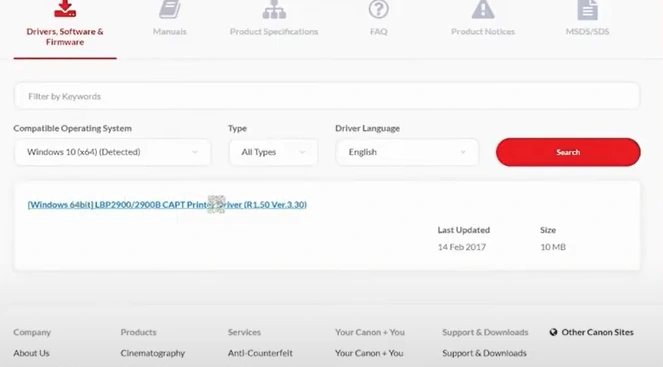
5. Then, press the Download button.
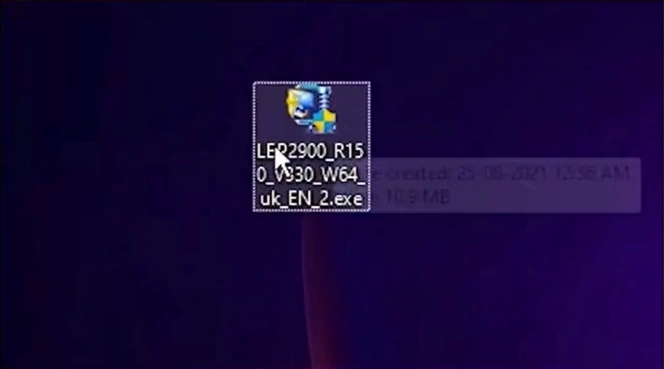
6. Once the file is downloaded, right-click on the file and click on Extract File.
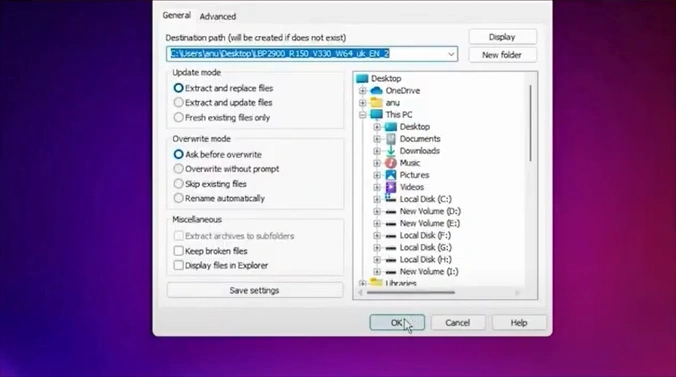
7. In the Extraction paths and options window, click on OK.
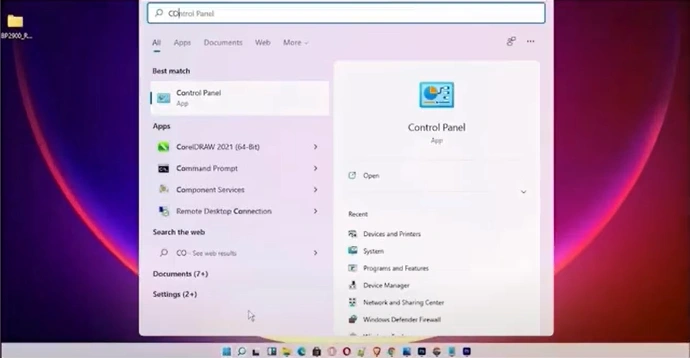
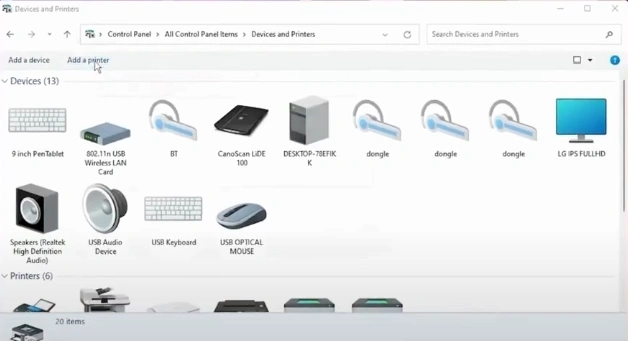
8. Open your control panel and click on the Devices and Printers option.
9. Click on the “Add a printer” button.
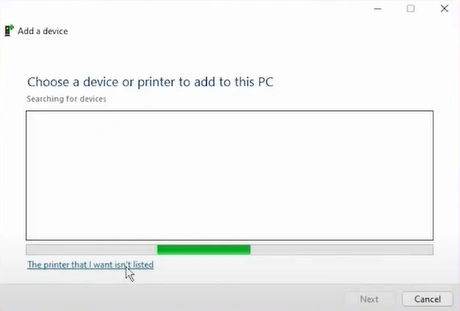
10. Click on the “The printer that I want isn’t listed” option.
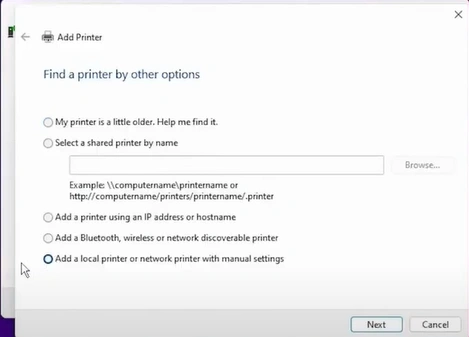
11. You should choose the “Add a local printer or network printer with manual settings” option/button and click on Next.
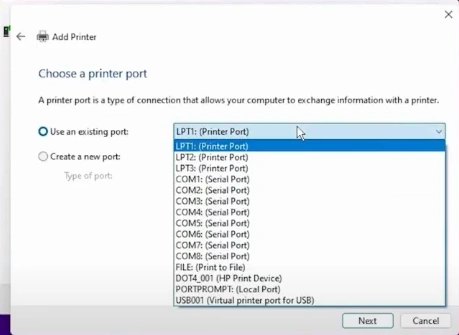
12. Choose the “Use an existing port” option, select the “USB_001” from the drop-down, and click on Next. (Note- Select Com4_001 or any Canon port option if the USB option is available.)
13. In the Add Printer window, click on the “Have Disk” button.
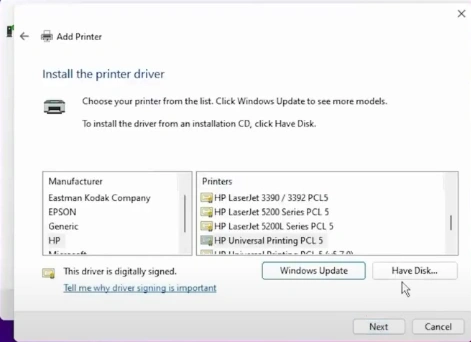
14. Click on Browse, then locate and open the driver file.
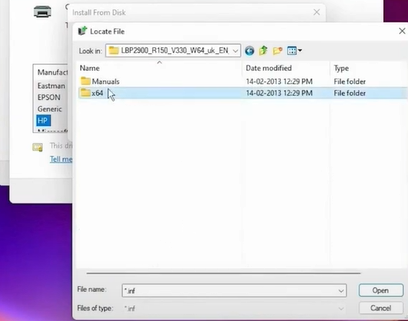
15. Now, inside the driver file, find and open the file with “.inf” at the end.
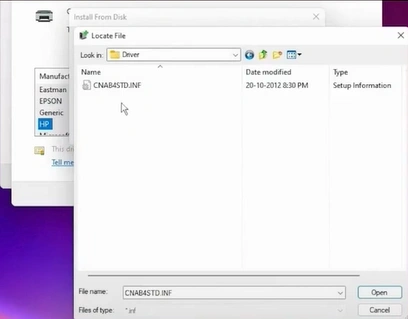
16. Then, click on OK.
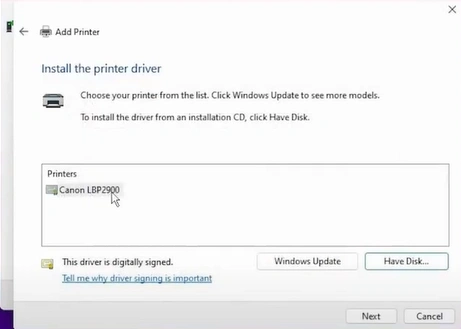
17. Select your Canon printer model and click on Next.
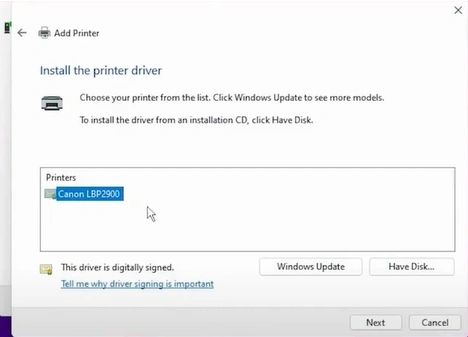
18. You should provide a printer name if you want to click on Next.
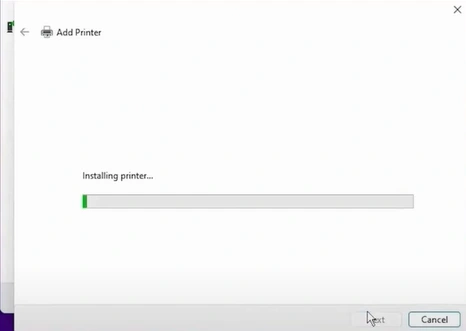
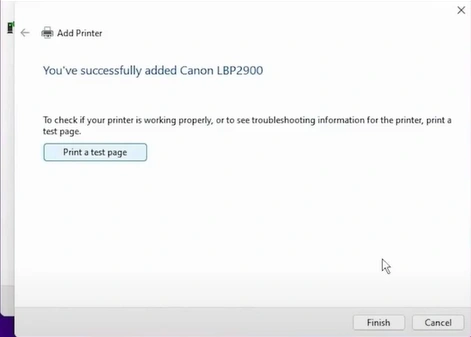
19. Click on Print a test page or click on Finish.
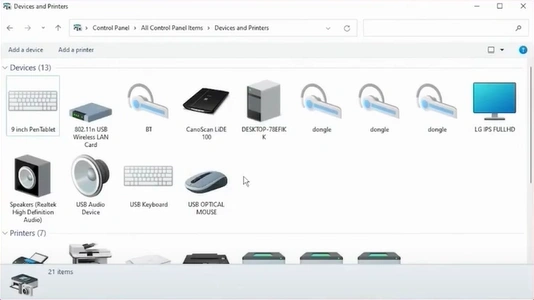
20. Verify that your printer is available in Devices and Printers.
21. Finally, you can continue with the printing work on your printer.
Also Read:- How to Update Canon Printer Driver?
Final Words
We hope that the comprehensive procedure we have shared will help you successfully complete the Canon printer driver installation process and setup. If you are facing any problem in downloading the driver, then ensure you are following the right procedure and repeat the steps if necessary. Moreover, you can also look for more guides and assistance if the process seems complex and the driver installation is not complete.

