Canon Printer Error B203 [Fixed]
![Canon Printer Error B203 [Fixed]](https://printertales.com/public/upload/blog/680752a1ad6a8_canon-printer-error-b203-fixed-1-.webp)
While using the Canon printers, you can encounter numerous problems every now and then. If your Canon printer is showing the error B203, then it indicates the problem with empty ink cartridges, internal faults, printhead issues, improperly inserted cable, and others.
Troubleshooting the error code is necessary to get your printer error-free and eliminate the possibility of further complications. Fixing the problem becomes easier if you already know the exact essential methods. Therefore, here, you will learn about the two most effective tutorials for troubleshooting errors in your Canon printer effectively.
Solution 1: Calibrate the Ink Carrier
Below are the steps to calibrate the printer ink carrier to fix the error. Perform the steps carefully.
1. Firstly, open the operation panel.
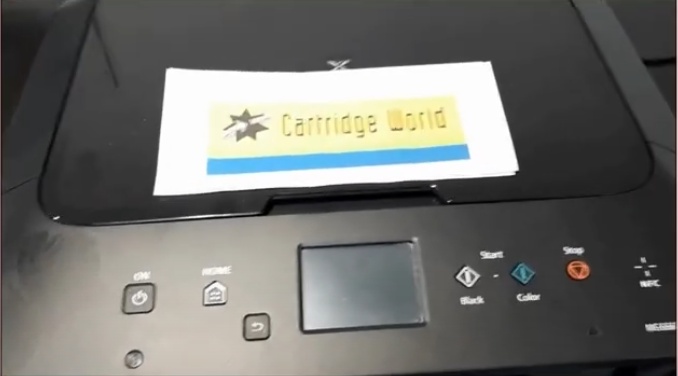
2. Press the On button/POWER lamp on the operational panel.
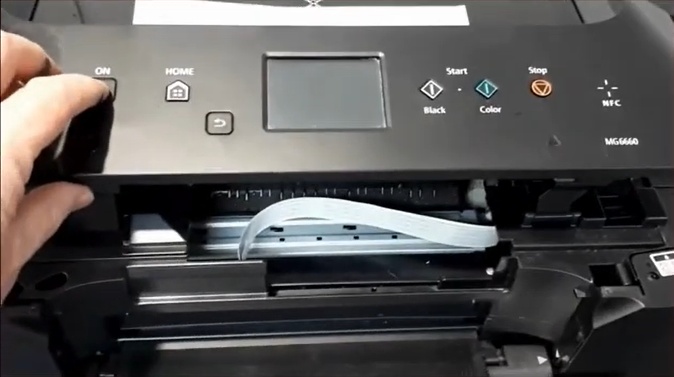
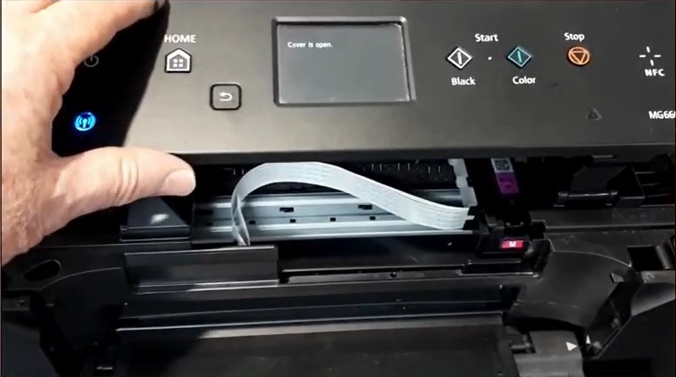
3. Wait for the printhead to enter the replacement position, then close the operation panel quickly.
Solution 2: Check For Paper Jam
If the printer has a paper jam, then it can show the error code B203. This is how you can resolve the paper jam problem.
1. Initially, turn on your printer.
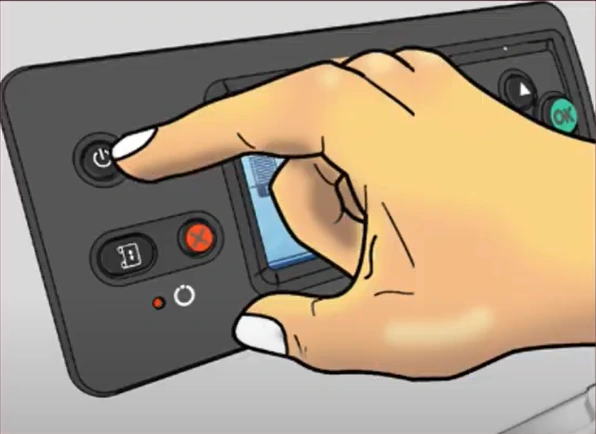
2. Then, you should remove the power cord from the printer.
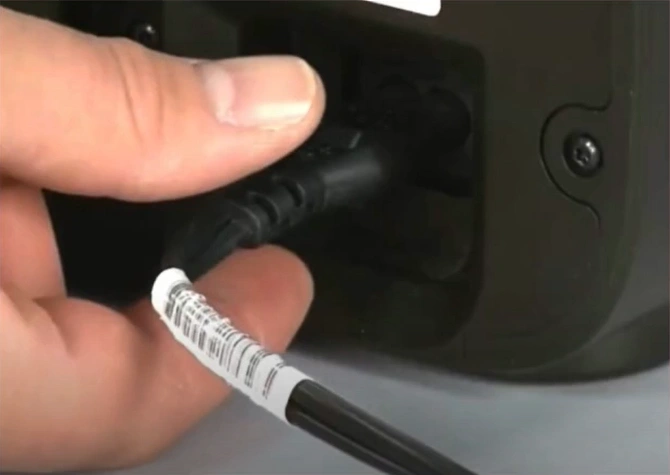
3. Open the cover of the printer.
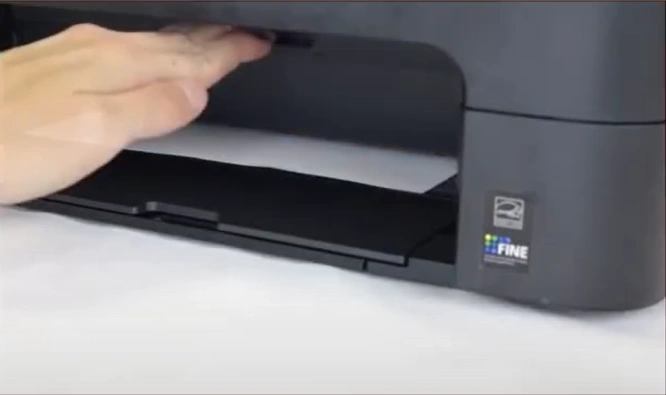
4. After that, gently move the FINE cartridge to the right.
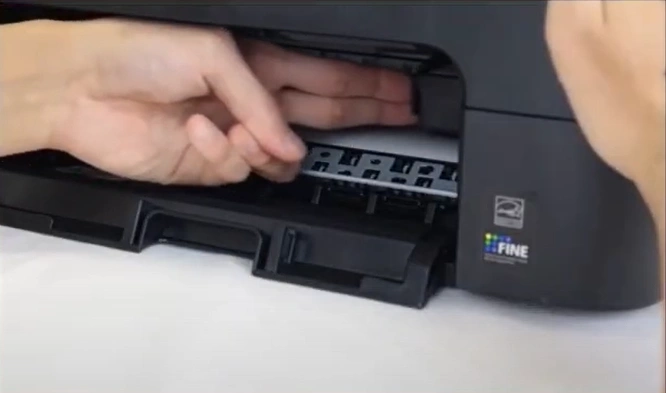
5. Next, slowly remove the jammed paper without touching other printer parts.
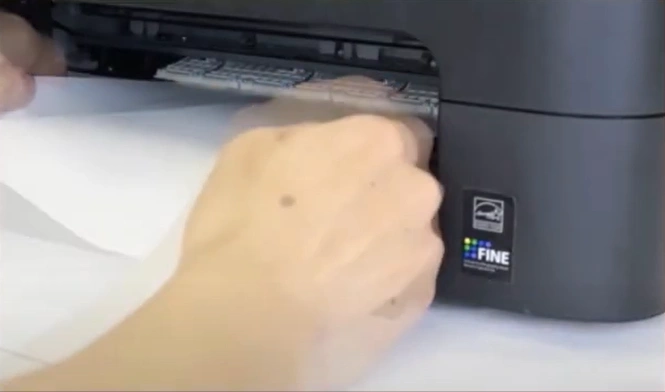
6. Check and remove any left pieces of paper.
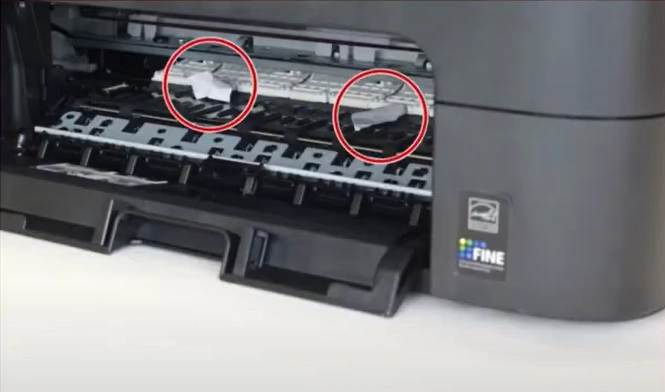
7. Slowly remove the jammed paper from the rear paper tray.
_1745311334.webp)
Solution 3: Replace the Ink Cartridges
Replacing the ink cartridge is another possible solution to remove the error code. With the help of the steps below, you can properly replace your printer ink cartridge and fix any problems related to it.
1. Press the On button.
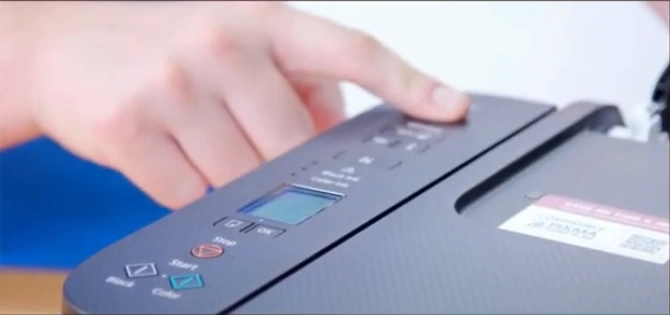
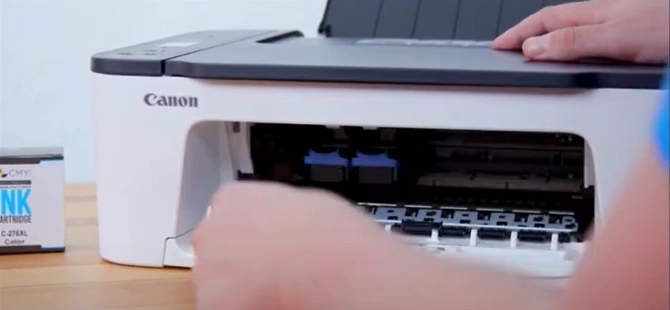
2. Then open the cover.
Also Read:- How to Connect Canon Pixma TS3522 Printer to Wi-Fi?
3. After that, wait for the moving FINE cartridge to come to its replacement position.
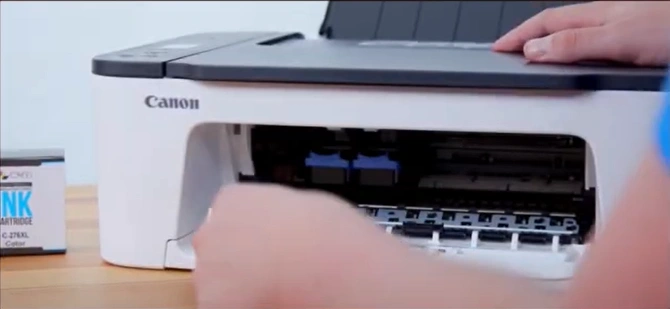
4. Now, gently push down the lock lever and remove the fine cartridge.
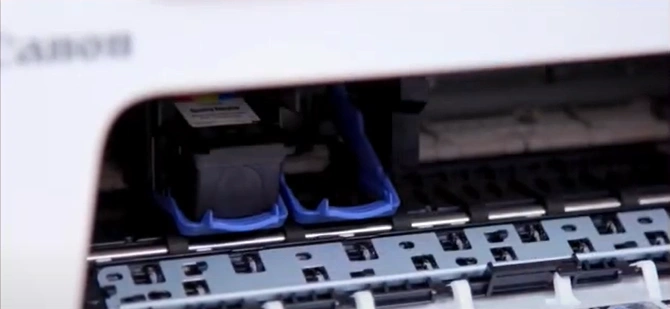
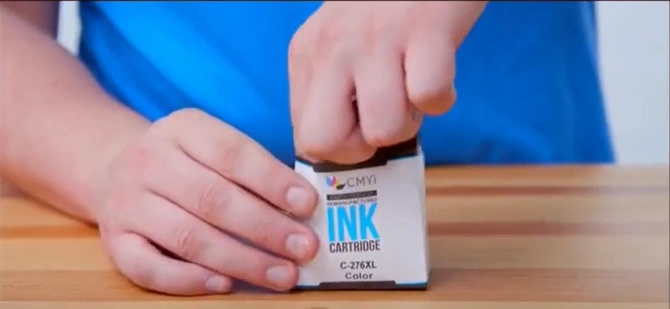
5. Take the new FINE cartridge from its packaging and peel off the protective tape without touching the contact point.
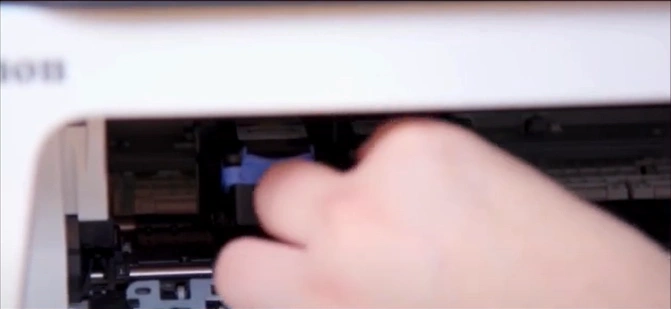
6. Insrt the new cartridge and push it to the back. Then, push up the ink cartridge lock lever.
7. At last, close the cover.
_1745311711.webp)
Solution 4: Run the Troubleshooter
To eliminate any technical issues in your Canon printer, follow the steps below to run the troubleshooter.
1. Type troubleshoot in your PC search bar and open it.
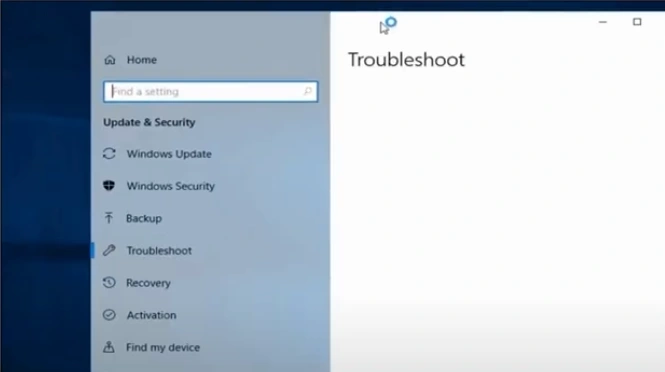
2. Next, under the Get Up and Running section, click on Printer.
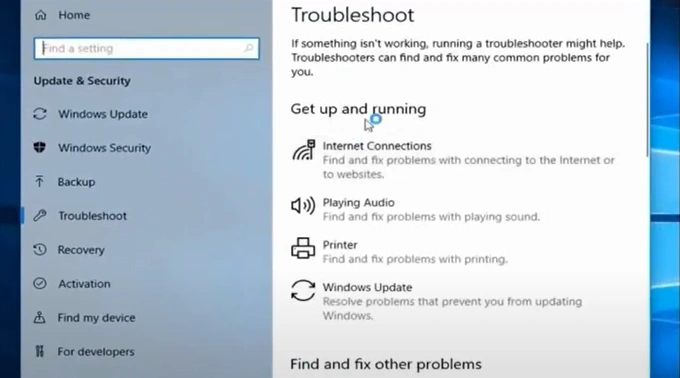
3. Select the option “Run the troubleshooter.”
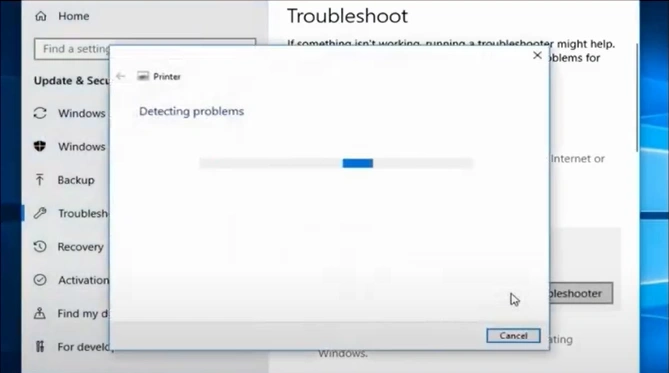
4. Wait for the system to detect the problems.
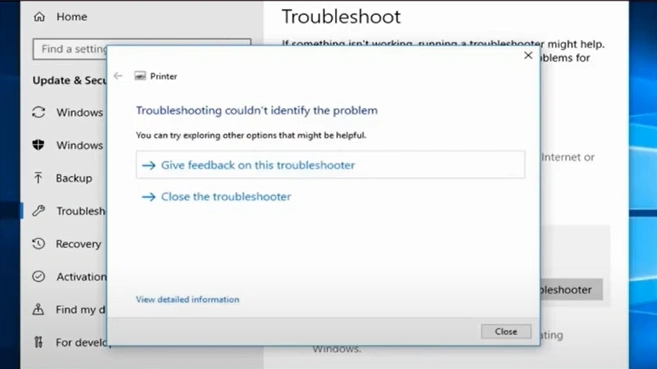
Solution 5: Update the Printer Driver
Updating the Canon printer driver can also help you get rid of the error B203. Here is the quick process you can follow to download and install the updated version of the driver easily.
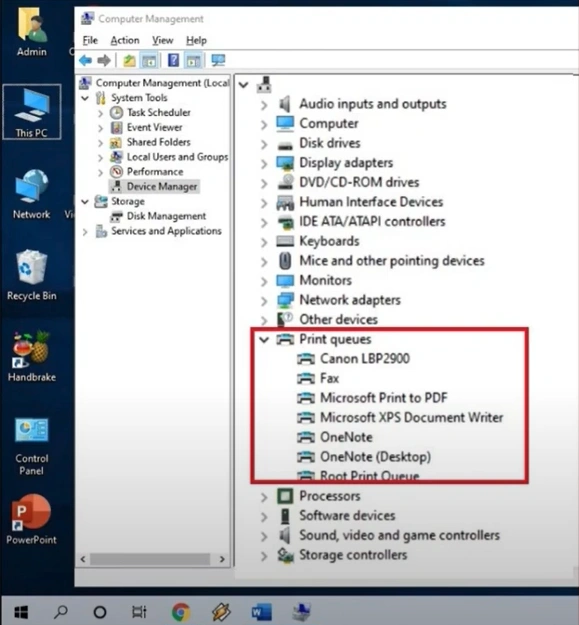
1. Press the Windows + R key/button to open the Run dialog box and search “devmgmt.msc.”
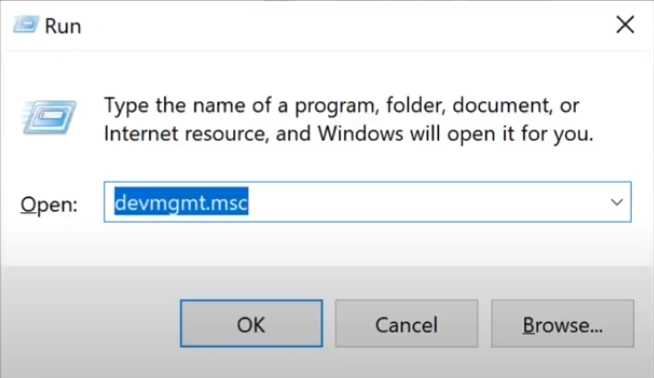
2. Click on Print Queues or Printers and find your printer name.
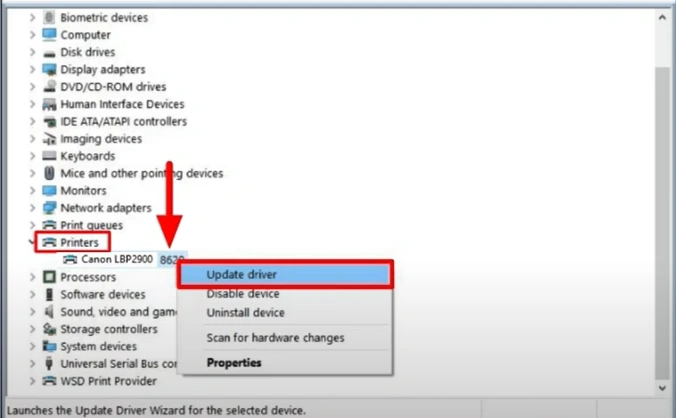
3. Right-click on your Canon printer and select Update Driver.
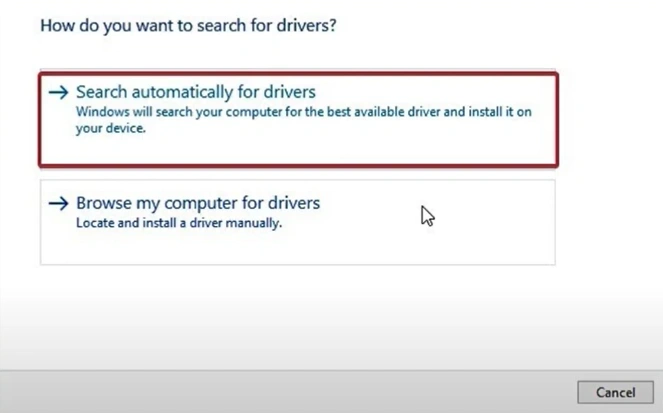
4. Next, click on the “Search automatically for drivers” option.
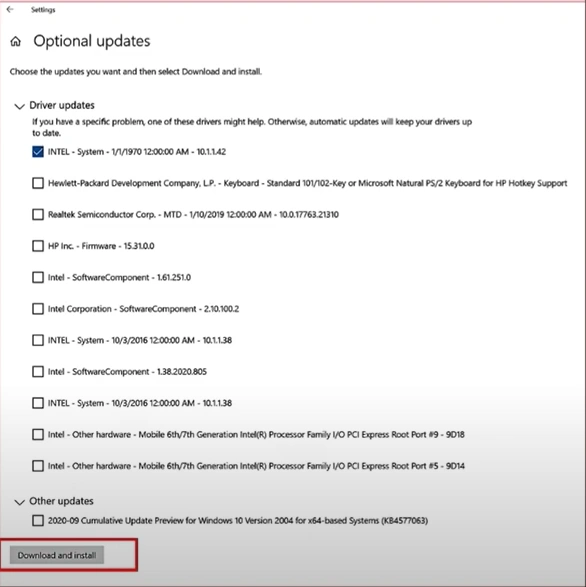
5. Select the update option and click on the “Download and Install” button.
Wrap Up
These are mainly all the solutions you need to know if you want to resolve the error code B203 from your Canon printer. But if the root cause of the problem is complex, then you might need to use other resources to get rid of the error code. In this situation, look for more help and guides to get more extensive knowledge to remove the problem.

