How to Connect Canon PIXMA G620 to WiFi?

Setting up the Canon PIXMA G620 and using it is easy if you already know the process. Connecting the printer to a WiFi network gives users the freedom to print from any device hands-free. It also removes the need for unnecessary wires/cords.
But, if you are completely new to printers or using this device for the first time, then it's not surprising if you bump into some problems. Here, walk through proven instructions and get the full understanding to avoid any trouble and complete your Canon PIXMA G620 connection to WiFi seamlessly. So, let's begin!
Steps to connect Canon PIXMA G620 to WiFi
1. Go to your PIXMA G620 operational panel and power it on.
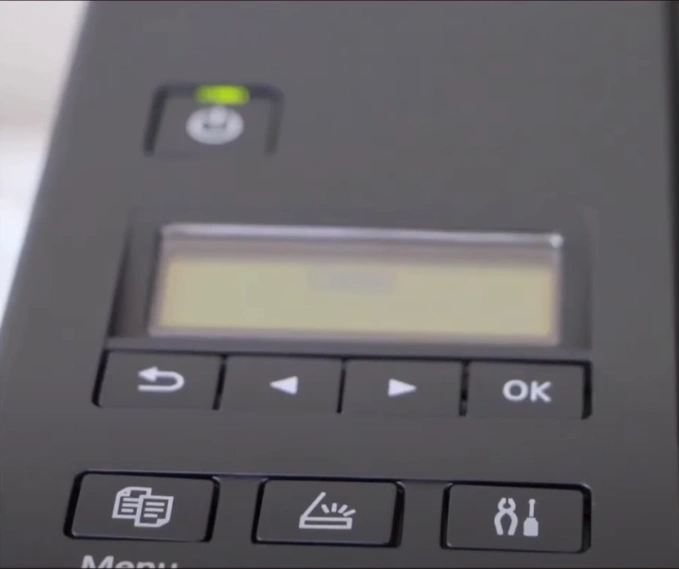
2. Then press the Setup button/key and select WiFi Setup.
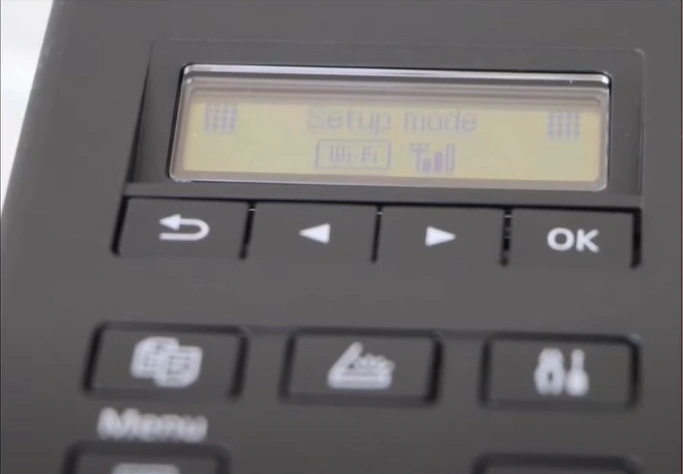
3. Next, go to Manual Connect and press the OK button.
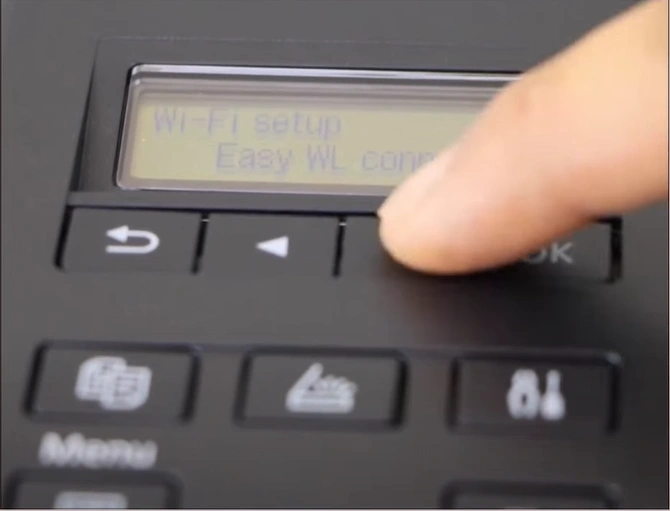
4. Find and press the OK button on your WiFi router.
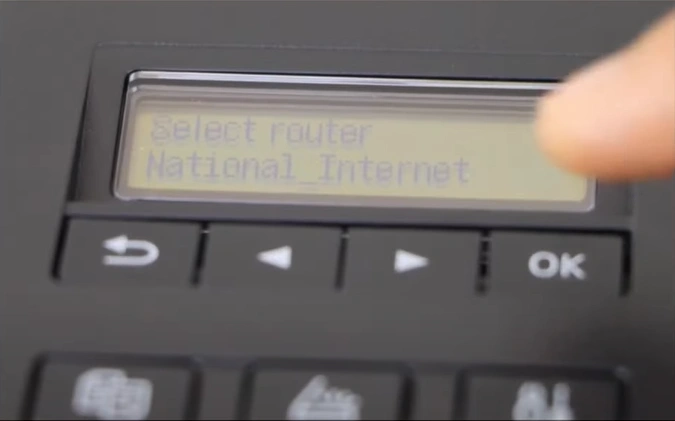
5. Press the OK button/key again to enter the router password.
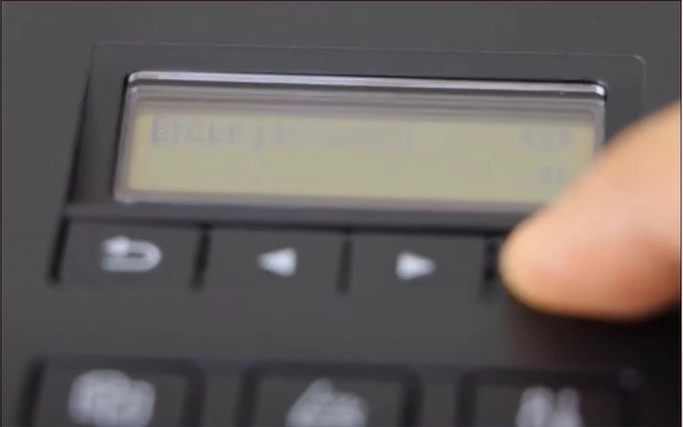
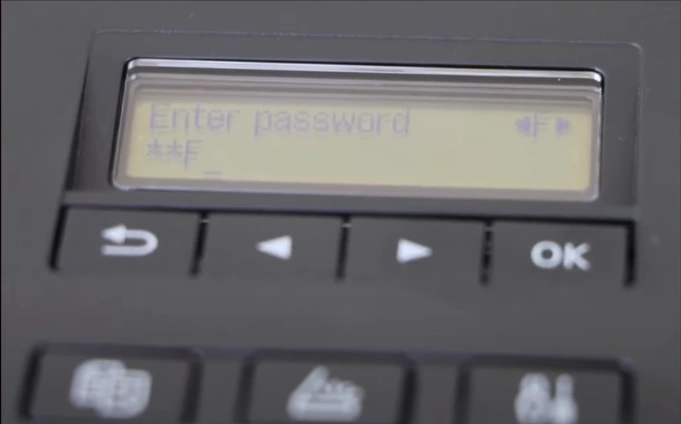
6. Type your password, then press and hold the OK button to apply.
Also Read:- How to Do Canon G3260 WiFi Setup?
7. Select Yes to apply again, then wait for the printer to connect.
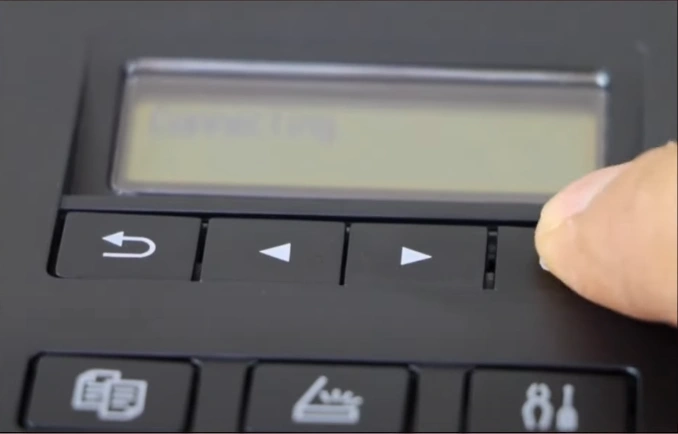
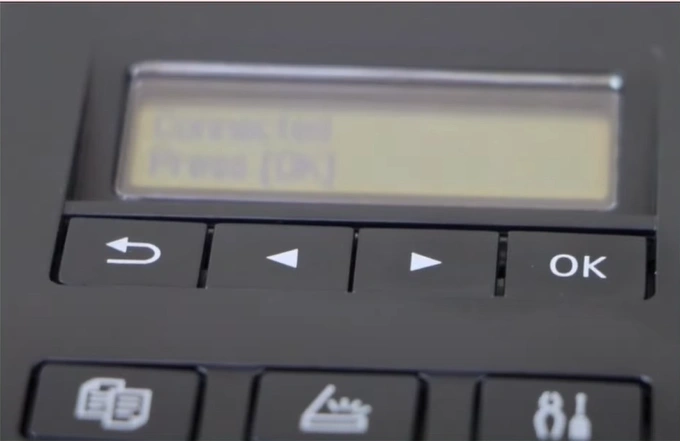
8. After the printer is connected to WiFi, press OK again.
Wrap Up
This is all you should know if you want to establish the connection between your Canon printer and your WiFi router. Use this guide carefully to connect the printer and continue your printing work. You can also connect the printer to a device if you want. However, if you need more help or are having any challenges in performing the wireless connection, then it would be good to reach out for more help.

